How to free up storage on iPhone
“`html
Are you tired of seeing that dreaded notification that your iPhone storage is almost full? You’re not alone. Most iPhone users have faced this issue at some point. With the vast amounts of data we accumulate—from photos and apps to messages and downloads—it’s crucial to regularly free up storage on iPhone to keep it running smoothly. In this article, we’ll explore seven effective ways to clear out your device, ensuring you can enjoy a seamless user experience.
1. Check Your Storage Usage: Understand What’s Taking Space
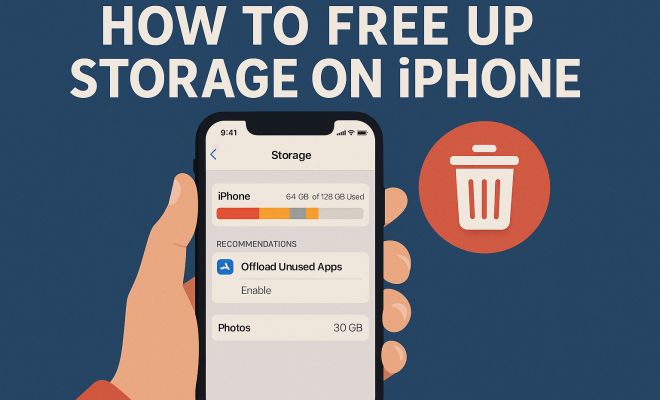
The first step in freeing up storage on your iPhone is to understand how much space you have and what is consuming it. Go to Settings > General > iPhone Storage. Here, you will see a breakdown of how much storage is used and how much remains available. This section gives you a clear overview of your apps and their data usage, allowing you to identify potential culprits.
iOS will also provide recommendations for optimizing your storage. For instance, it may suggest offloading unused apps or reviewing large attachments in Messages. By following these suggestions, you can make informed decisions about what to keep and what to delete.
2. Delete Unused Apps: Streamline Your App Library
Apps can quickly take up a substantial amount of space, especially games or those that store a lot of data. If you haven’t used an app in a while, it might be time to remove it. To delete an app, tap and hold its icon on the home screen until it wiggles, then press the X or select Remove App.
For a more focused approach, check the iPhone Storage settings mentioned earlier. Here, you can see how much space each app consumes. If an app is not necessary or infrequently used, deleting it will help you free up storage on your iPhone.
3. Optimize Photo Storage: Manage Your Memories Wisely
Photos and videos are often the largest contributors to storage consumption. Apple offers a feature called Optimize iPhone Storage that can help manage your photo library more efficiently. By enabling this feature, your device will keep smaller, optimized versions of photos on your iPhone while storing the full-resolution versions in iCloud.
To activate this, go to Settings > Photos and select Optimize iPhone Storage. This not only frees up significant space but also ensures that your memories are safely stored in the cloud. Just remember, you need sufficient iCloud storage to take full advantage of this feature.
4. Clear Browser Cache: Fresh Start for Safari
Your browsing habits can also take up valuable storage. Safari, for instance, stores cache data to enhance your browsing experience. However, over time, this cache can accumulate and consume storage space. To clear the cache, go to Settings > Safari > Clear History and Website Data.
Clearing your browser cache not only frees up storage but can also resolve issues with loading times and glitches you might experience while using Safari. If you frequently use other browsers, such as Chrome, check their settings to clear cache similarly.
5. Manage Messages: Delete Old Conversations
Messages can surprisingly eat up a lot of storage space, especially if you have conversations filled with images, videos, and other large files. To free up storage on iPhone, consider reviewing your messages and deleting those that no longer serve a purpose. FaceTime videos, photos, and GIFs can quickly pile up, so don’t hesitate to clean them out.
In the Messages section of your settings, you can also choose to keep messages for a limited time. By adjusting the settings under Settings > Messages, you can select to automatically delete messages older than 30 days or 1 year, ensuring that your storage isn’t cluttered with old conversations. (See: New York Times on freeing iPhone storage.)
6. Offload Unused Apps: Smart Storage Management
If you’re not ready to delete apps entirely but want to free up some space, consider using the Offload Unused Apps feature. This function automatically removes apps you don’t use frequently while preserving their data. This way, when you reinstall the app, everything is just as you left it.
To enable offloading, go to Settings > General > iPhone Storage and toggle on Enable next to Offload Unused Apps. This is a fantastic way to manage storage without sacrificing your favorite apps, allowing you to free up storage on your iPhone while maintaining a seamless experience.
7. Use Cloud Services: Store Data Externally
If you find yourself constantly running low on storage, consider utilizing cloud storage solutions. Services like iCloud, Google Drive, and Dropbox allow you to store photos, videos, documents, and more without consuming your iPhone’s internal storage. By backing up essential files to the cloud, you can clear space on your device while ensuring your data remains accessible.
To use iCloud, for instance, navigate to Settings > Your Name > iCloud and select what to store. You can also enable iCloud Drive for easy access to files across all your devices. Remember, managing your storage doesn’t only mean deleting; it also means smartly leveraging available tools to keep your device running smoothly.
8. Regular Maintenance: Keep Your iPhone Healthy
Beyond the immediate strategies for freeing up storage, it’s also essential to adopt a regular maintenance routine. Periodically review your apps, media, and files to ensure you aren’t holding onto unnecessary data. Set a reminder every few months to go through your storage management strategies again.
Additionally, keeping your iPhone updated can also assist in optimizing storage. Software updates often include improvements that can help manage storage better, as well as overall performance enhancements. Head to Settings > General > Software Update regularly to check for available updates.
9. Third-Party Apps for Storage Management: Explore Your Options
While iPhones come equipped with various native features for managing storage, there are also several third-party apps designed to help you free up storage on your iPhone. Tools like Gemini Photos and CleanMyPhone can analyze your storage and suggest files to delete, duplicates to remove, and other ways to optimize your device.
However, be cautious and do thorough research before downloading any third-party app. Read reviews, check ratings, and ensure the app is trusted to protect your data while helping you manage your iPhone’s storage efficiently.
10. Reduce Music Downloads: Stream Instead of Store
Music can take up a substantial amount of space on your iPhone, especially if you have a large library downloaded for offline listening. To free up storage on your iPhone, consider streaming music instead of downloading it. Services like Spotify, Apple Music, and Pandora allow you to listen without taking up storage space.
If you prefer to keep some music offline, go through your downloaded songs and remove those you rarely listen to. You can do this by opening the Music app, navigating to your library, and swiping left on songs to delete them.
11. Optimize App Data: Clear Out Cached Data
Many apps store cached data to enhance your experience. This can include everything from images in social media apps to temporary files generated by games. Over time, this can take up more space than you realize. To clear out cached data, check the settings of individual apps; many offer options to clear cache or reset the app without losing your data.
For instance, in the Facebook app, you can clear cached data directly from the settings menu. Regularly clearing cached data can help free up storage on your iPhone while ensuring that your apps continue to run smoothly. (See: CDC on data management and storage.)
12. Review Downloaded Files: Clean Up Your Downloads
Files downloaded from the internet, whether they be PDFs, images, or videos, can accumulate over time. Often, we forget about these files once they’re saved. To free up storage on your iPhone, browse through your Downloads folder and delete any files you no longer need. You can access your downloads in the Files app under the Browse tab.
To keep things organized, consider creating folders for different types of files and regularly reviewing these folders to ensure they don’t get cluttered. This proactive approach will help you maintain storage without much effort.
13. Utilize Recommendations from Apple: Leverage Built-in Suggestions
Apple’s built-in recommendations are often overlooked but can be incredibly helpful. When you check your iPhone Storage settings, Apple provides tailored suggestions based on your usage patterns. These recommendations may include offloading large apps, deleting large message attachments, or even reviewing and deleting duplicate photos.
Take the time to review these suggestions regularly. They can provide insights that you might not consider, making it easier for you to free up storage on your iPhone efficiently. Implementing Apple’s suggestions can sometimes lead to freeing up gigabytes of space with minimal effort.
14. Frequently Asked Questions
What happens if I run out of storage on my iPhone?
If you run out of storage on your iPhone, you may experience performance issues, such as slow app loading times, problems updating apps, and difficulty taking photos or videos. It’s crucial to keep some free space available for optimal functionality.
Can I use my iPhone without storing photos and videos on it?
Yes! You can utilize cloud storage solutions like iCloud, Google Photos, or Dropbox to store your photos and videos. By doing so, you can access your media without taking up valuable space on your device.
How often should I check my storage usage?
It’s a good idea to check your storage usage every few weeks, especially if you frequently download content or install new apps. Regularly monitoring your storage can help you stay ahead of potential issues.
Is offloading apps safe?
Yes, offloading apps is safe. When you offload an app, the data associated with that app remains on your device, so if you decide to reinstall it later, everything will be just as you left it. This feature is particularly useful for apps you use infrequently.
Can I retrieve deleted files from my iPhone?
Once you delete files from your iPhone, they usually cannot be retrieved unless you have backed them up to iCloud or another storage solution. Consider using a backup strategy to avoid losing important data.
15. Delete Old Voicemails and Messages: Clean Up Communication
Voicemails and text messages can also take up considerable space. If you have an old voicemail from a friend or an unnecessary text conversation, consider deleting them. To manage your voicemails, go to the Phone app, select Voicemail, and swipe left on any unwanted messages to delete them. For text messages, simply swipe left on conversations or open them to delete individual messages.
Voicemail storage varies by provider, but keeping only the messages you need can help clear space. Regularly reviewing and deleting old messages can contribute to a healthier iPhone performance.
16. Manage Mail Attachments: Clear Out Old Emails
Attachments in your email can accumulate and occupy a significant amount of storage. If you frequently send and receive emails with large attachments, it’s wise to periodically review your mail app and delete emails that are no longer needed. You can do this by searching for emails with attachments and deleting them in bulk. Check your Sent folder and your Trash for any old messages with large files.
Additionally, consider setting your email app to only download attachments when you choose to view them instead of automatically downloading every attachment. This can minimize storage use while still allowing you to access important files.
17. Clear Offline Content: Remove Downloaded Media
Many streaming services allow users to download content for offline use. If you’ve downloaded shows or movies, they can take up considerable storage space. Regularly review these downloads on platforms like Netflix, YouTube, or Spotify and delete any that you’ve already watched or no longer plan to view. You can often find this option in the app’s settings or library section. By prioritizing what stays offline, you can effectively manage your available storage.
18. Use Third-Party Storage Management Tools: Optimize with Apps
Besides the native options provided by iOS, several third-party apps specialize in storage management. Applications like OneDrive, Google Photos, and Dropbox not only help you back up data but can also assist in identifying large files that occupy significant space. These apps can often automate the process of managing storage, alerting you to files that may need to be deleted or archived. Simple use of these applications can drastically improve your iPhone’s storage situation.
19. Utilize Family Sharing for iCloud Storage: Share Resources Wisely
If you have family members who also use iPhones, consider setting up Family Sharing for iCloud storage. This way, you can pool your storage and avoid purchasing individual plans. It allows you to share storage without needing to manage individual accounts, and it can be a cost-effective solution. Go to Settings > Your Name > Set Up Family Sharing to get started. Family Sharing not only helps you manage storage but also makes it easy to share purchases and other Apple services.
20. Be Mindful of App Updates: Control Your Downloads
App updates can sometimes take up more space than anticipated, especially for larger applications. When you update apps, consider whether you truly need the latest features, or if the older version suffices. You can choose to update apps only when connected to Wi-Fi or even disable automatic updates to stay in control of your storage. To adjust these settings, go to Settings > App Store and select your preferences for updates. This can prevent your storage from being unexpectedly filled with new versions of apps you rarely use.
In summary, keeping your iPhone storage in check is crucial for maintaining its performance and usability. By implementing these strategies, you can free up storage on your iPhone and enjoy a smoother, more efficient experience. With just a little regular maintenance, you can keep your device clutter-free and ready to capture those precious moments without the worry of running out of space.
“`
Trending Now
Frequently Asked Questions
How do I check my iPhone storage?
To check your iPhone storage, go to Settings > General > iPhone Storage. This section displays a breakdown of your used and available storage, helping you identify which apps and data are consuming the most space.
What can I delete to free up space on my iPhone?
You can delete unused apps, large attachments in Messages, and photos or videos that you no longer need. Additionally, consider offloading apps that you don't use frequently to reclaim storage without losing data.
How can I optimize photo storage on my iPhone?
To optimize photo storage, enable the 'Optimize iPhone Storage' feature in Settings > Photos. This allows your iPhone to store smaller, optimized versions of photos while keeping the originals in iCloud, freeing up space on your device.
Why is my iPhone storage always full?
Your iPhone storage can fill up quickly due to accumulating photos, apps, messages, and downloads. Regularly managing these items and utilizing iOS recommendations can help maintain sufficient storage.
What is offloading unused apps on iPhone?
Offloading unused apps allows you to remove the app from your device while keeping its data intact. This feature can be found in Settings > General > iPhone Storage, and it helps free up space without losing important information.
Agree or disagree? Drop a comment and tell us what you think.