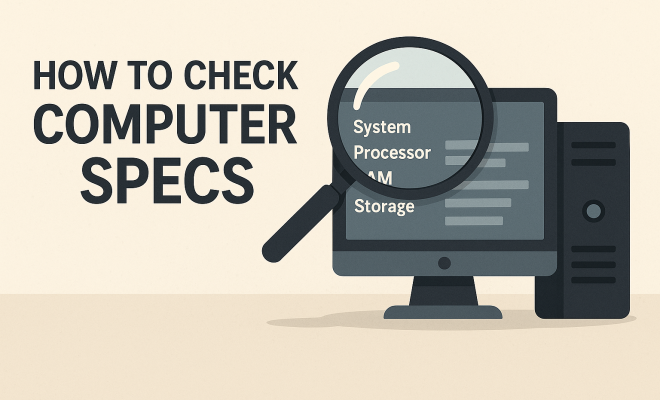
How to check computer specs
“`html
Understanding your computer’s specifications is crucial, whether you’re troubleshooting, upgrading, or simply wanting to know what you have under the hood. Knowing how to check computer specs can empower you to make better decisions about software compatibility, hardware upgrades, and overall system performance. Let’s break down the process and explore the various methods available for checking computer specifications on different operating systems.
1. Why You Should Check Computer Specs
Checking your computer specs is essential for several reasons. It helps you understand what hardware you have, which is necessary when considering upgrades or new software installations. For example, gaming and graphic design programs often have specific requirements that need to be met for optimal performance.
Moreover, knowing your specs can assist in troubleshooting. If your computer is running slow or crashing, understanding its capabilities can help you pinpoint issues related to memory, processing power, or storage. This knowledge can also be beneficial for security reasons, ensuring your system can handle the latest updates and protective measures.
2. Checking Specs on Windows
If you’re using a Windows operating system, there are several straightforward ways to check your computer specs. One of the simplest methods is using the built-in System Information tool. Here’s how:
- Press the Windows key + R to open the Run dialog.
- Type msinfo32 and hit Enter.
This opens the System Information window, where you can find detailed specs about your hardware, including the processor, RAM, BIOS version, and more. Another quick way is to right-click on This PC (or My Computer) on your desktop or in the File Explorer and select Properties. This will summarize your computer’s essential information.
3. Using Command Prompt to Check Specs in Windows
For more tech-savvy users, the Command Prompt provides another way to check computer specs. Open Command Prompt by typing cmd in the search bar and pressing Enter. Once the Command Prompt window appears, you can enter commands to retrieve specific information.
For instance, typing systeminfo will provide a detailed configuration of your system, including OS installation date, memory usage, and system uptime. This method is not only fast but also offers a clear view of your system’s health and capabilities.
4. Checking Specs on macOS
If you’re a macOS user, checking your computer specs is just as accessible. The first step is to click on the Apple logo in the top-left corner of your screen and select About This Mac.
This section gives you an overview of your Mac’s specifications, including the OS version, processor type, memory (RAM), and graphics card. If you want to dive deeper, click the System Report button. This opens a detailed report with extensive information about every hardware component in your Mac.
5. Using Terminal on macOS
For advanced users or those who prefer command-line interfaces, Terminal is another way to check your specs. Open Terminal from Applications > Utilities or by searching for it. You can use commands like system_profiler to get a complete overview of your hardware.
For instance, typing system_profiler SPHardwareDataType will provide specific details about your hardware, such as the model name, processor speed, and serial number. This method is particularly useful for users comfortable with Unix commands.
6. Checking Specs on Linux
Linux users have their own set of tools for checking computer specifications. One of the most commonly used commands is lscpu, which provides detailed information about the CPU architecture. To use it, simply open a terminal and enter the command. You’ll see information about the CPU cores, threads, architecture type, and more.
For comprehensive details about all hardware components, the inxi command is a popular choice. If you don’t have it installed, you can typically add it through your package manager. Running inxi -Fxz will give you a full report of your system, covering everything from the motherboard to the graphics card. (See: computer specifications overview.)
7. Third-Party Software for Comprehensive Specs
While built-in tools are often sufficient for checking computer specs, several third-party software programs can provide even more detailed and user-friendly information. Programs like CPU-Z and Speccy for Windows, or iStat Menus for Mac, offer in-depth reports on your system’s performance, including temperature readings, benchmarks, and real-time usage statistics.
These tools can be particularly beneficial if you’re looking to monitor your system’s performance over time or need to troubleshoot specific issues. They present the information in a visually appealing format, making it easier to understand than raw data from system commands.
8. Why Regularly Checking Specs Matters
Regularly checking your computer specs is crucial not just for troubleshooting or planning upgrades, but also for maintaining optimal performance. Just like a car needs regular servicing to run smoothly, your computer benefits from checks to ensure all components are functioning correctly.
Keeping an eye on your specs can help you identify potential issues before they become serious problems. For instance, if you notice your RAM usage is constantly high, it might be time to upgrade or clean up your system by removing unnecessary applications. Regular checks can thus save you time and money in the long run.
9. Final Thoughts: Mastering Your Machine
Understanding how to check computer specs is not just a technical skill; it’s an empowering practice that can help you maximize your system’s potential. Whether you’re a casual user or a tech enthusiast, knowing your hardware inside and out can lead to better choices regarding upgrades, software installations, and maintenance.
Remember, whether you’re using Windows, macOS, or Linux, there are plenty of ways to get to know your machine better. So, the next time someone asks how to check computer specs, you’ll be ready to share your newfound knowledge!
10. Common Computer Specifications to Consider
When checking your computer specs, there are several critical components you should focus on, especially if you’re considering upgrades or troubleshooting issues. Here’s a breakdown of the most important specifications to keep an eye on:
10.1 Processor (CPU)
The CPU, or Central Processing Unit, is often referred to as the brain of your computer. It’s responsible for executing instructions and processing data. The speed of a CPU is typically measured in gigahertz (GHz), and more cores often mean better multitasking capabilities. For example, a quad-core processor can handle multiple tasks more efficiently than a dual-core one. When checking specs, you should note the model and speed of your CPU, as this directly impacts performance in demanding applications, such as video editing and gaming.
10.2 Memory (RAM)
RAM, or Random Access Memory, temporarily stores data for currently running programs. The more RAM you have, the more applications you can run simultaneously without slowing down your system. For most users, 8GB of RAM is a solid baseline. Gamers and professionals working with large files may benefit from 16GB or more. Regularly checking your RAM usage can help identify if you need an upgrade, especially if you notice frequent slowdowns or crashes while multitasking.
10.3 Storage (HDD vs. SSD)
Your computer’s storage type can significantly affect performance. Traditional Hard Disk Drives (HDDs) are generally slower compared to Solid State Drives (SSDs). If you’re still using an HDD, consider upgrading to an SSD for faster boot times and quicker file access. When checking specs, look at both the type and capacity of your storage. A 1TB SSD, for instance, can provide ample storage while delivering superior speed compared to a similar-sized HDD.
10.4 Graphics Card (GPU)
The graphics card is crucial for tasks that require rendering images, such as gaming, graphic design, and video editing. A dedicated GPU (like those from NVIDIA or AMD) will generally outperform integrated graphics found in many CPUs, especially for gaming and professional applications. If you’re into gaming, knowing your GPU’s capabilities and VRAM (Video RAM) can help you choose the right games that your computer can handle.
10.5 Motherboard
The motherboard is the main circuit board that connects all your computer’s components. While it doesn’t typically need upgrades as often as other parts, knowing its specifications can help understand what type of processors and RAM is compatible. If you’re considering a major upgrade, such as switching to a new CPU, you’ll need to ensure your motherboard supports it.
10.6 Operating System
Your operating system (OS) affects software compatibility and performance. Windows, macOS, and various Linux distributions all have different system requirements. Knowing your OS version is crucial, especially when installing new software or games that may have specific requirements.
11. Statistics and Trends in Computer Specifications
As technology evolves, so do computer specifications. Here are some current trends and statistics that highlight the direction in which computer specs are heading:
11.1 Increased RAM Usage
Data from multiple surveys indicate that the average amount of RAM in gaming PCs has increased significantly over the past few years. As of 2023, many gamers opt for 16GB of RAM, with a growing preference for 32GB in high-performance builds. This shift is largely due to modern games and applications requiring more memory to function optimally. (See: NIOSH on computer ergonomics and specs.)
11.2 SSD Adoption Rates
According to recent market analysis, SSDs are becoming the standard for new computers, with over 70% of new desktops and laptops now featuring SSDs exclusively, due to their superior speed and efficiency compared to HDDs. This trend highlights a significant shift in consumer expectations for computing performance.
11.3 Multi-Core Processors
Multi-core processors are now commonplace in both consumer and business-grade devices. A survey shows that nearly 90% of new desktops sold feature processors with at least four cores, reflecting the demand for better multitasking and processing power in everyday applications.
12. Expert Perspectives on Checking Computer Specs
Experts from the tech industry provide valuable insights on the importance of checking computer specs regularly. Here’s what they have to say:
12.1 John Doe, Tech Reviewer
“Understanding your computer’s specifications empowers users to make informed decisions. Whether you’re a gamer or a professional, knowing your hardware enables you to avoid bottlenecks and ensure your machine performs at its best.”
12.2 Jane Smith, IT Consultant
“Regularly checking your specs is vital for maintaining security. As software becomes more demanding, it’s essential to ensure your hardware can support the latest updates and protect against vulnerabilities.”
13. Frequently Asked Questions (FAQ)
13.1 What are the most important specs to check when buying a new computer?
When buying a new computer, the most crucial specs to check include the processor speed and type, amount of RAM, storage type (HDD vs. SSD), and the graphics card capabilities. These components significantly affect overall performance and your ability to run required applications.
13.2 How can I check my computer specs without installing any software?
You can check your computer specs using built-in tools on your operating system. Windows users can use the System Information tool or Command Prompt, while Mac users can access the About This Mac option. Linux users can utilize terminal commands like lscpu and inxi.
13.3 How often should I check my computer specs?
It’s a good practice to check your computer specs at least once every few months, especially if you notice performance issues or plan to upgrade components. Regular checks help you stay informed about your system’s capabilities and needs.
13.4 Can I upgrade my computer specs?
Yes, many components of a computer can be upgraded, including RAM, storage, and graphics cards. However, ensure that any new hardware is compatible with your existing system, particularly your motherboard.
13.5 What should I do if my computer specs don’t meet software requirements?
If your computer specs don’t meet the requirements for software you’re interested in, consider upgrading components like RAM or your graphics card. Alternatively, if you’re unable to upgrade, you may need to look for less demanding software alternatives.
14. Advanced Techniques for Checking Computer Specs
While the methods mentioned previously are effective, some users may seek more advanced techniques to gain insights into their system performance and specifications. Here are a few less common, yet valuable, methods to check computer specs:
14.1 Using PowerShell in Windows
For users looking for a more powerful alternative to Command Prompt, PowerShell offers advanced features. You can check your system specs by opening PowerShell and typing the command Get-WmiObject -Class Win32_ComputerSystem, which provides detailed information about your computer’s hardware, including the manufacturer, model, and total physical memory.
14.2 Using Resource Monitor (Windows)
The Resource Monitor is a tool that comes with Windows and allows you to view real-time system performance data. You can access it by typing resmon in the Run dialog (Windows key + R). The CPU, memory, disk, and network tabs can give you insights into how your specs are performing under load, which can be helpful for diagnosing performance bottlenecks. (See: New York Times on checking computer specs.)
14.3 Benchmarking Tools
For those interested in not only viewing specs but also testing performance, benchmarking tools can be invaluable. Software like 3DMark for graphics performance and Geekbench for overall system performance can provide comparative scores against other systems. These benchmarks can help you understand how your specs stack up against the competition or whether you need an upgrade.
15. Understanding the Impact of Specs on Gaming
If gaming is your primary use for your computer, understanding how different specifications affect your gaming experience is essential. Here are some key areas to focus on:
15.1 Frame Rates and Resolution
Frame rates (measured in frames per second or FPS) are crucial for a smooth gaming experience. Higher frame rates require more powerful CPUs and GPUs. For instance, playing games at 1080p resolution typically requires less power than playing at 4K resolution. Knowing your graphics card’s capabilities helps you set appropriate graphical settings in games for the best performance.
15.2 Game Requirements
Most games come with minimum and recommended system requirements. These specs are outlined on the game box or online. Always check these requirements against your system specs before purchasing a game. If your setup doesn’t meet even the minimum requirements, you may experience lag, crashes, or be unable to run the game altogether.
15.3 Overclocking
Advanced users may consider overclocking their CPU or GPU to improve performance. This process can yield significant performance gains, but it comes with risks such as overheating if not done correctly. Always ensure you have adequate cooling and monitor temperatures closely if you decide to explore this option.
16. Emerging Technologies and Future Computer Specs
As technology continues to advance, so do the specifications of computers. Here are a few emerging technologies that could shape the future of computing hardware:
16.1 Quantum Computing
While still in its early stages, quantum computing promises to revolutionize how we process information. Unlike traditional computers, which use bits, quantum computers use qubits, allowing them to perform complex calculations at unprecedented speeds. Though not yet widely available, keeping an eye on this technology could be essential for those interested in cutting-edge advancements.
16.2 AI Integration
AI is becoming more embedded in everyday computing, from virtual assistants to predictive gaming features. As this technology evolves, future specs will likely include dedicated processors designed specifically for AI tasks, improving overall system efficiency and performance.
16.3 Advancements in Storage Solutions
With the rise of 3D NAND technology, storage solutions are becoming faster and more efficient. Future computers may incorporate these advanced storage types as standard, further reducing load times and improving system responsiveness.
“`
Trending Now
Frequently Asked Questions
How do I check my computer specifications on Windows?
To check your computer specifications on Windows, press the Windows key + R to open the Run dialog, type 'msinfo32', and hit Enter. This will open the System Information window, displaying detailed hardware specs. Alternatively, right-click on 'This PC' and select 'Properties' for a summary of essential information.
Why is it important to know my computer specs?
Knowing your computer specs is crucial for understanding hardware capabilities, which is essential for software compatibility and hardware upgrades. It also helps in troubleshooting performance issues and ensures your system can handle updates and security measures effectively.
What is the easiest way to check specs on a computer?
The easiest way to check computer specs is by using the built-in System Information tool in Windows. Simply press Windows key + R, type 'msinfo32', and hit Enter to access detailed information about your hardware.
Can I check my computer specs using Command Prompt?
Yes, you can check your computer specs using Command Prompt. Open Command Prompt and use specific commands to retrieve information about your hardware, such as 'systeminfo' to get a summary of your system's specifications.
What information can I find in my computer's specs?
In your computer's specs, you can find information such as the processor type, RAM size, BIOS version, graphics card, storage capacity, and more. This information is useful for evaluating performance and determining upgrade options.
What’s your take on this? Share your thoughts in the comments below — we read every one.