How to use magnifier on Windows
“`html
For many users, the built-in magnifier feature in Windows is a simple yet powerful tool that enhances accessibility and usability. Whether you’re an individual needing a little extra visual assistance or someone looking to help others, knowing how to use magnifier in Windows can significantly improve your computing experience. This comprehensive guide will navigate the ins and outs of this feature, including its history, functionality, and practical applications.
1. The History of Magnifier in Windows
The Magnifier tool has been a part of Windows since the release of Windows 98, aligning with Microsoft’s commitment to accessibility. Initially designed for those with visual impairments, it has evolved to serve a broader audience, becoming a staple for many users who require enhanced visibility for reading text or viewing images. Over the years, Microsoft has updated the Magnifier to improve its functionality and integration with other Windows features, making it more user-friendly.
Starting as a simple zoom tool, the Magnifier has expanded its capabilities. The introduction of features such as lens mode and full-screen view allows users to customize their experience. This evolution shows Microsoft’s dedication to making technology accessible to everyone, regardless of their visual abilities.
2. Getting Started: How to Access the Magnifier
Accessing the Magnifier is straightforward. You can enable it in several ways, making it accessible to users with different preferences. Here are the primary methods to activate the Magnifier:
- Using Keyboard Shortcuts: Press the Windows key (+) to open the Magnifier. This will immediately zoom in on your screen. To zoom out, press Windows key (-).
- Through Settings: Navigate to Settings > Ease of Access > Magnifier. Here, you can turn on the Magnifier and adjust settings according to your needs.
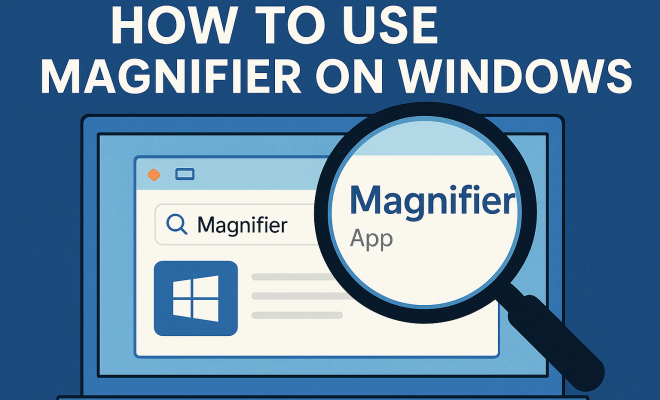
- Using the Start Menu: You can also search for ‘Magnifier’ in the Start Menu search bar and select the app from the results.
Once you have it activated, a small floating window will appear, displaying the area of the screen currently magnified. From here, you can adjust the level of zoom and other settings.
3. Understanding the Different Modes of the Magnifier
The Magnifier offers three primary modes: Full-Screen Mode, Lens Mode, and Docked Mode. Each mode provides a different user experience, tailored to various needs:
- Full-Screen Mode: This mode enlarges the entire screen, providing a zoomed-in view of whatever is displayed. It’s particularly useful for reading lengthy documents or browsing the web, as it gives a comprehensive view without clutter.
- Lens Mode: This mode creates a movable lens on your screen. You can drag the lens around to magnify specific areas while keeping the rest of the screen at normal size. This is ideal for users who want to focus on particular details without losing sight of the overall layout.
- Docked Mode: In this mode, the Magnifier window is docked to the top of the screen, displaying a zoomed-in area of the screen below it. This allows you to see both the magnified and normal view simultaneously, which can be beneficial for tasks like graphic design or editing.
Choosing the right mode depends on your personal preference and the tasks you’re performing. Experimenting with each can lead to a more comfortable and effective experience.
4. Customizing Magnifier Settings
Once you’ve activated the Magnifier, you can customize its settings to better suit your needs. Here’s how:
- Zoom Level: You can adjust the zoom level between 100% and 1600% depending on your vision requirements. Use the zoom slider to find a comfortable setting.
- Follow the Keyboard Focus: This option allows the Magnifier to follow your keyboard focus, ensuring that as you type or navigate, the magnified area moves accordingly.
- Follow the Mouse Pointer: Similar to the keyboard focus setting, this option makes the Magnifier follow your mouse pointer, which is especially useful for browsing or using applications.
- Invert Colors: If you find it more comfortable, you can invert colors, providing a different contrast that may be easier on your eyes.
Customizing these settings can enhance your experience, making it easier to work for extended periods without straining your eyes.
5. Practical Use Cases for the Magnifier
The Magnifier is not just a tool for those with visual impairments; it has several practical applications for everyday users. Here are a few scenarios where the Magnifier can come in handy:
- Reading Small Text: If you’re struggling to read fine print on websites, documents, or images, the Magnifier allows you to zoom in for clarity. This is particularly useful for reading contracts or legal documents.
- Graphic Design and Editing: Designers and editors often need to scrutinize details closely. The lens mode provides a convenient way to zoom in on specific areas of a design without losing sight of the overall interface.
- Accessibility for Seniors: As eyesight changes with age, seniors might benefit from using the Magnifier to enjoy their digital devices fully. It allows them to maintain independence while navigating technology.
These examples illustrate the versatility of the Magnifier, making it a valuable tool for a wide range of users.
6. Common Issues and Troubleshooting
While the Magnifier is generally reliable, users may encounter some common issues. Here are some troubleshooting tips: (See: Magnifier tool in Windows history.)
- Magnifier Won’t Open: If the Magnifier fails to launch, ensure your Windows operating system is updated. You can also try restarting your computer or checking for any conflicting software.
- Zoom Level Not Changing: If the zoom level seems stuck, double-check your keyboard shortcuts or try adjusting the zoom slider in the Magnifier settings.
- Visual Lag or Blurriness: This can occur if your computer’s graphics settings are incompatible. Make sure your graphic drivers are up-to-date and consider adjusting your display settings for better performance.
By following these troubleshooting tips, you can quickly resolve common problems, ensuring a seamless experience with the Magnifier.
7. Integrating Magnifier with Other Accessibility Tools
Windows offers a range of accessibility features that complement the Magnifier, enhancing the overall user experience. Some useful tools to integrate with the Magnifier include:
- Narrator: This screen reader can work alongside the Magnifier, helping visually impaired users by reading text aloud while they zoom in for a closer look.
- On-Screen Keyboard: If you find it challenging to use a physical keyboard while magnifying content, the on-screen keyboard can be an excellent alternative.
- Speech Recognition: Windows’ built-in speech recognition allows hands-free navigation, making it easier to control your computer without needing to rely solely on visual cues.
By leveraging these tools in conjunction with the Magnifier, you can create a fully personalized and accessible computing environment.
8. Tips for Effective Use of the Magnifier
To maximize your experience with the Magnifier, consider the following tips:
- Practice Keyboard Shortcuts: Familiarize yourself with keyboard shortcuts for toggling the Magnifier on and off or adjusting zoom levels. This speeds up your workflow.
- Adjust Window Size: Depending on your screen size, you may want to adjust the size of the Magnifier window to ensure it doesn’t obstruct critical elements on the screen.
- Use with High Contrast Themes: If you struggle with visibility, consider using high-contrast themes available in Windows settings. This can enhance the clarity of text and images.
These practical tips can help you become more efficient and comfortable using the Magnifier, turning it into a powerful asset in your digital toolkit.
9. The Future of Accessibility Tools in Windows
As technology continues to evolve, so does the need for better accessibility tools. Microsoft is committed to improving tools like the Magnifier, incorporating user feedback and technological advancements. Future updates may provide enhanced features, such as more advanced text recognition capabilities, greater customization options, and improved integration with other assistive technologies.
In a world that increasingly relies on digital interactions, ensuring that everyone has access to necessary tools is not just an option—it’s a fundamental right. The Magnifier in Windows exemplifies how technology can bridge gaps and create inclusive environments for all users.
With its robust features and ease of use, learning how to use magnifier in Windows can empower you or those around you to tackle digital challenges with confidence. Embrace these tools, and enjoy a clearer, more accessible digital experience.
10. Advanced Features of Magnifier
While many users are familiar with the basic functionalities of the Magnifier, it also boasts advanced features that can enhance your experience. These features include:
- Mouse Pointer Size: You can increase the size of the mouse pointer while using the Magnifier. This makes it easier to locate and use the pointer, especially in a magnified view.
- Magnifier Shortcut Settings: The Magnifier includes options to customize various keyboard shortcuts. For instance, you can set specific keys to quickly switch between modes or adjust zoom levels, streamlining your navigation.
- Text Optimization: The Magnifier can optimize text display based on the zoom level. This feature improves clarity, making text easier to read as you zoom in and out.
Understanding these advanced settings can significantly improve your efficiency, especially if you rely on the Magnifier regularly for work or leisure.
11. Statistics on Visual Impairment and Technology Use
Understanding the prevalence of visual impairment can help underscore the importance of tools like the Magnifier. According to the World Health Organization (WHO), approximately 285 million people worldwide are visually impaired, with 39 million of those classified as blind. The need for accessible technology continues to grow.
A study conducted by the American Foundation for the Blind found that more than 50% of visually impaired individuals use technology to access information. Moreover, with the rise of remote work and online learning, accessible tools are crucial for ensuring that everyone can participate fully in digital environments.
These statistics not only highlight the necessity of accessibility features but also emphasize the role of technology in bridging the gap for individuals with visual impairments. The Magnifier in Windows is one such tool, providing critical support for those who need it. (See: CDC on visual impairments and tools.)
12. Comparative Analysis: Windows Magnifier vs. Other Tools
When it comes to screen magnification, several alternatives exist, including third-party applications. Here, we’ll compare the Windows Magnifier against a few popular options:
- ZoomText: This is a paid software that offers extensive features for visually impaired users, including screen reading and OCR (Optical Character Recognition). While it provides more advanced functionalities, it comes at a cost, making Windows Magnifier a great free alternative for general use.
- MAGic: Another paid magnification software that includes speech output and enhanced color settings. Like ZoomText, it’s robust but may not be necessary for casual users who only need basic magnification.
- Apple’s Zoom Feature: For those who use macOS, Apple offers a similar zoom feature with comparable functionalities. However, Windows Magnifier is more integrated into the Windows ecosystem, making it more accessible for Windows users.
These comparisons indicate that while there are more robust tools available, the Windows Magnifier remains a practical choice for many users without the need for additional cost or complexity.
13. FAQ: Frequently Asked Questions about Magnifier in Windows
What is the maximum zoom level for Windows Magnifier?
The maximum zoom level for the Windows Magnifier is 1600%. This allows users to zoom in significantly, making it easier to read small text or view detailed images.
Can I use the Magnifier with touch screens?
Yes, the Magnifier is compatible with touch screens. You can pinch to zoom in and out, similar to how you would on a smartphone or tablet.
Is the Magnifier available in all versions of Windows?
The Magnifier is available in most modern versions of Windows, including Windows 10 and Windows 11. Older versions may have limited functionality or different access methods.
Can I use the Magnifier while playing games?
Yes, you can use the Magnifier while playing games. However, performance may vary depending on the game’s graphics and your computer’s specifications. Some users might experience lag when using the Magnifier in high-demand gaming environments.
How do I turn off the Magnifier?
You can turn off the Magnifier by pressing the Windows key + Esc or by navigating to the Magnifier window and clicking on the “X” to close it. You can also disable it through the Ease of Access settings.
Can I customize the Magnifier’s appearance?
Yes, you can customize the Magnifier’s appearance by adjusting various settings such as color filters, mouse pointer size, and zoom levels to create a more personalized experience.
Is there a way to make the Magnifier follow my reading?
Absolutely! You can enable the “Follow the Keyboard Focus” and “Follow the Mouse Pointer” options in the Magnifier settings to have it automatically zoom in on where you’re typing or pointing.
How does the Magnifier affect performance on older computers?
On older computers, the Magnifier may consume additional resources, which can lead to slow performance. If you notice lag, consider lowering the zoom level or closing other resource-heavy applications while using it.
Can I use the Magnifier while using other accessibility features?
Yes, the Magnifier can be used alongside other accessibility features like the Narrator or Speech Recognition, allowing a more comprehensive accessibility setup tailored to your specific needs.
Can I use multiple instances of the Magnifier?
No, you cannot run multiple instances of the Magnifier at the same time. However, you can switch between different modes and customize them according to your needs.
By addressing these questions, users can gain a better understanding of the Magnifier’s capabilities and how to use it effectively. Understanding the tool’s features can lead to a more enriching and accessible digital experience.
14. User Testimonials: Real-World Experiences with the Magnifier
Listening to real users can provide valuable insights into the effectiveness of the Magnifier. Here are a few testimonials:
“As a graphic designer, the Magnifier has been invaluable for me. I often zoom in on intricate details of my designs without losing sight of the overall layout. It’s a fantastic tool!” – Sarah, Graphic Designer.
“I never realized how much I needed the Magnifier until I started using it. It makes reading long documents so much easier. I can finally enjoy reading my favorite books on my digital devices!” – John, Avid Reader.
“As a senior citizen, my eyesight isn’t what it used to be. The Magnifier has enabled me to stay connected with my family through social media. It has been a game-changer for my independence.” – Betty, Retiree.
These testimonials highlight how the Magnifier can significantly improve the user experience for various tasks, demonstrating its importance in daily computing.
15. Getting the Most Out of Magnifier: Expert Tips
Experts emphasize the importance of familiarizing yourself with the Magnifier’s features to maximize its benefits. Here are some expert tips:
- Experiment with Settings: Don’t hesitate to try different settings and modes to discover what works best for your needs.
- Stay Updated: Keep your Windows operating system up to date to ensure you have access to the latest features and improvements related to the Magnifier.
- Read User Guides: Explore online resources and user guides that provide further insights and advanced techniques for using the Magnifier effectively.
Taking the time to learn about the Magnifier’s features can lead to a more satisfying and less frustrating experience.
“`
Trending Now
Frequently Asked Questions
How do I enable the magnifier on Windows?
You can enable the magnifier on Windows by pressing the Windows key and the '+' key simultaneously. This will open the Magnifier and zoom in on your screen. Alternatively, you can navigate to Settings > Ease of Access > Magnifier to turn it on and adjust its settings.
What is the Magnifier tool in Windows used for?
The Magnifier tool in Windows is used to enhance visibility for users who may have difficulty seeing text or images on their screen. It provides various modes, including lens mode and full-screen view, allowing users to customize their experience for better accessibility.
Can I adjust the magnification level in Windows?
Yes, you can adjust the magnification level in Windows Magnifier. After activating the tool, you can use the Windows key and '+' to zoom in and the Windows key and '-' to zoom out. Additionally, you can modify settings through the Magnifier options in the Ease of Access menu.
Is the Magnifier feature available on all Windows versions?
Yes, the Magnifier feature is available on all modern versions of Windows, starting from Windows 98. It has been updated over the years to improve functionality and user experience, making it a helpful tool for enhancing accessibility across different Windows editions.
What are the different modes available in Windows Magnifier?
Windows Magnifier offers several modes, including full-screen mode, lens mode, and docked mode. Full-screen mode enlarges the entire screen, lens mode creates a movable magnifying glass effect, and docked mode keeps the Magnifier at a fixed location while allowing the rest of the screen to display normally.
Have you experienced this yourself? We’d love to hear your story in the comments.