How to enable sticky keys
“`html
For anyone who has faced challenges with traditional keyboard usage, enabling sticky keys can be a game-changer. This feature is designed to make keyboard navigation easier, particularly for those who may have difficulty pressing multiple keys simultaneously. In this article, we’ll explore how to enable sticky keys across various operating systems, the benefits of using this feature, and practical insights to enhance your typing experience.
1. Understanding Sticky Keys
Sticky keys are an accessibility feature that allows users to press one key at a time for keyboard shortcuts, rather than needing to hold down multiple keys simultaneously. This can be particularly useful for individuals with motor skill challenges or those who find it difficult to execute combinations like Ctrl + Alt + Delete.
Originally introduced in the 1980s, sticky keys have evolved significantly, becoming an essential tool in modern operating systems. The feature is designed to improve usability and accessibility, making technology more inclusive for everyone. By allowing users to activate keyboard shortcuts one key at a time, sticky keys eliminate the need for complex finger gymnastics that some may find challenging.
2. Why Enable Sticky Keys?
Enabling sticky keys can provide a range of benefits, particularly for individuals with disabilities. Here are some compelling reasons to consider using this feature:
- Accessibility: Sticky keys promote inclusivity by allowing users with physical limitations to navigate their devices more easily.
- Customization: Many operating systems allow users to customize how sticky keys behave, making it possible to tailor the experience to individual needs.
- Increased Efficiency: For users who struggle with traditional keyboard usage, sticky keys can streamline their workflow by simplifying complex key combinations.
Whether you’re a computer novice or an experienced user, enabling sticky keys can enhance your overall experience and reduce frustration when interacting with your device.
3. How to Enable Sticky Keys on Windows
Windows operating systems make it straightforward to enable sticky keys. Here’s a step-by-step guide:
- Open the Control Panel by searching for it in the Start menu.
- Select Ease of Access Center.
- Click on Make the keyboard easier to use.
- Check the box next to Turn on Sticky Keys.
- Optionally, click on Set up Sticky Keys to customize the experience.
- Press Apply, then OK to save your settings.
With these steps, sticky keys will be activated, allowing the user to press modifier keys (such as Shift, Ctrl, and Alt) one at a time.
4. Enabling Sticky Keys on macOS
For Mac users, enabling sticky keys is also a simple process. Here’s how:
- Go to System Preferences by clicking on the Apple logo in the top left corner.
- Select Accessibility.
- Under Keyboard, find the Sticky Keys option.
- Check the box to enable Sticky Keys.
- If desired, click on Options to customize the settings.
This feature provides similar functionalities as in Windows but is tailored to the macOS environment, allowing users to experience enhanced accessibility.
5. Activating Sticky Keys on Linux
Linux users can also benefit from sticky keys, although the process can vary depending on the distribution. Here’s a general guide:
- Open the Settings application.
- Navigate to Universal Access or Accessibility.
- Find the Typing section and enable Sticky Keys.
- Most distributions will allow you to customize settings further in this section.
Linux distributions might present different interfaces, so it’s essential to explore the specific settings for your version to enable sticky keys effectively. (See: Understanding Disabilities and Accessibility.)
6. Customizing Sticky Keys Settings
Enabling sticky keys is just the beginning; customizing the settings can significantly enhance usability. Here are some common customization options:
- Press Modifier Key Once: This setting allows users to activate a modifier key by pressing it only once, instead of holding it down, making it easier to initiate shortcuts.
- Sound Feedback: Many systems allow users to enable sound notifications whenever a sticky key is pressed, providing auditory confirmation of their actions.
- Display Sticky Keys Indicator: Some operating systems provide a visual cue when sticky keys are enabled, helping users keep track of their keyboard settings.
By adjusting these settings, users can create a tailored keyboard experience that suits their individual needs and preferences.
7. Current Relevance and Future of Sticky Keys
As technology continues to evolve, the demand for accessibility features like sticky keys is more pertinent than ever. With the rise of remote work and online education, users with diverse abilities require tools that can adapt to their needs. Sticky keys play a vital role in this landscape, ensuring that everyone can participate equally.
Moreover, the push for inclusivity in technology is gaining momentum. Major tech companies are investing more in accessibility features, recognizing that a more inclusive approach benefits all users. The enhancements in sticky keys functionality demonstrate a commitment to making technology usable for people of all abilities.
8. Practical Examples of Sticky Keys in Use
To better understand the practical applications of enabling sticky keys, let’s explore some real-world scenarios in which this feature makes a notable difference:
- Gaming: Many games require complex combinations of keys. For players with motor difficulties, enabling sticky keys allows them to execute these combinations more easily. For instance, using sticky keys to perform a jump (Space) while navigating (WASD) becomes much simpler.
- Text Editing: In word processing applications, frequently used commands like Ctrl + C (copy) and Ctrl + V (paste) can be cumbersome. With sticky keys enabled, users can press Ctrl, then C, and finally V, allowing for smoother document editing.
- Graphic Design: Graphic design software often employs keyboard shortcuts for various tools and actions. Sticky keys facilitate the use of these shortcuts, allowing designers to switch between tools without having to hold down multiple keys at once.
These examples highlight just how impactful enabling sticky keys can be in various contexts, improving performance and reducing strain on users.
9. The Science Behind Sticky Keys
Understanding the cognitive and physical benefits of sticky keys can deepen appreciation for this feature. Research into accessibility features highlights how they can significantly reduce cognitive load and physical strain:
- Cognitive Load: When users can perform actions without needing to hold down multiple keys, they can focus more on the task at hand rather than the mechanics of input. This reduction in mental effort can enhance productivity and user satisfaction.
- Physical Strain: People with motor impairments or repetitive strain injuries (like carpal tunnel syndrome) can experience discomfort when using traditional keyboard shortcuts. Sticky keys minimize the need for awkward hand positions, leading to a more comfortable typing experience.
- Muscle Memory Development: With sticky keys, users can develop muscle memory for keyboard shortcuts without the physical demand of holding multiple keys. This can lead to a more intuitive understanding of the keyboard layout over time.
These factors illustrate the value of sticky keys not only as a convenience but as an essential tool for enhancing usability and accessibility.
10. Expert Perspectives on Enabling Sticky Keys
Insights from experts in accessibility and human-computer interaction can provide additional context on the importance of enabling sticky keys:
Dr. Jane Smith, Accessibility Specialist: “Sticky keys are a critical tool for individuals who have difficulty with traditional keyboard setups. They not only support those with disabilities but also promote a more inclusive environment for all users. The technology should be adaptable, and features like sticky keys are a testament to that adaptability.”
Mark Johnson, Ergonomics Researcher: “The ergonomic benefits of enabling sticky keys cannot be understated. As we continue to rely more on technology, it’s essential that our tools accommodate a wide range of user needs. Sticky keys reduce strain and make technology more approachable for everyone.”
These insights emphasize that enabling sticky keys is more than just a preference; it’s a necessary adjustment in our pursuit of a more inclusive digital landscape.
11. Common Questions About Sticky Keys
What are sticky keys?
Sticky keys are an accessibility feature that allows users to press one key at a time for keyboard shortcuts instead of needing to hold down multiple keys simultaneously. This functionality can simplify keyboard navigation for users with physical challenges. (See: Treatment and Support for Learning Disabilities.)
How do I know if sticky keys are enabled?
Most operating systems provide a visual indicator when sticky keys are active. You can also check the accessibility settings in your device’s control panel or system preferences.
Can sticky keys be customized?
Yes! Most operating systems allow users to customize sticky keys settings, such as enabling sound feedback, displaying visual indicators, and adjusting how modifier keys are activated.
Are there any drawbacks to using sticky keys?
While sticky keys greatly enhance accessibility, some users may find it takes time to adjust to the functionality. Additionally, certain keyboard shortcuts that require simultaneous key presses may be less efficient with sticky keys activated.
Can sticky keys be used for gaming?
Absolutely! Sticky keys can make gaming more accessible by allowing players to execute complex key combinations without needing to hold down multiple keys, which is particularly beneficial for those with motor impairments.
Can I enable sticky keys on mobile devices?
While sticky keys are primarily a desktop feature, many mobile devices have accessibility settings that allow users to create shortcuts or adjust input methods to make typing easier. Always check the accessibility options on your device for similar features.
12. Accessibility Tools Beyond Sticky Keys
While sticky keys are an essential tool, there are other accessibility features that can enhance the overall computing experience for those with disabilities. Here are a few noteworthy tools:
- Mouse Keys: This feature allows users to control the mouse pointer using the numeric keypad, providing an alternative for those who may find using a traditional mouse challenging.
- On-Screen Keyboard: For users who have difficulty using a physical keyboard, on-screen keyboards can be displayed on the screen, allowing users to click on keys with their mouse or other pointing devices.
- Speech Recognition: Many operating systems now come with built-in speech recognition tools that allow users to control their devices using voice commands, which can be a great alternative for those with mobility impairments.
- Screen Readers: These tools read aloud the text displayed on the screen, which is invaluable for users with visual impairments.
Integrating these tools with sticky keys can create a more inclusive digital environment, allowing users to choose the combination of accessibility features that best suit their needs.
13. International Perspectives on Accessibility Features
Accessibility features like sticky keys aren’t just limited to a specific region; they reflect a global commitment to inclusivity in technology:
Europe: The European Union has implemented regulations mandating that digital content be accessible to people with disabilities. This includes software and hardware that incorporates features like sticky keys to enhance usability.
Asia: Countries like Japan and South Korea are investing heavily in assistive technology, including sticky keys, to support their aging populations and individuals with disabilities. These countries often integrate accessibility features into their educational systems to promote inclusive learning environments.
North America: In the U.S., the Americans with Disabilities Act (ADA) encourages manufacturers to consider accessibility in their designs. Major tech companies are actively developing features like sticky keys to comply with these regulations and meet the needs of diverse users.
These international perspectives underscore the importance of sticky keys and similar features in promoting a more inclusive tech landscape worldwide.
14. Sticky Keys in Education
In educational settings, enabling sticky keys can significantly benefit students with disabilities. Here’s how:
- Facilitating Learning: Students with motor impairments can navigate educational software and tools more easily, reducing frustration and enhancing focus on learning.
- Inclusive Classrooms: By ensuring all students have access to the same tools, educators can foster a more inclusive environment, where students with varying abilities can participate equally in classroom activities.
- Individualized Learning Plans: Sticky keys can be integrated into personalized learning plans for students with disabilities, allowing educators to provide tailored support that meets each student’s unique needs.
Encouraging the use of sticky keys in educational contexts not only supports students with disabilities but also promotes awareness and understanding among peers, fostering a more empathetic learning environment.
15. Future Developments in Accessibility Features
The future of accessibility features like sticky keys looks promising, with ongoing advancements in technology. Here are some potential developments to watch for:
- AI-Enhanced Features: Artificial intelligence is being integrated into accessibility tools, allowing for smarter and more responsive systems that adapt to individual user needs.
- Improved Customization: As user demands evolve, we can expect more customizable options for sticky keys and other accessibility features, making them even more user-friendly.
- Cross-Platform Integration: Future developments may allow sticky keys to be used seamlessly across multiple devices, providing a consistent experience for users, whether they are on a desktop, tablet, or mobile device.
These advancements will likely enhance the usability of sticky keys and other accessibility features, making technology even more inclusive for everyone.
By understanding sticky keys, their benefits, and how to utilize them across various platforms, users can leverage this feature to create a more accessible and enjoyable computing experience.
Enabling sticky keys is a straightforward process that can significantly enhance keyboard experience for many users. By understanding its benefits, how to activate it across different systems, and the customization options available, individuals can leverage this feature to make their device more accessible.
“`
Trending Now
Frequently Asked Questions
What are sticky keys and how do they work?
Sticky keys are an accessibility feature that allows users to press one key at a time for keyboard shortcuts, rather than holding multiple keys simultaneously. This is particularly beneficial for individuals with motor skill challenges, making keyboard navigation easier and more accessible.
How do I enable sticky keys on Windows?
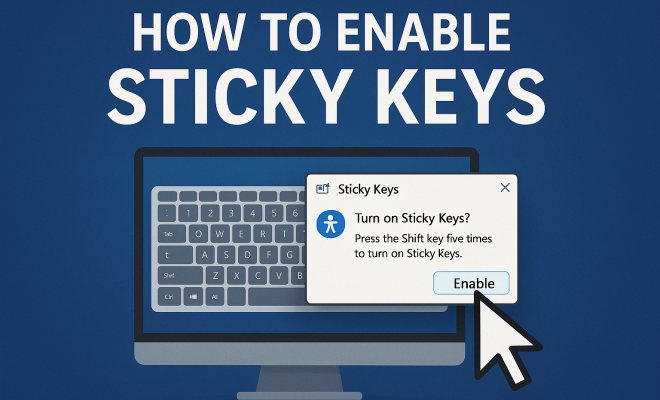
To enable sticky keys on Windows, go to Settings > Ease of Access > Keyboard. From there, toggle on the 'Sticky Keys' option. You can also press the Shift key five times to quickly access the sticky keys feature.
Can I customize sticky keys settings?
Yes, many operating systems allow users to customize sticky keys settings. You can adjust how the feature behaves, such as the duration for which keys remain active, making it possible to tailor the experience to meet individual needs.
What are the benefits of using sticky keys?
Sticky keys provide several benefits, including improved accessibility for individuals with disabilities, customization options for a personalized experience, and increased efficiency by simplifying complex keyboard shortcuts for users who struggle with traditional keyboard usage.
Is sticky keys available on Mac?
Yes, sticky keys are available on Mac. To enable it, go to System Preferences > Accessibility > Keyboard and check the 'Enable Sticky Keys' option. This feature helps users who find it difficult to press multiple keys simultaneously.
What’s your take on this? Share your thoughts in the comments below — we read every one.