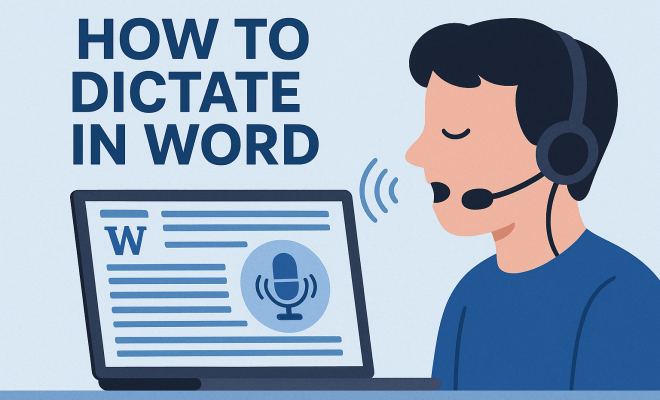
How to dictate in Word
“`html
In today’s fast-paced digital environment, efficiency is key. One of the most powerful tools available to boost productivity is the ability to dictate in Word. Whether you’re a busy professional, a student, or just someone looking to streamline their writing process, mastering voice dictation in Microsoft Word can be a game-changer. This article will guide you through the ins and outs of dictating in Word, covering everything from setup to tips for improving accuracy.
1. The Evolution of Dictation Technology
Dictation technology has come a long way since its inception. The early days of dictation involved cumbersome hardware and required specialized training. Fast-forward to today, and modern dictation software is accessible on various devices, including smartphones and computers. Microsoft Word, a staple in many workplaces and educational institutions, has integrated voice dictation features that allow users to convert spoken words into text seamlessly.
The development of artificial intelligence and natural language processing has significantly improved the accuracy and effectiveness of dictation software. In Word, users can experience real-time text conversion, punctuations, and even commands that aid in formatting and editing without the need for a keyboard. This evolution not only enhances efficiency but also opens up new avenues for creativity.
2. Getting Started: Setting Up Dictation in Word
Before you can dictate in Word, you need to ensure you have the correct settings. First, make sure your device has a working microphone. Most laptops come with built-in microphones, but for desktop users, an external microphone may be necessary for better sound quality.
To begin, open Microsoft Word and navigate to the ‘Home’ tab. Look for the ‘Dictate’ button, typically represented by a microphone icon. If you don’t see it, make sure your Word is updated to the latest version. Upon clicking the button, you may be prompted to allow Word to access your microphone. Ensuring that your microphone settings are correct is vital for accurate dictation. You can do this by going to your device’s settings and adjusting the audio input settings accordingly.
3. Using Dictation: Basic Commands and Features
Once you’ve set up your microphone, you’re ready to start dictating. It’s important to familiarize yourself with basic voice commands to make the most out of your dictation experience. When you speak, Word will transcribe your spoken words into text. But it’s not just a simple one-way conversion; you can also issue commands for punctuation, new lines, or formatting.
- Punctuation: To add punctuation marks, just say the name of the punctuation. For instance, saying “comma” will insert a comma, while saying “period” will end a sentence.
- New Lines: To move to a new line, simply say “new line.” You can also dictate formatting commands such as “bold that” or “italicize this” for more control over your document.
- Navigation: You can navigate your document by saying commands like “go to the end of the line” or “select last paragraph.” This makes editing much more fluid.
4. Improving Accuracy: Tips for Effective Dictation
While voice recognition technology is impressive, it’s not infallible. To improve your dictation accuracy, consider the following tips:
- Clear Speech: Speak clearly and at a moderate pace. This helps the software better understand your words, reducing the chances of misinterpretation.
- Minimize Background Noise: Find a quiet space when dictating. Background noise can confuse the software and lead to errors.
- Use Headphones: If you have a quality headset with a built-in microphone, use it for clearer audio input, improving dictation accuracy.
Additionally, familiarize yourself with the way dictation software interprets different accents and dialects. If you notice consistent misinterpretations, adjusting your enunciation or practicing dictation can help.
5. Common Issues and Troubleshooting
Despite its advantages, dictating in Word can sometimes be challenging due to various issues. Here are some common problems users face, along with solutions: (See: Speech recognition technology overview.)
- Microphone Not Working: If Word isn’t picking up your voice, check your microphone settings and ensure it’s enabled. It might also help to test the microphone in another application to confirm it’s functioning correctly.
- Poor Transcription Accuracy: If you find that your dictation is filled with errors, try recalibrating your microphone or speaking more clearly. Additionally, ensuring you are using the latest version of Word can improve performance.
- Dictation Feature Not Available: In some cases, users may find that the dictation feature is grayed out. Ensure that you are signed into your Microsoft account and that your subscription is active, as some features might be limited based on the version of Word you have.
6. Advanced Features: Dictation Beyond Basic Text
Once you’re comfortable with basic dictation, it’s time to explore advanced features. Microsoft Word offers functionalities that allow you to leverage dictation for more than just writing text. For instance, you can create lists, add headings, and even dictate tables.
To create bullet points or numbered lists, simply dictate the list item followed by the command for bullet or number. You could say, “First item, bullet. Second item, bullet.” This helps in organizing your thoughts without needing to switch between keyboard and voice.
Additionally, you can format text in various styles by dictating commands like “format this as a heading” or “highlight this text.” These advanced commands can significantly enhance the overall efficiency of your writing process.
7. Dictation and Accessibility: A Game-Changer for Many
One of the most significant benefits of dictating in Word is its impact on accessibility. For individuals with disabilities or those who struggle with traditional typing, voice dictation serves as a crucial tool that levels the playing field. It allows users to express their thoughts without the constraints of physical limitations.
Microsoft has invested in making its products more inclusive, and the dictation feature is a prime example. By allowing users to communicate through speech, Microsoft empowers them to create documents, emails, and reports just like anyone else. This aspect of dictation not only enhances productivity but also fosters a sense of independence for users who might find typing challenging.
8. Practical Applications: When to Use Dictation in Word
So, when should you consider using dictation in Word? The possibilities are numerous. Here are some practical scenarios:
- Note-taking: When attending a meeting or lecture, quickly dictating notes can help capture ideas without interrupting the flow of conversation.
- Drafting Emails: Instead of typing out long emails, dictate your messages for faster communication, especially when on the go.
- Writing Content: For bloggers, authors, or anyone writing long-form content, dictation can help overcome writer’s block and facilitate the creative process.
By applying dictation in these scenarios, you can save time, reduce stress, and enhance your overall productivity.
9. Future Trends: What’s Next for Dictation Technology?
The future of dictation technology looks bright. As AI continues to evolve, we can anticipate even more accurate transcription, better understanding of context, and the ability to handle complex commands. Innovations in voice recognition will likely lead to even more intuitive and user-friendly applications.
Furthermore, integration with other platforms and services could enhance the usability of dictation in Word. Imagine being able to seamlessly transition from dictation to collaboration tools, or using voice commands to pull data from spreadsheets directly into your documents. The possibilities are exciting, and staying ahead of these trends will help you maximize productivity.
10. Real-World Examples of Dictation in Action
To see the real impact of dictation technology, let’s explore some real-world applications and success stories:
- Professional Writers: Many professional writers, including journalists and authors, have adopted dictation tools to speed up their writing process. For instance, a well-known novelist shared that using voice dictation allowed him to write his latest book in half the time it would have taken using traditional typing methods. This not only increased his productivity but also enriched his creative flow, as he could focus more on the story rather than the mechanics of typing.
- Students: In educational settings, students with learning disabilities often benefit from voice dictation tools. A study conducted by a university revealed that students who used dictation software in their assignments scored higher than those who typed traditionally, as it allowed them to express their ideas without the barrier of typing difficulty.
- Business Communication: In fast-paced environments, executives often rely on dictation to handle communication efficiently. A CEO reported that integrating dictation in her email correspondence saved her several hours weekly, allowing her to focus on strategic decision-making rather than administrative tasks.
11. Statistics on Dictation Usage
Understanding how dictation technology is being utilized can provide further insight into its value: (See: Voice recognition and ergonomics.)
- According to a survey conducted by Microsoft, over 90% of users reported increased productivity when using voice dictation tools.
- A study by the National Center for Learning Disabilities found that students using dictation software showed a 30% improvement in writing fluency.
- Industry reports indicate that the global speech recognition market, which includes dictation technologies, is expected to reach $26.8 billion by 2026, demonstrating growing adoption across various sectors.
12. Expert Perspectives on the Future of Dictation
Experts in technology and education provide valuable insights into the future of dictation:
Dr. Sophia Lin, a tech researcher, states, “The evolution of voice recognition technology will drive new applications in education and business. As algorithms improve, we can expect dictation tools to become even more accurate and useful across diverse contexts.” This sentiment is echoed by many in the field, highlighting the potential for dictation to influence how we communicate and create.
Furthermore, Michael Reyes, a productivity consultant, believes that “Voice dictation will redefine productivity. As more people become comfortable with speaking their thoughts, traditional typing skills may become less relevant in many professional fields.” This shift could lead to a greater emphasis on verbal communication skills in both education and the workplace.
13. Frequently Asked Questions (FAQ)
Got questions about dictating in Word? Here are some common inquiries:
Q1: Can I dictate in Word using my smartphone?
A1: Yes! Microsoft Word mobile app supports voice dictation as long as your device has a working microphone. Just tap on the ‘Dictate’ button in the app to get started.
Q2: Is dictation available in languages other than English?
A2: Yes, Microsoft Word supports dictation in multiple languages. You can change the language settings in Word’s options to enable dictation in your preferred language.
Q3: Will dictation work for different accents and dialects?
A3: Dictation software has improved significantly in recognizing various accents and dialects. However, results may vary depending on the clarity of speech and the specific accent. You may need to adjust some settings for optimal performance.
Q4: How can I ensure my dictation is private and secure?
A4: To ensure privacy, use dictation in a secure environment and be cautious about sharing any documents that contain personal information. Microsoft Word has built-in security features, but it’s always wise to review the privacy settings in your account.
Q5: Can I use dictation for programming or coding?
A5: While dictation can be used to write comments or documentation in code, programming often requires precise syntax that might not be accurately captured through voice. It’s best to use dictation for general writing tasks and rely on traditional typing for coding. (See: Research on voice dictation accuracy.)
14. Tips for Maximizing Your Dictation Experience
If you’re new to dictation or looking to enhance your skills, here are a few additional tips to consider:
- Practice Regularly: Like any skill, practice is crucial. The more you use dictation, the better you’ll become at speaking clearly and effectively.
- Explore Custom Commands: Familiarize yourself with the custom commands in Microsoft Word. This can include shortcuts for specific formatting or inserting frequently used phrases.
- Review and Edit: Always take a moment to review the text generated by dictation. While the technology is impressive, there will be times when manual corrections are necessary.
- Experiment with Different Environments: Try dictating in various locations to see where you achieve the best results. Some users find that they perform better in quiet, controlled settings.
15. Dictation and Collaboration Tools
As remote work and digital collaboration become increasingly common, dictation can integrate seamlessly with various collaboration tools. Platforms like Microsoft Teams and Zoom support voice commands and can enhance the way you communicate during meetings.
For example, while on a video call, you can dictate notes directly into your Word document without missing a beat. This can transform your workflow, especially during brainstorming sessions where quick documentation is crucial. Other applications, like Google Docs, also support voice typing, allowing for similar functionalities across different platforms.
16. The Impact of AI on Dictation Technology
Artificial intelligence plays a pivotal role in shaping the future of dictation. Companies are investing heavily in AI-driven enhancements that will make dictation tools more intuitive and responsive. Upcoming features might include:
- Contextual Awareness: Future iterations of dictation software are expected to understand context better, allowing for more accurate text generation based on previous sentences.
- Emotion Recognition: Advanced AI might even be able to detect emotional cues in your speech, adapting suggestions based on tone, which could be particularly useful in crafting emails or sensitive documents.
- Smart Suggestions: Based on your dictation patterns, AI could suggest phrases or terminology that you frequently use, streamlining your writing process even further.
This intersection of dictation technology and AI promises to reshape how we interact with our devices, making writing more natural and less mechanical.
17. Conclusion: The Future of Dictation in Word
Embracing the ability to dictate in Word opens up a powerful avenue for efficiency and inclusivity. As you familiarize yourself with the features and refine your technique, you’ll find that voice dictation can transform the way you work, creating more time for creativity and less time wrestling with the keyboard. With continuous advancements in technology, the utility of dictation software is only expected to grow, making it an indispensable tool for anyone looking to improve their productivity.
“`
Trending Now
Frequently Asked Questions
How do I enable dictation in Microsoft Word?
To enable dictation in Microsoft Word, ensure your device has a working microphone. Open Word, go to the 'Home' tab, and click the 'Dictate' button, which looks like a microphone icon. Make sure your Word is updated to the latest version to access this feature.
What are the benefits of using dictation in Word?
Using dictation in Word enhances productivity by allowing you to convert spoken words into text quickly. It reduces typing time, enables real-time text conversion, and includes voice commands for formatting and editing, making it a valuable tool for busy professionals and students.
Can I dictate in Word on my phone?
Yes, you can dictate in Microsoft Word on your phone. The Word app includes voice dictation features, allowing you to speak your text into the document. Ensure your phone's microphone is functioning properly for the best results.
Is dictation in Word accurate?
Dictation in Word is generally accurate, thanks to advancements in artificial intelligence and natural language processing. However, accuracy may vary based on your pronunciation, accent, and background noise. Regular practice can help improve the results.
What should I do if dictation is not working in Word?
If dictation is not working in Word, first check that your microphone is enabled and functioning. Ensure that Word is updated to the latest version. If the issue persists, restart your device or check your privacy settings to allow microphone access.
Have you experienced this yourself? We’d love to hear your story in the comments.