How to set up parental controls Windows
“`html
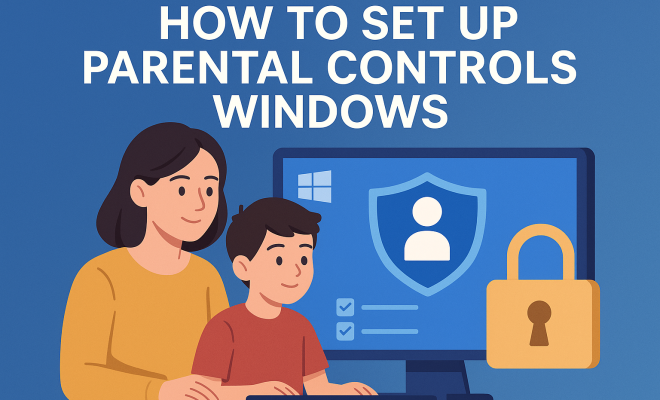
As a parent, keeping your kids safe online is likely one of your top priorities. With the increasing amount of time children spend on computers and the internet, knowing how to set up parental controls on Windows can give you peace of mind. Windows provides robust tools that allow you to manage what your children can access, monitor their online activities, and ensure they have a safe digital experience. In this comprehensive guide, we’ll explore the steps to set up these parental controls, along with practical insights and tips for maintaining a secure environment for your kids.
1. Understanding the Need for Parental Controls
In an era where information is just a click away, children are exposed to a myriad of content that ranges from educational to inappropriate. According to a recent study, nearly 60% of children encounter explicit content online before the age of 18, which underscores the importance of parental supervision. By utilizing parental controls, you can not only safeguard your children from harmful content but also limit distractions that may interfere with their studies.
Parental controls on Windows allow you to set restrictions on apps, games, and websites, thus creating a safer online environment. You can also monitor their usage patterns, which can provide invaluable insights into their interests and online behavior. These controls are not merely about restriction; they are about fostering healthy digital habits.
2. Setting Up a Child Account
Before you can set parental controls, you need to create a separate user account for your child. This account will allow you to monitor their activities without affecting your own settings. Here’s how to set up a child account in Windows:
- Open the Settings app by clicking on the Start menu and selecting the gear icon.
- Navigate to Accounts and select Family & other users.
- Click on Add a family member.
- Choose Add a child and enter the child’s email address. If they don’t have one, you can create a new Microsoft account for them.
- Follow the prompts to complete the setup process.
Once the account is created, your child will need to log in using their credentials. This allows you to implement specific parental controls suited to their needs.
3. Accessing Parental Controls in Windows
After setting up a child account, the next step is to access the parental control features. Windows has a built-in Microsoft Family Safety feature that can be accessed through the Microsoft account website or directly within Windows settings. Here’s how to navigate to it:
- Open the Settings app again and go to Accounts.
- Select Family & other users and then click on your child’s account.
- Choose Manage family settings online to be redirected to the Family Safety dashboard.
This dashboard is your command center for managing parental controls. From here, you can set screen time limits, monitor activity, and control what content your child can access.
4. Setting Screen Time Limits
One of the most effective ways to manage your child’s computer usage is by setting screen time limits. This feature can help prevent excessive screen time, which is linked to various health issues, including poor sleep and reduced physical activity. To set screen time limits:
- In the Family Safety dashboard, select your child’s account.
- Click on Screen time.
- Toggle the option to Use One Schedule for All Devices if applicable, and then set specific time limits for each day of the week.
By customizing these limits, you can promote a healthy balance between screen time and other activities, such as homework or outdoor play. (See: Online safety for children.)
5. Filtering Content and Websites
Another critical aspect of how to set up parental controls on Windows involves filtering content to prevent your child from encountering inappropriate material. Windows allows you to block specific websites and content categories. Here’s how you can set it up:
- Log into the Family Safety dashboard and select your child’s account.
- Click on Content Restrictions.
- Enable the option that says Filter Inappropriate Websites.
- You can then add specific sites to the Always block list or create a list of approved websites under Allowed Sites.
This personalized filtering helps ensure that your child only has access to age-appropriate content while exploring the internet.
6. Monitoring Activity
Keeping an eye on your child’s online behavior is essential for ensuring their safety. Windows makes it easy to monitor activity through the Family Safety dashboard. You’ll be able to view a summary of websites visited, apps used, and screen time. Here’s how to do it:
- In the Family Safety dashboard, select your child’s account.
- Click on Activity to see a report of their online interactions.
This feature allows you to discuss any concerning activities or interests with your child and guide them toward more appropriate options. Monitoring their activity isn’t just about surveillance; it’s also an opportunity for meaningful conversations about digital safety.
7. Managing Apps and Games
Controlling which apps and games your child can access is another key component of effective parental controls. Whether it’s preventing them from downloading games that are too mature or managing their spending on in-game purchases, Windows provides tools to manage these aspects:
- In the Family Safety dashboard, go to your child’s account.
- Select App and Game Limits.
- You can set limits on specific apps or block them entirely.
Moreover, you can set spending limits for purchases in the Microsoft Store to avoid unexpected charges. This level of control ensures that your child engages with age-appropriate apps while also teaching them responsible spending habits.
8. Communicating About Online Safety
While parental controls are a vital tool for safeguarding your child, they should not replace open and honest communication. Regular discussions about online safety can empower your child to make smart decisions when they encounter risky situations. Here are some tips for effective communication:
- Encourage your child to talk about their online experiences and any challenges they encounter.
- Discuss the importance of privacy and the risks of sharing personal information online.
- Reassure them that it’s okay to come to you with questions or concerns about anything they see on the internet.
By fostering a supportive environment, you not only enhance their ability to navigate the digital world safely but also strengthen your relationship with them.
9. Staying Updated on Digital Trends
As technology evolves, so do the challenges that come with it. Staying informed about the latest digital trends, applications, and potential threats is essential for effective parental control. Regularly reviewing your settings and adjusting them as needed can help ensure they remain effective. Consider the following:
- Follow reputable tech blogs and resources on digital parenting.
- Attend community workshops or webinars focused on online safety for children.
- Engage with your child about new apps and trends they are interested in.
By maintaining an active role in their digital lives, you can better guide them through the complexities of the online world.
10. Advanced Parental Control Tools
While Windows offers built-in parental controls, there are many third-party tools that can provide even more extensive options. Applications such as Norton Family, Qustodio, and Net Nanny offer features like real-time alerts, location tracking, and advanced reporting. These tools can complement Windows parental controls and provide a broader overview of your child’s digital footprint. (See: Internet safety for parents.)
For instance, Norton Family allows you to set time limits and monitor social media activity, while Qustodio offers detailed reports on your child’s online behavior. Such tools can often be customized further to fit your family’s specific needs and concerns. However, it’s essential to choose a tool that fits seamlessly with your existing systems and is user-friendly for both you and your child.
11. Understanding Online Risks
To effectively protect your child, it’s important to understand the various online risks they may face. These include cyberbullying, exposure to inappropriate content, and potential interactions with online predators. Recognizing these threats can help you teach your child about them and prepare them to handle difficult situations. You might want to discuss strategies for dealing with cyberbullying, such as documenting incidents and reporting them, as well as explaining the importance of keeping personal information private.
Statistics reveal that approximately 1 in 3 young people have experienced cyberbullying, making it crucial to educate your child on how to recognize and report such behavior. Building their confidence in addressing these issues will empower them to navigate online relationships more safely.
12. Frequently Asked Questions (FAQ)
What are parental controls?
Parental controls are features that allow parents to restrict access to certain content and monitor their children’s online activities. These tools can help manage screen time, block inappropriate websites, and control app usage.
How do I access parental controls on Windows?
You can access parental controls by creating a child account under your family settings in the Windows settings app. After setting up the account, you can manage controls through the Family Safety dashboard online.
Can I set different controls for different children?
Yes, within the Family Safety dashboard, you can customize settings for each child account, allowing you to tailor controls based on their age and maturity level.
Are parental controls effective?
While parental controls can significantly enhance online safety, they are most effective when combined with open communication and education about online behaviors and potential risks.
What should I do if my child bypasses parental controls?
If your child manages to bypass the parental controls, it’s essential to address the situation calmly. Discuss why they felt the need to circumvent the settings and reinforce the importance of trust and safety online. It may also be necessary to adjust the controls or explore additional monitoring options to ensure their safety.
13. Practicing Safe Internet Usage
Setting up parental controls is just one part of the equation. Teaching your child about safe internet usage is equally important. Some practical tips include: (See: Child health and safety.)
- Encourage them to use strong, unique passwords and to never share them with anyone, even friends.
- Discuss the importance of using secure websites, especially when entering personal information.
- Teach them how to recognize phishing attempts and scams, which can come through emails or messages from unknown sources.
- Advise them to think critically about the content they see online and to discuss anything that makes them uncomfortable with you.
By integrating these practices into their online habits, you can help them develop a more cautious and aware approach to the digital world, making them better equipped to face its challenges.
14. Benefits of Using Parental Controls
Using parental controls offers numerous benefits that can significantly improve your child’s online experience. The most notable advantages include:
- Protection from Inappropriate Content: Parental controls can effectively block websites and content that are not suitable for children’s viewing, thus reducing exposure to harmful material.
- Setting Healthy Boundaries: By managing screen time and content access, you can help your child develop healthier habits and a balanced lifestyle that includes outdoor activities, socializing, and education.
- Encouraging Responsibility: By discussing the reasons behind the restrictions and involving your child in the process of setting up controls, you can teach them about responsible internet usage and the importance of understanding boundaries.
- Facilitating Family Bonding: Engaging in conversations about what your child is doing online provides a chance to connect and bond. It also creates an opportunity for you to teach them about online etiquette and appropriate behavior.
15. Real-World Scenarios: Using Parental Controls
Understanding how to set up parental controls is one thing, but seeing their effects in real-world scenarios can help illustrate their importance. Here are some examples:
- Scenario 1: A parent discovers that their child is spending excessive time playing video games instead of completing homework. By using screen time limits, they can create a schedule that restricts gameplay during school hours and promotes academic responsibility.
- Scenario 2: A child stumbles upon an inappropriate website while searching for a game. The parent has set content filters, preventing access to explicit material. This allows the child to engage with the internet safely, knowing that they are protected.
- Scenario 3: A teenager is feeling pressured to share personal information on social media. Through open discussions about online safety, the parent reinforces the importance of privacy and the dangers of oversharing, helping the child make informed choices.
16. Feedback and Adjustments
Effective parental control is an ongoing process that requires feedback and adjustments. Regularly check in with your child about their online experiences and any frustrations they may have with the controls. This not only helps you understand the effectiveness of your restrictions but also gives your child a voice in their digital safety. Adjust settings based on their development and maturity level, ensuring that controls grow with them.
Additionally, as your child matures, consider transitioning them from strict controls to more flexible guidelines. This step can prepare them for a future where they will need to navigate the internet independently, equipped with the skills to assess risks and make smart choices.
Setting up parental controls on Windows is a straightforward process that can have a profound impact on your child’s online experience. By following these steps, you can create a safer environment for your kids, allowing them to explore the digital landscape with greater security and confidence. Remember, while parental controls are effective, open communication and ongoing education on digital safety remain key components in your parenting toolkit.
“`
Trending Now
Frequently Asked Questions
How do I set up parental controls on Windows 10?
To set up parental controls on Windows 10, first create a child account by going to Settings > Accounts > Family & other users. Click on 'Add a family member', select 'Add a child', and enter their email. After the account is created, you can manage restrictions for apps, games, and websites through the Family Safety settings.
What are the benefits of using parental controls on Windows?
Parental controls on Windows help safeguard children from inappropriate content online, limit distractions during study time, and promote healthy digital habits. They also allow parents to monitor their children's online activities, providing insights into their interests and behaviors, which is essential for guiding their internet usage.
Can I monitor my child's online activity on Windows?
Yes, Windows parental controls allow you to monitor your child's online activities. By setting up a child account, you can view their usage patterns, including which websites they visit and how much time they spend on apps and games, helping you to ensure a safe online environment.
What restrictions can I set with Windows parental controls?
With Windows parental controls, you can set various restrictions, including blocking specific websites, limiting screen time, and controlling access to apps and games based on their ratings. This helps create a safer digital space for your children by managing what they can access.
Is it necessary to have a separate account for my child on Windows?
Yes, creating a separate child account on Windows is essential for setting up parental controls. This allows you to monitor and manage their activities independently without affecting your own settings, ensuring tailored restrictions and oversight for their online safety.
What did we miss? Let us know in the comments and join the conversation.