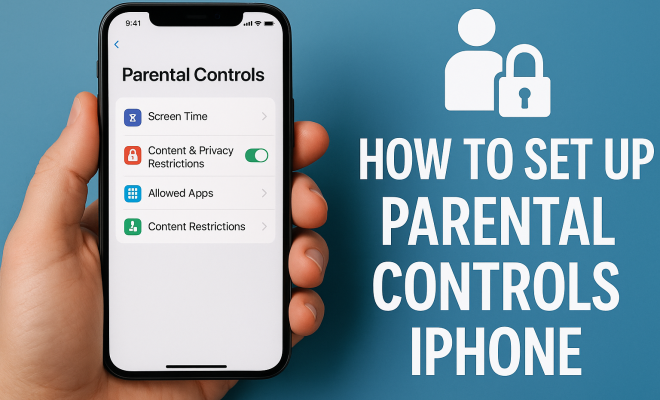
How to set up parental controls iPhone
“`html
As a parent in today’s digital age, keeping your child safe online can feel like a daunting task. Fortunately, iPhones come equipped with robust parental control features that empower you to manage your child’s device usage effectively. If you’re wondering how to set up parental controls on an iPhone, you’ve come to the right place. In this guide, we’ll explore the essential steps to help you navigate this process and ensure your child’s digital experience is both safe and enriching.
1. Understanding Parental Controls on iPhone
Before diving into the setup process, it’s crucial to understand what parental controls can do. Apple provides a suite of features within its iOS that allows parents to restrict content, manage app usage, and set time limits. These controls are designed to mitigate exposure to inappropriate content and help foster a healthy relationship with technology.
Parental controls can include restrictions on adult content, app purchases, game usage, and explicit music. You can set screen time limits, which is a vital feature in today’s world where screen addiction is prevalent among children. Knowing what each feature offers will help you better tailor these settings to your child’s needs.
2. Setting Up Screen Time
Screen Time is a feature introduced by Apple that tracks the time spent on apps and provides insights into your child’s device usage. To start setting this up, go to Settings and tap on Screen Time. If it’s your first time, you’ll need to tap on Turn On Screen Time and follow the prompts.
After enabling Screen Time, you can set a Screen Time Passcode. This is an essential step as it prevents your child from changing the settings. The passcode should be something only you can remember. Once that’s done, you’ll have access to a range of restrictions, including limits for app categories, downtime scheduling, and content restrictions.
3. Setting Content and Privacy Restrictions
Once you’ve enabled Screen Time, you can dive deeper into content and privacy restrictions. Under the Screen Time settings, tap on Content & Privacy Restrictions and enable it. This will unlock a new section where you can restrict explicit content, set age ratings for apps, and limit purchases.
For instance, to restrict adult websites, you can select Web Content and choose Limit Adult Websites. Similarly, you can manage what apps your child can install or delete and control whether they can make in-app purchases. Setting age restrictions ensures that your child only has access to age-appropriate content based on their maturity level.
4. Setting Time Limits
One of the standout features of Screen Time is the ability to set time limits for specific apps or app categories. This can be crucial in managing how much time your child spends on social media, games, or other apps. To set these limits, go to App Limits under Screen Time and tap on Add Limit.
You can select specific apps or entire categories, such as games or social networking, and set daily limits for usage. Once your child reaches the allotted time, the app will be locked until the next day. This feature not only helps in reducing screen time but encourages kids to engage in other activities outside of their devices.
5. Managing Downtime
Another important aspect of setting up parental controls on an iPhone is the Downtime feature. Downtime allows you to designate times when your child can’t use their device. To set this up, go to Downtime in Screen Time settings and specify the hours.
During the Downtime period, only apps that you allow will be accessible, and your child will receive a notification reminding them that their downtime has started. This feature is particularly useful for ensuring that devices are put away during family meals, study times, or bedtime, thus fostering healthier habits. (See: CDC on technology and parenting.)
6. Using Family Sharing
Family Sharing is a feature that not only lets you share purchases and subscriptions with family members but also allows you to manage your child’s screen time and parental controls remotely. By inviting your child to join your Family Sharing group, you can set up Screen Time settings directly from your device.
This way, you’ll receive requests for app downloads, purchases, or even for additional screen time, allowing you to supervise their digital life more actively. To set up Family Sharing, go to Settings, tap on your name, then Family Sharing, and follow the instructions to invite family members.
7. Regularly Reviewing Settings
It’s vital to regularly review the parental control settings you’ve established. As your child grows, their needs and maturity levels will change. The restrictions you set today may not be relevant in a few months. Make it a habit to check in on their device usage and adjust the settings accordingly.
Moreover, having open conversations with your child about the importance of these restrictions can make them more receptive to the rules. Encourage them to express their opinions on what they find fair or unfair, and use that feedback as a basis for adjusting settings. This ongoing dialogue fosters understanding, trust, and helps them develop a responsible attitude towards technology.
8. Teaching Digital Responsibility
Ultimately, while setting up parental controls on an iPhone is a fantastic way to safeguard your child’s digital experience, teaching them about digital responsibility is equally essential. Encourage discussion about safe online behavior, such as recognizing phishing attempts, understanding privacy settings, and being cautious about sharing personal information.
Incorporate lessons on how to balance screen time with other activities, such as socializing, playing outside, or reading. The goal is to equip your child with the knowledge and skills to navigate the digital landscape independently, even when they’re no longer under your watchful eye.
9. The Importance of Open Communication
Having parental controls in place is just one part of the equation; open communication with your child about their online behavior is vital. Discussing why these restrictions exist can help them understand the potential dangers of the internet. Allow them to ask questions about what they read or see online. This not only establishes trust but also empowers them to make safe choices.
Consider holding regular family meetings to discuss digital issues, encouraging kids to share their online experiences. This two-way dialogue helps children feel valued and understood while giving you insights into their digital world. You can also talk about current events related to internet safety, making the conversation relevant and engaging.
10. Common Concerns and Misconceptions
Many parents have concerns about using parental controls, fearing that it may damage their relationship with their child or lead to resentment. It’s essential to address these misconceptions head-on. Start by explaining that parental controls are designed to protect and guide, not to invade privacy. Reinforce the idea that these tools are there to ensure their safety and well-being.
Another common concern is that parental controls may not be effective against determined children. While no system is foolproof, having open discussions about the limits you’ve set can make your child more likely to respect them. Focusing on mutual respect and understanding, rather than strict enforcement, can lead to a more cooperative approach.
11. Statistics on Children’s Digital Usage
Understanding the landscape of children’s digital usage can help reinforce the necessity of parental controls. According to a 2021 report by Common Sense Media, children aged 8 to 12 spend an average of 4 hours and 44 minutes online each day. This number rises to over 7 hours for teenagers. Given these statistics, the potential risks associated with excessive screen time are significant.
Moreover, a survey by the Pew Research Center revealed that 54% of parents are concerned about their child’s exposure to inappropriate content online. Setting up parental controls can alleviate some of this anxiety and ensure children have a safer online experience. (See: New York Times on parental controls.)
12. FAQ: Setting Up Parental Controls on iPhone
Q1: Can I monitor my child’s location using parental controls?
A1: Yes, you can monitor your child’s location through the Find My app. By enabling location sharing, you can keep tabs on where your child is and ensure their safety.
Q2: What if my child forgets the Screen Time passcode?
A2: If your child forgets the Screen Time passcode, you can reset it using your Apple ID, which is linked to the device. Follow the prompts in the Screen Time settings to reset it.
Q3: Are parental controls the same for all iOS devices?
A3: While the core features of parental controls are similar across iOS devices, there may be slight variations depending on the model and iOS version. However, the general setup process remains consistent.
Q4: Can I set different restrictions for different children?
A4: Yes, if you are using Family Sharing, you can customize the parental control settings for each child individually, allowing you to tailor the restrictions based on their age and maturity.
Q5: How can I educate my child about online safety?
A5: Start by discussing the importance of privacy and the risks of sharing personal information online. Use real-world examples, conduct online safety workshops, or explore educational websites together to reinforce these lessons.
Q6: What should I do if my child is circumventing the parental controls?
A6: If you suspect that your child is trying to bypass restrictions, it’s crucial to have an open conversation about trust and responsibility. Discuss their motivations and reinforce the importance of the rules in place.
13. Exploring Additional Features of Parental Controls
While setting up basic parental controls is essential, exploring additional features can provide a comprehensive approach. You can enable features like Ask to Buy for purchases made through the App Store. This feature sends a request to you when your child tries to make a purchase, allowing you to review and approve it accordingly. It’s an excellent way to prevent unexpected charges and ensures you stay in the loop about their app choices.
Another useful feature is App Store Ratings. You can set restrictions not just based on age, but also on content ratings. This adds an additional layer of security to ensure that your child isn’t downloading apps that aren’t appropriate for them. There are various categories to consider, including age ratings and content descriptions that help you make informed decisions.
14. Advanced Techniques for Effective Monitoring
In addition to the built-in features provided by iOS, parents can explore third-party apps designed for comprehensive monitoring. Apps like Bark and Qustodio offer robust monitoring features, including alerts for inappropriate content, social media monitoring, and location tracking. These apps provide a more in-depth analysis of your child’s online behavior, helping parents stay one step ahead of potential issues.
For instance, Bark uses algorithms to analyze texts, emails, and social media activity to identify signs of cyberbullying, depression, or risky behavior. This level of monitoring can be particularly helpful for older children or teenagers who may have more autonomy over their online interactions. (See: NIH on child development and technology.)
15. Setting Goals with Your Child
When implementing parental controls, it’s beneficial to involve your child in the process. Set clear goals regarding their screen time and app usage together. For example, if your child is spending excessive time on gaming apps, work together to establish a healthy balance. This collaborative approach not only helps them understand the necessity of the rules but also fosters accountability.
You could create a visual chart to track their screen time and set goals for reducing it, rewarding them for achieving milestones. This method encourages self-regulation and makes them active participants in their digital habits.
16. Understanding the Impact of Social Media
Social media presents unique challenges when it comes to managing your child’s online presence. With platforms like Instagram and TikTok being especially popular among younger audiences, understanding the risks involved with these platforms is vital. Statistics show that around 69% of teenagers use social media daily, making it crucial for parents to monitor usage and educate their children on responsible behavior online.
Discuss the importance of privacy settings on these platforms, emphasizing that just because something is shared doesn’t mean it can’t come back to haunt them. Encourage your child to think critically about the content they post and share, and remind them to be cautious about interacting with strangers.
17. Establishing a Digital Family Agreement
Creating a digital family agreement can help set clear expectations for device usage. This document outlines the rules of engagement for everyone in the household, including screen time limits, app usage, and online behavior. Consider involving your children in crafting the agreement to foster a sense of ownership and responsibility.
Make sure to revisit and adjust the agreement as technological environments and family dynamics change. This ongoing adjustment ensures that it remains relevant and effective in promoting safe digital habits.
18. Conclusion: A Balanced Approach
Setting up parental controls on an iPhone is a critical step in promoting safe digital habits among children. However, it should complement, not replace, active parenting and communication. By balancing technology with open discussions about online safety, you can help your child navigate the digital world responsibly. Remember, the goal is to help them develop healthy, informed habits that will serve them well into adulthood.
“`
Trending Now
Frequently Asked Questions
How do I set up parental controls on my iPhone?
To set up parental controls on your iPhone, go to Settings, tap on Screen Time, and then select Turn On Screen Time. Follow the prompts and set a Screen Time Passcode to prevent your child from changing the settings. You can then customize restrictions for app usage, content, and screen time limits.
What are the benefits of using Screen Time on iPhone?
Screen Time helps parents monitor and manage their child's device usage by tracking app usage and setting limits. It allows you to schedule downtime, restrict content, and ensure a balanced digital experience for your child, promoting healthier technology habits.
Can I restrict specific apps on my child's iPhone?
Yes, you can restrict specific apps on your child's iPhone by using the Screen Time feature. After enabling Screen Time, navigate to App Limits and select the apps or categories you want to restrict, setting daily time limits for each.
How do I set content restrictions on my child's iPhone?
To set content restrictions on your child's iPhone, go to Settings, tap on Screen Time, and select Content & Privacy Restrictions. From there, you can restrict adult content, prevent app purchases, and limit explicit music based on your preferences.
Is there a way to monitor my child's screen time on iPhone?
Yes, you can monitor your child's screen time on iPhone using the Screen Time feature. It provides detailed insights into app usage, allowing you to see how much time your child spends on different apps and set appropriate limits.
Have you experienced this yourself? We’d love to hear your story in the comments.