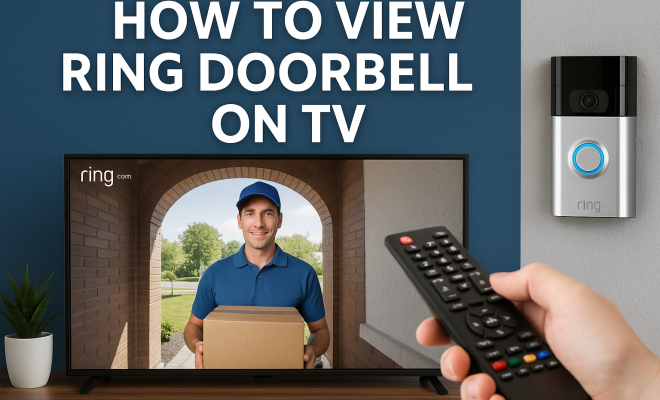
How to view Ring doorbell on TV
“`html
In our ever-connected world, security is a top priority for many homeowners. One of the most popular devices used to enhance security is the Ring doorbell, which allows users to see, hear, and speak to visitors remotely. But did you know you can also view Ring doorbell on TV? Whether you want to view live footage or recorded clips, having the ability to see your Ring doorbell on a larger screen can greatly enhance your home security experience. In this comprehensive guide, we’ll cover eight key methods to accomplish this, ensuring you never miss a delivery or visitor.
1. Using the Ring App on Smart TVs
Many modern smart TVs come with app support, allowing you to download various applications directly onto your television. If you have a smart TV, the easiest way to view Ring doorbell on TV is by using the Ring app itself. Brands like Samsung and LG support the Ring app, making it a straightforward option.
To get started, ensure your smart TV is connected to the internet. Then, navigate to your TV’s app store, search for the Ring app, and install it. After installation, log in with your Ring account credentials. This will permit you to view live feeds and receive notifications directly on your TV screen. You can even adjust the audio settings to hear who’s at your door more clearly.
2. Using Amazon Fire TV
If you own an Amazon Fire TV, you’re in luck! The Fire TV allows you to easily view Ring doorbell on TV through the Alexa app. This method requires you to have an Echo Show or another device with a screen that’s linked to your Ring account.
To set this up, head to your Fire TV and open the Alexa app. From there, enable the Ring skill if you haven’t already. After linking your Ring account, simply say, “Alexa, show me the front door” (or whatever you’ve named your Ring doorbell). Your Fire TV will instantly display the live video feed from your Ring camera, giving you a quick and convenient view of your front porch.
3. Using Google Chromecast
Chromecast is another popular option for viewing your Ring doorbell on a larger screen. If you have a Chromecast device, you can cast the Ring app from your mobile device to your TV. This is particularly beneficial if your smart TV lacks the Ring app.
To use this method, ensure your mobile device and Chromecast are connected to the same Wi-Fi network. Open the Ring app on your smartphone and select the doorbell camera you wish to view. Tap the ‘Cast’ icon and select your Chromecast device. You’ll be able to see the live feed on your TV screen while controlling it from your smartphone. This is a great way to have a larger view of what’s happening at your door.
4. Connecting via HDMI to Your Computer
If you prefer a more hands-on approach, consider connecting your computer directly to your TV using an HDMI cable. This method allows you to view Ring doorbell on TV while using your computer to access the Ring website or app.
Start by connecting one end of the HDMI cable to your laptop or desktop and the other end to your TV. Switch your TV input to the corresponding HDMI channel. Next, navigate to the Ring website and log into your account. From there, you can view live footage and recorded clips directly on your television. This method is particularly useful for those who want to monitor multiple cameras or review footage in detail.
5. Using Apple HomeKit
If you’re an Apple user, integrating your Ring doorbell with HomeKit allows you to view Ring doorbell on TV through your Apple TV. This can be an ideal solution for those who have a smart home ecosystem built around Apple products. (See: Ring doorbell security features.)
To do this, you’ll need to use a third-party bridge that connects Ring with HomeKit, as Ring does not natively support it. Once set up, you can ask Siri to show you the front door camera. Your Apple TV will display the live feed, making it easy to keep an eye on your front porch while you’re relaxing on the couch.
6. Viewing with Roku
Roku users can also enjoy the benefits of viewing their Ring doorbell on TV. While there isn’t a dedicated Ring app for Roku, you can use the screen mirroring feature available on many smartphones or tablet devices.
To set up screen mirroring, ensure that both your Roku device and your mobile device are connected to the same Wi-Fi network. On your smartphone, swipe down to access the settings menu and look for the screen mirroring option. Once activated, select your Roku device from the list. Open the Ring app on your mobile device, and you will see the feed mirrored on your TV screen, allowing you to watch who’s at your door effortlessly.
7. Utilizing Smart Displays
Smart displays, such as the Google Nest Hub and Amazon Echo Show, present another opportunity to view Ring doorbell on TV. While this isn’t the same as viewing it on a traditional TV, these devices act as excellent intermediaries to enhance your viewing options.
To connect your Ring doorbell to these smart displays, enable the corresponding skills in their respective apps. You can then simply ask your smart display to show the feed from your Ring camera. This is particularly useful for kitchen or living room setups where you might not want to walk over to the TV just to check the door.
8. Using IFTTT for Enhanced Integration
If you’re looking to automate your home security setup, consider using IFTTT (If This Then That) to create custom alerts and actions with your Ring doorbell. While IFTTT doesn’t directly allow you to view Ring doorbell on TV, it can trigger notifications or actions that might help you monitor your environment more effectively.
For example, you can set up IFTTT to send a notification to your phone whenever someone rings the doorbell, or even to turn on your TV when the doorbell is activated. These integrations may not provide direct viewing but can enhance how you interact with your Ring system and ensure you don’t miss important moments.
9. Integrating with Other Smart Home Devices
If you have a comprehensive smart home setup, chances are you have other smart devices that can also integrate with your Ring doorbell. Devices like Nest cameras, smart lights, and even alarms can work together to provide a seamless security experience. For instance, when someone rings your doorbell, you can have your smart lights flash to draw attention to the door area, which is especially helpful if you’re outside or away from the home.
Many smart home systems allow for automation routines. For example, you could set up a routine where if the Ring doorbell detects motion, all your indoor lights turn on, making it clear that someone is at the door. This can be particularly helpful in deterring potential intruders and enhancing your overall home security.
10. Enhanced Viewing with Multi-Camera Setup
If your Ring ecosystem includes multiple cameras, viewing them on a larger screen can be incredibly useful. You can switch between different cameras to cover all angles of your property. Using a smart TV or screen that supports multi-view features can allow you to monitor several areas of your home at once, increasing your situational awareness.
For those with larger properties or more entry points, having this capability can provide peace of mind knowing you have a clear view of your surroundings. You can easily navigate through various camera feeds, ensuring you never miss important events.
11. Comparing Different Viewing Methods
When considering how to view Ring doorbell on TV, it’s essential to understand the pros and cons of the various methods available. For example, using the Ring app on a smart TV is an excellent option if you frequently use your TV for other applications, as it centralizes your viewing experience. However, if you have an existing streaming device like Fire TV or Roku, it might be more convenient to use those platforms instead. (See: Home safety tips from CDC.)
Another factor to consider is the quality of the connection. A wired connection through HDMI typically offers the best streaming quality without lag, while wireless connections through Chromecast or screen mirroring may experience delays depending on your Wi-Fi speed. Testing each method can help you determine which one works best for your setup.
12. Frequently Asked Questions (FAQ)
Can I view Ring doorbell footage on any TV?
Not all TVs support the Ring app directly. However, you can use devices like Chromecast, Fire TV, or Roku to view your Ring doorbell on most modern televisions.
Do I need a subscription to view recorded clips on my TV?
Yes, to access recorded footage, you need a Ring Protect subscription. This service allows you to review past events and receive additional features.
Is there a lag when viewing live footage on my TV?
There can be a slight delay when using wireless methods like Chromecast or Fire TV. The lag varies depending on your internet speed and connection stability.
Can I use multiple Ring devices at once on my TV?
Yes, if your TV or streaming device supports it, you can switch between multiple Ring cameras. This is especially useful for monitoring different areas of your property.
What should I do if I can’t connect my Ring doorbell to my TV?
If you’re having trouble connecting, ensure that your Ring doorbell and the viewing device are both on the same Wi-Fi network. Restarting both devices can also resolve connectivity issues.
13. Choosing the Right Method Based on Your Lifestyle
When deciding on how to view Ring doorbell on TV, it’s helpful to consider your lifestyle and daily routines. If you’re frequently on the go and want quick access without much fuss, using a smart display like the Amazon Echo Show or Google Nest Hub might be the best. These devices can provide immediate feedback when someone is at the door and are easy to access from various rooms in your home.
On the other hand, if you enjoy watching television and often spend evenings in front of the TV, consider using your smart TV or streaming device to integrate with your Ring doorbell. This setup allows you to check who’s at your door with a quick voice command or a simple tap on your remote after you’ve settled down for a movie or your favorite show.
For tech-savvy individuals who enjoy tinkering with their home automation systems, utilizing IFTTT can provide a higher level of customization. Being able to set up specific alerts or automations based on your preferences can enhance your home security strategy, allowing you to tailor experiences that fit your needs precisely.
14. Privacy Considerations
While integrating your Ring doorbell with various devices enhances your security capabilities, it’s crucial to remain mindful of privacy implications. With multiple devices connected to the internet, there’s a risk of unauthorized access if security measures are not properly managed. (See: Research on smart home security.)
Always ensure that your devices have updated firmware and that you’re using strong, unique passwords for your Ring account and any associated devices. Regularly reviewing your device’s security settings can help you safeguard your privacy and maintain control over who can view your feeds.
Additionally, check the privacy policies of services you use in conjunction with your Ring devices. Being informed about how your data is handled can help you make better choices about which devices and platforms you choose to incorporate into your security ecosystem.
15. Future Trends in Smart Doorbells and Home Security
The future of smart doorbells like Ring is evolving rapidly. As technology advances, you can expect new features that may enhance the way you interact with your devices. For example, some companies are developing AI-powered features for identifying visitors and detecting package deliveries, reducing false alerts for non-human activity.
Moreover, integration with other smart home devices is likely to become even more seamless. Imagine a scenario where your doorbell not only alerts you about visitors but also interacts with your smart door locks, enabling remote access for trusted individuals or delivery services.
Another trend to watch is the expansion of video resolution and image clarity. As 4K technology becomes more mainstream, your Ring doorbell could potentially offer even crisper images, allowing you to identify visitors or package deliveries more clearly. Moreover, advancements in low-light technology could help improve visibility in darker conditions.
16. Final Thoughts on Viewing Your Ring Doorbell on TV
Having the ability to view Ring doorbell on TV can significantly enhance your home security experience. Whether you prefer the convenience of an app on a smart TV, using streaming devices like Chromecast or Fire TV, or integrating with Apple HomeKit, there are multiple methods to choose from based on your setup.
Ultimately, the method you choose will depend on your existing technology and personal preferences. Embrace the flexibility of modern security systems and enjoy the peace of mind that comes from knowing you can keep an eye on your front door, all from the comfort of your living room. Investing in a system that works for you can give you not just security but also convenience, making your home smarter and more efficient.
“`
Trending Now
Frequently Asked Questions
How can I view my Ring doorbell on my TV?
You can view your Ring doorbell on your TV by using the Ring app on compatible smart TVs, or through devices like Amazon Fire TV by linking your Ring account to the Alexa app.
Do smart TVs support the Ring app?
Yes, many modern smart TVs, such as those from Samsung and LG, support the Ring app. You can download it from your TV's app store to view live feeds and notifications.
Can I use my Amazon Fire TV to see my Ring doorbell?
Absolutely! With Amazon Fire TV, you can view your Ring doorbell by enabling the Ring skill in the Alexa app and using voice commands to display the live video feed.
What do I need to watch my Ring doorbell on TV?
To watch your Ring doorbell on TV, you need a compatible smart TV or streaming device like Amazon Fire TV, a stable internet connection, and your Ring account credentials.
Is it possible to hear audio from my Ring doorbell on TV?
Yes, when you view your Ring doorbell on a compatible TV, you can adjust the audio settings to clearly hear who is at your door while watching the live feed.
What did we miss? Let us know in the comments and join the conversation.