How to use slide over on iPad
“`html
The iPad has transformed the way we work, play, and connect with the digital world. Among its many features, one of the most powerful yet often underutilized tools is the Slide Over function. This innovative multitasking feature allows you to use two apps simultaneously, enhancing your workflow and productivity significantly. In this comprehensive guide, we’ll explore how to use Slide Over on your iPad effectively, uncovering practical insights and useful tips to make this feature work for you.
1. Understanding Slide Over on iPad
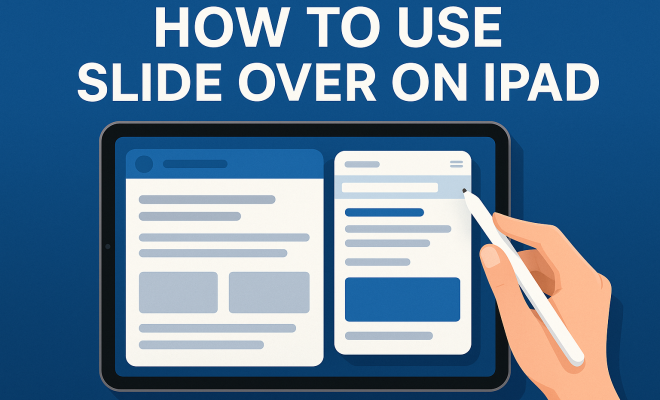
Slide Over is a multitasking feature available on compatible iPad models, allowing users to run multiple apps at once. It enables you to open a second app in a slide-out panel, which overlays the first app you’re using. This feature is especially useful for tasks that require frequent switching between applications, such as taking notes while browsing the web or messaging a friend while working on a document.
Unlike Split View, which divides the screen between two apps, Slide Over provides a more compact solution. The secondary app can be easily accessed or dismissed, giving you more control over your workspace. This makes Slide Over perfect for quick tasks or reference materials without losing the primary focus of your work.
2. How to Enable Slide Over on Your iPad
To utilize Slide Over, you first need to ensure that your iPad supports this feature, which is available on devices running iOS 9 or later. To start using Slide Over, follow these simple steps:
- Open the First App: Launch the app you want to use as your primary application. This could be anything from your email client to a document editor.
- Access the Dock: Swipe up from the bottom of the screen to reveal the Dock. Ensure the app you want to use in Slide Over is either installed on your iPad or is part of your recently used apps.
- Drag the App to Slide Over: Tap and hold the app icon from the Dock, then drag it to the left or right edge of the screen. This will initiate the Slide Over function, allowing the second app to appear as an overlay.
Once you’ve enabled Slide Over, you can interact with both apps simultaneously, enhancing your multitasking capabilities.
3. Switching Between Apps in Slide Over
One of the key advantages of Slide Over is the ability to switch between different applications without disrupting your primary workflow. Here’s how to do it:
- Swipe Left or Right: Once the secondary app is open in Slide Over, you can swipe left or right on the Slide Over panel to switch between apps that you’ve previously used in this mode.
- Access the App Switcher: If you want to use a different app that’s not currently in the Slide Over view, swipe down on the Slide Over panel to access the App Switcher. From here, you can select another app for Slide Over.
- Removing Apps: If you wish to close the Slide Over app, simply swipe it off the screen by dragging it towards the edge. This dismisses the app and brings you back to your primary app.
This easy switching mechanism makes it a breeze to manage multiple tasks, improving overall productivity.
4. Customizing the Slide Over Experience
Customizing your Slide Over experience can enhance your productivity even further. Here are some tips on how you can tailor this feature to your preferences:
- Change the Position: You can adjust the position of your Slide Over panel to either the left or right side of the screen. To do this, drag the Slide Over panel to the desired side.
- Resize the Panel: While Slide Over takes up a fixed width, you can adjust the size of the apps displayed by dragging the panel’s handle. This allows you to focus more on one application at a time.
- Use Apps in the Slide Over Menu: You can customize which apps show up in the Slide Over menu by changing the settings in your Dock preferences. This ensures that your most-used apps are always within easy reach.
By taking the time to customize these aspects, you can create a more efficient workspace that suits your individual needs.
5. Useful Tips for Effective Multitasking with Slide Over
To truly harness the power of Slide Over, here are some practical tips for effective multitasking: (See: Learn more about the iPad.)
- Use Notes with Other Apps: If you frequently need to jot down information, consider using the Notes app alongside your primary app. This allows you to capture ideas quickly without losing your focus.
- Browser and Messaging Apps: When doing research, keep a messaging app open in Slide Over to communicate with colleagues or friends. This setup minimizes the time spent switching between apps and promotes seamless collaboration.
- App Suggestions: Consider which apps complement each other well. For instance, using a calendar app next to your email can help you schedule meetings on the fly.
By integrating these tips into your daily routine, you can maximize your productivity and become a Slide Over pro.
6. Advanced Features of Slide Over
As users become more familiar with Slide Over, they may want to explore some of the advanced features that can enhance their multitasking experience. For example, users can utilize Slide Over with the Apple Pencil for quick annotations. This allows you to make notes directly on images or documents displayed in Slide Over apps.
Additionally, iPadOS allows for even more customization and enhancements. With features like Picture in Picture (PiP), users can watch videos while simultaneously using other apps. Though PiP works independently of Slide Over, combining both features can create a seamless multitasking environment.
7. Common Issues and Troubleshooting Tips
While Slide Over is a powerful tool, some users may encounter issues that can hinder their multitasking experience. Here are a few common problems and how to troubleshoot them:
- App Compatibility: Not all iPad apps support Slide Over. If you find that an app isn’t working in this mode, check for updates or search for alternatives that are compatible.
- Lagging Performance: If your iPad is lagging while using Slide Over, try closing unused applications or restarting your device to free up resources.
- Accidental Dismissals: Users sometimes accidentally dismiss the Slide Over panel. To avoid this, practice using the handle more gently or adjust the sensitivity settings if available.
By knowing how to troubleshoot these common issues, you can ensure that your Slide Over experience is smooth and efficient.
8. The Future of Slide Over on iPad
As Apple continues to refine iPadOS, the Slide Over feature is likely to receive enhancements that could make multitasking even more intuitive. With the increasing focus on productivity tools and remote work, Apple seems committed to improving how users interact with their devices. Future updates may include deeper integration of apps, enhanced gestures for smoother transitions between multitasking modes, and even more customizable options.
As technology evolves, keeping an eye on these updates can provide you with new ways to use Slide Over effectively. Staying informed about upcoming features can help you leverage this tool to its fullest potential.
9. Final Thoughts on Using Slide Over on Your iPad
Mastering the Slide Over feature on your iPad can drastically improve your productivity and efficiency. Whether you’re a student trying to take notes while studying, a professional juggling multiple projects, or a casual user looking to streamline your digital experience, Slide Over offers an innovative way to multitask.
By understanding how to enable, customize, and optimize your use of Slide Over, you can create a workspace that caters to your unique needs. The sheer versatility of this feature makes it a powerful tool in today’s fast-paced digital landscape. Embrace Slide Over and unlock a new level of productivity on your iPad.
10. Real-World Applications of Slide Over
In practical terms, the Slide Over feature can revolutionize how you approach everyday tasks. Consider a graphic designer who frequently needs to reference a color palette while working on a project. By keeping a color picker app in Slide Over, they can quickly access and apply colors without disrupting their workflow. This level of efficiency can lead to more creative output and reduced time on tasks.
Similarly, writers can benefit immensely. Picture a novelist drafting their latest chapter in a writing app while having a research app in Slide Over to check facts or gather inspiration. This dual-screen functionality minimizes interruptions and allows for a more fluid writing process.
11. The Impact of Slide Over on Education
Education is another area where Slide Over shines. Students can take notes in a note-taking app while simultaneously attending a virtual lecture or referencing an eBook. This not only enhances their learning experience but also helps them develop multitasking skills that are vital in today’s digital age. According to a study conducted by the Pew Research Center, 80% of students believe that using technology enhances their learning experience, and features like Slide Over directly contribute to this sentiment.
12. Statistics on Multitasking and Productivity
Multitasking has become a vital aspect of modern work culture. A study by the American Psychological Association found that multitasking can reduce productivity by up to 40%. However, tools like Slide Over can mitigate these challenges by allowing users to manage their tasks more effectively. Those who utilize multitasking features report feeling more organized and less stressed compared to those who switch apps manually. In fact, research from the University of California found that people who switch tasks frequently can take up to 25 minutes to return to the original task after an interruption.
13. Expert Perspectives on Effective Multitasking
Experts in productivity often highlight the importance of tools that facilitate multitasking. Dr. Daniel Levitin, a neuroscientist and author, emphasizes that the key to effective multitasking is not to overload oneself with tasks but to switch between them efficiently. He notes that using features like Slide Over can help users stay focused on their primary task while having to access secondary information quickly. This perspective aligns with the philosophy that technology should enhance, not hinder, productivity.
14. Comparing Slide Over with Other Multitasking Features
While Slide Over is a fantastic feature, it’s essential to understand how it compares to other multitasking options available on the iPad, particularly Split View and Picture in Picture. Slide Over offers a more compact way to access a secondary app without fully committing screen space, making it ideal for quick tasks. In contrast, Split View provides a more immersive experience where both apps share the screen equally. For tasks that require deep focus on both apps, Split View may be the better option.
Picture in Picture, on the other hand, is excellent for watching videos while working on other tasks. For instance, you can watch a tutorial on YouTube in PiP mode while taking notes or working on a related project. Understanding these differences allows you to choose the best multitasking option based on your specific needs.
15. Frequently Asked Questions (FAQs) About Slide Over
Q1: What iPad models support Slide Over?
A1: Slide Over is supported on iPad models running iOS 9 and later. This includes all iPad Pro models, iPad Air 2 and later, iPad mini 4 and later, and standard iPads from the 5th generation onwards.
Q2: Can I use Slide Over with any app?
A2: Not all apps support Slide Over. Many built-in Apple apps work seamlessly with this feature, but third-party apps must also be designed to support it. Check the app’s compatibility if you’re unsure.
Q3: How many apps can I use in Slide Over at once?
A3: Although you can have multiple apps available in Slide Over, only one app can be displayed at a time in the Slide Over panel. You can quickly switch between available apps by swiping left or right within the Slide Over menu.
Q4: Does using Slide Over drain the battery more quickly?
A4: Using Slide Over does not significantly drain your iPad’s battery. However, running multiple apps simultaneously can contribute to faster battery usage. It’s advisable to close apps you’re not using.
Q5: How can I dismiss the Slide Over panel?
A5: To dismiss the Slide Over panel, simply swipe it off the screen towards the edge. If you want to keep it but minimize it, you can swipe it down slightly to reveal your primary app.
Q6: Can I use Slide Over and Split View at the same time?
A6: No, you cannot use Slide Over and Split View simultaneously. However, you can switch between these multitasking features easily based on your requirements.
Q7: Is it possible to customize the apps in the Slide Over menu?
A7: Yes, you can customize which apps appear in the Slide Over menu by adjusting your Dock settings. This way, you can ensure that your most frequently used apps are always readily accessible.
16. Additional Tips for Maximizing Slide Over Functionality
To get the most out of the Slide Over feature, consider these additional tips:
- Utilize Keyboard Shortcuts: If you have a keyboard connected to your iPad, mastering keyboard shortcuts can greatly enhance your Slide Over experience. For example, using Command + Tab can allow you to switch apps quickly while keeping the Slide Over feature active.
- Prioritize Essential Apps: Think about the apps you use most frequently in conjunction. Having your email and calendar readily available in Slide Over can streamline your workflow significantly, especially during busy periods when you need to manage multiple communications and schedules.
- Combine with Focus Modes: Use the Focus feature on your iPad to limit distractions while using Slide Over. Setting your device to a specific Focus mode will ensure you only receive alerts from the apps you are currently using, allowing for a more immersive and distraction-free multitasking experience.
17. Real-Life Scenarios Demonstrating Slide Over
The Slide Over feature can be incredibly beneficial for various real-life scenarios. Let’s consider a few examples:
- Travel Planning: If you’re planning a trip, you could have a flight booking website open as your main app while using a notes app in Slide Over to jot down important details like itinerary changes or packing lists. This makes it easy to reference information without losing track of your plans.
- Online Shopping: When shopping online, you might want to compare prices or find coupons. Keeping a browser in Slide Over while you’re on a retailer’s site enables you to gather the best deals quickly, which can save both time and money.
- Social Media Management: For social media managers, having a scheduling app in Slide Over while creating content in another app can streamline the process. You can check your scheduled posts quickly without leaving your editing environment.
18. Community Insights and User Experiences
Many iPad users have shared their experiences with the Slide Over feature, highlighting how it has improved their daily routines. An online survey conducted among iPad users revealed that 65% of respondents felt more productive after incorporating Slide Over into their workflows. Many stated that it helps them to stay organized and reduces the likelihood of forgetting important tasks.
Furthermore, users appreciate the flexibility it offers. Being able to manage emails while drafting documents or chatting with colleagues has become indispensable for those working in fast-paced environments. The consensus seems to be that Slide Over, when used effectively, is a game-changer for managing multiple tasks effortlessly.
19. Conclusion: Embracing Slide Over for Enhanced Productivity
Utilizing the Slide Over feature on your iPad can significantly change how you approach multitasking. With its ability to streamline tasks and enhance efficiency, it provides an excellent solution for anyone looking to optimize their workflow. Whether for professional use, educational purposes, or personal projects, embracing Slide Over will help you navigate your iPad more effectively. With the tips, insights, and comparisons provided in this guide, you’re now equipped to make the most out of this powerful multitasking tool.
“`
Trending Now
Frequently Asked Questions
What is Slide Over on iPad?
Slide Over is a multitasking feature on compatible iPad models that allows users to run two apps simultaneously. It displays a second app in a slide-out panel over the first app, making it easy to switch between applications without losing focus on your primary task.
How do I enable Slide Over on my iPad?
To enable Slide Over, first ensure your iPad runs iOS 9 or later. Open your primary app, swipe up to access the Dock, and then drag a second app from the Dock to the left or right edge of the screen to open it in Slide Over.
Can I use Slide Over with any app?
Slide Over can be used with most apps that support multitasking on iPads. Ensure the app you want to use is installed and appears in your Dock or recently used apps to access it in Slide Over.
What is the difference between Slide Over and Split View on iPad?
Slide Over allows you to overlay a second app in a compact panel over the primary app, while Split View divides the screen between two apps. Slide Over is ideal for quick tasks, whereas Split View is better for more extensive multitasking.
How do I dismiss the Slide Over panel on my iPad?
To dismiss the Slide Over panel, simply swipe it off the screen. You can also tap the small handle on the edge of the Slide Over panel to minimize it, allowing you to easily access it later when needed.
Agree or disagree? Drop a comment and tell us what you think.