Master OneNote: Your Essential Guide to Effective Note-Taking
“`html
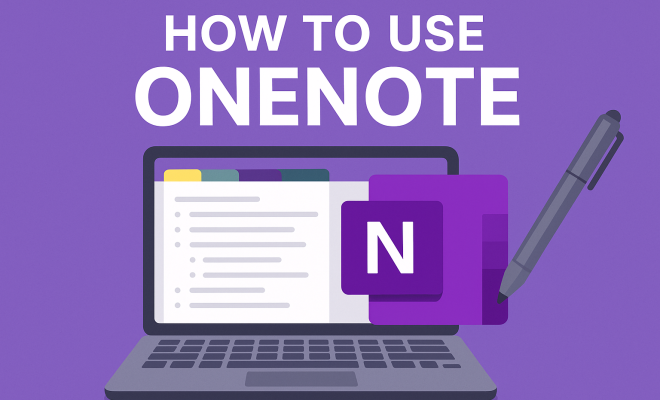
Microsoft OneNote has emerged as one of the leading note-taking applications, transforming the way individuals and teams capture, organize, and share information. With its versatility and user-friendly interface, it’s no wonder why so many are eager to learn how to use OneNote effectively. Whether you’re a student, a professional, or just someone who loves to jot down ideas, this guide will walk you through the essential features of OneNote, offering practical insights and techniques to enhance your note-taking experience.
1. Understanding OneNote’s Structure
Before diving into the intricacies of how to use OneNote, it’s crucial to grasp its fundamental structure. OneNote operates on a hierarchical system consisting of notebooks, sections, and pages. Each notebook can be dedicated to a specific topic or project, while sections act as dividers, organizing related pages within the notebook. This layout allows for efficient navigation and easy access to your notes.
For instance, if you’re taking notes for different subjects in school, you could create a separate notebook for each class. Within each notebook, you might have sections for lectures, assignments, and readings, each containing pages filled with relevant information. This clear organizational scheme is one of the reasons why so many users turn to OneNote for their note-taking needs.
2. Creating and Organizing Notebooks
Now that you understand the organizational structure, let’s explore how to create and organize your notebooks effectively. To create a new notebook in OneNote, simply click on the “File” menu, select “New,” and choose a location (either on your device or OneDrive for cloud storage). This flexibility allows you to choose where you want to store your notes for easy access from different devices.
After setting up your notebook, think about how you want to structure it. You could categorize your notebooks by project, subject, or even by personal interests. Consistently naming your sections and pages can also enhance your ability to locate notes quickly in the future. Remember, the goal is to create a system that makes sense to you and fits your workflow.
3. Taking Notes: Text, Audio, and More
One of the standout features of OneNote is its versatility in note-taking methods. You’re not just limited to text; OneNote allows you to incorporate audio recordings, images, and even video clips directly into your notes. This is particularly beneficial during lectures or meetings, where capturing the speaker’s exact words can enhance your understanding of the material.
To add an audio recording, simply click the “Insert” tab and select “Audio.” This capability is not only useful for students but also for professionals who may need to refer back to critical discussions later. Additionally, you can insert pictures or scanned documents, allowing you to keep all relevant information in one place.
4. Utilizing Tags for Enhanced Organization
Tags are a powerful yet often underutilized feature in OneNote that can significantly improve your note management. By applying tags to specific lines or sections of your notes, you can easily categorize and prioritize important information. For instance, you can tag items as “To Do,” “Important,” or “Question,” facilitating quick searches and follow-ups later.
To add a tag, highlight the text and select a tag from the “Home” tab. Once you’ve tagged your notes, OneNote allows you to search for these tags, helping you locate important information without having to sift through pages of content. This feature is crucial for staying organized in a fast-paced work environment or during busy school semesters.
5. Collaborating with Others
Collaboration is one of the key strengths of OneNote, making it a popular choice for teams and study groups. OneNote allows multiple users to access the same notebook simultaneously, enabling real-time collaboration. To share a notebook, click the “Share” button in the upper right corner and choose how you’d like to invite collaborators—via email or by generating a shareable link.
As you work together, you’ll see updates in real-time, which fosters a dynamic environment for brainstorming and discussion. You can also include comments and feedback directly on the notes, ensuring that everyone stays on the same page. This collaborative feature is particularly useful for team projects, research collaborations, or even group study sessions. (See: Note-taking software overview.)
6. Integrating OneNote with Other Microsoft Apps
OneNote’s integration with other Microsoft applications is another aspect that enhances its functionality. For instance, you can easily link notes with tasks in Microsoft To Do or Outlook Calendar. This integration allows you to convert your notes into actionable tasks and reminders, which can help you manage your time more effectively.
Moreover, the ability to insert Excel tables or PowerPoint slides into your notes provides a seamless way to combine different types of information. This interconnectivity makes OneNote a central hub for managing various aspects of your life, from personal projects to professional responsibilities.
7. Searching and Finding Information Quickly
OneNote is equipped with a robust search function that allows you to find content quickly without having to dig through pages and pages of notes. You can search for keywords, phrases, or even tags to locate specific pieces of information. This function is particularly beneficial for those who accumulate large volumes of notes over time.
Additionally, OneNote offers a feature that recognizes handwritten notes, allowing you to search your handwritten content as well. This feature can often be a game-changer for users who prefer writing notes by hand but want to ensure they can find information without hassle later. To activate this feature, ensure that your handwritten notes are properly aligned and legible, and then utilize the search bar.
8. Customizing Your OneNote Experience
Last but not least, personalizing your OneNote workspace can significantly enhance your productivity. OneNote allows various customization options, from choosing different page colors to creating custom tags and templates. You can set your preferred default font and size to ensure consistency across your notes.
Moreover, explore the different view options available. You can switch between a vertical or horizontal layout to find what works best for your note-taking style. Don’t forget to play around with the drawing tools if you’re using a tablet or touchscreen device—these features can add a creative touch to your notes and enhance engagement.
9. Tips and Tricks for Effective Note-Taking
To make the most of OneNote, consider employing a few tips and tricks that can elevate your note-taking game. For example, using keyboard shortcuts can save you time and streamline your workflow. Some useful shortcuts include:
- Ctrl + T: Create a new section.
- Ctrl + N: Create a new page.
- Ctrl + Shift + M: Create a new page from the current page.
- Ctrl + Alt + 1: Apply Heading 1 to selected text.
Another strategy is to implement the Cornell note-taking system in OneNote. This method involves dividing your note page into three sections: cues, notes, and summary. You can use tags to mark important points and questions in the cues section, take detailed notes during lectures, and then summarize the information at the end. This structured approach can enhance retention and understanding.
10. OneNote Templates: A Quick Start
OneNote offers a variety of templates that can help you kickstart your note-taking. These templates cater to different needs, whether for meeting notes, project planning, or lecture notes. To access templates, click on the “Insert” tab, select “Page Templates,” and explore the options available. Using templates can save you time and provide a consistent structure for your notes.
If you don’t find a template that suits your needs, consider creating one! You can design it with your preferred layout and formatting, then save it as a template for future use. This customization can make your notes even more effective.
11. Integrating Multimedia: Engaging Your Senses
OneNote excels not just in text but also in multimedia capabilities. You can embed videos from platforms like YouTube or add GIFs, which can make your notes more engaging. These enhancements can be particularly beneficial when reviewing or sharing notes with peers, making the information more memorable. When you incorporate different types of media, it also caters to various learning styles and preferences.
For instance, if you’re studying a topic that includes concepts best explained through visuals, adding relevant diagrams or videos can reinforce your understanding and retention. Plus, the ability to annotate images directly within OneNote allows you to highlight key areas for future reference.
12. Best Practices for Maintaining an Organized OneNote
Maintaining organization in OneNote is essential for long-term effectiveness. Develop a routine for reviewing and organizing your notes. Consider a weekly or bi-weekly practice where you go through your notebooks, clean up any unnecessary pages, and archive content that’s no longer relevant. This will minimize clutter and help you focus on the information that truly matters. (See: Technology and education resources.)
Another best practice is to regularly back up your notebooks, especially if you’re using OneNote locally. While OneNote automatically saves changes in the cloud when using OneDrive, ensuring a backup on your local device offers an extra layer of security. Consider exporting important notebooks as PDF or OneNote files occasionally, just in case.
13. FAQ: How to Use OneNote
What types of devices can I use OneNote on?
OneNote is available on a variety of devices, including Windows, Mac, iOS, and Android. This cross-platform availability allows you to access your notes from anywhere, ensuring you never miss an important thought or meeting note.
Can I use OneNote offline?
Yes! OneNote has offline capabilities. You can access and edit your notes without an active internet connection. Once you reconnect to the internet, any changes made offline will sync automatically.
Is it possible to password-protect my OneNote notebooks?
Absolutely! You can create password-protected sections within your notebooks. This feature is especially useful for keeping sensitive information secure. To set this up, right-click on the section tab and select “Password Protect this Section.”
How do I share my notes with others?
Sharing your notes is simple. Click on the “Share” button, choose your sharing method (via email or link), and set the permissions (view or edit). This makes collaboration with classmates or colleagues straightforward and efficient.
Can I import notes from other applications?
Yes, OneNote allows you to import notes from various formats, including Evernote, PDF files, and even Word documents. This feature makes transitioning to OneNote from another platform seamless.
How can I sync OneNote across devices?
To sync OneNote across devices, simply log into your Microsoft account on each device where OneNote is installed. Ensure that your notebooks are stored in OneDrive, which will facilitate automatic syncing. You can also manually initiate a sync by clicking on the “File” menu and selecting “Sync All Notebooks.”
Can I collaborate in real-time with remote teams?
Yes! OneNote’s collaborative features enable real-time editing and sharing. If you’re working with a remote team, you can use a shared notebook stored in the cloud, allowing everyone to view and edit notes simultaneously. This is particularly useful for brainstorming sessions and project planning.
What are the educational benefits of using OneNote?
OneNote offers several educational benefits, such as improved organization, enhanced collaboration, and the ability to incorporate various media types. Students can take comprehensive notes, share with peers for group projects, and utilize tags for enhanced recall during revisions. Its search functionality also makes it easier to find information quickly, saving time when studying for exams.
Is OneNote suitable for project management?
Absolutely! OneNote can be a valuable tool for project management. You can create notebooks for different projects, utilize sections for planning, timelines, and tasks, and use pages for meeting notes or brainstorming ideas. The collaborative features also allow team members to contribute and stay updated on project progress.
In summary, learning how to use OneNote effectively opens up a world of possibilities for managing your notes and enhancing productivity. With its intuitive interface and powerful features, OneNote not only helps you capture information but also organizes it in a way that is easily accessible and shareable. Whether you’re a student, a professional, or just someone who loves to stay organized, OneNote has something to offer. (See: Harvard University educational resources.)
14. Advanced Features You Might Not Know About
As you become more proficient in OneNote, you may want to explore some of its advanced features that can take your note-taking to the next level. For example, OneNote supports the use of embedded links, allowing you to link to external resources or other notes within your notebooks. This is great for research or when you want to reference other materials without cluttering your notes.
Another advanced feature is the ability to create custom tags. While OneNote comes with a set of predefined tags, you can also create your own to suit your specific needs. This flexibility allows you to tailor your tagging system to your personal or professional requirements, enhancing your efficiency further.
15. OneNote for Visual Learners
If you’re a visual learner, OneNote has several features that cater to your style. You can create mind maps and diagrams using the drawing tools available. This visual representation can help you grasp complicated concepts more easily and aid in brainstorming sessions. Furthermore, you can use colors and shapes to distinguish between different ideas or categories within your notes.
Additionally, for lectures or meetings that involve a lot of visual content, you can take screenshots directly into OneNote. This allows you to capture presentations or web pages for future reference, providing a rich context for your notes.
16. Keeping OneNote Secure
As with any digital tool, security is a concern. OneNote provides several ways to keep your information secure. Aside from password-protecting sections, consider using two-factor authentication for your Microsoft account. This adds an extra layer of security, ensuring that even if your password is compromised, your notes remain protected.
Additionally, always be cautious when sharing notebooks. Ensure that you only share with trusted individuals and set permissions appropriately. Being mindful of who has access can help prevent unauthorized changes to your notes.
17. Feedback from OneNote Users
Many users have shared positive experiences with OneNote, particularly highlighting its ease of use and versatility. Students often praise its ability to integrate multimedia and its collaborative features, making group projects more manageable. Professionals appreciate its organizational capabilities, which help them keep track of various tasks and projects effectively.
However, some users have noted that the learning curve can be steep initially, especially for those who are new to digital note-taking. Therefore, taking the time to explore OneNote’s features and practicing regularly can make a significant difference in how efficiently you can use the app.
“`
Trending Now
Frequently Asked Questions
How do I start using OneNote?
To start using OneNote, download the application or access it via your web browser. Create an account if you don’t have one, and then you can create a new notebook by selecting 'File' and then 'New'. Organize your notes into sections and pages for better management.
What is the structure of OneNote?
OneNote has a hierarchical structure consisting of notebooks, sections, and pages. Notebooks are used for overarching topics, sections divide related content, and pages contain the actual notes. This structure helps keep your information organized and easily accessible.
How do I organize my notes in OneNote?
To organize your notes in OneNote, create separate notebooks for different projects or subjects. Within each notebook, use sections to categorize related pages, such as lectures or assignments. This method makes it easier to navigate through your notes and find what you need quickly.
Can I use OneNote on multiple devices?
Yes, OneNote can be accessed on multiple devices. You can store your notebooks on OneDrive for cloud access, allowing you to view and edit your notes from any device with internet connectivity. This feature makes it convenient for users who work on different platforms.
Is OneNote good for students?
Absolutely! OneNote is an excellent tool for students as it allows for easy note-taking, organization by subject, and collaboration on group projects. Its features like tagging, drawing, and the ability to insert multimedia enhance the learning experience and make studying more efficient.
What did we miss? Let us know in the comments and join the conversation.