How to sync OneNote across devices
“`html
With the rise of remote work and the need for seamless information access, knowing how to sync OneNote across devices has become essential for students, professionals, and anyone who juggles multiple tasks. OneNote, Microsoft’s versatile note-taking application, enables users to capture thoughts, organize ideas, and collaborate effectively. This article dives deep into the methods and best practices for syncing OneNote across various devices while ensuring you get the most out of this powerful tool.
1. Understanding OneNote’s Syncing Mechanism
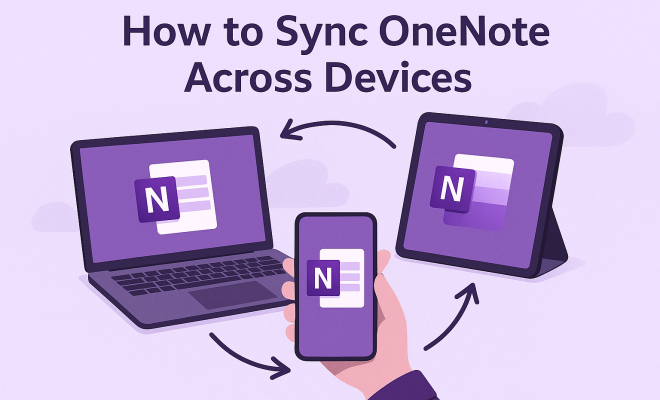
To effectively sync OneNote across devices, it’s crucial to understand how its synchronization system works. OneNote stores your notes in the cloud, which means they’re accessible from virtually any device connected to the internet. The app utilizes Microsoft OneDrive to sync your notebooks automatically, keeping them updated on all your devices.
Each time you make changes to your notes, OneNote will sync them to OneDrive, allowing you to access the most recent version from any device, be it a smartphone, tablet, or computer. However, this seamless experience is contingent on a solid internet connection. Without it, your notes will not sync, and you’ll be left working offline until you’re back online.
2. Setting Up OneNote for Syncing
Before you can sync OneNote across devices, you need to ensure that your OneNote app is set up correctly. Start by downloading the application on your devices from the appropriate app store or Microsoft’s official website. Once installed, you’ll need to sign in with your Microsoft account. This account acts as your central hub for OneNote, linking all your devices.
After signing in, you can create a new notebook or access existing ones. Make sure that the notebooks you plan on using are stored in your OneDrive account, as this is necessary for syncing. To confirm the syncing status, look for a small sync icon next to your notebook name. If it’s not visible, you can manually initiate a sync by clicking on the sync button.
3. Managing Notebooks and Sections
OneNote allows you to create multiple notebooks for different projects, and within those notebooks, you can organize your thoughts into sections and pages. To ensure effective syncing when working on multiple devices, it’s advisable to keep your notebooks organized. Namely, avoid creating too many small notebooks, as this can complicate the syncing process.
Additionally, consider using section groups to further streamline your organization. Section groups can help keep related sections together, making it easier to navigate and find your notes quickly. By maintaining a clear structure, you minimize the chances of sync errors and improve your overall productivity when switching devices.
4. Troubleshooting Common Sync Issues
Even with the best setups, issues can arise when trying to sync OneNote across devices. One common problem is the ‘Out of Sync’ error, which can occur for various reasons, including internet connectivity issues, expired login sessions, or even application glitches. If you face this, the first step is to check your internet connection.
If connectivity isn’t the issue, try logging out and back into your Microsoft account. This simple step can refresh your session and resolve many syncing problems. Additionally, ensure that your OneNote application is updated to the latest version, as updates often include fixes for known bugs and performance improvements.
5. Using OneNote on Different Platforms
OneNote is available on multiple platforms, including Windows, macOS, iOS, and Android. The good news is that syncing works seamlessly across all these versions. However, there are slight differences in functionality depending on the platform. For example, the Windows version of OneNote offers a more extensive set of features, whereas the mobile versions may have some limitations.
Regardless of the platform, the core functionality remains the same: you can create notes, organize them into notebooks, and share them with others. When transitioning between platforms, familiarize yourself with any unique features or limitations of the specific app version to leverage OneNote’s capabilities fully.
6. Collaborating with Others in OneNote
One of the standout features of OneNote is its collaborative capabilities. You can share your notebooks with colleagues, classmates, or friends, which can enhance the syncing experience. When you sync OneNote across devices, shared notebooks allow everyone involved to see real-time changes. This is particularly beneficial for group projects, meetings, or brainstorming sessions. (See: OneNote overview on Wikipedia.)
To share a notebook, simply go to the Share option within the app, and enter the email addresses of the people you wish to invite. You can choose whether they can edit or only view the notes. As changes are made, OneNote will keep everyone’s version up to date, making collaboration straightforward and efficient.
7. Optimizing Your OneNote for Performance
A common concern for users is performance, especially when working with large notebooks filled with images, audio recordings, and other media. To ensure smooth syncing of OneNote across devices, consider optimizing your notebooks. This may include limiting the size of embedded files, keeping the number of pages in a single section reasonable, and regularly archiving old notes.
Additionally, regular maintenance can help improve performance. For example, you can delete unnecessary notebooks or sections and make use of OneNote’s built-in search features to locate specific notes quickly. These practices not only enhance the syncing experience but also keep your workspace organized and efficient.
8. Utilizing Keyboard Shortcuts for Efficiency
To streamline your workflow and enhance your productivity in OneNote, familiarize yourself with keyboard shortcuts. These shortcuts can save you time, especially when rapidly switching between devices. For example, using shortcuts to create new pages, format text, or navigate through sections can greatly improve your efficiency.
Common shortcuts include Ctrl + N to create a new page and Ctrl + T to create a new section. Additionally, using Ctrl + K allows you to insert hyperlinks easily. By integrating these shortcuts into your daily use, you’ll find that managing notes and syncing across devices becomes a quicker and more intuitive process.
9. Staying Updated with OneNote Features
Microsoft frequently updates OneNote with new features and improvements, making it crucial to stay informed about the latest additions. These updates can enhance your experience and offer new ways to sync OneNote across devices. For instance, recent updates have introduced improved collaboration tools, advanced search features, and better integration with Microsoft Teams.
To keep your OneNote app updated, enable automatic updates if using a mobile device or check for updates regularly on desktop versions. Microsoft also provides a blog and a community forum where users can learn about upcoming features, share tips, and ask questions. Engaging with these resources can help you maximize your OneNote experience and ensure you’re leveraging all the tools available for effective note-taking and syncing.
10. Advanced Features of OneNote
OneNote has a wealth of features that can enhance your experience well beyond basic note-taking. For instance, the ability to tag notes with different labels enables users to prioritize tasks or categorize information for easy retrieval. Tags like ‘Important’, ‘Question’, or ‘To-Do’ can help you scan your notes quickly and focus on critical items at a glance.
Another powerful feature is the ability to integrate other Microsoft services. For example, you can link your OneNote notes with Outlook tasks, allowing you to convert notes into actionable tasks effortlessly. This integration helps keep your workflow seamless and ensures nothing falls through the cracks.
11. Customizing OneNote with Add-Ins
OneNote’s functionality can be further enhanced through various add-ins. These extensions can help tailor OneNote to your specific needs and workflows. For instance, tools like OneNote Web Clipper enable you to save web pages directly into your notebooks, while add-ins like Onetastic offer additional features such as custom macros, image editing, and more.
When exploring add-ins, consider what tasks you perform most often and look for tools that can simplify these processes. Integrating useful add-ins can significantly boost your productivity and make note-taking even more efficient.
12. Syncing OneNote with Non-Microsoft Applications
While OneNote is designed to work seamlessly within the Microsoft ecosystem, it can also be integrated with non-Microsoft applications to enhance productivity. For example, if you use tools like Google Drive or Evernote, you can manually export or import notes to keep everything aligned. Although this may require additional steps, it ensures that your notes are accessible across various platforms.
Using automation tools like Zapier can also help sync OneNote data with other apps, allowing you to create workflows that can automatically send notes to other applications or services based on specified triggers. This kind of integration can save you time and streamline your processes. (See: CDC on remote work ergonomics.)
13. Data Security in OneNote
Data security is paramount, especially when syncing notes across devices. OneNote uses encryption to protect your data both at rest and in transit. It’s important to ensure that you’re using a strong password for your Microsoft account and enabling two-factor authentication for an extra layer of security.
You can also choose to password-protect specific sections in your notebooks. This feature is particularly useful for sensitive information, ensuring that even if someone gains access to your notes, they cannot view the protected sections without the correct password.
14. Frequently Asked Questions
What happens if I lose internet connectivity while using OneNote?
If you lose internet connectivity, OneNote will allow you to continue working on your notes offline. Once you reconnect to the internet, OneNote will automatically sync any changes made while you were offline. However, be cautious about syncing changes across multiple devices at the same time, as this could lead to potential sync conflicts.
Can I use OneNote without a Microsoft account?
No, a Microsoft account is required to use OneNote since it is integrated with OneDrive for syncing. This account serves as your central hub for storing and sharing notes across various devices seamlessly.
How can I check the syncing status of my notebooks?
To check the syncing status, look for a sync icon next to your notebook name. If the icon indicates that syncing is in progress or if there’s an error, you can click on it to view more details or resolve the issue.
Why does my OneNote take so long to sync?
Syncing delays can occur for various reasons, such as large file sizes or slow internet connections. If your notebook contains large images or audio files, it may take longer to sync. To help with this, try to keep your files optimized and ensure you have a stable internet connection.
Can I recover deleted notes in OneNote?
Yes, OneNote has a feature that allows you to recover deleted notes, but this may depend on how long ago the notes were deleted. You can use the ‘Recycle Bin’ feature within OneNote to restore deleted pages and even sections, as long as they haven’t been permanently removed.
How do I ensure my OneNote notebooks are accessible on all devices?
To ensure your OneNote notebooks are accessible across all devices, always save them in your OneDrive account. Make sure you are signed into the same Microsoft account on all devices and that the OneNote app is updated to the latest version. Regularly check your sync status to avoid potential issues.
Can I share my OneNote notebooks with non-Microsoft users?
Yes, you can share your OneNote notebooks with non-Microsoft users by sending them a link to access the shared notebook. However, they will need to log in with a Microsoft account to view or edit the notes. If they don’t have an account, they may only be able to view the notes, depending on the permissions you set.
Are there any limitations to using OneNote on mobile devices?
While OneNote on mobile devices offers a lot of functionality, there are some limitations compared to the desktop version. For instance, the mobile app may lack certain features like advanced formatting options or full page editing capabilities. It’s advisable to become familiar with the differences so you can make the most of OneNote on any platform.
15. Real-World Applications of OneNote Syncing
Understanding how to sync OneNote across devices is not only beneficial for personal organization but also invaluable in various professional settings. For instance, in education, students can take notes in class on their laptops and access them later on their tablets or phones while studying. This flexibility allows for a seamless transition from classroom to home study environment.
In the corporate world, teams can collaborate on projects using shared notebooks that sync in real-time. Imagine a marketing team brainstorming ideas in a meeting room, where notes are being taken by one member on a laptop. Others can then add to those notes from their phones or tablets as new ideas come up, leading to a richer collaboration experience.
Healthcare professionals are also leveraging OneNote for patient management. Doctors can update patient notes during rounds on their mobile devices, ensuring that all staff members have the latest information accessible across devices. This immediate syncing reduces the risk of error and improves patient care.
16. Statistics on OneNote Usage
Recent surveys indicate that Microsoft OneNote has witnessed a significant uptick in usage, particularly during and after the pandemic. According to a report from Statista, over 150 million users actively utilize OneNote as of early 2023. The tool’s ability to sync across devices stands out as a key feature that enhances user retention and satisfaction. In fact, 85% of OneNote users reported that having access to their notes on multiple devices improved their productivity.
Furthermore, educational institutions have noted an increase in students utilizing digital tools for note-taking. A study by the Pew Research Center found that 60% of college students prefer digital note-taking methods over traditional pen and paper, with OneNote being a popular choice due to its robust syncing capabilities.
17. Expert Perspectives on OneNote Syncing
Many productivity experts advocate for the use of digital note-taking apps like OneNote. Dr. Cal Newport, a computer science professor and author, emphasizes the importance of effective note management in his books. He notes that the ability to sync notes across devices fosters a more organized structure for ideas, especially in academic settings.
Moreover, productivity coaches often recommend OneNote for its flexibility and organizational features. “The ability to access notes from anywhere,” says Laura Vanderkam, author of “168 Hours: You Have More Time Than You Think,” “is a game-changer for busy professionals who are constantly on the move.” Integrating OneNote into daily routines can enhance efficiency and ensure that important information is always at your fingertips.
18. Future of OneNote and Syncing Technology
The future of OneNote appears promising as Microsoft continues to innovate and improve its functionality. Emerging technologies, such as AI and machine learning, are likely to play a pivotal role in how users interact with note-taking applications. Features like automatic summarization, smart tagging, and predictive text could revolutionize the way notes are organized and retrieved.
As remote work continues to grow, the need for effective syncing solutions will also increase. Microsoft might explore further integrations with other tools and platforms to ensure a more comprehensive experience. Enhancements in data security and privacy measures will be essential to keep user trust, especially as more sensitive information is stored in digital formats.
“`
Trending Now
Frequently Asked Questions
How do I sync OneNote across devices?
To sync OneNote across devices, ensure you have the app installed on all devices and sign in with your Microsoft account. Your notes are stored in OneDrive, which automatically syncs changes when you have an internet connection. Check for the sync icon next to your notebook to confirm syncing is active.
Why is my OneNote not syncing?
If OneNote is not syncing, it may be due to a poor internet connection or incorrect app settings. Ensure you are connected to the internet and that you are signed in with the same Microsoft account on all devices. Check for any sync errors indicated by icons next to your notebooks.
Can I access OneNote offline?
Yes, you can access OneNote offline, but any changes made will not sync until you reconnect to the internet. When you regain connectivity, OneNote will automatically sync your changes to OneDrive, ensuring all devices have the latest notes.
Is OneNote free to use on multiple devices?
Yes, OneNote is free to use on multiple devices. You can download the app from various app stores or use the web version. A Microsoft account is required for syncing notes across devices, but the application itself is available at no cost.
What features does OneNote offer for syncing?
OneNote offers seamless syncing through OneDrive, allowing users to access notes from multiple devices. It automatically updates changes, supports collaborative editing, and ensures that all notes are stored securely in the cloud, making them accessible anytime, anywhere.
What’s your take on this? Share your thoughts in the comments below — we read every one.