Master Todoist: Your Ultimate Guide to Task Management
“`html
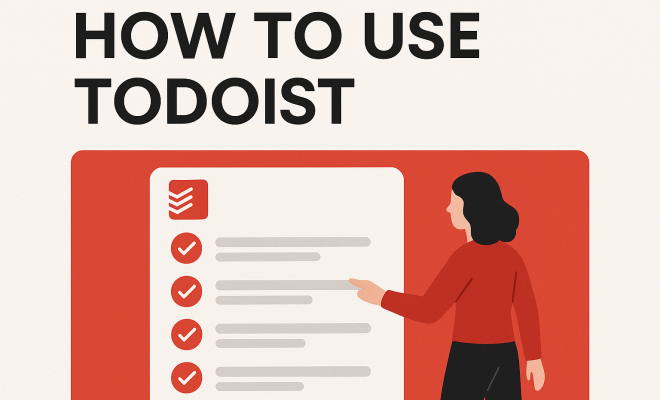
In today’s fast-paced world, staying organized is more important than ever, and that’s where task management applications come into play. Among the many options available, Todoist stands out as a powerful tool that can help you manage your tasks effectively. This guide will walk you through how to use Todoist, from setting up your account to utilizing advanced features that can enhance your productivity.
1. Getting Started with Todoist
To begin your journey in mastering Todoist, you first need to create an account. Todoist is available on multiple platforms, including web, iOS, Android, and desktop applications. Simply visit the Todoist website or download the app from your device’s app store. Once you’ve signed up with your email or linked social media accounts, you can access your task manager from anywhere.
The clean interface is user-friendly, making it easy for both beginners and seasoned users to navigate. After logging in, you’ll find a default project titled “Inbox,” where you can quickly jot down tasks that come to mind. This is a great place to start, as it allows you to capture tasks without worrying about organization right away.
2. Creating and Organizing Tasks
Now that you have your account set up, let’s explore how to create and organize tasks. To add a new task, click on the “+ Add Task” button, which is prominently displayed on your dashboard. You can type in your task and hit enter, but don’t stop there! Todoist allows you to add due dates, labels, and priorities right from the task input field. For example, typing “Submit report tomorrow @work” creates a task with a deadline and a label.
Organizing tasks into projects is an essential feature that can significantly enhance your productivity. You can create projects for different aspects of your life—work, personal, or specific goals. Use the “+ Add Project” option in the sidebar to create these categories. Additionally, you can nest projects under one another for further organization. For instance, if you have a “Home” project, you could nest “Gardening” and “Cleaning” as sub-projects.
3. Utilizing Labels and Filters
Labels and filters are powerful tools that can help you manage tasks more effectively within Todoist. Labels allow you to tag tasks based on context, making it easier to find similar tasks quickly. For instance, you might have labels such as “@phone,” “@work,” or “@errands.” To create a label, simply type it in when adding a task, and it will be saved for future use.
Filters, on the other hand, let you view specific tasks based on criteria you set. For example, you can create a filter to show only tasks labeled “@work” due today. To set up a filter, go to the Filters & Labels section in the sidebar and click on “+ Add Filter.” You can combine multiple criteria to tailor your views precisely to your needs, making it easy to focus on what’s most important at any given time.
4. Setting Due Dates and Recurring Tasks
Setting due dates is a straightforward yet vital aspect of how to use Todoist effectively. By giving a specific deadline to your tasks, you can prioritize what needs to be done first. You can easily add a due date by clicking on the task and selecting the calendar icon. Todoist supports natural language input, so you can type phrases like “next Monday” or “in two days” to set deadlines.
Recurring tasks are equally essential, especially for those repetitive actions in your life, like weekly meetings or monthly bill payments. When creating or editing a task, you can set it to repeat at a specified interval. For example, typing “every Friday” or “every 1st of the month” will create a recurring reminder, ensuring you never miss another important deadline again.
5. Collaboration Features
Todoist isn’t just a personal task manager; it also shines in collaborative settings. If you’re working on a team project, you can invite other users to collaborate on specific projects. Simply click on the project, then select “Share Project” to send an invitation via email.
Once your teammates have joined, everyone can add, edit, and comment on tasks. This feature makes it easy to delegate responsibilities and keep everyone on the same page. You can also utilize comments to provide additional context or updates on tasks, ensuring communication remains streamlined within the app.
6. Integrating Todoist with Other Tools
One of the major advantages of using Todoist is its ability to integrate seamlessly with various other applications. For example, you can connect Todoist with Google Calendar, allowing your tasks with due dates to appear on your calendar. This can help you visualize your schedule better and avoid any overlaps.
Additionally, Todoist offers integrations with productivity tools such as Slack, Zapier, and even your email. For instance, using the email integration, you can send emails directly to Todoist as tasks, which is perfect for those moments when ideas pop up while you’re checking your inbox. You can find all the integration options in the “Integrations” section within your account settings. (See: Task management software overview.)
7. Advanced Features to Enhance Productivity
While Todoist has a robust set of foundational tools, it also offers advanced features to take your productivity to the next level. One such feature is Karma, a unique gamification system that rewards you for completing tasks. Completing tasks and meeting your goals earns you Karma points, motivating you to stay productive.
Furthermore, the Premium version of Todoist unlocks additional features, including reminders, task comments, and file uploads. If you find yourself frequently managing complex projects, investing in the Premium version may be worthwhile, as it provides enhanced capabilities that can help you stay on top of your work.
8. Utilizing Todoist on Mobile Devices
Todoist’s mobile app is designed for efficiency, allowing you to manage your tasks on-the-go. The interface may vary slightly from the desktop version, but all the essential features are available. You can quickly add tasks, check off items, and organize your projects right from your smartphone or tablet.
Push notifications can remind you of upcoming deadlines, and the app’s offline mode means you can access and edit your tasks even without internet connectivity. This flexibility is especially useful for individuals who travel frequently or find themselves in areas with limited internet access.
9. Best Practices for Using Todoist
To truly master how to use Todoist, consider implementing these best practices. First, try to review your task list daily. This can help you prioritize effectively and adjust your plans as necessary. Allocate a specific time each day to go over your tasks, ensuring nothing falls through the cracks.
Second, embrace the power of simplicity. While it can be tempting to create extensive task lists, aim for clarity. Focus on a few key tasks each day rather than overwhelming yourself with a long list. This can keep you motivated and allow you to celebrate small wins, which is crucial for maintaining momentum.
Lastly, customize Todoist to fit your workflow. Everyone’s task management style is different, so explore different features and settings to find what works best for you. Whether you prefer visual cues, reminders, or specific project layouts, Todoist offers enough flexibility to cater to various personal preferences.
10. Understanding Todoist Karma
The Karma feature in Todoist isn’t just a fun addition; it serves as a powerful motivational tool. When you complete tasks, you earn Karma points, and the system tracks your productivity trends over time. This gamification can provide you with a sense of achievement and encourage you to maintain your productivity streak.
Todoist allows you to set daily and weekly goals, which can enhance your focus. For example, aim to complete a certain number of tasks each day. The visual feedback you receive from your Karma points can help reinforce positive habits. You can also compete with friends or colleagues by sharing your Karma status, turning productivity into a friendly competition.
11. Tips for Managing Larger Projects
If you’re using Todoist for larger projects, consider breaking your tasks down into smaller, manageable subtasks. This can prevent overwhelm and make it easier to track progress. For instance, if your goal is to plan a conference, you might create subtasks for booking the venue, contacting speakers, and marketing the event.
Another useful strategy is to set milestones within your project. This can help you maintain motivation by providing checkpoints along the way. For example, if you’re writing a book, you could set milestones for completing chapters. Using the project due date can also keep you on track, ensuring each component is completed on time.
Additionally, consider using the project comments feature to note down ideas or updates related to the project. This can serve as a useful reference point and keeps information centralized, reducing the need to sift through external documents.
12. Todoist for Personal Life Management
Todoist isn’t limited to professional tasks; it can also be a fantastic tool for personal life management. From managing household chores to planning vacations, Todoist can help you stay organized in all aspects of your life. Create a project specifically for personal tasks and include categories such as “Family,” “Health,” and “Finance.”
For example, a “Family” project could contain tasks like “Plan birthday party,” “Schedule doctor’s appointments,” and “Organize family game night.” By categorizing personal tasks separately, you can maintain a balance between your professional and personal responsibilities. (See: Mental health and organization.)
Additionally, you can leverage labels to manage tasks related to self-care or hobbies. For instance, using a label like “@self-care” can help you identify tasks that contribute to your well-being and mental health.
13. Common Mistakes to Avoid
When learning how to use Todoist, there are a few common pitfalls to watch out for. First, avoid creating overly complex project structures. While nesting can be helpful, too many layers can lead to confusion. Aim for a straightforward hierarchy that makes sense to you.
Another mistake is failing to regularly review and update your tasks. It’s easy to let tasks pile up, leading to a daunting list. Make it a habit to review your tasks weekly to reassess priorities and clear out completed items.
Lastly, don’t overlook the importance of setting realistic deadlines. Be cautious not to overload your schedule with too many tasks due on the same day. This can lead to burnout and defeat the purpose of using Todoist as a productivity tool.
14. Frequently Asked Questions (FAQ)
What devices can I use Todoist on?
Todoist is available on various platforms, including web browsers, iOS, Android, and desktop applications. This cross-platform availability allows you to manage your tasks from virtually anywhere.
Is there a free version of Todoist?
Yes, Todoist offers a free version with essential features. However, if you require advanced functionalities like reminders and task comments, you may want to consider upgrading to the Premium version.
Can I share projects with others in Todoist?
Absolutely! You can invite others to collaborate on specific projects, allowing team members to add, edit, and comment on tasks. This makes Todoist a great tool for group task management.
How can I recover deleted tasks?
If you accidentally delete a task, you can recover it by navigating to the “Trash” section within your account settings. Deleted tasks are stored here temporarily before being permanently removed.
Does Todoist work offline?
Yes, Todoist has an offline mode that allows you to access and edit your tasks even without an internet connection. Your changes will sync once you’re back online, making it convenient for users on the go.
Can I customize the appearance of Todoist?
Yes, Todoist offers various theme options that allow you to change the appearance of your workspace. You can choose from different color schemes to make your task management experience more visually appealing.
How does Todoist handle recurring tasks?
Todoist makes managing recurring tasks easy. You can set tasks to repeat at specific intervals such as daily, weekly, or monthly. This is particularly useful for regular events or routine activities.
Is there a way to prioritize tasks in Todoist?
Yes, Todoist allows you to assign priority levels to your tasks. You can use colored priority flags (red for priority 1, orange for priority 2, etc.) to visually distinguish tasks based on urgency or importance.
15. Advanced Productivity Techniques with Todoist
Once you’re comfortable with the basics, you can level up your productivity with some advanced techniques. One popular method is the Eisenhower Matrix, which helps you prioritize tasks based on urgency and importance. You can create a project in Todoist that reflects the four quadrants of this matrix: urgent and important, important but not urgent, urgent but not important, and neither urgent nor important. This can help you focus on what truly matters. (See: Latest technology news.)
Using Todoist’s “Today” view is another effective way to manage your time. This view lets you see all your tasks for the day, combining deadlines and priorities. It’s a great way to start your day with a clear focus on what needs to be accomplished, rather than getting lost in your entire task list.
Consider time blocking your tasks as well. Allocate specific chunks of time during your day for focused work on particular projects or tasks. You can create tasks in Todoist that state exactly what you’ll work on during each time block. This method not only helps you stay organized but also minimizes distractions.
16. Todoist for Students
Students can greatly benefit from using Todoist to manage assignments, projects, and study schedules. Creating projects for different classes or subjects can help in organizing tasks effectively. You can set due dates for assignments, label tasks for different types of work (like readings or projects), and create reminders so that nothing slips through the cracks.
For group projects, the collaboration feature allows students to work together efficiently, ensuring everyone is aware of their responsibilities and deadlines. Utilizing the comment feature can help clarify tasks and enhance communication.
Additionally, students can use the recurring task feature for routine study sessions or review periods, helping them stay on top of their studies over the semester. Having a designated project for exam preparations can also help in breaking down study material into manageable tasks.
17. Todoist for Freelancers and Entrepreneurs
Freelancers and entrepreneurs often juggle multiple clients and projects, making Todoist an ideal tool for managing their workflow. You can create separate projects for each client, allowing you to track tasks and deadlines specific to that client. Integrating Todoist with tools like Zapier can automate tasks like sending client reminders or tracking invoices.
Using labels can also be beneficial, as you can tag tasks based on the type of work (design, writing, etc.) or the status (in progress, waiting for feedback). This can help streamline your workflow and make it easier to pull up tasks based on specific criteria.
The reporting feature in Todoist Premium can also provide insights into how you’re spending your time, allowing you to analyze productivity trends and adjust your workflow accordingly.
18. Conclusion
Using Todoist effectively can transform the way you manage your tasks and improve your overall productivity. By exploring its features and implementing best practices, you can tailor the app to suit your needs. Whether for personal or professional use, Todoist provides a robust platform to help you stay organized and focused on what truly matters. Embrace the tools and techniques discussed in this guide, and watch your productivity soar.
“`
Trending Now
Frequently Asked Questions
How do I create an account on Todoist?
To create an account on Todoist, visit the Todoist website or download the app from your device's app store. You can sign up using your email or link your social media accounts. Once registered, you can access your task manager across multiple platforms.
What is the Inbox feature in Todoist?
The Inbox feature in Todoist is a default project where you can quickly jot down tasks that come to mind. It's designed for capturing ideas without immediate organization, making it easier to manage your tasks later.
How do I add tasks in Todoist?
To add tasks in Todoist, click the '+ Add Task' button on your dashboard. You can type in your task, add due dates, labels, and priorities directly from the input field. For example, typing 'Submit report tomorrow @work' automatically sets a deadline and label.
Can I organize tasks into projects in Todoist?
Yes, you can organize tasks into projects in Todoist. Use the '+ Add Project' option in the sidebar to create different projects for various aspects of your life. You can even nest projects under one another for better organization.
Is Todoist available on multiple platforms?
Yes, Todoist is available on multiple platforms, including web, iOS, Android, and desktop applications. This allows you to manage your tasks from virtually anywhere, ensuring you stay organized on the go.
Agree or disagree? Drop a comment and tell us what you think.