How to use Final Cut Pro
“`html
In the realm of video editing, few tools stand out like Final Cut Pro. Whether you’re a novice looking to craft your first film or a seasoned editor aiming to refine your skills, mastering this powerful software can significantly enhance your editing prowess. This Final Cut Pro tutorial will walk you through the essential aspects of using this editing suite, providing insights that are both practical and relevant in today’s content-driven world.
1. Understanding Final Cut Pro
Before diving into the software, it’s crucial to understand what Final Cut Pro is all about. Developed by Apple Inc., this software has become a staple in the film and video production industry since its initial release in 1999. It offers a range of features including non-linear editing, multi-camera editing, and advanced color grading. With its user-friendly interface and powerful capabilities, Final Cut Pro is suitable for both beginners and professionals.
The software utilizes a magnetic timeline, which makes it easy to edit clips without worrying about gaps. This feature, combined with its vast array of plugins and effects, allows editors to create visually stunning content efficiently. Apple frequently updates Final Cut Pro, ensuring that it remains relevant with the latest technologies and editing trends.
2. Setting Up Your Workspace
Your editing environment is vital for maintaining efficiency and focus. When you first open Final Cut Pro, you’ll notice its customizable workspace. Tailoring your workspace to suit your editing style can enhance productivity. Start by selecting the layout that best fits your workflow: whether it’s the default layout, a minimalist approach, or a more comprehensive view with multiple panels.
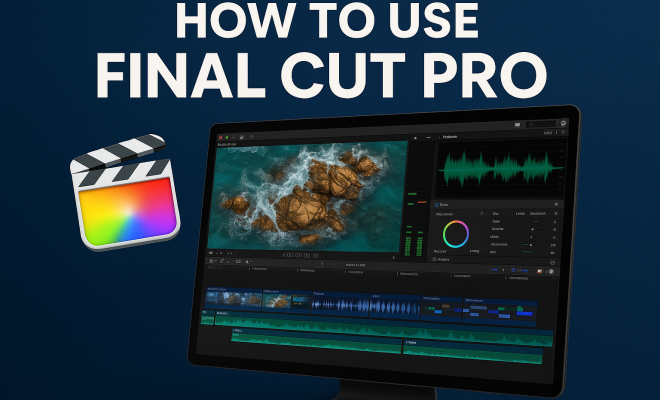
Take a moment to familiarize yourself with the main sections: the viewer, the timeline, and the browser. The viewer displays your current work, the timeline is where your actual editing happens, and the browser contains all your media assets. By customizing the arrangement of these panels, you can create an environment that feels intuitive to you.
3. Importing Media Efficiently
Once your workspace is set up, it’s time to import your media. Final Cut Pro supports a variety of file formats, which allows you to work with footage from different cameras and devices seamlessly. To import media, you can use the “File” menu or simply drag and drop your files into the browser. For larger projects, consider organizing your media into folders or events. This can simplify the editing process, especially when working with extensive libraries.
Additionally, using metadata wisely can help streamline your workflow. By adding tags and descriptions to your media during import, you can make it easier to locate clips later on. This is especially helpful for collaborative projects or when dealing with a large amount of footage.
4. Editing Basics: Cutting and Trimming
The core of any Final Cut Pro tutorial revolves around mastering the editing basics: cutting and trimming your clips. To cut a clip, simply position the playhead where you want to make the cut and use the blade tool. This tool allows you to split clips into smaller segments, which can then be rearranged or deleted as needed.
Trimming is equally essential, as it helps refine the flow of your video. You can trim clips directly in the timeline by dragging the edges of the clips or by using the trim tool. This technique enables you to adjust the duration without altering the overall structure of your timeline. Being proficient in these basic editing skills is crucial for anyone looking to create cohesive and engaging videos.
5. Adding Effects and Transitions
Once you have your clips arranged, it’s time to add some flair with effects and transitions. Final Cut Pro offers a robust library of built-in effects, ranging from simple color corrections to complex visual effects. To add an effect, simply drag it from the effects browser onto your clip in the timeline.
Transitions, on the other hand, help create smooth changes from one clip to another. Whether it’s a fade, a wipe, or a more creative transition, these elements can significantly enhance your video’s storytelling. Play around with different transitions to see what fits best with your content. Remember, though, that less is often more; overusing effects and transitions can distract rather than enhance your story.
6. Color Grading and Correction
Color grading is where you can really make your video pop. Final Cut Pro features powerful color correction tools that allow you to adjust exposure, saturation, and color balance. Start with basic corrections to ensure that your footage looks true to life. From there, you can explore creative color grading techniques to establish a mood or theme. (See: Final Cut Pro on Wikipedia.)
The Color Inspector is a great place to start making adjustments. You can manipulate color wheels, sliders, and curves to refine the look of your footage. Additionally, consider using color LUTs (Look-Up Tables) for a quick way to apply a cinematic look to your clips. With a little experimentation, you’ll find that color grading can elevate your project from good to great.
7. Exporting Your Final Product
After hours of editing, it’s time to export your masterpiece. Final Cut Pro offers several export options, tailored to various platforms and formats. Whether you’re uploading to YouTube, Vimeo, or preparing a file for television broadcast, the software allows you to customize your export settings.
When exporting, pay attention to the resolution and quality settings. For online platforms, 1080p or 4K resolution is typically recommended. If you’re unsure about the best settings, Final Cut Pro provides presets based on the platform’s requirements, ensuring your video looks its best wherever it’s shared.
8. Learning Resources and Community
Mastering Final Cut Pro isn’t something you do overnight, and luckily, there are many resources available to help you along the way. Apple offers an array of tutorials on their website, covering everything from the basics to advanced techniques. Additionally, numerous YouTube channels and online courses provide practical insights and tips.
The Final Cut Pro community is also a valuable asset. Websites like Reddit and dedicated forums can connect you with other editors who share tips, answer questions, and provide feedback on your projects. Engaging with a community can help you learn faster and discover new techniques that you might not find in standard tutorials.
9. The Future of Editing with Final Cut Pro
As technology continues to evolve, so too does Final Cut Pro. With advancements in artificial intelligence and machine learning, future versions of the software are likely to incorporate smarter editing tools, enhancing productivity and creative possibilities. Features like machine learning-driven auto-editing might become commonplace, allowing editors to focus on creativity rather than technical details.
Moreover, as more content is consumed on mobile devices, the demand for versatile editing tools that can adapt to various formats will grow. Final Cut Pro is well-positioned to meet these demands, continuously innovating to provide editors with the tools they need to succeed in an ever-changing digital landscape.
10. Advanced Techniques for Final Cut Pro Users
For those who have mastered the basics, exploring advanced techniques can make your editing stand out even more. Techniques such as keyframing, motion graphics, and advanced audio editing can transform your video into a polished final product. Keyframing allows you to create animation effects and control various parameters over time, making your projects dynamic and engaging.
Motion graphics can be integrated directly within Final Cut Pro using tools like Motion or Apple’s Motion Templates. These allow you to create custom titles, lower thirds, and transitions that fit your unique style and branding. By taking the time to learn these advanced techniques, you can significantly elevate the quality of your projects and distinguish yourself in a competitive industry.
11. Common Mistakes to Avoid in Final Cut Pro
Even experienced editors can fall into common traps when working with Final Cut Pro. One mistake is failing to organize your media effectively from the start. This can lead to confusion down the line, especially in larger projects. Always label your projects, events, and clips clearly to save yourself time when searching for specific elements.
Another pitfall is neglecting to back up your projects. Data loss can happen, and having a reliable backup system in place will save you from potential nightmares. Use external drives or cloud services to maintain regular backups of your work.
Lastly, don’t underestimate the power of rendering. Many editors rush through this process, which can lead to playback issues and hinder your ability to see the final product clearly. Always render your timeline especially before presenting or exporting to ensure you catch any errors or issues that might not be apparent in real-time playback.
12. Tips from Industry Professionals
Learning from industry professionals can provide you with insights that you might not get from standard tutorials. Many successful editors recommend focusing on the story first. A good edit shouldn’t just look great; it should convey the narrative effectively. Consider the emotional arc and pacing of your video before getting lost in the technical aspects.
Networking is also crucial. Attend workshops, film festivals, and online forums where you can meet other editors and professionals in the field. Sharing your work and ideas can lead to valuable feedback and partnerships. Some editors even find mentors who guide them through their development, sharing tips and experiences from their careers. (See: New York Times review of Final Cut Pro.)
13. Real-World Examples of Final Cut Pro Usage
Final Cut Pro is used by professionals across various sectors, from independent filmmakers to large production studios. For instance, many YouTube creators utilize Final Cut Pro for its powerful features that help produce high-quality content quickly. Channels like Film Riot and Peter McKinnon showcase excellent examples of how engaging video content can be created using this software.
In the film industry, several award-winning films have been edited using Final Cut Pro. For example, the film Deadpool was known for its fast-paced editing style, which was achieved using the magnetic timeline and advanced effects in Final Cut Pro, demonstrating the software’s capabilities in a professional setting.
14. FAQ: Frequently Asked Questions about Final Cut Pro
What is Final Cut Pro best used for?
Final Cut Pro is best used for video editing, offering tools for everything from simple cuts to complex color grading and motion graphics. It’s popular among filmmakers, content creators, and video editors due to its versatility and powerful features.
Is Final Cut Pro beginner-friendly?
Yes, while it has many advanced features, Final Cut Pro also offers a user-friendly interface that is accessible for beginners. With ample learning resources available, new users can quickly pick up essential skills.
Can I use Final Cut Pro on Windows?
Final Cut Pro is exclusive to macOS. However, Windows users can explore alternative software like Adobe Premiere Pro or DaVinci Resolve, which offer similar features.
How much does Final Cut Pro cost?
As of now, Final Cut Pro typically costs around $299.99 for a permanent license, and it often comes with a free trial period for new users to explore its features before committing to a purchase.
What are the system requirements for Final Cut Pro?
To run Final Cut Pro efficiently, you need a Mac computer with macOS 10.15.6 or later, 4GB of RAM (8GB recommended), and a Metal-capable graphics card. For optimal performance, a multicore processor and SSD storage are also suggested.
Can I collaborate with others using Final Cut Pro?
Yes, Final Cut Pro supports collaboration through shared libraries. You can work on projects with others by using shared media and timelines, making it easier to edit together in a team environment.
15. Final Cut Pro vs. Other Editing Software
When it comes to video editing software, there are several popular options available on the market. Final Cut Pro stands out due to its seamless integration with other Apple products and its user-friendly interface, but how does it compare to competitors like Adobe Premiere Pro and DaVinci Resolve?
Adobe Premiere Pro is renowned for its extensive features and capabilities, including a strong focus on collaborative tools. It allows for real-time editing with team members, which is a significant advantage for professional studios. However, its subscription-based model can be a drawback for some users who prefer owning their software outright.
On the other hand, DaVinci Resolve is praised for its color grading tools and is often used in high-end film production. Its free version offers a comprehensive set of features that can compete with paid software, making it an attractive option for beginners or those on a budget. However, some users find its interface more complex compared to Final Cut Pro, which could lead to a steeper learning curve.
Choosing the right software often depends on your specific needs. If you’re heavily invested in the Apple ecosystem and value a straightforward editing experience, Final Cut Pro is likely the best choice for you. However, if collaboration and extensive features are paramount, you might lean towards Adobe Premiere Pro. If color grading is your primary focus, DaVinci Resolve could be the best fit.
16. Future Learning Pathways for Final Cut Pro Users
As you continue to develop your skills with Final Cut Pro, consider diving deeper into specialized areas of video editing. Advanced training in specific techniques such as visual effects (VFX), animation, or sound design can significantly improve the quality of your projects. Many online platforms offer courses specifically for Final Cut Pro users to help hone these skills.
Additionally, you might explore the following resources:
- Online Courses: Platforms like Udemy, Coursera, and LinkedIn Learning provide structured courses on Final Cut Pro, ranging from beginner to expert levels.
- Webinars and Workshops: Participate in live sessions hosted by industry professionals, which can provide hands-on experience and real-time Q&A opportunities.
- Books and eBooks: Various publications delving into video editing techniques can provide in-depth knowledge and serve as helpful references.
- Practice Projects: Create personal projects or collaborate with friends to apply what you’ve learned. This hands-on experience is invaluable.
Continual learning is essential in the fast-paced world of video editing, and the more you explore, the more proficient you will become with Final Cut Pro.
17. The Importance of Feedback in Video Editing
Feedback is an essential aspect of the editing process that can greatly enhance your final product. After you complete a rough cut of your video, it’s beneficial to have others review your work. This could be peers, mentors, or even your target audience.
Consider the following methods for gathering feedback:
- Screenings: Hosting a small screening with a select group can provide valuable insights. Observing their reactions can help you gauge the effectiveness of your edits.
- Online Feedback Forums: Share your project in relevant online communities where fellow editors can offer constructive criticism and suggestions.
- One-on-One Reviews: If you have a mentor or a more experienced colleague, request a one-on-one session to discuss your project in detail.
Remember, feedback is meant to be constructive. Not all suggestions will resonate with your vision, but they can lead you to see your work from different perspectives, ultimately improving the final outcome.
18. Maintaining Your Equipment for Optimal Performance
To ensure that Final Cut Pro runs smoothly, it’s essential to maintain your editing equipment. Keeping your Mac in good working condition can prevent performance issues during editing sessions. Here are a few maintenance tips:
- Regular Software Updates: Keep your macOS and Final Cut Pro up to date to benefit from the latest features and security patches.
- Disk Cleanup: Regularly clean your hard drive by removing unnecessary files and applications. This will help improve your computer’s performance and speed up rendering times.
- External Storage Management: Use external storage solutions for larger projects. SSDs are a great option for faster read/write speeds compared to traditional HDDs.
- Hardware Upgrades: If you find your system lagging, consider upgrading the RAM or switching to an SSD for better performance.
By taking care of your equipment, you can ensure a more efficient editing process and prevent frustrating technical issues.
19. Conclusion
As you’ve seen in this expanded Final Cut Pro tutorial, mastering this software opens up a world of creative possibilities for video editing. From understanding the basics to exploring advanced techniques and the future of editing, Final Cut Pro provides everything you need to tell your story compellingly and visually. Whether you’re just starting or looking to deepen your expertise, continuous learning and practice within this dynamic tool will help you succeed in the ever-evolving landscape of video production.
“`
Trending Now
Frequently Asked Questions
What is Final Cut Pro used for?
Final Cut Pro is a professional video editing software developed by Apple Inc. It is used for non-linear editing, multi-camera editing, and advanced color grading. It is suitable for both beginners and seasoned editors looking to create high-quality video content.
How do I set up my workspace in Final Cut Pro?
To set up your workspace in Final Cut Pro, open the software and customize your layout according to your editing style. Familiarize yourself with key sections like the viewer, timeline, and browser to enhance your productivity while editing.
Is Final Cut Pro easy to use for beginners?
Yes, Final Cut Pro is designed with a user-friendly interface that makes it accessible for beginners. Its features, such as the magnetic timeline and customizable workspaces, help new users learn video editing more efficiently.
What are the main features of Final Cut Pro?
Final Cut Pro offers a range of features including non-linear editing, multi-camera editing, advanced color grading, and a magnetic timeline. These tools enable editors to create visually stunning content with ease and efficiency.
How often does Apple update Final Cut Pro?
Apple frequently updates Final Cut Pro to incorporate the latest technologies and editing trends. These updates ensure that users have access to new features and improvements that enhance their video editing experience.
What did we miss? Let us know in the comments and join the conversation.