Mastering Figma Variants: Boost Your Design Workflow
“`html
In the fast-paced world of digital design, efficiency and consistency are paramount. One tool that has emerged as a game-changer for designers is Figma variants. This feature not only enhances workflow but also allows for more streamlined design processes. If you’re looking to elevate your design game, understanding how to effectively use Figma variants is essential.
1. What Are Figma Variants?
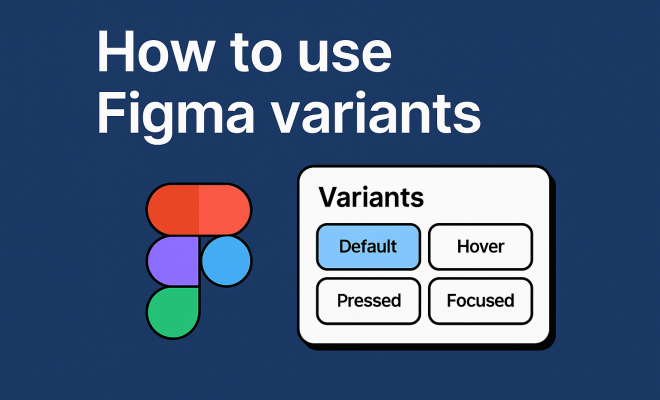
Figma variants are a powerful feature that lets designers create a collection of related components, enabling them to manage design variations effortlessly. Essentially, variants allow you to bundle multiple states or types of a single component together, such as buttons in different states (hover, active, disabled) or different color schemes.
This functionality helps maintain consistency across designs while also simplifying the design system. Instead of managing separate components for each design variation, you can create a single variant component with multiple properties. For instance, you could have a button with properties for size, color, and state, all within one component.
2. Why Use Variants?
The primary advantage of using Figma variants is the increased efficiency it brings to the design workflow. Having different states of a component in a single panel reduces the clutter in your design file, making it easier to navigate and manage. When working on large projects, this becomes increasingly valuable.
Moreover, variants enhance collaboration among team members. Designers can quickly switch between different states of a component, ensuring that everyone is on the same page. This can significantly reduce the time spent on discussions about design iterations and ensure that feedback is more focused.
3. Getting Started with Figma Variants
To get started with Figma variants, you need to have a component that you want to convert into a variant. First, select the components you wish to combine. Once selected, right-click and choose “Combine as Variants.” This action groups the components into a single variant set.
After combining, you’ll see a new properties panel where you can define the various attributes of your variants. Attributes can include different styles, colors, and states. You can name these attributes, which will help you and your team identify them easily when selecting from the variations in the future.
4. Organizing Your Variants
Organization is key when dealing with Figma variants. Once you have created your variants, Figma allows you to organize them based on properties and labels. This organization helps you quickly find and switch between variants during the design process.
For example, if you have a button component, you could organize your variants by size (small, medium, large) and color (primary, secondary, disabled). This way, when you want to use the button in your design, you can easily filter through the variants based on the attributes you need.
5. Editing Variants Effectively
Editing variants is a straightforward process. Once you have your variants set up, you can modify any of the properties at any time. If you want to change the design of a button from rounded corners to sharp corners, you can do so directly within the variant set. Figma automatically updates all instances of that variant, ensuring consistency.
Additionally, if you need to add a new variant to the existing set, such as a new color or size, you simply create a new property and define its value. This flexibility allows you to adapt your designs quickly without the need to create new components from scratch. (See: importance of design tools in technology.)
6. Best Practices for Using Figma Variants
When using Figma variants, there are a few best practices to keep in mind to maximize their effectiveness. First, always ensure that your naming conventions are clear and consistent. This means using straightforward names for your variants and properties that describe their function.
Consider also the visual hierarchy of your components when organizing your variants. Group similar styles together to avoid confusion and make it easy for anyone on the team to find what they need. Lastly, always keep your variants updated as design changes occur; this helps maintain the integrity of your design system.
7. Collaborating with Figma Variants
Collaboration is a vital aspect of design, especially in team environments. Figma variants facilitate this by allowing multiple designers to work on the same project without stepping on each other’s toes. When you use variants, changes made by one designer will reflect for others in real time, reducing confusion over which version is the latest.
Also, Figma’s commenting feature allows team members to give feedback directly on the variants. This means that discussions can happen in context, making it easier to track changes and suggestions effectively. The result is a more cohesive design process where everyone is aligned and informed.
8. Common Mistakes to Avoid
While Figma variants are an excellent tool, there are common pitfalls to avoid. One of the most frequent mistakes is creating too many variants without a clear purpose. This can lead to confusion and clutter, defeating the purpose of using variants to streamline your design process.
Another mistake is not keeping your variants updated. As projects evolve, so should your components. Neglecting to update variants can lead to inconsistencies in your designs. It’s essential to regularly review and revise your variants as your project progresses to ensure that they continue to serve your design goals.
9. Current Trends and Future of Figma Variants
Figma variants continue to evolve, and staying updated with the latest features and trends is essential for designers. Currently, there is a growing trend towards integrating variants with design systems and component libraries. This integration allows for a more systematic approach to design that prioritizes consistency and efficiency.
Looking ahead, we can anticipate further enhancements in Figma’s capabilities in handling variants. As design needs become more complex, Figma may introduce more robust tools for managing variants, such as automated updates or enhanced property controls. For designers, keeping an eye on these developments will be crucial to maintaining an edge in their design work.
10. The Importance of Testing Variants
Testing variants is a critical step that many designers overlook. Before finalizing your designs, it’s essential to ensure that each variant functions as intended in various scenarios. This includes usability testing to see how users interact with different states of a component. For example, if you have a button with a hover effect, conduct tests to determine if users can easily identify the button’s interactive state.
In addition to usability, consider A/B testing different variants to see which performs better in real-world scenarios. This data-driven approach can guide your design choices, leading to a more user-friendly product. You might find that users prefer certain colors or styles, which can inform not only individual projects but also your overall design strategy.
11. Examples of Effective Use of Figma Variants
To really understand the power of Figma variants, let’s look at some practical examples. For instance, several popular apps and websites utilize variants in their design systems. A well-known example is the Apple design system, which showcases buttons in various states from default to hover to disabled states. By creating variants for these buttons, Apple maintains a consistent look across their platforms while allowing for flexibility in interactions.
Another example is a food delivery app that uses variants for card designs. Each card might have variants for different meal types (vegan, vegetarian, gluten-free), and each of those could have variants for availability. This way, designers can keep a cohesive style while allowing for diversity in content. By efficiently using variants, designers can ensure that the application remains user-friendly and visually appealing. (See: impact of design systems on efficiency.)
12. Statistics on Design Efficiency with Figma Variants
Data shows that using design systems, including those utilizing Figma variants, can improve design and development efficiency by up to 25%. A survey conducted among product teams revealed that 70% of designers reported saving time on design handoffs and iterations through the use of variants. This efficiency leads to quicker product releases and faster responses to market needs, which is vital in today’s competitive landscape.
Moreover, companies that implement design systems are 33% more likely to report higher user satisfaction. This is because consistent and well-designed interfaces lead to better user experiences. When users know what to expect as they interact with different components, they can navigate applications with ease, leading to increased retention and loyalty.
13. FAQ About Figma Variants
What are the benefits of using Figma variants in design projects?
Figma variants enhance efficiency by reducing the need for multiple components, improving consistency, and streamlining collaboration among team members. It simplifies workflows and allows for quicker design iterations.
Can I use Figma variants for non-design components?
Yes! While primarily used for design components, Figma variants can also be useful for managing different states of UI elements like forms, navigational items, and even illustrations. As long as there are variations, you can make use of this feature.
How do I troubleshoot issues with Figma variants?
If you’re facing issues with variants, start by checking your naming conventions. Clear names make it easier to understand the variants you’re working with. If problems persist, reviewing the properties panel can help in identifying conflicts or incorrect settings.
Is there a limit to how many variants I can create?
While Figma doesn’t impose a strict limit on the number of variants you can create, having too many can lead to confusion. It’s best to keep your variants organized and focused to maintain an efficient workflow.
What should I do if I want to remove a variant?
You can easily remove a variant by selecting it in the properties panel and choosing the delete option. Just make sure that this variant isn’t being used in your designs before deletion to avoid any disruption.
14. Advanced Techniques for Using Figma Variants
Once you’re comfortable with the basics, consider exploring advanced techniques that can take your use of Figma variants to the next level. For instance, leveraging constraints can help you maintain the integrity of your designs across different screen sizes. By setting constraints on variant components, you ensure they behave predictably, regardless of the context in which they’re used.
Another technique is utilizing the “Instance Swap” feature. This allows you to swap instances of one component for another within a variant set. Imagine you’re designing a user interface where the same button needs to serve different functions based on the context. With instance swapping, you can quickly change the button’s function while keeping its styling consistent.
15. Integrating Figma Variants with Other Tools
Figma variants can also be integrated with other design and development tools, enhancing your workflow even further. For example, when exporting your designs to code, Figma variants can help generate CSS classes that reflect the variants used in your components. This means developers can easily implement the design as intended, maintaining the visual consistency you’ve established. (See: role of design in digital innovation.)
Additionally, Figma’s ability to integrate with prototyping tools allows you to showcase how different variants behave in real-time user interactions. This is particularly useful for presenting to stakeholders or conducting user testing, as you can demonstrate how a component might look and function in varying situations.
16. Real-Life Case Studies on Figma Variants
To further illustrate the effectiveness of Figma variants, let’s delve into a couple of real-life case studies. A leading e-commerce platform restructured their UI components using Figma variants, resulting in a 40% reduction in design iteration time. By consolidating their button and card designs into variant sets, they managed to streamline their design process and ensure consistency, which led to improved user experience and lower bounce rates.
Another case study involves a SaaS product that improved its onboarding experience with the help of Figma variants. They created various input field components with different validation states (error, success, empty) as variants. By doing so, they provided a clearer visual cue to users, significantly increasing their completion rate for onboarding forms by nearly 30%. This showcases not just the efficiency of design systems, but also the direct impact on user engagement and conversion rates.
17. Community Insights on Figma Variants
Engaging with the design community can provide valuable insights into using Figma variants. Many designers share their experiences, tips, and tricks through forums, webinars, and social media. For instance, on platforms like Twitter and LinkedIn, you can find threads dedicated to Figma best practices where professionals share how they leverage variants in their designs.
Moreover, Figma’s community page offers various resources, including plugins and templates that utilize variants effectively. Exploring these resources can inspire you to adopt new techniques or tools that could enhance your own design workflow.
18. Future-Proofing Your Design Process with Figma Variants
As the digital design landscape continues to evolve, staying adaptable is crucial. Figma variants offer a solid foundation for future-proofing your design process. By establishing a robust system of variants now, you can more easily accommodate new design trends or changes in user behavior down the line.
Consider regularly revisiting your variant sets to assess their effectiveness. As user needs evolve, your designs might need to pivot as well. Using Figma variants, you can quickly make adjustments and keep your design system aligned with current trends, ensuring your projects remain relevant and user-friendly.
In summary, mastering Figma variants can significantly elevate your design process, leading to more coherent and efficient projects. By understanding how to create, manage, and collaborate on variants effectively, you’ll ensure that your designs not only meet but exceed expectations.
“`
Trending Now
Frequently Asked Questions
What are Figma variants?
Figma variants are a feature that allows designers to create a collection of related components, enabling them to manage different states or types of a single component easily. This includes variations like button states (hover, active, disabled) or color schemes, helping maintain consistency and simplifying the design process.
Why should I use Figma variants?
Using Figma variants increases design workflow efficiency by consolidating multiple states of a component into one panel. This reduces clutter in design files and enhances collaboration among team members, allowing for quicker switching between component states and more focused feedback during design iterations.
How do I create Figma variants?
To create Figma variants, first select the components you want to combine. Then, right-click and choose the option to create a variant. This allows you to bundle different states or properties of a component into a single variant, streamlining your design process.
What are the benefits of using variants in Figma?
The benefits of using variants in Figma include improved workflow efficiency, reduced file clutter, and enhanced team collaboration. Variants allow designers to manage multiple component states in one place, which simplifies the design process and facilitates clearer communication among team members.
Can Figma variants help with design consistency?
Yes, Figma variants help maintain design consistency by allowing designers to bundle related component states together. This ensures that variations like size, color, and state are managed within a single component, making it easier to maintain a cohesive design system across projects.
What did we miss? Let us know in the comments and join the conversation.