How to recover deleted emails in Outlook
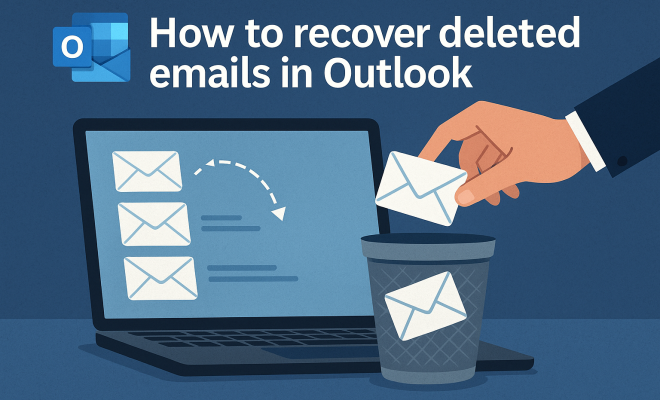
“`html
When it comes to managing emails, Microsoft Outlook is a top choice for individuals and businesses alike. It’s user-friendly, feature-rich, and offers a robust set of tools for organizing your communications. But what happens when you accidentally hit ‘delete’ on an important message? Don’t despair! In this comprehensive guide, we’ll walk you through how to recover deleted emails in Outlook, ensuring that you can regain access to those crucial messages without breaking a sweat.
1. Understanding Outlook’s Deletion Policies
Before diving into the recovery process, it’s essential to understand how Outlook handles deleted emails. When you delete an email, it doesn’t vanish into thin air immediately. Instead, it’s moved to the Deleted Items folder. This acts as a temporary holding area where emails can be retrieved easily. However, once you empty this folder, the next steps become more complex.
Outlook generally keeps deleted emails in the Deleted Items folder for a limited time, depending on your account settings. For instance, in Exchange accounts, there’s a retention policy that can dictate how long emails are stored before they are permanently deleted. Knowing these details can be a lifesaver when looking to recover deleted emails in Outlook.
2. Checking the Deleted Items Folder
The first step in recovering deleted emails is straightforward: check the Deleted Items folder. Here’s how to do it:
- Open Outlook and navigate to the left sidebar.
- Click on the Deleted Items folder.
- Scroll through the list to find the email you want to recover.
If you find it, simply right-click on the email and select Move > Other Folder. Then choose your desired folder (like Inbox) to restore it. Easy, right?
3. Using the Recover Deleted Items Feature
If you can’t find your email in the Deleted Items folder, don’t lose hope just yet. Outlook has a built-in feature called Recover Deleted Items, which can help you retrieve items that have been permanently deleted from the Deleted Items folder. To access this feature:
- Navigate to the Folder tab at the top of Outlook.
- Click on Recover Deleted Items.
- A new window will pop up, showing you a list of emails that can be recovered.
Highlight the email(s) you wish to recover, then click Restore Selected Items. These items will be moved back to your Deleted Items folder for easy access.
4. Utilizing Outlook Web App for Recovery
If you’re using the Outlook Web App (OWA), recovering deleted emails follows a similar procedure. Start by logging into your OWA account and checking the Deleted Items folder. If the email isn’t there, you can take the following steps:
- Click on the Deleted Items folder.
- At the top of the screen, look for the option that says Recover items deleted from this folder.
- Click on this link to access the recovery tool.
This will show you a list of emails that you can recover, similar to the desktop version. Select the emails you want to restore, and click on Restore. They will then be returned to your Deleted Items folder.
5. Understanding Limitations and Timeframes
While Outlook offers several recovery options, it’s crucial to be aware of the limitations. Deleted emails may not be recoverable indefinitely. Microsoft typically retains deleted emails for up to 30 days, after which they are permanently deleted. However, this can vary depending on your organization’s policy if you’re using a work account.
In some cases, your organization’s IT department may have specific tools or policies in place that could extend the recovery timeframe. Always check with them if you’re having trouble retrieving important emails, as they may have additional resources at their disposal. (See: CDC on email security practices.)
6. Using Third-Party Recovery Tools
If all else fails and you still can’t recover deleted emails in Outlook, third-party recovery tools may be your best bet. These tools are designed to dig deeper into your email files and may recover messages that Outlook cannot. Popular options include:
- Stellar Repair for Outlook: This tool can recover deleted items and repair corrupted PST files.
- Kernel for Outlook PST Repair: A versatile tool that can help recover emails, attachments, and contacts.
- EaseUS Data Recovery Wizard: A more general tool that can also recover lost files from your computer, including Outlook data.
Before using any third-party software, ensure they’re reputable to avoid potential data breaches or further issues.
7. Preventing Future Email Loss
Recovering deleted emails in Outlook is a handy skill, but the best way to handle important emails is to avoid losing them in the first place. Here are some proactive strategies:
- Regular Backups: Make it a habit to back up your Outlook data regularly. This can be done using Outlook’s export feature, allowing you to save your emails to a file.
- Use the Archive Feature: Instead of deleting old emails, consider archiving them. This keeps your inbox tidy while still preserving important information.
- Organize with Folders: Create specific folders for different projects or clients. This helps you keep track of important emails and reduces the need to delete messages you might need later.
Implementing these strategies not only minimizes the chances of losing important emails but also enhances your overall email management.
8. What to Do After Recovering Emails
Once you’ve successfully recovered deleted emails in Outlook, it’s essential to assess their importance and take further action:
- Read and Organize: Review the recovered emails and determine if they need to be organized into specific folders for easy access in the future.
- Mark Important Messages: Consider flagging or marking important messages so that they are easily identifiable for future reference.
- Assess Your Email Management System: Reflect on your email management practices. Are there ways to improve organization and reduce clutter?
Taking the time to reflect and improve your practices can save you from future headaches.
9. Final Thoughts
Recovering deleted emails in Outlook might seem daunting, but with the right steps, you can often find what you thought was lost. Understanding how Outlook manages your emails and utilizing the tools available to you can make all the difference. Remember to explore your recovery options, maintain good email management practices, and don’t hesitate to reach out for help if needed. With these insights in hand, you’re well-prepared to tackle any email mishaps that come your way.
10. Common Issues During Email Recovery
As with any tech-related process, recovering deleted emails in Outlook can sometimes come with its own set of challenges. Here are a few common issues you might encounter:
- Emails Not Showing Up: Sometimes, users may find that, despite following all the correct steps, their deleted emails do not appear in the recovery options. This can happen if the emails were permanently deleted before the recovery process was attempted, or if they were removed from the Deleted Items folder after the retention period.
- Too Many Emails to Sort Through: If you have a large volume of emails, sorting through deleted items can be overwhelming. Using the search function in the Deleted Items or Recover Deleted Items window can help narrow down your search.
- Corrupted PST Files: If your Outlook data file (PST) is corrupted, it may prevent you from accessing your deleted emails altogether. In such cases, using repair tools may be necessary.
11. Tips for Successful Email Recovery
To enhance your chances of successfully recovering deleted emails in Outlook, consider the following tips:
- Act Quickly: The sooner you attempt to recover deleted emails, the higher the chances of success. Don’t wait too long, as emails may be permanently erased after a set period.
- Check All Folders: Sometimes, emails might be moved to unexpected folders. Be sure to check any custom folders you may have created.
- Use Advanced Search: If you’re dealing with a large inbox, utilize the advanced search feature in Outlook. This can help you locate specific emails by entering keywords, sender names, or dates.
12. Statistics on Email Deletion
Understanding the scale of email deletion can help emphasize the importance of recovery methods. According to various studies, about 30% of all emails sent are deleted within the first 24 hours. It’s estimated that 15% of users accidentally delete emails they meant to keep at least once a month. With such high numbers, knowing how to recover deleted emails in Outlook is vital for maintaining effective communication.
13. Expert Perspectives on Email Management
Experts in digital communication frequently stress the importance of an organized email management system. “A cluttered inbox can lead to missed opportunities. Keeping emails organized and knowing how to recover deleted ones can save time and stress,” says Sarah J. Hall, a digital communication consultant.
Other IT professionals recommend regular training sessions for employees on email management best practices. They suggest that organizations should promote awareness of recovery options and the importance of archiving emails instead of deleting them. (See: New York Times on email management.)
14. Frequently Asked Questions (FAQ)
Can I recover emails after 30 days?
Once the retention period has passed, recovering emails directly through Outlook becomes difficult, if not impossible. However, if you are using an Exchange account, your IT department may have additional measures in place.
What happens to deleted emails in Office 365?
In Office 365, deleted emails are first moved to the Deleted Items folder. If removed from there, users can still recover items from the Recover Deleted Items tool within 30 days. After this period, emails are permanently deleted unless your organization has custom policies.
Are all deleted emails recoverable?
Not all deleted emails are recoverable. If the emails have been permanently deleted (after the retention period or emptied from Deleted Items), they are typically not retrievable unless third-party tools are used.
How can I prevent accidentally deleting important emails?
Consider utilizing the archive feature, setting up rules to manage emails, and regularly backing up important messages. Creating a systematic approach to email management can prevent accidental deletions.
Is there a way to preview emails before recovering?
When using the Recover Deleted Items feature, you’ll typically see email subjects and senders. However, detailed content previews are not usually available unless you restore the email.
What should I do if Outlook is not responding while searching for deleted emails?
Sometimes, Outlook may freeze or become unresponsive during searches. If this happens, close the application and restart your computer. If the problem persists, consider repairing the Outlook application through the Control Panel.
15. Real-Life Examples of Email Recovery
Sometimes, sharing real-life scenarios can help you understand how to approach email recovery effectively. Consider the following examples:
Example 1: Jessica, a marketing manager, accidentally deleted an important email from a client about a project deadline. After checking her Deleted Items folder and not finding it, she quickly accessed the Recover Deleted Items feature. Fortunately, she was able to retrieve the email, which contained critical instructions for her team.
Example 2: Mark, an IT specialist, found himself in a situation where he had to recover emails for a colleague who had mistakenly emptied the Deleted Items folder. He consulted with the IT department, who guided him through their special recovery protocols, allowing them to access a backup that included the deleted emails.
These stories remind us that accidents happen, but there are often ways to recover from them. By being proactive and knowing your options, you can navigate similar situations with confidence.
16. Understanding Email Retention Policies
Email retention policies play a significant role in how long deleted emails are stored. Typically, organizations define their policies based on legal, regulatory, and operational needs. For example, financial institutions often have stricter requirements for retaining emails related to transactions or customer communications.
Many organizations will set a retention policy that automatically deletes emails after a specified period, often ranging from 30 days to several years, depending on the nature of the email. Understanding your organization’s retention policy can help you plan better and avoid the panic that often accompanies accidental deletions.
17. How to Set Up Archive and Retention Policies in Outlook
Setting up archiving can be one of the best ways to prevent accidental deletions. Here’s a simple guide to help you establish archiving and retention policies in Outlook:
- Open Outlook and click on File.
- Select Options, then navigate to Advanced.
- Under AutoArchive, click on AutoArchive Settings.
- Choose how often you want AutoArchive to run and what you want to be archived (emails older than a specific date, for instance).
- Specify the location where archived items will be saved.
- Click OK to save your settings.
With these settings adjusted, you can keep your inbox less cluttered and minimize the risk of losing important emails due to accidental deletion.
18. More Recovery Tools and Their Features
While third-party recovery tools can play a pivotal role in email recovery, it’s useful to know the specific features that can assist you. Here are some tools and their noteworthy functions:
- Stellar Phoenix Outlook PST Repair: Apart from recovering deleted emails, it can repair corrupted PST files and retrieve lost contacts and calendars.
- DataNumen Outlook Repair: This tool is designed for deeper recovery, capable of restoring damaged files that other tools may miss.
- Outlook Recovery Toolbox: A user-friendly tool that helps recover emails, attachments, and other mailbox data quickly and efficiently.
Before committing to any tool, it’s wise to read user reviews and check compatibility with your version of Outlook to ensure smooth recovery.
19. Conclusion
With all this information, you’re now equipped to navigate the sometimes tricky waters of email management in Outlook. Whether you’re looking to recover deleted emails or prevent future mishaps, these strategies will go a long way in ensuring your email experience is smooth and frustration-free.
“`
Trending Now
Frequently Asked Questions
How can I recover deleted emails in Outlook?
To recover deleted emails in Outlook, first check the Deleted Items folder. If the email is not there, use the 'Recover Deleted Items' feature under the Folder tab to retrieve emails that have been permanently deleted from your Deleted Items folder.
Where do deleted emails go in Outlook?
When you delete an email in Outlook, it is moved to the Deleted Items folder. This folder acts as a temporary holding area for emails until they are either recovered or permanently deleted after a certain retention period.
What is the Deleted Items folder in Outlook?
The Deleted Items folder in Outlook temporarily holds emails that you have deleted. You can easily recover these emails from this folder unless it has been emptied or the emails have exceeded the retention policy set by your account.
Can I recover emails after emptying the Deleted Items folder?
Yes, you can recover emails after emptying the Deleted Items folder by using the 'Recover Deleted Items' feature in Outlook. This allows you to retrieve emails that were permanently deleted, depending on your account's retention settings.
How long does Outlook keep deleted emails?
Outlook generally keeps deleted emails in the Deleted Items folder for a limited time, which varies depending on your account settings. For Exchange accounts, retention policies determine how long emails remain accessible before permanent deletion.
Agree or disagree? Drop a comment and tell us what you think.