How to use Chrome Remote Desktop
“`html
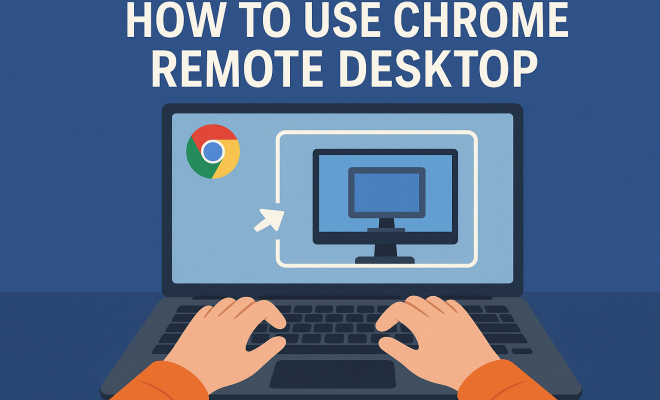
In our increasingly digital and interconnected world, remote access tools have become invaluable. One of the standout options available today is Chrome Remote Desktop. This free tool allows users to access their computers from virtually anywhere, whether you’re troubleshooting your home PC while at work or accessing files on your office desktop from your phone. In this article, we’ll explore how to use Chrome Remote Desktop effectively, covering essential tips, features, and practical insights that will help you become a pro at remote access.
1. Getting Started with Chrome Remote Desktop
Before diving into the features and tips, it’s important to understand how to set up Chrome Remote Desktop. First and foremost, you’ll need a Google account. If you don’t have one, sign up for free at Google’s website. Once you’re set up, you can begin the installation process.
Navigate to the Chrome Web Store and search for Chrome Remote Desktop. After adding the extension to your Chrome browser, you’ll need to enable remote access on the computer you wish to control. This involves downloading the Chrome Remote Desktop Host software, which facilitates the connection between your devices. Follow the instructions provided to complete the installation and grant necessary permissions. Once everything is in place, you can access your computer remotely from other devices using the same Google account.
2. Understanding Security Settings
Security is a primary concern when it comes to remote access tools. With Chrome Remote Desktop, Google has implemented several security features to protect users. For instance, each time you set up a remote connection, you create a unique access code. This code is required for connecting a device, ensuring that only you can access your computer.
Furthermore, you can choose to set a PIN for additional security. This means that even if someone obtains the access code, they would still need the PIN to access your machine. It’s essential to choose a strong, memorable PIN and avoid sharing it with others. Regularly updating your access codes and PINs can also enhance the security of your remote sessions.
Security Best Practices
To further secure your usage of Chrome Remote Desktop, consider these best practices:
- Enable Two-Factor Authentication: Link your Google account to a two-factor authentication app. This adds an extra layer of security, requiring a verification code in addition to your password.
- Use Strong Passwords: For the Google account associated with Chrome Remote Desktop, use complex passwords that include a mix of letters, numbers, and special characters.
- Regularly Review Permissions: Periodically check which devices have remote access to your computer and revoke permissions for any device you no longer use.
3. Installing and Using on Different Devices
One of the greatest advantages of Chrome Remote Desktop is its versatility. It’s available on various platforms, including Windows, macOS, Linux, Android, and iOS. To access your computer from a mobile device, simply download the Chrome Remote Desktop app from the App Store or Google Play Store. Once installed, log in with your Google account, and you’ll see a list of computers that you can connect to.
Using the app is straightforward. Tap on the computer you want to access, input your access code or PIN, and you’ll be connected in seconds. The mobile interface is user-friendly, allowing you to control your desktop as if you were right in front of it. Touch gestures replicate mouse movements, making navigation easy, although some users may find it less precise than using a mouse and keyboard.
Performance on Different Platforms
The performance of Chrome Remote Desktop can vary based on the device you are using. For example, using the app on a newer iPad with a fast processor may provide a smoother experience compared to an older Android tablet. Users on laptops with higher specifications tend to experience fewer lag issues and better responsiveness. When using a mobile device, ensure that you have a stable internet connection, as mobile data may not always be reliable for remote access.
4. Exploring Features and Functionality
Chrome Remote Desktop isn’t just about remote access; it offers a range of features designed to improve the user experience. One of these is the ability to share your screen with another user. This is particularly useful for tech support or collaborative work, as it allows both parties to see the same screen and interact with it in real-time. (See: Overview of remote access software.)
Additionally, you can choose between two viewing modes: “Fit to Screen” and “Full-Screen”. The former is handy for quickly viewing files or applications without needing to scroll, while the latter allows for a more immersive experience, especially when dealing with graphics-intensive applications. Moreover, the tool supports file transfer, enabling you to send files back and forth between devices seamlessly.
Collaboration Features
For teams working remotely, the collaboration features in Chrome Remote Desktop can be a game-changer. You can share access with colleagues, making it easy to assist them or work together on projects. This is particularly useful in scenarios where quick troubleshooting is necessary, as users can resolve issues in real-time without needing to be in the same physical location. Furthermore, with screen sharing, you can conduct virtual meetings effectively, discussing projects as if you were all sitting around the same table.
5. Optimizing Performance
The performance of Chrome Remote Desktop can vary based on your internet connection and the specifications of the devices involved. To ensure a smooth experience, consider optimizing your network settings. For instance, a hardwired Ethernet connection is generally more stable and faster than Wi-Fi, which can be affected by interference.
Additionally, using a device with a faster processor and more RAM can enhance performance during remote sessions. If you’re experiencing lag, consider closing unused applications on the remote computer to free up processing power. Also, adjusting the resolution settings can help; a lower resolution may reduce lag at the expense of visual clarity.
Internet Connection Considerations
Your internet speed plays a crucial role in the performance of Chrome Remote Desktop. Ideally, both the host and client computers should have a minimum of 5 Mbps upload and download speeds for a decent experience. If you’re operating in an environment with multiple devices competing for bandwidth, such as a household with several users streaming videos or gaming, you may encounter performance issues. Using Quality of Service (QoS) settings on your router can prioritize traffic for remote desktop applications, helping to ensure a smoother connection.
6. Troubleshooting Common Issues
Like any software tool, Chrome Remote Desktop can encounter issues from time to time. Common problems include inability to connect, lag, or dropped connections. If you can’t connect, first check that the remote computer is turned on and connected to the internet. If everything seems fine, try restarting both the remote computer and the device you’re using to connect.
If you experience lag during your session, it might be worth checking your internet speed. Tools like Speedtest can help determine if your connection is the issue. Additionally, ensuring that there are not too many devices connected to your network can help improve performance. If you continue to have issues, consider consulting Google’s support resources, which can provide specific solutions tailored to your problem.
Common Error Messages and Solutions
Sometimes, users may encounter specific error messages. Here are some common ones and their solutions:
- Error: “Could not connect to the remote desktop.” – This usually indicates the remote computer is off or not connected to the internet. Ensure the device is powered on and connected.
- Error: “Access denied.” – This typically occurs if the access code or PIN is incorrect. Double-check the details you’re entering.
- Error: “Remote session has been disconnected.” – This can happen due to poor internet connectivity. Try reconnecting after a brief wait or check your network status.
7. Current Relevance and Future of Remote Access Tools
The importance of tools like Chrome Remote Desktop has surged in recent years, especially with the increase in remote work and digital nomad lifestyles. Companies are now more inclined to adopt flexible working arrangements, thus creating a demand for reliable remote access solutions. In this context, Chrome Remote Desktop stands out due to its ease of use, security features, and cross-platform compatibility.
As technology continues to evolve, we can expect further enhancements in remote access tools. Features like remote support, collaborative workspaces, and advanced security protocols will likely become standard. For now, mastering Chrome Remote Desktop is a valuable skill that will not only enhance your productivity but also prepare you for the future of work.
Trends Influencing Remote Access Solutions
Several trends are influencing how remote access tools evolve. The rise of artificial intelligence is one such trend. AI can improve user experiences by automating routine tasks or providing intelligent assistance during remote sessions. Additionally, the increasing focus on cybersecurity is pushing software developers to integrate more robust security features into their applications. This shift ensures that users feel safe while accessing their data remotely, which is crucial in an era where cyber threats are prevalent.
8. Frequently Asked Questions (FAQ)
What is Chrome Remote Desktop?
Chrome Remote Desktop is a free remote access tool developed by Google that allows users to access their computers from other devices over the internet, facilitating tasks such as troubleshooting, file access, and collaboration. (See: CDC guidelines on telework.)
Is Chrome Remote Desktop free to use?
Yes, Chrome Remote Desktop is completely free to use, making it accessible for personal and professional applications without any subscription fees.
Can I use Chrome Remote Desktop on mobile devices?
Absolutely! You can download the Chrome Remote Desktop app from the App Store for iOS or Google Play Store for Android, allowing you to connect to your remote computer from your smartphone or tablet.
Are there any limitations to Chrome Remote Desktop?
While Chrome Remote Desktop provides robust features, it does have limitations. For example, it doesn’t support file sharing in the same way as some other remote access tools, and certain advanced functionalities—like controlling multiple monitors—can be challenging.
Can multiple users access the same computer simultaneously?
With Chrome Remote Desktop, only one user can connect to the remote computer at a time. If another user attempts to connect while a session is active, they will receive an access denied message.
What platforms are compatible with Chrome Remote Desktop?
Chrome Remote Desktop is compatible with various platforms, including Windows, macOS, Linux, Android, and iOS, making it versatile for different users.
Is it safe to use Chrome Remote Desktop?
Yes, Chrome Remote Desktop is considered safe. It uses secure connections and requires unique access codes for each session, along with optional PINs. However, users should still follow best practices for security to maintain safety.
How can I improve the performance of Chrome Remote Desktop?
To improve performance, consider using a wired connection instead of Wi-Fi, closing unnecessary applications on the remote computer, and optimizing your internet connection to reduce lag. Additionally, keeping both the host and client devices up to date can enhance performance.
9. Comparative Analysis with Other Remote Access Tools
While Chrome Remote Desktop offers an array of features and benefits, it’s essential to consider how it stacks up against other popular remote access tools. Let’s take a look at a few alternatives:
TeamViewer
TeamViewer is often cited as one of the top competitors to Chrome Remote Desktop. It provides free access for personal use and includes features such as file transfer, remote printing, and support for multiple monitors. However, its free version has limitations, and its pricing for commercial use can be steep, particularly for small businesses.
AnyDesk
AnyDesk provides a fast and reliable alternative with low latency and high-quality connections, making it a favorite among users needing seamless remote access. Its user interface is intuitive, providing ease of use. However, like TeamViewer, some functionalities are preserved for paid users, which can be a downside for those seeking a completely free solution. (See: New York Times on remote work trends.)
Microsoft Remote Desktop
Microsoft Remote Desktop is a robust tool for Windows users, allowing access to Windows machines directly from other devices. It’s particularly beneficial for those who primarily use Windows systems. However, it may lack cross-platform compatibility compared to Chrome Remote Desktop, which can be a significant factor for users with diverse operating systems.
Comparison Summary
In conclusion, while Chrome Remote Desktop offers a straightforward, free solution for remote access, users may find that other tools provide more advanced features or better performance under specific circumstances. You’ll need to evaluate your needs—whether it’s simplicity, collaboration tools, or advanced functionalities—when selecting the best remote access tool for you.
10. Expert Perspectives on Remote Access Tools
Experts in technology often offer valuable insights into the pros and cons of various remote access tools. According to cybersecurity analyst Jane Doe, “The rise in remote work has made secure remote access tools like Chrome Remote Desktop essential. However, users must remain vigilant about security practices to prevent unauthorized access.” She emphasizes that even the best tools can be vulnerable if best practices aren’t followed.
Additionally, IT consultant John Smith highlights the importance of user training: “Many users aren’t aware of the full capabilities of remote access tools. Taking the time to understand the features of Chrome Remote Desktop can significantly boost productivity and improve workflow.” Proper training can enable users to utilize features like screen sharing and collaborative tools effectively.
11. Future Developments in Remote Access Technologies
The future of remote access technologies looks promising, with trends indicating a shift toward more integrated solutions. As businesses adopt hybrid working models, tools like Chrome Remote Desktop are likely to evolve to meet emerging needs. Features such as enhanced security protocols, cloud-based functionality, and better user interfaces are on the horizon.
Moreover, machine learning and AI integration could offer smarter solutions for user support, predicting issues before they arise and offering real-time solutions. This advancement will not only improve the user experience but also streamline IT management for businesses.
Whether you’re looking to troubleshoot a friend’s computer or access files for a project while on the go, Chrome Remote Desktop is a powerful tool at your fingertips. With the right setup, security practices, and understanding of its features, you can make the most out of this remote access solution. By following the tips outlined in this article, you’ll be well on your way to becoming a Chrome Remote Desktop expert.
“`
Trending Now
Frequently Asked Questions
How do I set up Chrome Remote Desktop?
To set up Chrome Remote Desktop, first ensure you have a Google account. Install the Chrome Remote Desktop extension from the Chrome Web Store, download the Host software, and follow the installation instructions. Grant necessary permissions, and you'll be able to access your computer remotely using the same Google account.
Is Chrome Remote Desktop secure?
Yes, Chrome Remote Desktop is secure. It requires a unique access code for each remote connection, and you can set a PIN for additional security. This ensures that only authorized users can access your computer, providing peace of mind when using the service.
Can I access my computer from my phone using Chrome Remote Desktop?
Absolutely! Chrome Remote Desktop allows you to access your computer from any device, including smartphones. Just ensure that you're logged into the same Google account on both your computer and mobile device to connect seamlessly.
What do I need to use Chrome Remote Desktop?
To use Chrome Remote Desktop, you need a Google account, a compatible device (like a PC or phone), and the Chrome browser. Additionally, you'll need to install the Chrome Remote Desktop extension and the Host software on the computer you wish to control.
Can multiple users access the same computer with Chrome Remote Desktop?
Yes, multiple users can access the same computer using Chrome Remote Desktop by sharing the unique access code. However, each user must have their own Google account and follow the necessary setup steps to ensure secure access.
Agree or disagree? Drop a comment and tell us what you think.