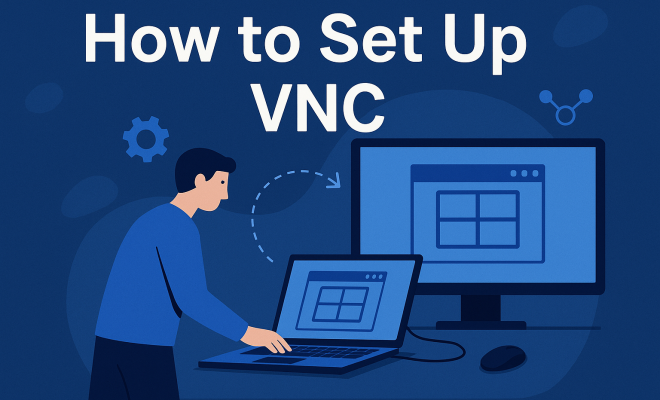
How to set up VNC
“`html
Virtual Network Computing (VNC) has become a vital tool for remote access, enabling users to control computers from afar. Whether you’re working from home, providing tech support, or managing servers, knowing how to set up VNC can simplify your tasks significantly. In this guide, we’ll explore everything you need to know about VNC, including its background, installation, configuration, and troubleshooting.
1. Understanding VNC and Its Importance
VNC stands for Virtual Network Computing, a graphical desktop-sharing system that employs the Remote Frame Buffer protocol to control another computer remotely. Originally developed at the Olivetti Research Laboratory in the late 1990s, VNC has evolved into a widely used remote access solution that allows users to interact with a computer as though they were sitting right in front of it.
Its importance is underscored by the rise of remote work and the increasing need for IT support across geographical boundaries. With VNC, you can troubleshoot issues, provide training, or access files without being physically present. This capability is especially critical in today’s interconnected world, where businesses rely on efficient remote operations.
2. Choosing the Right VNC Software
Before diving into how to set up VNC, it’s essential to select the right VNC software. Several options are available, including:
- TightVNC – A popular choice due to its lightweight nature and ease of use.
- RealVNC – Offers both free and paid versions, with additional features in the premium options.
- UltraVNC – Known for its flexibility and ability to transfer files between computers.
- TigerVNC – Focuses on performance and security, making it ideal for Linux users.
By understanding the differences between these options, you can choose the best fit for your needs. Keep in mind factors such as user interface, additional features, and compatibility with your operating systems.
3. Preparing for Installation
Once you’ve selected your VNC software, it’s time to prepare for installation. Ensure you have administrative rights on the computer where you plan to install the VNC server. Additionally, check the following:
- Ensure your firewall settings allow VNC traffic.
- Have the necessary installation files readily available or access to the internet for downloading them.
- Determine the network settings, especially if you plan to connect over the internet.
Preparation is key to avoiding headaches later. Take a moment to gather any passwords or security information you might need during the setup process.
4. Installing the VNC Server
Now comes the exciting part—installing the VNC server. Here’s a step-by-step breakdown for a typical installation process, using TightVNC as an example:
- Download the Installer: Visit the official TightVNC website and download the appropriate version for your operating system.
- Run the Installer: Double-click the downloaded file to begin the installation process. Follow the prompts, accepting the license agreement and selecting installation options.
- Configure the Server: After installation, you’ll need to set a password for remote access. This is crucial for security, so choose a strong, unique password.
- Adjust Firewall Settings: If the installer doesn’t automatically configure your firewall, you may need to adjust your settings manually.
Completing these steps sets the foundation for your VNC installation, allowing you to connect to your remote machine effectively.
5. Configuring the VNC Server
Once installed, configuring the VNC server is vital to ensure it operates smoothly. Here are essential configuration steps:
- Set the Display Resolution: Choose the display resolution for remote sessions. This may vary depending on your needs, but a common choice is 1024×768.
- Enable Encryption: For security, enable encryption if supported by your VNC software. This helps to protect your data during transmission.
- Configure User Permissions: Decide which users will have access to the VNC server, and adjust permissions accordingly.
Configuration is where you tailor the VNC experience to your specific use case, ensuring both functionality and security are prioritized.
6. Connecting to a VNC Server
With the VNC server up and running, you’ll want to connect to it. The process varies slightly depending on whether you’re connecting within a local network or over the internet. Here’s a general guide: (See: Wikipedia on Virtual Network Computing.)
- Open the VNC Viewer: Launch the VNC Viewer software on your local machine.
- Enter Server Address: Input the IP address or hostname of the VNC server you want to connect to. If you’re connecting over the internet, ensure that the network allows external connections to the VNC server.
- Provide the Password: Enter the password you set during the VNC server installation to authenticate your session.
- Access the Desktop: Once authenticated, you should see the desktop of the remote machine, allowing you to control it as if you were sitting in front of it.
This connectivity is where VNC shines, providing seamless access to your resources no matter where you are.
7. Troubleshooting Common Issues
Even with the best setups, issues can arise. Here are common problems and how to troubleshoot them:
- Connection Refused: This may indicate that the VNC server isn’t running. Check its status and restart it if necessary.
- Firewall Blocking: Firewalls can block VNC connections. Make sure the necessary ports (typically 5900) are open and allow VNC through.
- Slow Performance: Network latency can impact performance. If you notice lag, consider lowering the display quality settings within the VNC viewer.
By being proactive and prepared to troubleshoot, you can maintain a smooth remote access experience.
8. Security Considerations When Using VNC
Security is paramount when using VNC, as remote access tools can be vulnerable to unauthorized access. Here are best practices to enhance your VNC security:
- Use Strong Passwords: Always opt for complex and unique passwords. Avoid easily guessable phrases.
- Limit User Access: Only provide access to individuals who need it, and regularly review user permissions.
- Utilize Encryption: Whenever possible, enable encryption to protect your data during transmission.
- Regular Updates: Keep your VNC software up-to-date to benefit from the latest security patches.
By taking these steps, you can significantly reduce the risk of potential breaches and unauthorized access to your systems.
9. Current Relevance and Future of VNC
As remote work continues to be a significant trend, the relevance of tools like VNC is only expected to grow. Its ability to support diverse operating systems and facilitate easy access to remote systems makes it a cornerstone in the toolkit of many IT professionals.
Looking ahead, we may see enhancements in VNC technologies, such as improved performance, better integration with cloud services, and richer features that cater specifically to remote collaboration. As businesses adapt to a more distributed workforce, understanding how to set up VNC and leverage its advantages will remain an invaluable skill.
10. Advanced Configuration Options for VNC
For users who want to take their VNC experience to the next level, several advanced configuration options can help optimize performance and security. Here are some to consider:
- Configure the Color Depth: Adjusting the color depth can improve performance on slower connections. Reducing the color depth to 16 or even 8 bits can significantly reduce the data transmitted.
- Use Virtual Desktops: If your operating system supports it, consider using virtual desktops. This allows you to manage multiple remote sessions more efficiently.
- Set Up Dynamic DNS: If you frequently connect to the VNC server from different locations, consider setting up a Dynamic DNS service. This will allow you to reach your server with a consistent hostname, even if its IP address changes.
- Implement Two-Factor Authentication (2FA): For an extra layer of security, consider implementing 2FA. This makes it significantly harder for unauthorized users to gain access, as they will need both a password and a second form of authentication.
These advanced configurations not only enhance security but also improve the overall user experience when accessing remote machines.
11. Real-World Use Cases for VNC
VNC is versatile and can be utilized in various scenarios. Here are some real-world examples of how different sectors use VNC:
- IT Support: Helpdesk teams often use VNC to provide remote support, allowing technicians to see users’ screens and resolve issues without being physically present.
- Remote Education: Educators can use VNC to demonstrate software or troubleshoot issues on students’ computers during online classes, providing hands-on support even at a distance.
- Home Automation: Tech-savvy homeowners use VNC to monitor and control their home automation systems remotely, adjusting settings or troubleshooting without needing to be on-site.
- Server Management: System administrators frequently rely on VNC to manage servers in data centers, accessing them from remote locations to perform updates or monitor performance.
These examples illustrate just how impactful VNC can be across various domains, making it a valuable tool for both individuals and organizations.
12. Comparing VNC with Other Remote Desktop Technologies
VNC isn’t the only player in the remote desktop space. Here’s how it compares with some other popular technologies:
RDP (Remote Desktop Protocol)
Developed by Microsoft, RDP is often faster than VNC and includes advanced features like session sharing and audio redirection. However, it’s primarily designed for Windows environments and generally requires a Windows server to connect to.
TeamViewer
TeamViewer is known for its user-friendly interface and doesn’t require port forwarding to establish connections. However, it comes at a cost for commercial use, while VNC solutions can be free or open-source.
AnyDesk
AnyDesk provides low-latency access and is optimized for mobile use. Its performance can surpass VNC in some scenarios, but like TeamViewer, it operates on a subscription model for businesses. (See: CDC on telework and remote access.)
While each of these technologies has its strengths and weaknesses, VNC stands out for its open-source nature and flexibility, making it suitable for a wide range of applications.
13. Frequently Asked Questions (FAQ)
Here are some common questions users may have when considering how to set up VNC:
Q1: Is VNC secure for remote access?
A1: VNC can be secure if configured properly. Always use strong passwords, enable encryption if available, and consider using a VPN for added security.
Q2: Can I use VNC over the internet?
A2: Yes, but you’ll need to configure your router to allow VNC traffic. Additionally, using a dynamic DNS service can make accessing your server easier.
Q3: What operating systems are compatible with VNC?
A3: VNC is compatible with various operating systems, including Windows, macOS, and Linux. This cross-platform capability is one of its key advantages.
Q4: How do I improve VNC’s performance?
A4: You can improve performance by reducing the color depth, adjusting display settings, and minimizing the number of active connections to the server.
Q5: What should I do if I forget my VNC password?
A5: If you forget your VNC password, you will need to reset it through the server settings. This typically requires administrative access to the server. (See: ScienceDirect on remote access technologies.)
14. Tips for Optimizing Your VNC Experience
To maximize your VNC experience, consider these additional tips:
- Network Quality: Ensure your internet connection is stable and has sufficient bandwidth. A wired connection is often more reliable than wireless.
- Use a VPN: For enhanced security and to avoid potential ISP throttling, consider connecting through a Virtual Private Network (VPN).
- Regular Maintenance: Regularly check for software updates and perform routine maintenance checks on both the server and viewer applications.
- Documentation: Keep a record of settings, user access levels, and any configuration changes. This will help in troubleshooting and future upgrades.
15. Case Study: Implementing VNC in a Small Business
Consider a small business with remote employees who access company resources from various locations. By implementing VNC, the company allows employees to securely connect to their office desktop environment.
In this scenario, the business set up TightVNC on office computers while employees used the VNC Viewer from home. They chose strong passwords, enabled encryption, and configured their routers for secure remote access.
The results were significant. Employees reported increased productivity, as they could access files and applications from home as if they were at their desks. The IT team effectively supported remote employees, resolving issues quickly through VNC connections.
This case study illustrates the practical application of VNC in enhancing remote work dynamics, showcasing its value for small businesses.
16. Conclusion
Understanding how to set up VNC is essential in today’s remote-friendly workplace. The flexibility and accessibility it offers make it a valuable tool for various professionals across sectors. Whether you’re providing tech support, managing servers, or enabling remote education, VNC can help bridge the gap between locations, ensuring seamless connectivity and efficiency.
“`
Trending Now
Frequently Asked Questions
What is VNC and how does it work?
VNC, or Virtual Network Computing, is a graphical desktop-sharing system that allows users to control a computer remotely. It uses the Remote Frame Buffer protocol to transmit screen images and keyboard/mouse inputs, enabling users to interact with another computer as if they were physically present.
How do I choose the best VNC software?
To choose the best VNC software, consider factors like ease of use, features, and compatibility with your operating system. Popular options include TightVNC for its lightweight design, RealVNC for its versatile pricing, UltraVNC for its file transfer capabilities, and TigerVNC for performance and security.
What are the benefits of using VNC?
Using VNC provides several benefits, including the ability to troubleshoot issues remotely, provide training, and access files without being physically present. This is particularly valuable in today's remote work environment, allowing businesses to operate efficiently across geographical boundaries.
Can I use VNC on different operating systems?
Yes, VNC can be used across different operating systems. Most VNC software options support Windows, macOS, and Linux, allowing users to connect and control computers regardless of the operating system they are using.
What should I do before installing VNC?
Before installing VNC, ensure you select the right VNC software that meets your needs. Prepare your system by checking compatibility, gathering necessary permissions, and ensuring that your firewall settings allow VNC connections for seamless remote access.
What’s your take on this? Share your thoughts in the comments below — we read every one.