Master Remote Screen Sharing: 10 Essential Tips
“`html
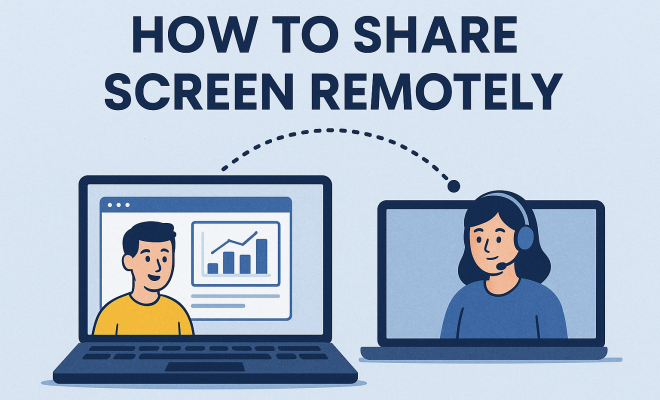
In the age of remote work and virtual collaboration, the ability to share your screen efficiently has become an invaluable skill. Remote screen sharing allows you to present information, troubleshoot issues, or collaborate on projects without being physically present. This article explores ten essential tips for mastering remote screen sharing, providing you with practical insights and guidance to ensure effective communication and collaboration.
1. Understanding Remote Screen Sharing
At its core, remote screen sharing is a technology that allows users to share their computer screens with others over the internet. This functionality has become increasingly important, especially as more companies have shifted to remote work environments. It serves a multitude of purposes, from conducting virtual meetings to providing technical support. According to a report from Gartner, 74% of companies plan to shift some employees to remote work permanently, highlighting the growing relevance of tools that facilitate remote collaboration.
Various software applications enable remote screen sharing, including platforms like Zoom, Microsoft Teams, and Google Meet. Each of these tools offers unique features and user experiences, catering to different needs. For example, some platforms allow for multi-user screen sharing, while others prioritize high-quality video and audio.
2. Choosing the Right Tool
When it comes to remote screen sharing, selecting the right software is crucial for success. Many options are available, but not all will fit your specific needs. Consider factors such as user-friendliness, compatibility with your operating system, and the features you require. For instance, if you’re working with a large team, you might need a tool that supports multiple participants sharing their screens simultaneously.
Popular choices include Zoom, which is known for its ease of use and robust features, and Microsoft Teams, which integrates seamlessly with other Microsoft products. Google Meet is another solid option, particularly for those already using Google Workspace. Researching and testing these applications before making a decision can save you time and enhance your remote collaboration efforts.
3. Preparing for Your Remote Screen Sharing Session
Preparation is key to a successful remote screen sharing session. Before you start, ensure that your computer and internet connection are functioning optimally. Close any unnecessary applications and tabs that could slow down your system or distract your audience. Additionally, consider doing a test run of your presentation or demonstration to identify and resolve any potential issues.
Creating a clear agenda can also help keep your session focused and efficient. Outline the key points you want to cover and share this agenda with your participants in advance. This way, everyone will know what to expect and can prepare any questions or comments they may have.
4. Engaging Your Audience
Keeping your audience engaged during remote screen sharing can be challenging, especially if the session is lengthy. To maintain interest, consider incorporating interactive elements such as polls, quizzes, or Q&A sessions. Encourage participants to ask questions or share their thoughts throughout the presentation to foster a more collaborative atmosphere.
Utilizing visual aids is another effective strategy for keeping your audience engaged. High-quality graphics, slides, or videos can enhance your presentation and help convey complex information more effectively. Remember, the goal is to create a dynamic experience that captures your audience’s attention and encourages participation.
5. Using Annotations and Highlights
Most remote screen sharing tools offer annotation features that allow you to highlight specific areas of your screen or draw attention to key points during your presentation. Using these tools can make your session more visually impactful and help guide your audience’s focus. For instance, if you’re explaining a complex graph or chart, highlighting specific data points can clarify your message. (See: CDC guidelines on telework.)
Annotations can also facilitate real-time feedback during collaborative sessions. By inviting participants to contribute their thoughts through annotations, you can create an interactive environment that encourages discussion and deeper understanding of the material being presented.
6. Ensuring Security and Privacy
Security is a significant concern when it comes to remote screen sharing, especially if sensitive information is involved. To protect your data and maintain privacy, always use trusted and secure platforms. Ensure that your software is up to date with the latest security patches and features.
Additionally, consider using password protection for your sessions and avoid sharing sensitive information unless absolutely necessary. Educate your participants on best practices for maintaining security during remote meetings, such as not sharing the meeting link publicly and being cautious about what is displayed on their screens.
7. Optimizing Your Internet Connection
A stable internet connection is essential for seamless remote screen sharing. Buffering or lagging can disrupt the flow of your presentation and lead to frustration for both you and your audience. To ensure a smooth experience, connect to a reliable network, preferably via Ethernet rather than Wi-Fi when possible.
Additionally, consider conducting your screen sharing sessions during off-peak hours when internet traffic is lower. If you anticipate high data usage, inform your network provider in advance, or explore options for increasing your bandwidth temporarily to avoid disruptions.
8. Recording Your Sessions
Recording remote screen sharing sessions can serve multiple purposes, from documentation to training. Most screen sharing tools include a recording feature that allows you to capture your entire session, including audio, video, and shared screens. This can be incredibly helpful for participants who may have missed the session or want to revisit the material later.
When recording, ensure that you inform all participants beforehand to maintain transparency. Additionally, consider editing the recording to highlight key moments or remove unnecessary sections for clarity. This edited version can then serve as a valuable resource for future training or reference.
9. Post-Session Follow-Up
After your remote screen sharing session concludes, it’s essential to engage in post-session follow-up. Send out a summary of the meeting, including key takeaways and action items, to all participants. This not only reinforces the information shared but also keeps everyone accountable for any tasks discussed.
Encouraging feedback from your audience can provide insight into what worked well and what could be improved for future sessions. Use this feedback to refine your approach and enhance your remote screen sharing skills over time.
10. Future Trends in Remote Screen Sharing
As technology continues to evolve, so does the landscape of remote screen sharing. Emerging trends like augmented reality (AR) and virtual reality (VR) are beginning to play a role in enhancing remote collaboration. These technologies promise to create more immersive experiences, allowing participants to interact with 3D models or virtual environments during presentations. (See: BBC article on remote working.)
Additionally, artificial intelligence (AI) is expected to impact how we share screens, with tools that automatically summarize discussions or highlight important moments in real-time. Keeping an eye on these trends can help you stay ahead of the curve and continue to improve your remote screen sharing capabilities.
11. Common Use Cases for Remote Screen Sharing
Remote screen sharing is versatile and can be applied across various fields and industries. Understanding its common use cases can help you leverage this technology more effectively.
- Technical Support: Many IT professionals use remote screen sharing to troubleshoot issues directly on a user’s computer. This method reduces the time spent on fixing problems, as technicians can view and resolve issues in real-time.
- Training and Onboarding: For new employees, remote screen sharing can enhance training sessions. Trainers can walk through software applications or internal processes while sharing their screens, making the learning experience more engaging.
- Remote Collaboration: Teams dispersed across different locations can collaborate seamlessly by sharing screens during brainstorming sessions, project planning, or design discussions. This fosters a sense of teamwork and innovation.
- Sales Demonstrations: Sales teams can utilize remote screen sharing to showcase products or services to potential clients. This allows for a more interactive experience, where prospects can ask questions and see the product in action.
12. Statistics on Remote Screen Sharing Usage
Understanding the statistics surrounding remote screen sharing can emphasize its importance in today’s work environment. A report from Statista indicates that the global video conferencing market is expected to reach $9.2 billion by 2026, driven largely by the demand for remote collaboration tools.
Additionally, a survey conducted by Owl Labs found that 87% of remote workers feel more productive when using video conferencing tools that include screen sharing capabilities. This statistic underscores the value of remote screen sharing in enhancing collaboration and work efficiency.
13. Expert Perspectives on Remote Screen Sharing
Experts in the field of remote collaboration emphasize the importance of mastering remote screen sharing techniques. According to Dr. Linda Grayson, an organizational psychologist, “Effective communication is the cornerstone of productivity in remote work. Mastering tools like screen sharing is vital in ensuring clarity and connection among team members.”
Furthermore, technology consultant James McNair suggests that “Practicing your screen sharing skills can make a significant difference. The more comfortable you are with the technology, the more effectively you can communicate your ideas.” His insights highlight the need for users to invest time in understanding their chosen tools.
14. Comparative Analysis of Popular Screen Sharing Tools
Here’s a comparative analysis of some popular remote screen sharing tools, focusing on their features, strengths, and weaknesses:
| Tool | Key Features | Strengths | Weaknesses |
|---|---|---|---|
| Zoom | High-quality video, breakout rooms, cloud recording | Easy to use, supports large meetings | Can be resource-intensive, security concerns |
| Microsoft Teams | Integration with Office apps, chat capabilities | Great for teams already using Microsoft products | Can be complicated for new users |
| Google Meet | Integration with Google Workspace, live captions | Simple interface, strong security | Limited features for free users |
| TeamViewer | Remote access, file transfer capabilities | Excellent for IT support | More complex setup, can be costly for businesses |
15. Frequently Asked Questions (FAQ) on Remote Screen Sharing
What is remote screen sharing?
Remote screen sharing is a technology that allows users to display their computer screen to others over the internet, enabling collaborative work and real-time communication.
Which platforms support remote screen sharing?
Common platforms that support remote screen sharing include Zoom, Microsoft Teams, Google Meet, and TeamViewer, among others. Each platform offers unique features suited for different needs.
How can I ensure a secure remote screen sharing session?
To ensure security, use trusted software, apply password protection, and avoid sharing sensitive information. Always keep your software up to date with the latest security patches.
Can I record a remote screen sharing session?
Yes, most remote screen sharing tools come with a recording feature that enables you to capture the session for later reference or review. Always inform participants before recording.
What are the benefits of using remote screen sharing for training?
Remote screen sharing enhances training by providing a visual element, allowing trainers to demonstrate processes and engage participants in real-time. It also helps create a more interactive learning environment.
Is remote screen sharing limited to specific devices?
No, remote screen sharing can be done on various devices, including desktops, laptops, tablets, and smartphones, as long as the device supports the chosen screen sharing software.
16. Best Practices for Effective Remote Screen Sharing
While mastering remote screen sharing involves learning the tools and techniques, following some best practices can significantly enhance your sessions. Here are a few to consider:
- Be Mindful of Your Desktop: Before sharing your screen, tidy up your desktop. Close unnecessary tabs, files, and applications. This not only minimizes distractions but also maintains professionalism.
- Use Dual Monitors: If you have access to dual monitors, use them to your advantage. You can share one screen with your audience while keeping notes or other applications visible on your second screen.
- Practice Screen Sharing: Familiarize yourself with the screen sharing features of your chosen platform. Practice using the tools, including switching windows or using annotations, so you can navigate smoothly during your session.
- Maintain Eye Contact: When presenting, try to look at the camera instead of the screen. This creates a sense of connection with your audience, making them feel more engaged.
- Limit Screen Changes: Frequent changes in what you’re sharing can confuse viewers. Stick to one window or application for longer periods to allow your audience to digest the information before switching to another.
17. Resolving Common Issues During Remote Screen Sharing
Even with the best preparation, issues can arise during screen sharing sessions. Here are some common problems and how to address them:
- Lagging or Delayed Screen Sharing: If your screen sharing is lagging, check your internet speed. You can use online tools to test your connection speed. If your connection is unstable, consider lowering the quality of the video or sharing less demanding applications.
- Audio Issues: If participants can’t hear you, ensure that your microphone is turned on and set to the correct input source. You can also ask attendees to check their volume levels.
- Participant Confusion: If participants seem confused, don’t hesitate to pause and ask if anyone has questions. Use non-verbal cues to gauge their understanding and encourage interaction.
- Screen Not Showing Up: If your screen isn’t visible to participants, double-check that you’ve chosen the correct window or application to share. Also, ensure that your screen sharing permissions are properly set.
18. Exploring Advanced Features of Screen Sharing Tools
Many screen sharing tools offer advanced features that can enhance your sessions. Here are a few notable ones:
- Breakout Rooms: Zoom and Microsoft Teams offer breakout rooms, allowing you to split participants into smaller groups for discussions before returning everyone to the main session. This can promote collaboration and idea exchange.
- Virtual Backgrounds: Platforms like Zoom allow users to set virtual backgrounds. This feature can help maintain professionalism by hiding a messy home office or creating a unified theme for meetings.
- Chat Integration: Using the chat feature during screen sharing can facilitate questions and comments without interrupting the flow of your presentation. Encourage participants to use chat for quick questions that can be addressed later.
- Live Polling: Some platforms include live polling features, enabling you to gather instant feedback or gauge opinions during your presentation. This is a great way to enhance engagement and make decisions collaboratively.
“`
Trending Now
Frequently Asked Questions
What is remote screen sharing?
Remote screen sharing is a technology that enables users to share their computer screens with others over the internet. It is essential for virtual meetings, troubleshooting, and collaboration, especially in remote work environments.
What tools can I use for remote screen sharing?
Popular tools for remote screen sharing include Zoom, Microsoft Teams, and Google Meet. Each platform offers unique features tailored to different collaboration needs, such as multi-user sharing and high-quality video.
How do I choose the right screen sharing software?
When selecting screen sharing software, consider factors like user-friendliness, compatibility with your operating system, and necessary features. For large teams, look for tools that support multiple participants sharing their screens simultaneously.
Why is remote screen sharing important for remote work?
Remote screen sharing facilitates effective communication and collaboration in remote work settings by allowing team members to present information, troubleshoot issues, and work together without physical presence.
What are the benefits of using screen sharing tools?
Screen sharing tools enhance collaboration by enabling real-time information sharing, improving troubleshooting efficiency, and fostering better communication during virtual meetings, which is increasingly vital in remote work environments.
What’s your take on this? Share your thoughts in the comments below — we read every one.