Mirror Your Display to TV: The Ultimate How-To Guide
“`html
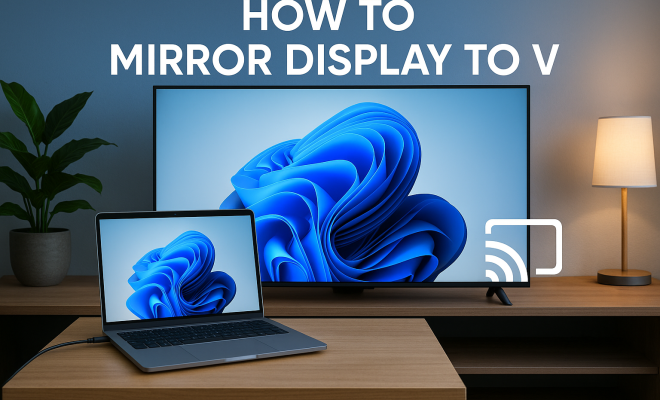
In an age where streaming and screen sharing have become second nature, knowing how to mirror display to TV is a skill everyone should possess. Whether you’re looking to showcase a presentation, share photos from a recent trip, or binge-watch your favorite series on a larger screen, the ability to project your device’s display to a television opens up a wealth of possibilities. This guide will explore various methods to seamlessly mirror your display to a TV, providing you with practical insights and a comprehensive understanding of the best tools at your disposal.
1. Understanding Display Mirroring
Before diving into the methods, it’s crucial to grasp what display mirroring entails. Display mirroring, often referred to as screen mirroring, is the process of duplicating your device’s screen on another display, such as a TV. Unlike casting, which allows you to stream specific content, mirroring replicates everything on your device’s screen, enabling viewers to see exactly what you see.
This feature is invaluable for presentations, gaming, and sharing multimedia content. It typically requires minimal setup and can be done via wired connections like HDMI or wirelessly using technologies such as Miracast, AirPlay, or Google Cast. Understanding these options helps users choose the best method for their needs.
2. Using HDMI Cables for Wired Mirroring
The most straightforward method to mirror a display to a TV is through an HDMI connection. Most modern TVs come equipped with several HDMI ports, making it easy to connect devices like laptops, tablets, and even some smartphones. To use this method, all you need is an appropriate HDMI cable and a compatible adapter for your device.
To get started, simply connect one end of the HDMI cable to your device and the other end to an available HDMI port on your TV. Once connected, switch your TV to the corresponding HDMI input. Most devices will automatically detect the external display, allowing you to start mirroring instantly. If not, you may need to adjust your display settings on your device to extend or duplicate the screen.
3. Mirroring from Windows Devices
If you’re using a Windows laptop or PC, you have a couple of easy options to mirror your display to TV. Windows 10 and 11 offer a built-in feature called ‘Project’ that allows you to connect wirelessly to supported TVs. To use this feature, both your PC and TV need to be connected to the same Wi-Fi network.
Here’s how to do it: go to the notification area on your taskbar, click on the ‘Action Center’, and select ‘Project’. Choose ‘Connect to a wireless display’. Your TV should appear in the list of devices. Click on it, and follow any prompts to complete the connection. This method can be incredibly convenient for presentations or streaming media.
4. Utilizing Apple AirPlay
For Apple users, AirPlay is a game-changer when it comes to mirroring your display to a TV. If you have an Apple TV or a smart TV that supports AirPlay, mirroring your iPhone, iPad, or Mac is seamless. Begin by ensuring that both your Apple device and TV are connected to the same Wi-Fi network.
On your iPhone or iPad, swipe down from the upper-right corner to access the Control Center, and tap on ‘Screen Mirroring’. Select your Apple TV or compatible smart TV from the list. For Mac users, click on the AirPlay icon in the menu bar and select your TV. This feature not only mirrors your display but also allows you to stream videos, share games, and even listen to music through your TV’s speakers.
5. Exploring Google Cast
Another popular option for mirroring displays is through Google Cast. If you own a Chromecast or a smart TV with built-in Chromecast functionality, this method enables you to cast content from Android devices, Chromebooks, and even certain Windows computers. To mirror your display using Google Cast, ensure your devices are on the same Wi-Fi network.
Open the Google Chrome browser on your device, click on the three dots in the upper right corner, and select ‘Cast’. A window will open, allowing you to choose your Chromecast or compatible TV. From there, you can select ‘Cast desktop’ to mirror your entire screen or choose a specific tab to cast. This method is excellent for viewing documents, presentations, or any online content on a larger screen. (See: Understanding HDMI technology.)
6. Using Smart TV Features
Many modern Smart TVs come equipped with their own screen mirroring capabilities, which can simplify the process. Brands like Samsung, LG, and Sony have integrated technologies like Miracast or their proprietary mirroring solutions. To use these features, check your TV’s settings and ensure that the mirroring option is activated.
Once enabled, access the screen mirroring option on your smartphone or tablet. For example, on a Samsung device, swipe down to reveal the Quick Settings panel and select ‘Smart View’. Your TV should appear as an available device, making it easy to connect. This method is particularly user-friendly and often requires no additional software downloads.
7. Third-Party Apps for Mirroring
If the built-in options aren’t sufficient for your needs, numerous third-party applications can facilitate screen mirroring. Apps like AirServer, ApowerMirror, and LetsView offer robust solutions for multiple platforms, allowing for extensive customization and functionality.
For instance, ApowerMirror supports both iOS and Android devices, enabling users to mirror their screens wirelessly and even record the screen during the process. These apps often come with additional features like file transfer and remote control capabilities, making them valuable tools for both personal and professional use.
8. Troubleshooting Common Issues
While mirroring your display to a TV is generally straightforward, you might encounter some common issues. Connectivity problems can arise if your devices aren’t on the same Wi-Fi network, so double-check your network settings first. Additionally, ensure that your TV software is up-to-date, as outdated firmware can lead to compatibility issues.
If you experience lag or poor quality, consider reducing the distance between your device and the TV, or try using a wired connection instead. Sometimes, restarting both your device and TV can resolve minor glitches and restore functionality. Troubleshooting these common issues can ensure a smooth mirroring experience.
9. Security Considerations When Mirroring
As with any technology, security is an essential factor to consider when mirroring your display to a TV. Unauthorized access can occur if your device is connected to an unsecured network. To mitigate risks, always ensure you are using a secure Wi-Fi connection and consider changing your network password regularly.
When using third-party apps, be cautious about the permissions you grant. Some apps may ask for access to sensitive data. Before downloading, check reviews and ensure the app is from a reputable source. Following these practices will safeguard your data and ensure a secure mirroring experience.
10. The Future of Screen Mirroring Technology
As technology continues to evolve, so do the capabilities of screen mirroring. Future developments may include enhanced wireless technologies like Wi-Fi 6, which promises faster speeds and lower latency, improving the overall mirroring experience. Additionally, advancements in augmented reality (AR) could lead to more immersive projection techniques, allowing users to interact with mirrored content in new ways.
Moreover, as more devices become smart-enabled, the integration of AI may offer personalized suggestions for mirroring content based on user preferences. Staying informed about these trends will ensure that you can leverage the latest technologies for an optimal viewing experience.
11. Benefits of Screen Mirroring
Screen mirroring provides numerous benefits that enhance your viewing experience. For instance, when sharing photos or videos with friends and family, it transforms the viewing experience from a small screen to a larger, communal setting, where everyone can enjoy the content together. Additionally, this can be particularly beneficial for educational purposes; teachers can display presentations and educational materials directly from their laptops or tablets, making it easier for students to engage with the content.
In the realm of gaming, mirroring offers players the chance to showcase their gaming sessions on a larger screen, allowing for a more immersive experience. It also opens up opportunities for competitive gaming events where players can stream their gameplay live to an audience. Statistics show that gaming sessions conducted on larger displays often yield better performances due to enhanced visibility and engagement.
12. Popular Devices for Screen Mirroring
Many devices today support screen mirroring, but some are more popular than others. Apple devices, such as the iPhone and iPad, are known for their seamless integration with AirPlay. On the Android side, Google Chromecast has become a staple for many users, allowing easy casting from Android devices and even from Windows desktops. (See: Impact of technology on health.)
Smart TVs from brands like Samsung and LG have built-in capabilities that make them ideal for mirroring without additional hardware. Many users have also found success with Roku devices, which offer versatile options for screen mirroring across different platforms. According to market research, nearly 35% of households in the U.S. use some form of smart TV or streaming device that supports screen mirroring, indicating its widespread popularity.
13. Comparing Mirroring Technologies
Several technologies enable screen mirroring, each with its unique characteristics. AirPlay is often favored by Apple users for its ease of use and integration with the Apple ecosystem. On the other hand, Google Cast is preferred by Android users and Windows PC owners for its versatility and support for a wide range of devices.
Miracast serves as a standard for wireless connections, allowing devices to communicate directly without the need for an intermediary network. However, it may not be as user-friendly as the app-based solutions like Chromecast and AirPlay, which offer more intuitive interfaces. Knowing the differences can help you choose the right technology based on your preferences and device compatibility.
14. Frequently Asked Questions (FAQ)
What devices can I mirror to my TV?
You can mirror a variety of devices to your TV, including laptops, tablets, smartphones, and even some gaming consoles. Most modern devices support at least one method of mirroring.
Do I need special software to mirror my display?
While many devices have built-in mirroring capabilities, some situations may require third-party software. Applications like ApowerMirror and LetsView provide additional features and support for cross-platform mirroring.
Can I mirror my display without Wi-Fi?
Yes, you can mirror your display without Wi-Fi using wired connections like HDMI. Some devices also support Miracast, which can establish a direct wireless connection without needing a network.
Is screen mirroring safe?
Screen mirroring can be safe as long as you use secure networks and trusted applications. Always make sure to protect your devices with strong passwords and to use reputable software for mirroring.
What should I do if my mirroring is lagging?
If you experience lag, try reducing the distance between your device and the TV, or switch to a wired connection for improved stability. Closing unnecessary applications on your device may also help enhance performance.
Can I mirror my display while using other apps?
Yes, most mirroring technologies allow you to work on other apps while mirroring. However, keep in mind that performance can vary based on the technology used and the capabilities of your device.
15. Advanced Mirroring Techniques
For those looking to take their mirroring experience to the next level, there are advanced techniques worth exploring. For instance, using a multi-screen setup can allow users to mirror multiple devices to the same TV simultaneously. This is particularly useful in collaborative environments, such as workplaces or classrooms, where group discussions involve multiple participants sharing their screens.
Another technique is the integration of mirroring with video conferencing tools. By mirroring your display to a TV during a video call, you can provide a clearer view for everyone in the room, enhancing communication and engagement. Many modern video conferencing platforms like Zoom and Microsoft Teams allow users to share their screens effortlessly, creating a professional setup for remote meetings. (See: How screen mirroring works.)
16. Enhancing Your Mirroring Experience with Audio
Sound quality is just as important as the visual aspect when it comes to mirroring. Many TVs now come equipped with advanced audio features, but to enhance your experience further, consider using external sound systems. Bluetooth speakers or soundbars can connect wirelessly or via an audio cable to improve sound quality significantly.
When using AirPlay or Google Cast, you can often control audio separately from video, allowing for a customized experience. This is especially beneficial when watching movies or playing games where sound plays a critical role in immersion.
17. Real-World Applications of Display Mirroring
The applications of display mirroring extend far beyond mere entertainment. In educational settings, teachers can use mirroring to demonstrate complex concepts through interactive presentations, making learning more engaging. For example, science labs can utilize mirroring to show real-time data and simulations on a larger screen, fostering an interactive learning environment.
In business contexts, remote teams can leverage display mirroring during presentations or brainstorming sessions, enabling seamless collaboration regardless of location. This not only saves time but also enhances productivity by allowing all participants to visualize content together.
According to a survey conducted by the International Data Corporation (IDC), 70% of business decision-makers reported that screen mirroring solutions improved their team’s productivity and collaboration efforts. This highlights the practical benefits of incorporating mirroring technology in both educational and professional settings.
18. Future Trends in Screen Mirroring
As technology continues to advance, screen mirroring is poised for exciting developments. One emerging trend is the integration of augmented reality (AR) and virtual reality (VR) with mirroring technologies. Imagine being able to project AR content onto your TV while interacting with it through your mobile device—this could revolutionize the gaming and educational sectors.
Additionally, the expansion of 5G networks promises to enhance wireless mirroring capabilities, allowing for higher quality streaming and reduced latency. This could make screen mirroring more reliable and widely adopted in various industries, from entertainment to telehealth, where quick access to visual information is crucial.
19. Conclusion
Understanding how to mirror display to TV opens up a world of possibilities for both personal and professional use. Whether for sharing media, presenting work, or simply enjoying a gaming session on a bigger screen, mastering this skill can significantly enhance your digital interaction. With various technologies and methods at your disposal, you can choose the right approach that suits your needs. By staying up to date with the latest advancements in screen mirroring technology, you can ensure that you’re always equipped for an optimal viewing experience.
“`
Trending Now
Frequently Asked Questions
What is display mirroring?
Display mirroring, also known as screen mirroring, is the process of duplicating your device's screen onto another display, such as a TV. This allows viewers to see everything on your device's screen, making it ideal for presentations, gaming, and sharing multimedia content.
How can I mirror my phone to my TV?
You can mirror your phone to your TV using various methods, including HDMI cables for a wired connection, or wirelessly through technologies like Miracast, AirPlay, or Google Cast. Choose the method that best suits your device and TV compatibility.
Do I need special equipment to mirror my display to a TV?
While some methods of mirroring can be done with just an HDMI cable, others may require specific adapters or compatible devices. For wireless methods, ensure that both your device and TV support the same technology, such as AirPlay or Miracast.
Can I mirror my laptop screen to a TV?
Yes, you can mirror your laptop screen to a TV using an HDMI cable for a wired connection or wirelessly through options like Miracast or Google Cast. Simply connect your laptop to the TV and select the appropriate input to start mirroring.
What are the benefits of using display mirroring?
Display mirroring allows you to share content from your device on a larger screen, making it perfect for presentations, gaming, and watching videos. It provides an engaging experience for viewers and is easy to set up with minimal equipment.
What’s your take on this? Share your thoughts in the comments below — we read every one.