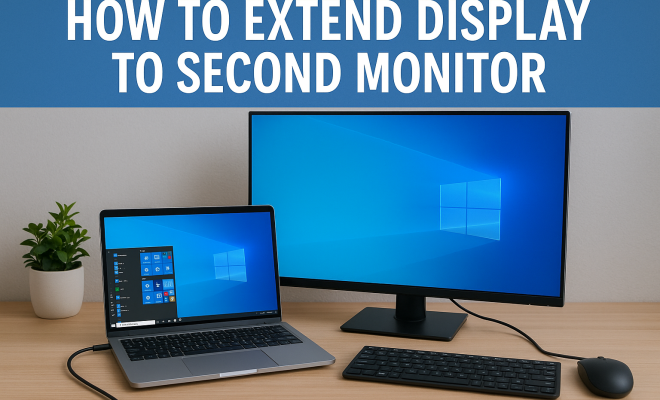
How to extend display to second monitor
“`html
In today’s fast-paced digital world, maximizing productivity is essential. One effective way to achieve this is by extending your display to a second monitor. This guide will walk you through the intricacies of setting up a dual-monitor system, its benefits, potential challenges, and troubleshooting tips to ensure a seamless experience.
1. Understanding Dual Monitors: The Basics of Multiple Displays
Before diving into the how-tos, it’s crucial to understand the concept of dual monitors. Essentially, a dual-monitor setup involves using two screens simultaneously, which can greatly enhance your productivity and efficiency. Instead of switching between multiple windows on a single display, you can easily organize your workspace by extending your display to a second monitor.
This setup allows users to multitask effectively. For example, one screen can display a document while the other runs a presentation or a video call. It’s especially popular among professionals in fields like design, programming, and data analysis, where screen real estate is paramount.
2. Benefits of Extending Displays: Why You Should Consider It
There are numerous advantages to extending your display to a second monitor, especially if you spend long hours in front of your computer. Here are some compelling reasons to consider:
- Increased Productivity: Studies have shown that dual-monitor users can complete tasks 20-30% faster than their single-monitor counterparts. More screen space means fewer disruptions and distractions.
- Better Organization: You can dedicate screens to specific tasks—like having your email open on one monitor while working on a project on the other.
- Enhanced Collaboration: In work environments, sharing information on two screens can make collaboration with colleagues simpler and more effective.
Ultimately, extending your display allows for a more organized, productive work environment that can lead to enhanced focus and improved outcomes.
3. Hardware Requirements: What You Need for a Dual Monitor Setup
To extend your display to a second monitor, you need to consider the hardware involved. First, ensure your computer supports multiple displays. Most modern desktops and laptops come equipped with this capability, but it’s always a good idea to check your specifications.
Next, you’ll need the right cables. Depending on your monitors and computer, you might require HDMI, DisplayPort, or VGA cables. Additionally, consider the graphics card. If you’re using an older model, it might not support multiple displays. Upgrading to a newer graphics card can enhance your setup significantly. (See: Benefits of dual-monitor setups.)
4. Connecting Your Monitors: Step-by-Step Instructions
Now that you have the necessary hardware, it’s time to connect your monitors. Here’s a straightforward guide to help you extend your display to a second monitor:
- Turn off your computer: Safety first! Always turn off your computer before making any hardware changes.
- Connect the monitors: Plug the second monitor into the appropriate port on your computer using the right cable.
- Power on your monitors: Turn on the second monitor and your computer. Your system should automatically detect the new display.
- Configure display settings: Once your computer boots up, right-click on your desktop and select ‘Display settings’ (for Windows) or ‘System Preferences’ and then ‘Displays’ (for Mac).
- Adjust settings: Here, you can choose to extend your display. You can also arrange the monitors in the settings to match their physical layout on your desk.
Following these steps should seamlessly extend your display to a second monitor, granting you the additional workspace you need.
5. Optimizing Your Dual Monitor Setup: Tips for Better Efficiency
Once you’ve successfully set up your dual monitors, it’s time to optimize your configuration for the best productivity. Here are some practical tips:
- Adjust Resolution: Ensure that both monitors are set to their native resolutions for the best display quality. You can adjust these settings in the same menu where you extended your display.
- Color Calibration: If you’re working in design or photography, color calibration between both screens is critical to ensure consistency in visuals.
- Use Task View or Mission Control: On Windows, utilizing Task View can help you manage multiple applications across screens. On a Mac, Mission Control allows for similar functionality.
These optimizations can significantly enhance your workflow, making it easier to shift between tasks and applications.
6. Troubleshooting Common Issues: What to Do When Things Go Wrong
Even with the best setups, issues may still arise when trying to extend your display to a second monitor. Here are some common problems and their solutions:
- Monitor Not Detected: If your second monitor isn’t recognized, check all cable connections and ensure the monitor is powered on. You might also want to check for any driver updates for your graphics card.
- Display is Duplicated Instead of Extended: If the display is duplicated, revisit your display settings and select the option to extend the display rather than duplicate it.
- Resolution Problems: If one monitor has a lower resolution, revisit the display settings to ensure both monitors are set to their recommended resolutions.
Understanding these issues and knowing how to troubleshoot them can save you time and frustration.
7. Advanced Configuration: Going Beyond Two Monitors
If you’ve mastered the basics and are looking to take your setup to the next level, you might consider expanding beyond just two monitors. Many professionals have successfully integrated three or more displays into their workstations. This can create an immersive experience, especially for tasks like gaming, video editing, or stock trading where real estate is king.
When adding additional monitors, keep in mind that performance can be impacted by your computer’s hardware capabilities. As the number of displays increases, so does the demand on your graphics card and CPU. Ensure your equipment can handle the extra load to maintain performance. (See: Study on multitasking with dual monitors.)
8. Software Solutions: Enhancing Your Multi-Monitor Experience
To enhance your experience further, consider using software that can help manage windows across multiple screens. Programs like DisplayFusion or UltraMon can give you more control over how windows behave on dual monitors. These applications offer features such as:
- Customizable hotkeys to move windows between monitors.
- Multi-monitor taskbars.
- Wallpaper management for different screens.
Investing in these tools can greatly enhance not just your productivity but also the overall aesthetic of your workspace.
9. Current Trends in Multi-Monitor Setups: What’s Next?
The landscape of dual-monitor setups is continuously evolving. With advancements in technology, we’re now seeing ultra-wide monitors that can replace traditional dual setups, offering a seamless and immersive experience without the seams of two separate displays. Additionally, portable monitors are gaining popularity, allowing users to extend their display to second monitor capabilities even on the go.
As remote work continues to be a norm for many, investing in effective dual-monitor setups is not just a trend but a necessity for optimal productivity and comfort. By extending your display to a second monitor, you’ll not only improve your workflow but also create a workspace tailored to your needs.
10. Considerations for Choosing the Right Monitors: What to Look For
When you’re ready to extend your display to a second monitor, it’s important to know what to look for in a new monitor. Here are some key features to consider:
- Size: Depending on your workspace, you may opt for a larger monitor for better visibility or a smaller one for a compact setup. Larger monitors (27 inches and above) can provide more screen real estate, while smaller monitors can be useful in tight spaces.
- Resolution: Higher resolutions (1440p or 4K) provide sharper images and more detail, which is particularly beneficial for graphics-intensive tasks. If you’re using your monitors for gaming or creative work, investing in a monitor with a high refresh rate can be advantageous.
- Panel Type: Different panel types (IPS, TN, VA) offer varying color accuracy, viewing angles, and response times. IPS panels are generally preferred for their color accuracy, while TN panels are faster and often cheaper, making them ideal for gaming.
- Connectivity Options: Ensure the monitor has the right ports (HDMI, DisplayPort, USB-C) to connect easily with your existing setup. Some monitors even come with built-in USB hubs for easy access to peripherals.
11. Setting Up a Portable Dual Monitor System: For On-the-Go Professionals
For those who work remotely or travel frequently, a portable dual monitor setup can be a game-changer. Portable monitors are lightweight, slim, and can easily connect to laptops via USB-C or HDMI. Here’s how you can set it up:
- Select a portable monitor: Look for one that has a good balance of size and weight, keeping in mind resolution and panel type.
- Check compatibility: Ensure your laptop has the necessary ports for connecting the portable monitor. Many modern laptops support USB-C connections, which can transfer power and video simultaneously.
- Install software drivers: Some portable monitors may require specific drivers to function correctly. Check the manufacturer’s website for downloads.
- Power your monitor: Many portable monitors can draw power from your laptop, but ensure you have access to power when using it for extended periods.
A portable dual monitor setup enables you to maintain high productivity levels no matter your location, proving essential for freelancers, remote workers, and digital nomads. (See: Why two screens are better than one.)
12. Frequently Asked Questions (FAQ): Your Dual Monitor Questions Answered
Here are some commonly asked questions about extending your display to a second monitor:
- Can I use different brands of monitors in a dual setup? Yes, you can mix different brands and models. Just ensure that they have compatible ports and resolutions.
- Is it possible to extend my display to a second monitor wirelessly? Yes, some systems allow wireless display connections through technologies like Miracast or Apple AirPlay, but performance might vary.
- What if my laptop doesn’t support multiple displays? You could consider using a USB display adapter, which can help in adding an additional monitor by converting USB to HDMI or DisplayPort connections.
- How do I choose the right orientation for my monitors? It depends on your workflow. Some prefer both monitors in landscape mode, while others may opt for one in portrait mode to view long documents or code more conveniently.
- Can dual monitors help with gaming? Absolutely! Many gamers use multiple monitors to extend their field of view, improving immersion and gameplay experience.
13. Common Misconceptions About Dual Monitors: Busted Myths
As you consider extending your display to a second monitor, it’s important to clear up some common misconceptions that may hold you back:
- Myth 1: Dual monitors are only for professional users. While dual monitors can certainly benefit professionals, they can enhance the experience for anyone. Casual users can enjoy better organization, increased productivity, and a more enjoyable gaming experience.
- Myth 2: Dual-monitor setups are too complicated to set up. While there may be a learning curve, setting up dual monitors is relatively straightforward, especially with the right instructions. Most modern systems can automatically detect the monitors, making configuration easy.
- Myth 3: All programs work well on multiple monitors. While most modern applications support multi-monitor setups, not all programs behave perfectly across screens. Some may open on the primary monitor regardless of where you last used them. Understanding the quirks of your key applications can help.
14. Ergonomics and Health Considerations: Maintaining Comfort in a Dual Monitor Setup
When extending your display to a second monitor, it’s essential to think about ergonomics. Here are some tips to ensure your dual-monitor setup is comfortable and won’t lead to strain:
- Monitor Height: The top of the monitor should be at or just below eye level. This position minimizes neck strain, allowing you to keep your head upright.
- Distance: Sit at least an arm’s length away from the monitors. If you find yourself leaning in to see better, consider adjusting the monitor closer or your seating position.
- Glare and Lighting: Position your monitors to minimize glare from windows or overhead lights. Anti-glare screens can also help reduce eye strain.
- Breaks and Eye Care: Remember to take regular breaks to rest your eyes. The 20-20-20 rule suggests looking at something 20 feet away for 20 seconds every 20 minutes.
15. Building Your Ideal Dual Monitor Workspace: Design and Aesthetics
Creating a visually appealing and efficient dual-monitor workspace is just as important as the technical setup. Here are some design tips:
- Color Coordination: Select monitors that complement each other in terms of color and design. This can create a harmonious and aesthetically pleasing workspace.
- Desk Organization: Use cable management solutions to keep your workspace tidy. Clutter can be distracting and counterproductive.
- Lighting: Consider adding ambient lighting to reduce eye strain and create a pleasant atmosphere. Desk lamps with adjustable brightness are a great option.
- Personal Touches: Incorporate items that inspire you, like plants, artwork, or photos. A personalized workspace can enhance motivation and creativity.
16. Conclusion: Making the Most of Your Dual Monitor Setup
Extending your display to a second monitor can significantly boost your productivity, enhance your workspace, and even offer a better overall experience, whether for work or leisure. By understanding the hardware requirements, optimizing your setup, and troubleshooting any issues that arise, you can create a dual-monitor environment that caters specifically to your needs. Embrace the future of work and consider investing in a dual-monitor setup today!
“`
Trending Now
Frequently Asked Questions
How do I extend my display to a second monitor?
To extend your display to a second monitor, connect the monitor to your computer using the appropriate cable. Then, access your display settings (on Windows, right-click the desktop and select 'Display settings'; on Mac, go to 'System Preferences' > 'Displays'). Choose the option to extend the display, and arrange the monitors as desired.
What are the benefits of using a dual monitor setup?
Using a dual monitor setup enhances productivity by allowing users to multitask more efficiently. It provides increased screen real estate, enabling better organization of tasks. Additionally, it facilitates collaboration in work environments by making it easier to share information and resources across screens.
Can I use two different monitors together?
Yes, you can use two different monitors together as long as they are compatible with your computer's output. Ensure both monitors have the correct ports and resolution settings. Most operating systems allow you to configure and customize the display settings for each monitor independently.
What challenges might I face with dual monitors?
Some common challenges with dual monitors include resolution mismatches, difficulty in managing window arrangements, and potential cable management issues. Additionally, users may experience compatibility problems with older hardware or software that does not support multiple displays effectively.
How can I troubleshoot issues with a second monitor?
To troubleshoot issues with a second monitor, first check connections and ensure the monitor is powered on. Then, verify display settings in your operating system to confirm the monitor is detected and configured correctly. If problems persist, consider updating graphics drivers or testing the monitor with another device.
Have you experienced this yourself? We’d love to hear your story in the comments.