Fix an Upside Down Screen: Windows, macOS & Mobile
“`html
Finding your computer screen flipped upside down can be frustrating, but don’t panic! There are straightforward solutions to help you fix an upside down screen. In this article, we’ll explore various methods to right your display, whether you’re on Windows, macOS, or even using a mobile device. Let’s dive into the details and get your screen back to normal.
1. Using Keyboard Shortcuts on Windows
One of the quickest ways to fix an upside down screen on a Windows machine is by using keyboard shortcuts. Depending on your graphics driver, you can often rotate your screen back to the standard orientation with a simple key combo.
For most systems, you can press Ctrl + Alt + Up Arrow to rotate the screen back to its normal position. If this shortcut doesn’t work, you might need to check if your keyboard shortcuts are enabled in the graphics control panel. You can usually find these settings by right-clicking on your desktop and selecting Graphics Options.
2. Adjusting Display Settings in Windows
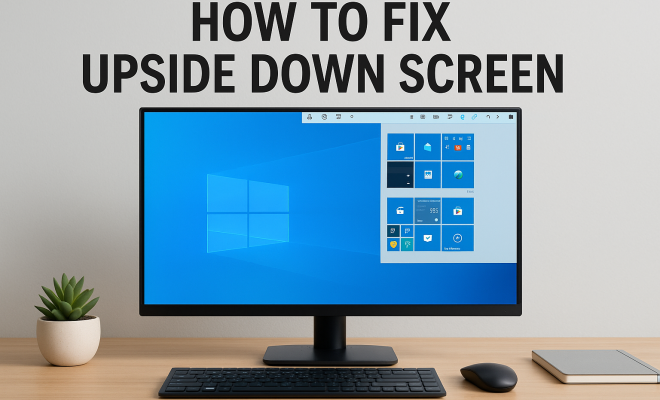
If keyboard shortcuts aren’t effective, you can manually adjust your display settings. Right-click on the desktop and select Display settings. Scroll down to the Display orientation section, and from the dropdown menu, choose Landscape to correct the orientation.
This method provides a more precise control compared to shortcuts, especially if you have multiple displays connected. Ensuring that the correct monitor is selected will help you avoid any additional confusion.
3. Fixing the Screen on macOS
For Mac users, fixing an upside down screen is just as straightforward. Click on the Apple menu on the top left corner, then go to System Preferences, followed by Displays. If your Mac supports rotation, there will be a Rotation dropdown menu available.
Select Standard to reset the display back to its normal orientation. Keep in mind that not all Mac models allow for screen rotation, so if you don’t see this option, your Mac may not support it.
4. Using Graphics Driver Control Panel
If you have customized your screen settings through your graphics driver, you might need to reset them via the control panel. For NVIDIA users, right-click on your desktop and select NVIDIA Control Panel. Once there, navigate to the Rotation settings under the Display menu.
For Intel graphics, open the Intel Graphics Settings, and look for Display options. Adjust the rotation from here. AMD users will find similar settings in the AMD Catalyst Control Center. These options can provide more advanced configurations.
5. Mobile Device Orientation
For those encountering an upside down screen on a mobile device, the solution is often even simpler. On iOS, swipe down from the top-right corner to access the Control Center, and ensure that Rotation Lock is disabled.
For Android devices, the process is similar. Swipe down from the top of the screen and look for the auto-rotate icon. If it’s locked, simply tap it to enable auto-rotation again. If your screen is still upside down, a simple restart may also fix software-related issues.
6. Rebooting Your Device
Sometimes, the easiest solution is to reboot your device. Restarting can clear temporary glitches that may have caused the screen to flip upside down in the first place. Whether you’re on a computer or mobile device, a quick reboot can reset your orientation settings to their default states.
This method is especially effective if you recently updated your operating system or installed new software, as these changes could inadvertently affect your display settings. If the problem persists after a reboot, further troubleshooting may be necessary.
7. Checking Hardware Connections
If you’re using an external monitor, ensure that all cables are properly connected. A loose or damaged cable can lead to display issues, including an upside down screen. Unplugging and plugging back in the monitor cable can sometimes reset communication between the monitor and the computer.
Also, try connecting your monitor to a different machine or using a different cable to identify if the issue lies with the monitor itself or the original computer. Hardware problems can often masquerade as software issues, so proper investigation is key.
8. Resetting Display Settings to Default
If all else fails, consider resetting your display settings to their default configurations. This can often resolve stubborn issues resulting from misconfigured settings or software conflicts. On Windows, this involves going into the Display settings and selecting Reset or Restore Defaults.
For Mac users, you can reset the PRAM (Parameter RAM), which includes display settings. To do this, restart your Mac and hold down Option + Command + P + R until you hear the startup sound a second time. This reset can clear various settings and resolve orientation issues.
9. Seeking Professional Help
If you’ve tried all the methods above and still can’t fix an upside down screen, it may be time to consult a professional. There might be underlying hardware issues, such as a malfunctioning graphics card or a failing monitor that require expert diagnosis.
Visiting a certified repair shop can provide you with a definitive answer and the necessary repairs. Additionally, if your device is still under warranty, reaching out to the manufacturer’s support team might yield helpful solutions without incurring extra costs.
10. Understanding Screen Orientation Settings
Screen orientation settings vary significantly depending on the operating system and hardware you are using. These preferences allow users to configure how their displays process information and rotate content accordingly. For example, in tablet mode or with certain apps, screens may automatically switch orientations based on how you’re holding the device.
It’s essential to familiarize yourself with these settings across different platforms. On Windows 10, for instance, users can access screen orientation features through Settings > System > Display. Here, you can choose between Landscape, Portrait, Landscape (flipped), and Portrait (flipped). Understanding these options can help you quickly adjust your display when needed.
11. Common Causes of Upside Down Screens
There are several reasons why a screen may flip upside down. Often, it’s the result of an accidental keyboard shortcut, especially on laptops where the keys are more compact. Other causes include:
- Software Updates: Changes in drivers or operating system updates can affect display settings.
- External Monitor Configuration: If using multiple displays, the settings for one monitor can sometimes inadvertently affect another.
- Graphics Driver Issues: Outdated or corrupted graphics drivers can lead to display problems, including orientation issues.
Recognizing these potential causes can help you troubleshoot more effectively and avoid future mishaps.
12. Statistics on Display Settings Issues
Believe it or not, issues like upside-down screens are common. According to a recent survey by tech support companies, approximately 30% of users encounter some sort of display issue, with orientation problems being a significant subset. In workplaces, this can lead to decreased productivity, as employees spend valuable time troubleshooting display settings instead of focusing on their tasks.
Additionally, a study conducted in 2022 found that more than 25% of employees reported difficulties when adjusting display settings in multi-monitor setups, highlighting the need for better education on display configurations and troubleshooting techniques.
13. Expert Perspectives
Experts in the tech field suggest that users take time to familiarize themselves with their system’s display settings. “Understanding how to navigate your display options can save you time and frustration in the long run,” says an IT specialist from a leading tech support company. “Regularly updating drivers and being aware of keyboard shortcuts can also help prevent accidental orientation changes.”
Many experts also recommend setting up a dedicated support channel within workplaces to address common tech issues swiftly, including those related to screen orientation. “Empowering employees with knowledge about their devices can greatly enhance overall productivity,” they add.
14. Frequently Asked Questions (FAQ)
What should I do if my screen is still upside down after trying to fix it?
If your screen remains upside down after attempting all the troubleshooting methods, it may be time to perform a system reset or restore to a previous state. Make sure to back up your data before proceeding with any major changes.
Can a virus cause my screen to flip upside down?
While it’s unlikely that a virus specifically causes screen orientation issues, malware can interfere with display settings or graphics drivers. Keep your antivirus software up to date and run regular scans to ensure your system is secure.
How can I prevent my screen from flipping again?
To prevent your screen from flipping inadvertently, consider disabling keyboard shortcuts in your graphics control panel if you find them problematic. Regularly updating your graphics drivers can also help maintain stability in display settings.
Are there keyboard shortcuts for other orientations?
Yes, many systems allow you to rotate the screen 90 degrees either clockwise or counterclockwise using keyboard shortcuts. For example, Ctrl + Alt + Right Arrow rotates the screen to the right, and Ctrl + Alt + Left Arrow rotates it to the left. Check your system’s documentation for specifics.
Is there a way to lock my screen orientation?
On Windows, you can lock your screen orientation by going to the settings and disabling auto-rotation. On mobile devices, you can use the rotation lock feature in the control center or quick settings menu. This will prevent the screen from flipping unexpectedly.
15. Screen Orientation on Different Devices
Screen orientation issues are not limited to just computers and mobile devices. Various other gadgets, such as tablets and gaming consoles, can also experience upside down screens. For instance, gaming consoles like the Nintendo Switch may occasionally flip the screen if you change the display settings while in docked mode.
On tablets, the screen orientation can be controlled through physical rotation sensors. If your tablet’s screen flips unexpectedly, it’s advisable to check the sensor settings. These sensors work through accelerometers that detect the device’s position, thereby allowing the screen to adapt accordingly. Sometimes, a quick recalibration of the orientation sensor can resolve any discrepancies.
16. Troubleshooting Multi-Monitor Setups
If you use multiple monitors, adjusting one display can inadvertently affect others. This is especially true if the monitors have different resolutions or aspect ratios. When setting up a multi-monitor configuration, ensure that the display settings are correctly aligned. Windows allows you to drag and arrange the monitors in the Display settings menu, which can help clarify which screen is which.
Another useful trick is to designate one monitor as your primary display. This can often simplify screen orientation issues, as it will serve as the default for application windows and visual output. Right-click on your desktop, select Display settings, and check the option to make a monitor your primary display. This can help minimize confusion when navigating between screens.
17. Advanced Graphics Driver Settings
For users who enjoy diving deeper into system configurations, exploring advanced graphics driver settings can be both enlightening and beneficial. Many graphics drivers come with additional settings that allow users to customize how their display behaves. For instance, NVIDIA, AMD, and Intel graphics offer software that lets you set custom resolutions, orientations, and refresh rates. Familiarizing yourself with these settings can empower you to fix upside down screens and other issues swiftly.
Keep in mind, though, that messing with advanced settings without understanding their purpose can sometimes lead to further complications. Always document original settings before making changes, so you can revert if necessary. And if you’re unsure, manufacturer forums and support can provide you with invaluable guidance.
18. Preventive Measures for Future Issues
To avoid future screen orientation mishaps, consider incorporating some preventive measures. Some users find that adjusting their keyboard habits can minimize accidental shortcuts. If you’re prone to hitting the wrong keys, using keyboard covers that obscure function keys may help. For touchscreen devices, it’s beneficial to keep the screen clean and free from obstructions that might confuse the orientation sensors.
Regular maintenance checks on your devices can also make a difference. This includes updating software and performing hardware diagnostics to identify any potential issues before they escalate. By being proactive, you can save time and hassle down the line.
19. Final Thoughts on Screen Orientation
Flipping your screen upside down can be an annoying hiccup, but it’s typically an easy fix with the right approach. Whether you’re using keyboard shortcuts, adjusting display settings, or seeking professional help, you can get your screen back to its proper orientation in no time. Remember, technology can be tricky, but with a little patience and troubleshooting, you can resolve most issues effectively.
“`
Trending Now
Frequently Asked Questions
Why is my screen upside down?
Your screen may appear upside down due to an accidental keyboard shortcut or a change in display settings. This can happen on both Windows and macOS systems, often triggered by pressing certain key combinations or adjusting the display orientation settings.
How do I fix an upside down screen on Windows?
To fix an upside down screen on Windows, you can use the keyboard shortcut Ctrl + Alt + Up Arrow. If that doesn’t work, right-click on your desktop, select Display settings, and choose Landscape from the Display orientation dropdown menu to restore normal orientation.
What to do if my Mac screen is upside down?
If your Mac screen is upside down, click on the Apple menu, go to System Preferences, and select Displays. If rotation is supported, use the Rotation dropdown menu to select Standard and reset the display to its normal orientation.
Can I rotate my screen back to normal with a keyboard shortcut?
Yes, on Windows, you can typically use the keyboard shortcut Ctrl + Alt + Up Arrow to rotate your screen back to normal. If this shortcut does not work, check your graphics control panel settings to ensure keyboard shortcuts are enabled.
How do I change the display settings on my computer?
To change display settings, right-click on your desktop and select Display settings on Windows. For macOS, click on the Apple menu, choose System Preferences, and then select Displays to access various display options, including orientation.
What did we miss? Let us know in the comments and join the conversation.