How to set up static IP address
“`html
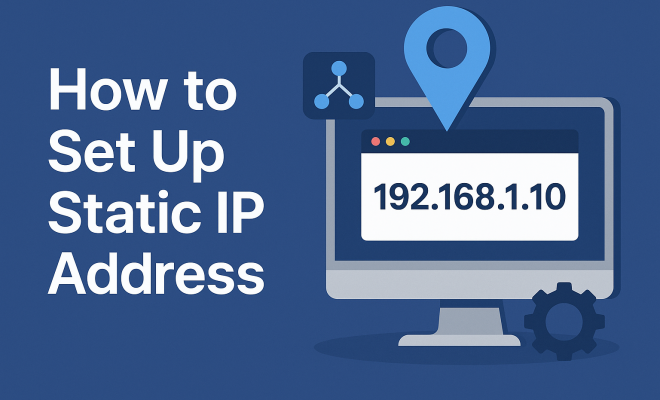
In today’s digital landscape, a static IP address setup is more than just a technical necessity; it’s a cornerstone for anyone looking to establish a consistent online presence, whether for personal projects or professional enterprises. Unlike a dynamic IP address, which can change frequently, a static IP address remains fixed, offering numerous benefits, including improved reliability for servers, easier remote access, and simplified DNS management. This guide will take you through the essentials of setting up a static IP address, addressing common concerns and providing actionable insights.
1. Understanding IP Addresses
Before diving into the setup process, it’s crucial to understand what an IP address is and how it functions. An Internet Protocol (IP) address is a unique string of numbers that identifies a device on a network, allowing it to communicate with other devices. IP addresses come in two forms: IPv4 and IPv6. IPv4 addresses are the most commonly used and are formatted as four sets of numbers separated by periods (e.g., 192.168.1.1), while IPv6 addresses are longer and designed to accommodate more devices.
IP addresses can be categorized into two primary types: dynamic and static. Dynamic IP addresses are assigned by a DHCP (Dynamic Host Configuration Protocol) server and can change periodically. In contrast, static IP addresses are manually configured, remaining constant over time. This stability is vital for applications that require reliable connectivity, such as web hosting, email servers, and online gaming.
2. The Benefits of a Static IP Address
Setting up a static IP address comes with several significant advantages. For instance, if you’re hosting a website or an FTP server, a static IP simplifies the process. Users can easily remember a consistent address, which enhances user experience and reduces confusion. Furthermore, static IPs facilitate easier remote access to devices on a network. For companies that have remote employees, a static IP can streamline the connection process, minimizing downtime and technical issues.
In addition, static IP addresses can improve security. By having a fixed IP address, you can implement strict security measures, such as IP whitelisting, which only allows specified IPs to access certain resources. This can be crucial for businesses that handle sensitive information. It also allows for more precise tracking and auditing of network activities.
Additionally, a static IP address can enhance your reputation for reliability. If you’re running a business that relies on digital communication, having a static IP can help ensure that your emails do not end up in spam folders, as many email services flag dynamic IPs as potential threats.
3. When to Consider a Static IP Address
While the benefits are substantial, a static IP address isn’t necessary for everyone. It’s ideal for businesses that run servers, for remote work situations, or for anyone utilizing services that require a consistent point of access. If you frequently host websites or run applications that need to be reachable at all times, a static IP can be a game-changer.
On the other hand, if you’re a home user simply browsing the web, a dynamic IP is likely sufficient. It’s also often less expensive, as many ISPs (Internet Service Providers) offer dynamic addresses as part of their standard package without additional costs. Understanding your needs will help you make an informed decision regarding whether a static IP address setup is right for you.
For tech-savvy users who frequently engage in activities like remote desktop services, online gaming, or hosting virtual servers, a static IP can significantly improve your experience. It allows for seamless connectivity and minimizes disruptions that can occur with changing IP addresses.
4. How to Obtain a Static IP Address
The first step toward a static IP address setup is obtaining one from your Internet Service Provider. Many ISPs offer static IP addresses for an additional fee, so it’s worth checking if this is an option available in your area. During this process, you’ll need to specify whether you require a static IPv4 or IPv6 address, as this can affect your service options. (See: Understanding IP Addresses on Wikipedia.)
After you’ve secured a static IP address from your ISP, you’ll often receive detailed instructions on how to configure your network settings accordingly. They may provide you with specific IP addresses, subnet masks, and DNS settings essential for proper configuration. If your ISP doesn’t provide a static IP option, consider looking into alternative providers that can meet your needs.
It’s worth noting that some ISPs may require you to sign a contract or pay a setup fee. Be sure to review all terms associated with getting a static IP to avoid hidden costs. It’s also advantageous to inquire about any potential service level agreements (SLAs) that might be in place, as this can provide additional assurances on service quality.
5. Configuring a Static IP Address on Your Device
Setting up a static IP address on your device can vary depending on the operating system you’re using. Here’s a step-by-step guide for the most common systems:
- Windows: Go to Control Panel > Network and Sharing Center > Change adapter settings. Right-click on your network connection and select Properties. Choose Internet Protocol Version 4 (TCP/IPv4), then click Properties again. Select ‘Use the following IP address’ and enter your static IP address, subnet mask, and default gateway. Enter the DNS server addresses provided by your ISP, and click OK to save your settings.
- MacOS: Open System Preferences > Network. Select your network connection and click on Advanced. Under the TCP/IP tab, select ‘Manually’ from the Configure IPv4 dropdown menu. Fill in your static IP address, subnet mask, and router information. Click OK and then Apply to finalize your changes.
- Linux: The process can vary based on the distribution. For instance, on Ubuntu, go to Settings > Network, select your network, and toggle on Manual. Enter your IP address, subnet mask, and gateway. Don’t forget to input your DNS servers as well.
Once configured, it’s advisable to restart your device to ensure the settings take effect, and you can verify your IP address using command line tools.
After setup, consider documenting your settings for future reference. If your network grows or changes, having a record of your configurations can save time and trouble.
6. Configuring a Static IP Address on Your Router
In many cases, you may want to assign a static IP to your entire network rather than just individual devices. This process typically involves accessing your router’s settings. Here’s how to do it:
- Open your web browser and type in your router’s IP address (commonly 192.168.1.1 or 192.168.0.1). Log in using your credentials.
- Navigate to the DHCP settings, and look for an option called Static IP or Address Reservation.
- Add the device’s MAC address and the static IP you want to assign to it. Save your changes and restart the router.
By assigning static IP addresses through your router, you ensure that specific devices always receive the IP you designate, which is especially useful for printers, servers, or any devices needing a permanent point of reference within your network.
It’s also important to ensure that the static IPs you assign are outside of the DHCP range set in your router to avoid conflicts. You’ll often find this setting in the same DHCP configuration area where you set up static IPs.
7. Troubleshooting Static IP Address Issues
Even after following the correct setup procedures, you might encounter issues with your static IP address. Here are some common problems and solutions:
- IP Conflict: This occurs when two devices on the same network are assigned the same IP address. To resolve this, ensure all devices are using unique IPs and check your DHCP settings to prevent conflicts.
- Inaccessible Network: If your static IP setup is preventing you from accessing the internet, verify that you’ve entered the right gateway and DNS settings. A common mistake is an incorrect subnet mask.
- Slow Connection: If you experience slow internet speeds, consider testing your network connection for issues related to your ISP or router performance. A static IP does not inherently slow down your network.
- Configuration Errors: Double-check your static IP settings if you encounter any connectivity issues. Ensure that all values, such as the subnet mask and gateway, are entered correctly.
When troubleshooting, a methodical approach is best. Take one issue at a time, and double-check your configurations to pinpoint the source of the problem. Don’t hesitate to contact your ISP for assistance if the issue persists. (See: CDC on IP Addressing and Networking.)
In addition, consider keeping a log of any changes made to your network settings. This can help identify patterns in issues and may make it easier to resolve future problems.
8. The Future of Static IP Addresses
With the exponential growth of internet-connected devices, many speculate on the future of static IP addresses. As IPv6 adoption accelerates, the pool of available addresses expands significantly, eliminating many of the scarcity issues that made static IPs desirable in the past. This could lead to more flexible networking configurations and potentially lower costs for static addresses.
However, the need for static IPs in certain business applications will likely remain. Industries that rely on stable connections for operations such as VoIP, remote access, and web hosting will continue to see the value in maintaining a static IP address setup. As technology evolves, organizations must adapt to how they manage their networking needs in response to these changes.
Experts predict that as IoT (Internet of Things) devices proliferate, the demand for reliable, static connections may increase, especially in environments where consistent data transmission is critical. As a result, static IP addresses may see a resurgence in popularity for specific applications and industries.
9. Common Misconceptions About Static IP Addresses
There are several misconceptions regarding static IP addresses that can lead to confusion or poor decision-making. Here are a few common myths and the realities behind them:
- Static IP Addresses Are Always More Expensive: While it’s true that many ISPs charge for static IPs, the price difference can vary significantly. For some businesses, the reliability and benefits of a static IP may outweigh the costs.
- Static IP Addresses Are Only For Businesses: While they are indeed more common in professional settings, tech-savvy individuals or home users with specific needs—like hosting a personal website—can also benefit from a static IP.
- Static IPs Are Less Secure: In reality, static IP addresses can be secured with various network security measures. Static IPs can allow for better control over security policies, such as IP whitelisting, which dynamic IPs do not offer.
10. Static IP Address Setup FAQs
Here are some frequently asked questions about static IP address setups that might help clarify any remaining concerns:
Q1: Can I change my static IP address later?
A1: Yes, you can change your static IP address, but it typically involves going back to your ISP for a new address. You will also need to reconfigure your device or router settings.
Q2: Are there any security risks associated with static IP addresses?
A2: While static IP addresses can potentially be targeted by malicious actors, they can also be secured with proper network security practices. Implementing firewalls, using VPNs, and maintaining updated software can mitigate risks.
Q3: How do I know if I need a static IP address?
A3: If you need consistent access to your network or services (like hosting a server or using VoIP), a static IP is beneficial. For casual internet use, a dynamic IP is usually sufficient.
Q4: Will my internet speed change with a static IP?
A4: No, your internet speed should be the same with either a static or dynamic IP address. Speed is primarily determined by your plan with your ISP.
Q5: What devices benefit most from a static IP address?
A5: Devices like servers, printers, and IP cameras often benefit from static IP addresses as they require consistent addressing for reliable operation.
11. Advanced Features of Static IP Address Setup
Beyond the basics of obtaining and configuring a static IP address, there are advanced features worth exploring that can enhance your network’s performance and security:
- Dynamic DNS (DDNS): If your static IP address is assigned by your ISP, you might consider using Dynamic DNS services. DDNS helps you keep a domain name linked to your IP address even if it changes. This is particularly useful for remote access needs, ensuring you can always connect to your home or office network without constantly checking your IP address.
- Virtual Private Networks (VPNs): Combining a static IP with a VPN can significantly enhance security. A VPN allows for secure and encrypted connections, which is critical when accessing sensitive information remotely. With a static IP, your VPN can enforce access control rules more effectively, knowing exactly which IPs to trust.
- Enhanced Network Monitoring: Implementing network monitoring tools to track the traffic to and from your static IP can provide insights into the performance and security of your network. These tools can alert you to unusual activity, helping you respond swiftly to potential threats.
12. Comparative Analysis: Static vs. Dynamic IP Addresses
Understanding the differences between static and dynamic IP addresses helps clarify your needs. Here’s a comparison that highlights their key features:
| Feature | Static IP Address | Dynamic IP Address |
|---|---|---|
| Cost | Often incurs a higher fee depending on the ISP | Usually included in standard packages |
| Stability | Stable and unchanging | Can change frequently |
| Setup Complexity | Requires manual configuration | Automatically assigned by DHCP |
| Security | Can implement strict access controls | More vulnerable to certain attacks due to frequent changes |
| Ideal Use Cases | Web hosting, remote access, business servers | Home browsing, general internet use |
This comparative analysis offers a clear view of the scenarios in which each type of IP address is most beneficial. If you’re running a business or hosting critical applications, a static IP is likely the better choice. For casual users, a dynamic IP is often sufficient.
13. Tips for Choosing the Right ISP for Static IP Address
Choosing the right ISP for a static IP address can significantly impact your network performance. Here are some tips to keep in mind:
- Research Service Options: Not all ISPs offer static IP addresses, and those that do may have different policies regarding pricing, availability, and customer support. Be sure to compare several providers to find the best fit for your needs.
- Evaluate Customer Support: Good customer support is crucial, especially if you run into issues with your static IP setup. Look for ISPs that provide easy access to technical support, detailed documentation, and responsive service.
- Check Reviews and Ratings: Customer reviews and industry ratings can provide insight into the reliability and performance of the ISP. Look for feedback specifically related to static IP services.
- Consider Contract Terms: Some ISPs may require long-term contracts when providing a static IP address. Evaluate the terms carefully to ensure they align with your expectations.
14. Conclusion: Making the Right Choice
Setting up a static IP address can significantly enhance your network’s reliability and security, particularly for businesses and users requiring consistent access to devices. By understanding the benefits, knowing when to implement a static IP, and following the steps for setup and troubleshooting, you’ll position yourself for success in an increasingly connected world. As you consider the importance of a static IP address setup, evaluate your needs, weigh the pros and cons, and make an informed choice that aligns with your objectives.
“`
Trending Now
Frequently Asked Questions
What is a static IP address?
A static IP address is a fixed Internet Protocol address that does not change over time. Unlike dynamic IP addresses, which can vary frequently, static IPs are manually configured and provide consistent connectivity, making them ideal for hosting servers, remote access, and applications requiring reliable communication.
Why would I need a static IP address?
A static IP address is essential for applications that require stable connectivity, such as web hosting, email servers, and online gaming. It simplifies DNS management, enhances user experience by providing a consistent address, and facilitates easier remote access to devices on a network.
How do I set up a static IP address?
Setting up a static IP address involves manually configuring the IP settings on your device or router. This typically includes accessing your device's network settings, entering the desired IP address, subnet mask, gateway, and DNS information, and saving the changes to ensure a fixed connection.
What are the differences between static and dynamic IP addresses?
Static IP addresses remain constant and are manually configured, while dynamic IP addresses are assigned by a DHCP server and can change periodically. Static IPs provide reliability for services needing consistent access, whereas dynamic IPs are often used for general internet browsing.
What are the benefits of using a static IP address?
The benefits of using a static IP address include improved reliability for hosting servers, easier remote access, simplified DNS management, and a better user experience due to consistent accessibility. These advantages make static IPs valuable for businesses and individuals with specific connectivity needs.
Have you experienced this yourself? We’d love to hear your story in the comments.