Mastering Print to PDF: Your Essential Guide
“`html
1. Understanding the Print to PDF Functionality
The ability to print to PDF is a valuable feature that has transformed how individuals and businesses manage documents. Essentially, printing to PDF allows you to convert any document or image into a PDF file, which can then be easily shared, stored, and accessed across various devices without altering its formatting. This capability eliminates the dependency on physical paper while ensuring that your work remains professional and accessible.
PDF, which stands for Portable Document Format, is a file format developed by Adobe in the early 1990s. Its primary purpose was to enable document sharing across different operating systems and software without losing layout integrity. As technology evolved, the print to PDF feature has become standard in numerous applications, making it easier for users to create PDFs from virtually any content they can print.
2. How Print to PDF Works
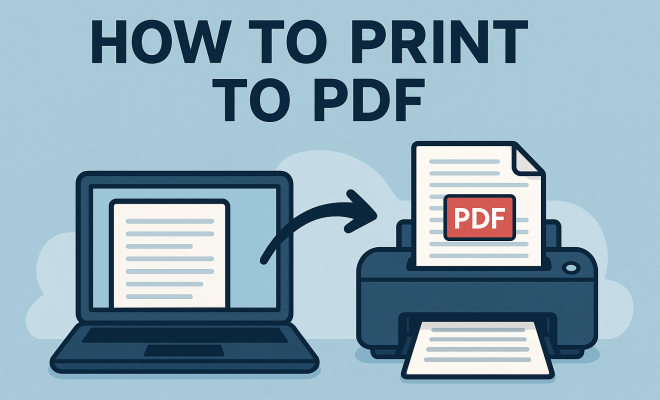
The mechanics behind the print to PDF functionality are straightforward. When you select the print option in an application, instead of sending the document to a physical printer, you choose a PDF printer from the list of available printers. This virtual printer processes the document, converting it into a PDF file. Users are then prompted to select a save location for the generated PDF.
On most systems, this feature comes built-in. For instance, Windows has a Microsoft Print to PDF option, and macOS includes a similar feature within its print dialog. This seamless integration allows users from various backgrounds—whether creating reports, eBooks, or presentations—to easily generate PDF files without needing third-party software.
3. Benefits of Printing to PDF
Choosing to print to PDF offers numerous advantages. Firstly, PDFs maintain the original formatting of the document, ensuring that fonts, colors, and layout remain unchanged, regardless of the device used for viewing. This is particularly crucial for professionals who need to present materials in a polished format.
Additionally, PDFs are more secure than many other file formats. They can be encrypted and password-protected, making it harder for unauthorized users to access sensitive information. Many businesses have transitioned to digital document management systems that leverage PDFs for their security features, reducing the risk of data breaches.
Also, PDFs support a wider range of functionalities, including hyperlinks, embedded multimedia, and annotations. These features enhance user experience, especially for interactive documents like forms and catalogs. You can click on links to navigate or submit forms directly within the PDF itself, making it a versatile choice for both business and personal use.
4. Step-by-Step Guide: Printing to PDF on Windows
For Windows users, the process of printing to PDF is simple and efficient. Here’s a step-by-step guide:
- Open your document: Launch the application containing the document you wish to convert.
- Select Print: Click on the ‘File’ menu and choose the ‘Print’ option.
- Choose Microsoft Print to PDF: In the printer selection window, find and select ‘Microsoft Print to PDF.’
- Configure Settings: Adjust any print settings as needed, such as orientation and page size.
- Print: Click ‘Print,’ and a dialog box will open, prompting you to choose where to save the PDF file. Name your file and select the desired location.
This straightforward approach ensures that users can quickly convert documents into PDFs without additional software installations.
5. Step-by-Step Guide: Printing to PDF on macOS
Mac users also enjoy a seamless print to PDF experience. To convert a document into a PDF on macOS, follow these steps:
- Open your document: Access the file using its respective application.
- Click on File and select Print: Navigate to the ‘File’ menu and select ‘Print.’
- Select PDF: At the bottom of the print dialog, click the ‘PDF’ button.
- Save as PDF: Choose ‘Save as PDF’ from the dropdown menu, provide a file name, and select a save location.
Just like with Windows, this process is user-friendly and requires no additional software, reinforcing the versatility of print to PDF functionality. (See: Portable Document Format on Wikipedia.)
6. Advanced PDF Printing Options
While basic print to PDF functionality meets the needs of many users, there are advanced options available for more complex requirements. Various PDF creation tools, such as Adobe Acrobat, provide enhanced features, including adding watermarks, creating forms, and optimizing PDFs for web use.
For instance, users can utilize Adobe Acrobat to combine multiple documents into a single PDF, making it ideal for compiling reports or presentations. Moreover, with this software, you can manipulate the PDF by adding annotations or comments, which can be beneficial during collaborative projects.
Additionally, users can also tailor the security settings on PDFs, adding passwords, permissions, and digital signatures to ensure that only authorized individuals can access or modify the document. Such features are particularly important in legal and financial sectors where document authenticity and confidentiality are paramount.
7. Common Issues and Troubleshooting
Despite its ease of use, users may encounter issues while attempting to print to PDF. Common problems include print jobs not completing, formatting errors, or issues with file size. The first step in troubleshooting is to ensure that the application from which you’re trying to print is updated to the latest version. Outdated software can lead to compatibility issues.
Another common issue is related to file size; large documents may take longer to convert and can lead to errors. In such cases, consider breaking the document into smaller sections or reducing the quality of images within the document. If problems persist, restarting your computer or reinstalling the PDF printer driver can often resolve many underlying issues.
You might also encounter issues with fonts not displaying correctly in the final PDF. To resolve this, embedding fonts when creating the PDF is essential. This ensures that anyone viewing the document will see it as intended, regardless of whether they have the specific fonts installed on their device.
8. Real-World Applications of Print to PDF
The practical applications of print to PDF are vast. In professional settings, individuals use it for creating reports, contracts, and presentations that need to be shared with clients or stakeholders. The education sector also benefits significantly; teachers can create handouts, worksheets, and eBooks for their students.
Beyond business and education, personal use of printing to PDF is becoming increasingly common. You might want to save web pages for offline reading, create digital scrapbooks, or compile receipts into a single document. The versatility of PDFs makes them suitable for various applications, catering to a broad audience.
For instance, freelancers frequently use the print to PDF feature to generate invoices that not only look professional but can also be easily shared with clients. Travel enthusiasts may save itineraries or confirmations as PDFs to keep all important information organized and accessible.
9. Future of PDF Printing
As technology continues to evolve, the future of print to PDF looks promising. The integration of cloud services allows for even easier document sharing and storage. Users can save their PDFs directly to platforms like Google Drive or Dropbox, streamlining workflows and enhancing collaboration.
Moreover, with the rise of mobile devices, the ability to print to PDF is now available on smartphones and tablets. Applications on both iOS and Android enable users to create PDFs on the go, making document management more flexible than ever. This trend signals a shift toward an increasingly paperless society, where the need for physical documents diminishes as digital solutions become the norm.
Additionally, advancements in artificial intelligence and machine learning could further enhance PDF printing. Imagine software that can automatically format your documents into aesthetically pleasing PDFs, suggest layout changes for better readability, or even analyze the content to recommend edits before finalizing the PDF. The possibilities are exciting and set the stage for a more efficient digital document landscape. (See: NIST Guide on PDF Technical Requirements.)
10. Frequently Asked Questions (FAQ)
What is the difference between printing and saving as PDF?
Printing to PDF creates a digital version of a document that maintains its formatting and layout, while saving as PDF typically refers to the action taken within specific software to directly create a PDF file from within the application. Both result in a PDF, but the method of initiation can vary.
Can I print to PDF from any application?
Most applications that have a print function allow you to print to PDF. This includes word processors, web browsers, and design software. However, some specialized applications may require additional steps or plugins to enable this functionality.
Are there any file size limitations when printing to PDF?
While there are no inherent limitations to the PDF format itself, the software you are using to print to PDF may have size constraints. Large documents can lead to slower performance or errors, so it’s often best to break down large files into smaller sections if needed.
Can I edit a PDF after printing to PDF?
PDF files are generally not designed for extensive editing. However, you can use specific software like Adobe Acrobat to make edits, add comments, or annotate the document. For more significant changes, it may be necessary to go back to the original document and create a new PDF.
Is printing to PDF secure?
Yes, printing to PDF can be secure. You can add password protection and encryption to the PDF, making it harder for unauthorized users to access sensitive information. However, the security also depends on how you handle the PDF once it’s created.
What are some alternative file formats to PDF?
Other common formats include Word documents (.docx), Excel spreadsheets (.xlsx), and image files (like .jpg and .png). However, these formats may not preserve the original layout and formatting as reliably as PDFs do, especially when shared across different platforms.
Can I convert PDF back to other formats?
Yes, there are many tools available that can convert PDF files back into Word documents or other editable formats. However, the quality of the conversion can vary based on the complexity of the original PDF and the software used.
Are there any free tools for printing to PDF?
Yes, many free tools and applications allow you to print to PDF. Both Windows and macOS come with built-in features for this purpose. Additionally, there are various free software options available online that provide similar functionality without needing to purchase a dedicated PDF tool.
What should I do if my PDF doesn’t look right after printing?
If your PDF doesn’t look right, check the original document for formatting issues. Ensure that fonts are embedded, images are optimized, and margins are set correctly. If issues persist, consider trying a different PDF printer or application to see if the problem lies within the specific software you are using.
11. Exploring the Different Types of PDF Files
Not all PDFs are created equal. Understanding the types of PDF files can help you choose the best format for your needs. Here are the most common types: (See: CDC Document on PDF Usage.)
- PDF/A: This format is designed specifically for the archiving of electronic documents. It includes provisions to ensure that the document can be reproduced exactly the same way in the future, making it essential for legal and historical documents.
- PDF/X: Specifically tailored for the print industry, PDF/X files ensure that all necessary information for printing, such as color profiles and fonts, are included within the file. This eliminates printing errors and ensures that what you see on your screen matches the final printed product.
- Interactive PDFs: These PDFs contain interactive elements like buttons, hyperlinks, and forms. They are commonly used for digital forms, eBooks, and presentations where user interaction is expected.
- PDF/UX: This variant is focused on user experience, incorporating features that enhance how users interact with the document. This includes multimedia elements like videos and audio files that can be embedded within the PDF.
Understanding these variations can help you select the right PDF type based on the purpose of your document, whether for archival, print, or interactive use.
12. How Print to PDF Enhances Workflow Efficiency
The print to PDF feature significantly enhances workflow efficiency in both individual and organizational settings. Here are a few ways it contributes to a smoother operation:
- Streamlined Document Management: By converting physical documents to digital formats, you reduce clutter and improve accessibility. Employees can quickly find and share documents without sifting through paper files.
- Easy Collaboration: PDFs can be easily shared via email or cloud storage, allowing for seamless collaboration. Multiple stakeholders can review the same document without needing to be in the same location.
- Version Control: With the increasing number of revisions and updates, managing document versions can be challenging. PDFs can be easily saved with version numbers in the file name, making it clear which is the most current document.
- Reduction in Printing Costs: Transitioning to a digital workflow minimizes the need for physical printing, saving money on paper, ink, and printer maintenance. This is especially beneficial for businesses aiming to cut costs and reduce their environmental impact.
13. Security Features in PDF Files
As businesses and individuals increasingly rely on digital documents, the security of these files has become paramount. PDF files offer several security features to protect sensitive information:
- Password Protection: Users can set passwords to restrict access to the PDF. Only individuals with the password can open and view the document.
- Encryption: This feature secures the PDF by converting it into a format that cannot be easily read without the proper decryption key. This adds an extra layer of security for confidential documents.
- Permissions: Document owners can set specific permissions that control what users can do with the PDF. This includes restrictions on printing, copying text, or adding annotations.
- Digital Signatures: PDFs can include digital signatures that verify the authenticity of the document and its creator. This is essential for contracts, agreements, and legal documents.
These security features ensure that sensitive information remains protected, helping businesses maintain compliance with regulations like GDPR and HIPAA.
14. Real-Life Case Studies: Successful Implementation of PDF Workflows
Examining how various organizations have successfully integrated print to PDF into their workflows provides valuable insights. Here are a couple of examples:
- Financial Services Company: A major financial institution adopted PDF workflows to streamline client communications. By converting statements and reports to PDFs, they were able to ensure consistency in formatting and security. The organization reported a 30% decrease in printing costs and improved client satisfaction due to faster document delivery.
- Educational Institution: A university implemented a PDF-based submission process for student assignments and applications. This transition allowed faculty to provide feedback directly on the documents, significantly enhancing communication with students. The university found that digital submissions improved the management of assignments and reduced the time spent on administrative tasks.
These case studies highlight how print to PDF can lead to increased efficiency, cost savings, and improved user experiences across various sectors.
15. Conclusion: Embracing the Print to PDF Revolution
In a world increasingly reliant on digital documents, the print to PDF functionality stands out as a critical tool for both personal and professional settings. Its ability to preserve formatting, enhance security, and streamline workflows cannot be overstated. Whether you’re a student, a professional, or just someone looking to simplify document management, embracing this technology can lead to significant improvements in how you create, share, and store documents. As you explore the various applications and benefits of printing to PDF, you’ll find that it not only meets your needs but also paves the way for a more efficient, organized, and secure digital future.
“`
Trending Now
Frequently Asked Questions
How do I print a document to PDF?
To print a document to PDF, select the print option in your application, then choose a PDF printer from the list instead of a physical printer. This virtual printer will convert your document into a PDF file, prompting you to choose a save location.
What is the purpose of printing to PDF?
Printing to PDF allows users to convert documents or images into a universally accessible format. PDFs preserve the original formatting and can be easily shared and stored, making them ideal for professional and personal use.
Is there a built-in PDF printer on Windows?
Yes, Windows includes a built-in feature called Microsoft Print to PDF. This allows users to create PDF files directly from the print dialog in any application without needing third-party software.
Can I print to PDF from any application?
Most applications that support printing can print to PDF. Simply select the print option and choose a PDF printer from the available options to convert your content into a PDF format.
What are the advantages of using PDF format?
PDFs maintain the original formatting of documents, ensuring that fonts, colors, and layouts remain unchanged across different devices. This makes PDFs ideal for sharing important documents without the risk of formatting issues.
Agree or disagree? Drop a comment and tell us what you think.