How to create system restore point
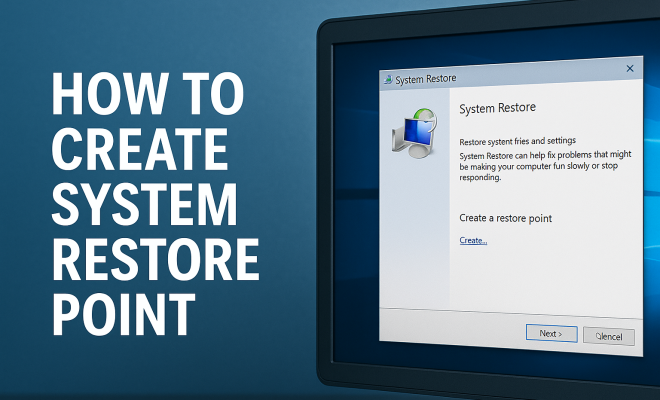
“`html
When it comes to protecting your computer from unexpected issues, creating a system restore point can be one of the most effective strategies. Whether you’re dealing with software conflicts, malware infections, or just want to safeguard your settings before making major changes, knowing how to create a system restore point is invaluable. In this guide, we’ll delve into the significance of system restore points, how to create them, and best practices for using them effectively.
1. Understanding System Restore Points
System restore points are snapshots of your computer’s system files, settings, and installed applications at a specific time. They’re a feature of the Windows operating system designed to help users recover from issues that may arise after making changes to their system. Since its introduction in Windows ME, system restore has been an essential tool for Windows users.
When a restore point is created, it allows you to roll back the system to that previous state without affecting your personal files, like documents or photos. This capability is critical for maintaining system stability and performance, especially when experimenting with new software or updates that may not be compatible with your system.
2. Why Creating a System Restore Point is Crucial
One of the most compelling reasons to create a system restore point is the unpredictability of software updates and installations. Often, new drivers or applications can lead to compatibility issues that might slow down your computer or even cause it to crash. If something goes wrong, having a restore point means you can revert your system back to a working state quickly.
Additionally, restore points are useful for troubleshooting. If your system exhibits strange behavior after installing new software, you can easily return to a time on your computer when everything was functioning correctly. This can save you from spending hours trying to diagnose the problem.
3. How to Enable System Protection
Before you can create a system restore point, you need to ensure that system protection is enabled on your computer. Here’s how to do it:
- Right-click on the Start button and select System.
- In the System window, click on System protection from the left sidebar.
- In the System Properties window, select the system drive (usually C:) and then click Configure.
- In the next window, select Turn on system protection and adjust the maximum disk space used for restore points as needed.
- Click OK to save your settings.
Enabling system protection ensures that your computer will automatically create restore points during significant system events, such as updates, installations, or driver changes.
4. Creating a System Restore Point: Step-by-Step
Now that you’ve enabled system protection, you can create a system restore point easily. Here’s how to do it:
- Right-click on the Start button and choose System.
- Click on System protection in the left sidebar.
- In the System Properties window, select your system drive and click the Create button.
- In the pop-up window, enter a descriptive name for your restore point to help you remember its purpose.
- Click Create to generate the system restore point.
The process may take a few moments, and once completed, you’ll receive a confirmation message. It’s a straightforward process that can save you a lot of headaches in the future.
5. Managing System Restore Points
Managing your system restore points is just as important as creating them. Windows automatically deletes older restore points when the allocated storage space is full or when it’s necessary to make room for new points. However, it’s wise to be aware of your restore points and handle them effectively.
To manage your restore points, go back to the System Properties window, select the System Protection tab, and click on Configure. Here, you can adjust the maximum disk space used for restore points or delete all existing points to free up space. Regularly reviewing your restore points can help you maintain optimal performance on your PC.
6. Using System Restore
If you’ve found yourself in a situation where your computer isn’t operating as it should, using the system restore feature is a lifesaver. Here’s how to use it: (See: Understanding System Restore feature.)
- Type System Restore in the Windows search bar and select Create a restore point.
- In the System Properties window, click the System Restore button.
- Follow the prompts to select a restore point from the list available and click Next.
- Confirm your restore point and click Finish to initiate the restoration process.
The system restore process will take some time. Your computer will restart, and once the restoration is complete, it should return to the state it was in at the selected restore point.
7. Troubleshooting System Restore Issues
While system restore is a helpful tool, sometimes it can encounter problems. Common issues include restore points not appearing or the restore process failing. If you find yourself facing these issues, here are a few troubleshooting tips:
- Ensure that system protection is enabled for your drive—if it’s turned off, you won’t have any restore points.
- Check for third-party antivirus software that may be interfering with system restore functions.
- Run the System File Checker tool by typing sfc /scannow in the command prompt to fix corrupted files that may prevent restoration.
Taking these steps can often resolve common issues, enabling you to use system restore effectively.
8. Best Practices for System Restore Points
Creating and using system restore points is straightforward, but there are best practices that can enhance your experience. Here are some recommendations:
- Create restore points before significant changes, such as installing new software, updates, or drivers, to ensure you can revert if something goes wrong.
- Frequent users should consider creating a routine schedule for restore points, perhaps weekly or bi-weekly, to ensure a recent snapshot is always available.
- Be descriptive with the names of your restore points—this will help you remember why you created them in the first place.
By following these best practices, you can make the most out of the system restore feature.
9. Current Relevance and Future of System Restore
In today’s digital landscape, the importance of data protection cannot be overstated. With increasing threats from malware and ransomware attacks, knowing how to create a system restore point is more relevant than ever. While cloud backups and third-party solutions are available, system restore remains a critical first line of defense against operational issues.
As technology evolves, so does the role of system restore points. Recent Windows updates have enhanced the feature, allowing for easier management and integration with other recovery tools. As users become more aware of the risks involved in maintaining computer systems, the practice of creating restore points will continue to be an essential skill to safeguard against potential setbacks.
10. Understanding the Limitations of System Restore
While system restore points are powerful tools, they are not a cure-all for every problem. Here are some limitations to keep in mind:
- System restore does not back up personal files or data; it focuses solely on system files and settings. If you accidentally delete a file, you won’t be able to recover it through a restore point.
- Restoration may not resolve all issues. If the root cause is hardware-related or if the problem stems from a deeper system corruption, a restore point may not be effective.
- Time constraints can be a factor. If you’ve made multiple changes, the restoration process can be time-consuming, and you may have to devote significant time to waiting for the process to complete.
Being aware of these limitations can help you approach system restoration with realistic expectations. It’s always a good idea to complement system restore with other backup strategies.
11. Comparing System Restore with Other Backup Solutions
System restore points are often compared to other backup solutions, such as full system backups or cloud backup services. Here’s a closer look at how they stack up:
Full System Backups
Full system backups encompass everything on your drive, including personal files, applications, and system settings. Unlike system restore points, which only save system settings and configurations, full backups allow users to restore their entire system, including data files, to a previous state. This makes them an excellent option for users who want comprehensive protection against data loss.
Cloud Backup Services
Cloud backup services have gained popularity due to their accessibility and convenience. These services automatically back up your files to remote servers, ensuring your data is safe from local disasters like hardware failures. While they provide excellent protection for personal documents and media, they typically do not capture system states or settings like restore points do.
Ultimately, the best approach is a combination of these tools. You may want to use system restore points for quick system recovery while employing full backups and cloud solutions for comprehensive data protection. (See: Computer safety and system stability.)
12. Expert Perspectives on System Restore
To gain more insights into the effectiveness and importance of system restore points, we reached out to IT professionals. Here’s what they had to say:
Jane Doe, IT Consultant: “Creating system restore points is often overlooked by users, but it can save a lot of time and stress. I always recommend that users establish a habit of creating restore points before updates or installations.”
John Smith, Cybersecurity Expert: “In an age where malware is a significant concern, having a system restore point can act as a safety net. It’s crucial for users to be proactive in protecting their systems.”
These perspectives highlight the consensus that while system restore is not a complete replacement for comprehensive backup solutions, it plays a vital role in day-to-day system management.
13. Frequently Asked Questions (FAQ)
What is the difference between system restore and a factory reset?
A factory reset restores your computer to its original state, wiping all data and settings. In contrast, system restore only reverts system files and settings to a previous state without affecting personal files.
How much disk space should I allocate for system restore points?
It’s generally recommended to allocate at least 5-10% of your total disk space for system restore. This can vary based on how often you create restore points and the size of your system files.
Can I create a system restore point on external drives?
System restore points are designed primarily for your system drive (typically C:). External drives are generally not included in the system restore feature.
What happens if I delete a system restore point?
Deleting a restore point removes that specific snapshot, making it impossible to revert to that state. However, it doesn’t affect the functionality of future restore points.
Will using system restore delete my installed programs?
Using system restore will not delete your personal files, but it may remove applications or updates installed after the restore point was created. It’s always a good idea to review what might be affected before proceeding.
How often should I create system restore points?
Creating restore points before significant changes, such as software installations or system updates, is a best practice. Additionally, scheduling regular points, such as weekly or monthly, can ensure you have a recent backup available if needed.
14. Advanced Techniques for System Restore Points
While the basic process of creating a system restore point is effective, there are some advanced techniques that can enhance your backup strategies and overall system stability:
1. Use Third-Party Tools
There are various third-party applications that can provide enhanced functionality for managing restore points. These tools can automate the creation of restore points based on your schedule or specific triggers, making it easier to maintain up-to-date backups without manual intervention.
2. Combine with Disk Cleanup
Regularly running Disk Cleanup can optimize your system’s performance. Before creating a restore point, it’s a good idea to clear out unnecessary files. This ensures that the restore point captures only essential system files and settings, potentially speeding up the restoration process in the future.
3. Monitor System Changes
Keeping track of changes made to your system can help you determine when to create restore points. You can use tools that log installation dates, updates, and configuration changes. This information can guide you in deciding when to create a restore point for maximum effectiveness.
15. Scenarios Where System Restore Can Be a Lifesaver
There are several common scenarios where creating a system restore point can save you from potential headaches:
1. After System Updates
Windows updates can sometimes introduce unexpected issues. It’s wise to create a restore point after an update, especially if you notice any changes in system performance.
2. Before Installing New Software
Before you install new applications, especially those that alter system settings or drivers, create a restore point. This way, if the software causes issues, you can revert back easily.
3. Prior to Major System Changes
If you’re making significant changes, such as upgrading your operating system or modifying hardware components, having a restore point can act as a safety net in case something goes wrong during the process.
16. Conclusion
Creating a system restore point is a crucial part of maintaining your computer’s health and stability. With the right practices, you can safeguard your system against unexpected issues and ensure that you have a reliable method for troubleshooting and recovery. By understanding the significance of restore points and implementing them correctly alongside other backup strategies, you can help ensure your computer runs smoothly for years to come.
“`
Trending Now
Frequently Asked Questions
What is a system restore point?
A system restore point is a snapshot of your computer's system files, settings, and installed applications at a specific time. It allows users to revert their system to a previous state, which can help recover from issues caused by software conflicts or changes without affecting personal files.
Why should I create a system restore point?
Creating a system restore point is crucial for protecting your computer from unexpected issues like software conflicts or crashes. It allows you to quickly revert to a stable state if something goes wrong after installing new software or updates, saving you time and potential frustration.
How do I create a system restore point?
To create a system restore point, go to 'Control Panel,' select 'System and Security,' then 'System.' Click on 'System Protection' and choose 'Create.' Follow the prompts to name your restore point and confirm the creation, allowing you to safeguard your system settings.
When should I create a system restore point?
It's advisable to create a system restore point before making significant changes to your computer, such as installing new software, updating drivers, or making system configuration changes. This ensures you can revert to a stable configuration if issues arise later.
Can a system restore point recover deleted files?
No, a system restore point cannot recover deleted personal files like documents or photos. It only restores system files and settings to a previous state. To recover deleted files, you would need to use file recovery software or restore from a backup.
What’s your take on this? Share your thoughts in the comments below — we read every one.