Disable WPS on Your Router: Boost Wi-Fi Security Now
“`html
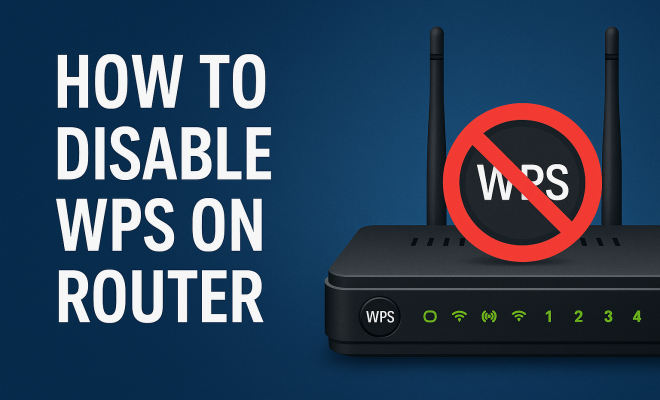
When it comes to securing your home network, one often-overlooked feature is Wi-Fi Protected Setup (WPS). While WPS was designed to make connecting devices to your Wi-Fi network easier, it can also introduce significant security vulnerabilities. Learning how to disable WPS on your router is crucial for protecting your personal data and devices. This guide walks you through the importance of WPS, the steps to disable it, and offers practical tips to enhance your network security.
1. What is WPS?
Wi-Fi Protected Setup (WPS) is a network security standard that was created to simplify the process of connecting devices to a secure wireless network. The concept was simple: allow users to connect devices quickly without needing to enter a lengthy Wi-Fi password. This was typically achieved through one of two methods: the push-button method or using a PIN.
While WPS can be convenient, it also has a darker side. Security experts have identified vulnerabilities within the protocol that could allow attackers to gain unauthorized access to your network. For instance, the PIN method can be brute-forced, giving hackers an easy way in if WPS is enabled. This makes disabling WPS on your router a vital step in maintaining your network security.
2. Why Disable WPS?
The primary reason to disable WPS on your router is security. With WPS enabled, your router could be susceptible to various attacks that target its weaknesses. The most significant risk arises from the PIN method, which has been shown to be vulnerable to attacks that can crack the PIN within a matter of hours.
Moreover, in an increasingly digital world where home networks are the backbone of our connected lives, safeguarding your network against unauthorized access is more critical than ever. Home routers are often the first line of defense against cyberattacks, and a compromised router could lead to stolen personal information, unauthorized device access, or even the spread of malware across your devices.
According to a report from the Cybersecurity & Infrastructure Security Agency (CISA), home networks are subject to increasing threats as more devices become connected. Disabling WPS is a proactive measure that can help mitigate these risks.
3. How to Identify if WPS is Enabled
Before you take steps to disable WPS on your router, you first need to confirm whether it’s currently enabled. Most modern routers have an indicator light that shows the status of WPS. A lit WPS light typically indicates that WPS is active. Additionally, you can check the router’s web interface for WPS settings.
To access the web interface, connect a computer or mobile device to the router’s Wi-Fi network. Open a web browser and enter the router’s IP address (commonly 192.168.1.1 or 192.168.0.1). Log in with the administrator credentials, and navigate to the WPS settings, usually found under wireless settings or advanced settings. If WPS is enabled, you will have the option to disable it.
Some routers also provide mobile applications that allow you to manage settings directly from your smartphone, which can further simplify the process of checking whether WPS is enabled.
4. Steps to Disable WPS on Your Router
Disabling WPS on your router is a straightforward process. Here’s a step-by-step guide:
- Log in to Your Router: Connect to your network, open a web browser, and enter your router’s IP address in the address bar. Log in with your administrator credentials.
- Find the WPS Settings: Navigate to the wireless settings section or advanced settings where WPS is usually located.
- Disable WPS: Look for an option that allows you to disable WPS. This may be a toggle switch or checkbox.
- Save Changes: After disabling WPS, make sure to save your settings. Your router may restart to apply the changes.
Once you complete these steps, WPS should be disabled, significantly enhancing your network’s security. (See: Wikipedia article on WPS.)
It’s also wise to document any changes you make to your router settings. Keeping a record can be helpful if you encounter issues later or need to reconfigure your network.
5. Alternative Methods for Connecting Devices
Disabling WPS might seem like a hassle for connecting new devices to your network, but there are alternative methods that are just as effective—and more secure. The most common way is to manually enter your Wi-Fi password into the device you want to connect. This method ensures that only authorized users can join your network.
Another option is using QR codes for Wi-Fi access. Many modern routers allow you to generate a QR code that includes your Wi-Fi credentials. Users can scan the QR code with their devices to connect, which is both user-friendly and secure.
Additionally, consider using a guest network feature if your router supports it. This allows you to share your internet connection with visitors without giving them access to your primary network, adding an extra layer of security.
6. Additional Security Measures for Your Router
Disabling WPS is just one part of a holistic approach to securing your home network. Here are several additional security measures to consider:
- Change Default Passwords: Many routers come with default usernames and passwords that are widely known. Change these as soon as you set up your router.
- Use WPA3 Encryption: Ensure your router is using the latest security protocol, WPA3, which offers improved security over its predecessors.
- Regular Firmware Updates: Keep your router’s firmware updated to protect against vulnerabilities and exploits. Check for updates regularly, as manufacturers often release patches for newly discovered vulnerabilities.
- Enable Network Firewall: Most routers have built-in firewalls that can help protect against malicious attacks.
- Disable Remote Management: Unless you need it, disable remote management features to prevent unauthorized access from outside your home network.
By implementing these additional security measures, you can create a robust defense for your network.
7. Common Router Brands and Disabling WPS
Not all routers have the same interface, and the process to disable WPS may vary between manufacturers. Here are some common brands and general steps to follow:
- Linksys: Log in to the Linksys interface, navigate to the “Wireless” tab, and look for WPS settings to disable it.
- D-Link: In the D-Link router interface, go to “Wireless Settings” and check for WPS options to disable.
- Netgear: Access the Netgear Genie interface, find the “Advanced” tab, and locate WPS settings to turn it off.
- ASUS: ASUS routers usually have WPS settings under “Wireless” in the administration interface.
Make sure to consult your specific router’s user manual for detailed instructions if you’re unsure. If you encounter difficulties, many manufacturers offer online support and user forums where you can find helpful tips from other users.
8. Troubleshooting WPS Issues
If you encounter issues while trying to disable WPS or after it’s been disabled, there are several steps you can take to troubleshoot. First, ensure that you’ve properly logged in to the router’s admin interface and that your changes were saved. Sometimes, routers require a reset to apply certain settings.
If you’re still having trouble, consider checking the router’s documentation or support forums for guidance. Additionally, contacting customer support for the router brand can provide specific troubleshooting steps tailored to your model.
Another common issue might be connectivity problems after disabling WPS, especially with previously connected devices. If you experience this, try forgetting the network on the device and reconnecting using the standard Wi-Fi password.
9. Staying Informed About Security Risks
The landscape of cybersecurity is always changing, and it’s crucial to stay informed about new vulnerabilities and the best practices for protecting your network. Follow reputable tech news sources and consider subscribing to security news alerts to keep abreast of the latest threats and defenses.
Also, regularly review your network security settings and adjust as necessary. Cybersecurity is not a one-time fix but an ongoing process that requires your attention. (See: NIST publication on WPS security issues.)
In addition to staying informed, consider joining online communities or forums focused on cybersecurity. Engaging with other individuals who share your interest can provide valuable insights and tips on improving your network security.
10. Frequently Asked Questions (FAQ)
1. What are the risks of keeping WPS enabled?
Keeping WPS enabled exposes your network to potential attacks, mainly through the PIN method, which can be easily exploited by hackers. This could lead to unauthorized access to your network and devices.
2. Can I still connect devices without WPS?
Absolutely! You can connect devices by manually entering your Wi-Fi password or using QR codes if your router supports that feature.
3. What should I do if I forget my router’s admin password?
If you forget your router’s admin password, you may need to reset the router to factory settings. This usually involves pressing a reset button on the device for a specific period. After resetting, you can log in using the default credentials.
4. How often should I update my router’s firmware?
It’s recommended to check for firmware updates every few months or set your router to automatically update if it has that feature. Regular updates help protect against newly discovered vulnerabilities.
5. Are there any other security features I should enable?
Yes, consider enabling features such as MAC address filtering, disabling SSID broadcasting, and utilizing a guest network for visitors to further secure your home network.
11. Understanding the Risks of WPS
WPS, while designed to aid connectivity, can significantly compromise your network’s security if left enabled. In addition to the brute-force attacks discussed earlier, there are various other vulnerabilities associated with WPS. For example, attackers can utilize a method known as “WPS PIN recovery” which involves intercepting the communication between the client device and the router to obtain the PIN. This method highlights the inherent weaknesses in WPS that can be exploited.
Furthermore, devices that still support WPS may not receive regular security updates, particularly older models. This means that once a vulnerability is discovered, it may remain unaddressed, increasing the risk of exploitation. According to a 2020 report by the Wi-Fi Alliance, numerous home routers were still found to have WPS enabled by default, leaving countless networks vulnerable. Therefore, proactively disabling WPS is crucial in the context of an ever-evolving threat landscape.
12. The Importance of a Strong Wi-Fi Password
While disabling WPS is essential, it’s equally important to ensure that your Wi-Fi password is robust. A weak password can be an open invitation for attackers. When choosing a password, aim for at least 12 characters that combine numbers, symbols, and both uppercase and lowercase letters. Avoid common words or easily guessable information such as birthdays or pet names.
According to a study conducted by the Cybersecurity and Privacy Institute, over 80% of successful hacks result from weak passwords. This statistic underscores the need for not only disabling WPS but also implementing strong password protocols. Additionally, consider enabling two-factor authentication (2FA) where possible for added security on access points.
13. What to Do After Disabling WPS
Once you’ve successfully disabled WPS, it’s a good practice to conduct a thorough review of your network security settings. Check for any unauthorized devices connected to your network. You can typically find this information in the router’s settings under “Connected Devices” or similar tabs. If you notice any unfamiliar devices, it’s wise to disconnect them immediately. (See: CDC guide on network security.)
Next, perform a speed test and ensure that your internet connection is stable. Disabling WPS should not affect your connectivity, but it’s good to confirm that everything is functioning as expected. If you experience issues, reboot your router, as this can often resolve minor glitches.
If you’ve set up a guest network, make sure its settings are also secure, with a separate password that’s distinct from your main network. This provides a layer of separation, keeping your primary devices safer from potential vulnerabilities introduced by guest devices.
14. How WPS Compares to Other Connection Methods
When evaluating WPS versus other connection methods, it’s essential to understand the trade-offs involved. WPS offers ease of use, especially for non-tech-savvy users, but this convenience comes at a cost to security. In contrast, methods like manual password entry or QR code scanning provide a higher level of security but may require slightly more effort from the user.
For instance, QR codes can be a practical compromise. They’re quick to use, eliminate the need for typing, and can be scanned in an instant, allowing users to connect quickly without compromising their security. However, the effectiveness of QR codes depends on the router’s capabilities and the user’s comfort level with technology.
Ultimately, the best approach to connecting devices will depend on your specific security needs and the technical proficiency of the users in your household. By weighing the pros and cons of each method, you can choose the most appropriate one for your situation.
15. Conclusion: The Ongoing Need for Awareness
Disabling WPS on your router is a significant step you can take to enhance your network security. While WPS was designed with user convenience in mind, its vulnerabilities can expose your network to unnecessary risks. By learning how to disable WPS and implementing additional security measures, you can help protect your personal data and maintain a secure home environment.
Remember, the security of your home network starts with you. Keep your router secure, stay informed, and regularly review your practices to ensure a safe digital space.
As technology continues to evolve, remaining vigilant and proactive about network security will help you stay one step ahead of potential threats.
“`
Trending Now
Frequently Asked Questions
What is WPS on a router?
Wi-Fi Protected Setup (WPS) is a network security standard designed to simplify the connection of devices to a secure wireless network. It allows users to connect devices quickly using either a push-button method or a PIN, but it has significant security vulnerabilities that can expose your network to unauthorized access.
Why should I disable WPS on my router?
Disabling WPS on your router is essential for enhancing security. WPS, particularly the PIN method, is vulnerable to brute-force attacks, allowing potential hackers to gain access to your network. By disabling it, you reduce the risk of unauthorized access and protect your personal information.
How do I disable WPS on my router?
To disable WPS on your router, log into your router's admin interface, usually accessed through a web browser. Navigate to the WPS settings section and turn off the WPS feature. Save your changes, and ensure to reboot your router if necessary to apply the settings.
What are the risks of leaving WPS enabled?
Leaving WPS enabled poses several risks, the most significant being the vulnerability of the PIN method. Attackers can exploit this weakness to brute-force the PIN, gaining unauthorized access to your network. This can lead to data theft, unauthorized device access, and potential malware spread.
Is it safe to use WPS?
Using WPS is generally not considered safe due to its inherent security vulnerabilities. Experts recommend disabling WPS to protect your network from potential attacks. Instead, consider using strong, unique passwords for your Wi-Fi network to enhance security.
Have you experienced this yourself? We’d love to hear your story in the comments.