Enable QoS on Your Router: Prioritize Internet Traffic
“`html
Quality of Service (QoS) is a term that often gets thrown around in discussions about home networking, yet many users remain unaware of its significance. Are you tired of buffering when streaming your favorite shows or experiencing lag during gaming sessions? If so, it’s time to learn how to enable QoS on your router. This guide will walk you through everything you need to know to prioritize your internet traffic effectively.
1. Understanding QoS: What Is It and Why It Matters
At its core, QoS is a set of technologies that manage data traffic and ensure a consistent user experience. Imagine hosting a dinner party and only having limited seating. You’d need to decide which guests get priority at the table, right? QoS does something similar for your internet data. It prioritizes certain types of traffic over others, which is crucial for applications that require real-time performance, like video calls, online gaming, or streaming video.
Without QoS, all types of data packets—whether it’s a massive file download or a video call—are treated equally. This can lead to slowdowns, interruptions, and subpar performance during high-traffic times. By enabling QoS, you can assign bandwidth to specific devices or applications, ensuring that your video call isn’t disrupted by a household member downloading large files.
2. How QoS Works: The Technical Side
In order to effectively enable QoS on your router, it’s useful to grasp how it works. QoS employs various techniques to classify and prioritize internet traffic. These techniques include:
- Traffic Classification: This involves categorizing data packets based on the type of traffic (like HTTP for web browsing, RTCP for VoIP calls, etc.).
- Traffic Shaping: This method controls the amount and timing of data packets sent over the network to improve the overall performance.
- Prioritization: This process determines which data packets should be sent first, ensuring that high-priority applications get the necessary bandwidth.
The combination of these techniques helps ensure that latency-sensitive applications perform optimally, even during periods of heavy internet usage.
3. Benefits of Enabling QoS
So, why should you consider enabling QoS on your router? The benefits are substantial:
- Improved Performance: With QoS enabled, applications that require a steady connection, like video conferencing or gaming, will perform better.
- Reduced Latency: Prioritizing time-sensitive data means less lag, which is crucial for activities like online gaming or real-time communication.
- Better Bandwidth Management: QoS allows you to allocate bandwidth based on need, ensuring that all devices in your home can operate efficiently without one hogging resources.
Whether you’re a casual user or a hardcore gamer, the benefits of enabling QoS can greatly enhance your internet experience.
4. Preparing to Enable QoS on Your Router
Before diving into the steps to enable QoS on your router, you need to prepare a few things. First, check if your router supports QoS. Most modern routers have this feature, but it’s always good to confirm. You can usually find this information in the router’s manual or on the manufacturer’s website.
Next, understand what you want to prioritize. Are you looking to ensure that your gaming sessions are lag-free? Or is streaming your top priority? Knowing what you want to achieve will make the setup process smoother. Finally, make sure your router’s firmware is up to date. Firmware updates can improve performance and add features, including QoS enhancements.
5. Step-by-Step Guide to Enable QoS
Now, let’s get into the nitty-gritty of how to enable QoS on your router. Although specific steps may vary depending on your router’s brand and model, the general process remains consistent:
- Access Your Router’s Admin Panel: Open a web browser and type in your router’s IP address, commonly
192.168.1.1or192.168.0.1. Log in with your username and password. - Locate the QoS Settings: Once logged in, look for the QoS settings. This is usually found under settings like ‘Advanced’ or ‘Traffic Management.’
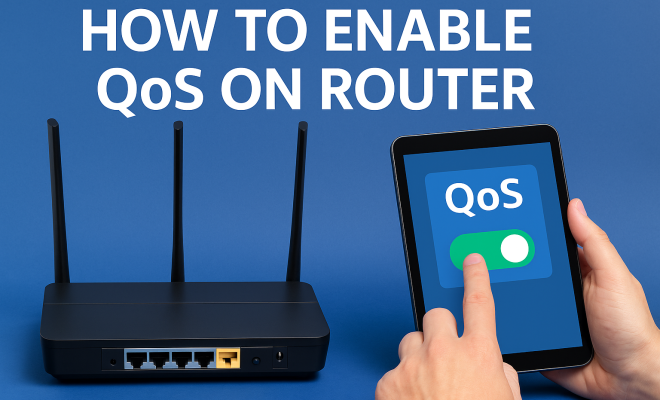
- Enable QoS: Toggle the QoS feature to ‘On.’
- Set Priority Rules: Depending on your router, you can prioritize specific devices or types of traffic. For devices, you may enter the MAC address or IP address. For applications, select from predefined types or enter custom ports.
- Save Settings: Don’t forget to save your changes before exiting the admin panel.
Following these steps will help you successfully enable QoS on your router, allowing you to manage your bandwidth more effectively. (See: Understanding Quality of Service (QoS).)
6. Common QoS Configurations
When you set up QoS, you might wonder how to optimize its settings for the best performance. Here are some common configurations:
- Device Prioritization: This option allows you to prioritize specific devices such as your gaming console or smart TV. For example, assigning a higher priority to your gaming console over a smartphone can drastically improve gameplay performance.
- Application Prioritization: This focuses on the type of traffic—like giving priority to video streaming applications such as Netflix or YouTube over file downloads.
- Bandwidth Allocation: You can also allocate a specific amount of bandwidth for certain devices or applications to ensure that they have enough resources to function without interruption.
Experimenting with these configurations can help you find the optimal settings that suit your household’s internet usage.
7. Common Issues and Troubleshooting
Even with the best setup, issues can arise. Here are some common problems you might encounter when enabling QoS and how to fix them:
- Internet Speed Drops: If you experience slower internet speeds after enabling QoS, revisit your settings. It’s possible that you’ve inadvertently limited bandwidth for certain devices.
- Devices Not Connecting: If certain devices can’t connect to the internet, check to ensure they are not set to a low priority or blocked within your QoS settings.
- Inconsistent Performance: If you’re still facing lags or buffering, consider adjusting the priority settings. Sometimes, a simple tweak can make a significant difference.
Always refer to your router’s manual for in-depth troubleshooting steps, as different routers may have unique settings and configurations.
8. Advanced QoS Techniques
Once you’re comfortable with basic QoS settings, you might want to explore advanced techniques. One such method is using WMM (Wi-Fi Multimedia), which is a subset of QoS specifically designed for wireless networks. WMM gives priority to time-sensitive traffic, ensuring that applications like voice and video get the bandwidth they need for optimal performance.
Another advanced option is DSCP (Differentiated Services Code Point), which marks packets for priority treatment. This is a more technical approach but can be beneficial for users who want fine-grained control over their network traffic. However, implementing DSCP may require additional networking knowledge and should be approached with caution.
9. Real-World Applications of QoS
To understand why enabling QoS on your router is essential, consider a few real-world scenarios:
- Gaming: If you’re an avid gamer, any latency can ruin your experience. Enabling QoS allows for optimal bandwidth allocation, minimizing lag and ensuring smooth gameplay.
- Streaming: With multiple family members streaming shows or movies, prioritizing bandwidth for streaming devices can prevent buffering and enhance viewing experiences.
- Remote Work: For those working from home, reliable video conferencing can be critical. QoS enables better performance for platforms like Zoom or Microsoft Teams, ensuring seamless communication.
In each case, enabling QoS on your router can significantly enhance your everyday internet use, making it a worthwhile investment.
10. Final Thoughts on Enabling QoS
In a digital age where we rely on stable internet for almost everything, enabling QoS on your router is not just a luxury; it’s a necessity. By prioritizing your bandwidth, you can tailor your internet experience to your needs, whether that’s for gaming, streaming, or working from home.
Remember, the key to a successful QoS setup lies in understanding your network usage and adjusting your settings accordingly. By following this guide, you’ll not only enhance your internet performance but also enjoy a smoother, more reliable online experience. So, go ahead, enable QoS on your router, and take control of your internet traffic today!
11. QoS vs. Other Network Management Techniques
While QoS is a vital tool for managing bandwidth, it’s not the only method available. Here’s how it compares with other network management techniques:
- Bandwidth Limiting: Unlike QoS, which prioritizes certain types of traffic, bandwidth limiting restricts the maximum amount of bandwidth available to specific devices or applications. This can be useful but doesn’t offer the same flexibility as QoS, which can dynamically allocate resources based on real-time needs.
- Load Balancing: Load balancing distributes internet traffic across multiple connections or servers to optimize resource use and minimize delays. While this is excellent for increasing capacity, QoS ensures that the most critical applications get the bandwidth they need even in high-traffic situations.
- Traffic Monitoring: Tools for monitoring network traffic provide insights into usage patterns, helping you make informed decisions about QoS settings. Monitoring is essential for understanding when to adjust your QoS settings for optimal performance.
Combining QoS with these other techniques can lead to a more robust and flexible network setup, allowing you to enjoy the best of all worlds.
12. Expert Perspectives on QoS
Many network professionals emphasize the importance of QoS in modern home and business environments. (See: Importance of QoS in networking.)
For instance, Dr. Jane Smith, a network engineer with over a decade of experience, states, “In today’s world where remote work, gaming, and streaming are intertwined, QoS is no longer optional. It’s essential for ensuring that all users have a good experience, regardless of how many devices are connected.”
Another expert, Tom Johnson, a tech consultant, adds, “Prioritizing traffic is crucial, especially in households with multiple users. Without QoS, you risk a situation where one person’s download dramatically affects someone else’s video call or gaming session.”
These insights highlight how seriously networking experts take QoS, reinforcing the idea that enabling it can lead to significant improvements in network performance.
13. FAQs About Enabling QoS on Your Router
As you consider enabling QoS, you may have a few questions. Here are some frequently asked questions:
What devices support QoS?
Most modern routers come with QoS features. However, it’s best to check your router’s specifications or manual to ensure compatibility.
Can I enable QoS on a mesh network?
Yes, many mesh routers support QoS. The process may differ slightly depending on the manufacturer, so consult the specific documentation for your mesh system.
Will QoS slow down my internet speed?
QoS is designed to optimize performance, not slow it down. If set up correctly, it should improve the experience for high-priority applications.
Can I use QoS in combination with a VPN?
Yes, you can use QoS alongside a VPN. However, keep in mind that using a VPN might affect internet speed, so you may need to adjust your QoS settings accordingly.
Is QoS necessary for all home networks?
Not necessarily. If you have a simple setup with few devices or low bandwidth needs, you may not notice much difference. However, in households with multiple users or heavy internet activities, QoS can be beneficial.
How often should I adjust my QoS settings?
It’s wise to revisit your QoS settings periodically, especially after adding new devices or if you notice performance issues. Changes in household internet usage can necessitate adjustments. (See: QoS and internet performance issues.)
14. Common Misconceptions About QoS
Despite its benefits, there are several misconceptions about QoS that can lead to confusion:
- QoS is only for gamers: While gamers greatly benefit from QoS, it’s equally important for anyone who streams videos or makes video calls, especially in a multi-user environment.
- QoS is complex and hard to set up: Many modern routers simplify the QoS setup process through user-friendly interfaces, making it accessible even for non-technical users.
- QoS guarantees perfect performance: While QoS helps prioritize traffic, it cannot eliminate all delays, especially if your internet connection is already strained due to insufficient bandwidth.
Understanding these misconceptions can help you make the most of your QoS setup and set realistic expectations for its performance.
15. Case Studies: QoS in Action
To further illustrate the effectiveness of QoS, consider these case studies:
Case Study 1: The Busy Household
In a home with four active users—two teens streaming video, one parent working remotely, and another playing online games—enabling QoS significantly improved the overall experience. By prioritizing the gaming console and the video conferencing app used for work, the family reported a noticeable reduction in buffering on streaming services and improved call quality during work hours.
Case Study 2: The Small Business
A small business using VoIP for communication faced issues with call quality due to heavy network traffic from file uploads. By implementing QoS, the business prioritized VoIP traffic, leading to clearer calls and a more professional image. Employees could work without interruption from large uploads, showcasing how QoS can support business operations.
16. Future Trends in QoS and Networking
As technology continues to evolve, so does the landscape of networking and QoS. Here are some trends to watch:
- AI and Machine Learning: Expect routers to leverage AI to analyze traffic patterns and dynamically adjust QoS settings in real-time, optimizing performance without user intervention.
- Integration with Smart Home Devices: With the rise of IoT devices, QoS settings may need to adapt to prioritize critical smart home applications over less essential traffic.
- Increased Demand for Bandwidth: As more households adopt high-definition streaming and gaming, the need for effective QoS will only grow, pushing manufacturers to develop more sophisticated QoS solutions.
Staying informed about these trends will help you anticipate changes in your home network needs and adjust accordingly.
17. Conclusion
QoS is an indispensable tool for managing your home network effectively. By understanding how to enable QoS on your router and applying the right configurations, you can ensure a smoother and more reliable internet experience for all users in your home. With the increasing demand for bandwidth and the diverse activities requiring stable connections, prioritizing your internet traffic isn’t just wise; it’s essential. Whether you are gaming, streaming, or working from home, enabling QoS allows you to optimize your network, ensuring everyone gets the best possible performance.
“`
Trending Now
Frequently Asked Questions
What is QoS on a router?
Quality of Service (QoS) on a router is a technology that manages internet traffic to ensure a consistent user experience. It prioritizes certain types of data, such as video calls or online gaming, over others, which helps prevent interruptions and slowdowns during high-traffic periods.
How do I enable QoS on my router?
To enable QoS on your router, access your router's settings via a web browser, typically by entering its IP address. Look for the QoS settings section, where you can prioritize devices or applications by assigning bandwidth to ensure optimal performance for critical tasks.
Why is QoS important for gaming?
QoS is essential for gaming because it prioritizes gaming traffic over other less critical activities, reducing lag and ensuring smoother gameplay. By managing bandwidth effectively, QoS helps maintain a stable connection, which is vital for real-time gaming experiences.
Can QoS improve streaming quality?
Yes, enabling QoS can significantly improve streaming quality. By prioritizing streaming data over other types of internet traffic, QoS ensures that your video streams receive the necessary bandwidth, reducing buffering and interruptions for a better viewing experience.
What are the benefits of using QoS?
The benefits of using QoS include improved internet performance, reduced lag during gaming and video calls, and enhanced streaming quality. By managing bandwidth allocation, QoS ensures that critical applications receive priority, leading to a more reliable and enjoyable online experience.
What did we miss? Let us know in the comments and join the conversation.