How to merge partitions Windows
“`html
Merging partitions in Windows can seem like a daunting task for many users, but it doesn’t have to be. Whether you’re looking to reorganize your hard drive, free up space, or simply streamline your file management, understanding how to merge partitions effectively is essential. In this article, we’ll explore the process of merging partitions in Windows, including the methods you can use, tips for a successful merge, and important considerations to keep in mind.
1. Understanding Partitions: What Are They and Why Do They Matter?
Before diving into the specifics of how to merge partitions in Windows, it’s crucial to understand what partitions are. A partition is a logical division of a hard drive that allows multiple operating systems or file systems to coexist on a single physical drive. For example, you might have one partition for your Windows operating system and another for personal files or applications.
Partitions are significant because they help organize data efficiently. When you create multiple partitions, you’re essentially designating specific areas of your drive for different purposes. This can lead to improved performance and easier data management. However, over time, some partitions may become redundant or too small, which is where the need to merge partitions arises.
2. Why Merge Partitions?: The Benefits Explained
Merging partitions can provide several advantages. Here are a few reasons you might consider merging partitions in Windows:
- Free Up Space: If one partition is full while another has excess space, merging can help you utilize your disk space more effectively.
- Streamline Data Management: Fewer partitions mean less complexity. Managing files across multiple drives can be cumbersome, and merging them can simplify file retrieval and organization.
- Improve Performance: Fragmented drives can slow down your computer. Merging partitions can lead to better performance as the operating system accesses data more efficiently.
Understanding these benefits sets the stage for why merging partitions might be a necessary task for maintaining a healthy computer system.
3. Backup Your Data: A Crucial First Step
Before you even think about merging partitions, it’s imperative to back up your data. Merging partitions can potentially lead to data loss if something goes wrong during the process. You can use built-in Windows tools like File History or third-party backup solutions to create a comprehensive backup of your important files.
Backing up your data is not just a precaution; it’s a safety net. Even if you are careful, unexpected issues can arise—such as power failures or software crashes. By ensuring you have a reliable backup, you can restore your data if necessary, making the merging process much less stressful.
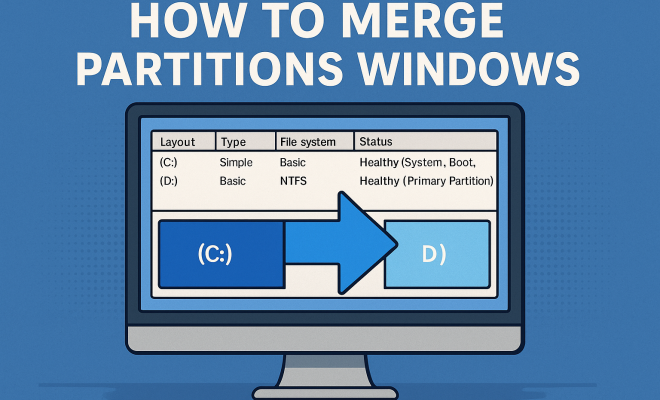
4. Using Windows Disk Management: Built-in Tool for Merging Partitions
Windows offers a built-in tool called Disk Management that allows users to manage their partitions without needing third-party software. Here’s how to merge partitions using this tool:
- Press Windows + X and select Disk Management.
- Right-click on the partition you want to merge (the one with data) and select Delete Volume. This will erase all data on the partition, so ensure that you have backed it up.
- Next, right-click on the partition you wish to extend and select Extend Volume.
- Follow the wizard to allocate the unallocated space from the deleted partition into the existing one.
This method is straightforward, but it’s important to note that you can only merge adjacent partitions. If the partitions aren’t next to each other, you may need to move them first, which isn’t supported by Disk Management.
5. Third-Party Software Solutions: When to Consider Them
While Disk Management is a useful tool, it has its limitations. If you encounter non-adjacent partitions or require more features, consider using third-party software. Programs like EaseUS Partition Master, MiniTool Partition Wizard, and AOMEI Partition Assistant are popular choices that offer comprehensive partition management functionalities. (See: Understanding computer partitions.)
These tools often provide a user-friendly interface and additional features such as merging non-adjacent partitions, resizing partitions without data loss, and even converting partition types (like FAT32 to NTFS). However, be sure to download software from reputable sources to avoid malware risks.
6. Step-by-Step Guide Using Third-Party Software
If you choose to use a third-party tool, here’s a general step-by-step guide on how to merge partitions:
- Download and install your chosen partition manager.
- Open the software and locate the partitions you want to merge.
- Select the partition you want to merge with another and choose the merge option (the terminology may vary between programs).
- Follow any prompts to confirm the merge operation.
- Click ‘Apply’ or ‘Execute’ to start the merge process. The software will usually provide a preview of the changes before applying them.
This method is often more flexible than using Windows Disk Management, allowing you to manage your partitions more effectively.
7. Common Issues and Troubleshooting: What to Watch Out For
While merging partitions, you may encounter some challenges. Here are a few common issues and their solutions:
- Insufficient Space: If the target partition does not have enough space to incorporate the additional data, you won’t be able to merge. Consider resizing other partitions or clearing some space first.
- Non-Adjacent Partitions: As mentioned earlier, Windows Disk Management only allows merging adjacent partitions. Using third-party software can help in this case.
- Data Loss: Always ensure you have a backup. If you encounter data loss during the process despite precautions, data recovery software might help restore lost files.
Being aware of these potential pitfalls can save you time and frustration, ensuring a smoother merging process.
8. Post-Merge Considerations: Keeping Your System Healthy
After successfully merging your partitions, take some time to ensure everything is functioning correctly. Here are a few steps to consider:
- Run Disk Cleanup: After merging, your system may have residual files. Use the built-in Disk Cleanup tool to remove unnecessary files.
- Check Disk Health: Regularly check the health of your hard drive using tools like Check Disk (chkdsk) to identify any potential issues.
- Maintain a Backup Routine: Now that you’ve made changes to your partitions, keep a regular backup schedule to protect your data.
By taking these post-merge actions, you can maintain the integrity and performance of your system for the long term.
9. The Future of Partition Management: Trends and Innovations
As technology evolves, so too does the landscape of partition management. With the advent of solid-state drives (SSDs) and cloud storage, the traditional methods of managing partitions may change. For example, SSDs often perform better with larger contiguous spaces, making effective partition management even more critical.
Moreover, cloud services are increasingly becoming a viable alternative to local storage, which might reduce the necessity for partitioning altogether. However, for those who still rely on local storage, the need to understand how to merge partitions in Windows remains relevant. Keeping abreast of the latest tools and practices will ensure that you’re equipped to handle any changes in technology.
Ultimately, merging partitions in Windows is an essential skill for anyone looking to optimize their digital workspace. Whether you choose built-in tools or third-party software, understanding the process and its implications will empower you to manage your data more effectively.
10. Comparing Partition Management Tools: Making the Right Choice
When it comes to merging partitions, the software you choose can significantly impact your experience and results. Here’s a closer look at some popular partition management tools and how they stack up against each other: (See: Importance of data organization.)
| Software | Key Features | Price | User Rating |
|---|---|---|---|
| EaseUS Partition Master | Merge partitions, resize without data loss, clone disks | Free version available; Pro version starts at $39.95 | 4.5/5 |
| MiniTool Partition Wizard | Merging non-adjacent partitions, disk cloning, partition recovery | Free version available; Pro version starts at $39 | 4.6/5 |
| AOMEI Partition Assistant | Merge and split partitions, migrate OS, create bootable media | Free version available; Pro version starts at $39.95 | 4.4/5 |
From the table above, you can see that while all three software options offer robust features, they also cater to slightly different needs. EaseUS is great for users who may need a more comprehensive toolset, while MiniTool shines in its user-friendly interface and recovery features. AOMEI balances functionality and price, making it an excellent choice for budget-conscious users.
11. Statistics on SSDs and Partitions: What You Should Know
The rise in popularity of SSDs has changed the way we think about partitions. A recent study found that over 60% of users now prefer SSDs over traditional HDDs, primarily for their speed and reliability. Here are some statistics that highlight the importance of effective partition management:
- Speed Increase: SSDs can access data up to 1000 times faster than HDDs, making the organization of data through partitions critical for optimal performance.
- Capacity Growth: As the average consumer’s storage needs grow, with data consumption on the rise, users are increasingly merging partitions to maximize their available space.
- Error Rates: SSDs generally have lower failure rates, but improper partition management can still lead to data loss, emphasizing the need for regular backups and maintenance.
These statistics underscore the shifting landscape of storage solutions and the need for effective partition management in both SSDs and HDDs.
12. Frequently Asked Questions: Your Partition Merging Queries Answered
What happens if I merge partitions and lose data?
If you’ve backed up your data before merging, you can easily restore it. If not, data recovery software might help, but success is not guaranteed.
Can I merge partitions without losing data?
Using third-party software that specializes in partition management often allows you to merge partitions without data loss. However, always back up important files before proceeding.
Is merging partitions safe?
Yes, merging partitions is generally safe if done correctly and with the right tools. Ensuring you have recent backups will greatly mitigate any risk.
How long does the merging process take?
The duration can vary based on the amount of data and the tool used. It might take anywhere from a few minutes to several hours.
Can I undo a merge operation?
Once partitions are merged, it often cannot be undone through normal means. Therefore, backups are essential before proceeding with any partition changes.
What to do if Windows can’t merge my partitions?
Check to ensure you’re trying to merge adjacent partitions or use third-party software capable of handling more complex merging tasks. (See: Benefits of merging partitions.)
Will merging partitions increase my computer’s speed?
Merging can help reduce fragmentation and improve access times, potentially speeding up your computer’s performance, especially if you have a lot of small files spread across multiple partitions.
13. Additional Tips for Merging Partitions: Ensuring a Smooth Process
Merging partitions can be a straightforward process, but there are some additional tips you can consider to make it even smoother:
- Defragment Your Drive: Before merging, consider running a defragmentation tool if you’re using an HDD. This can help improve performance and reduce potential issues during the merge.
- Check for Errors: Run a disk check to ensure there are no file system errors. You can do this by right-clicking on the drive in File Explorer, selecting Properties, then the Tools tab, and clicking on ‘Check’ under Error checking.
- Boot from a USB Drive: If you’re having trouble merging partitions while Windows is running, consider using a bootable USB drive with partition management software. This minimizes interference from running processes.
14. Understanding Disk Formats: FAT32 vs NTFS and Their Implications
When merging partitions, it’s important to understand the disk formats involved. The two most common formats are FAT32 and NTFS. Each has its pros and cons that can affect how you manage and merge partitions:
- FAT32: This format is compatible with various operating systems, making it a good choice for flash drives. However, it has a file size limit of 4GB, which can be restrictive for large files.
- NTFS: This is the default format for Windows systems and supports larger file sizes, enhanced security features, and better recovery options. If your partitions are using different formats, you might need to convert them before merging.
Understanding these formats can help you make informed decisions about how to manage your partitions effectively.
15. Future Trends in Partition Management: Preparing for What’s Next
As technology continues to evolve, partition management will likely undergo significant changes. Here are some trends to watch for:
- Increased Use of Cloud Storage: As more users migrate to cloud solutions, the need for local partitions may decline. This shift could change how we think about disk space utilization.
- AI in Disk Management: Artificial intelligence may play a role in automating partition management, making it easier for users to optimize their storage without needing in-depth technical knowledge.
- Seamless Integration of SSDs: As SSDs become more common, their unique characteristics will influence partition management strategies, focusing on maximizing speed and efficiency.
Staying informed about these trends will help you adapt your partition management strategies to meet future needs.
16. Conclusion: Mastering Your Digital Space
Merging partitions in Windows is a skill worth mastering, whether you’re a casual user or someone who relies heavily on data organization. With the right understanding and tools, you can efficiently manage your hard drive, improve performance, and protect your valuable data. So, whether you choose built-in Windows tools or third-party software, you’re well on your way to a streamlined digital workspace.
“`
Trending Now
Frequently Asked Questions
How do I merge partitions in Windows 10?
To merge partitions in Windows 10, open Disk Management by right-clicking the Start button and selecting 'Disk Management.' Right-click the partition you want to merge and select 'Delete Volume' to remove it. Then, right-click the adjacent partition and choose 'Extend Volume' to incorporate the unallocated space into it.
Is it safe to merge partitions in Windows?
Merging partitions can be safe if done correctly, but it is essential to back up your data before proceeding. Deleting a partition will erase all data on it, so ensure you have copies of important files. Using built-in Windows tools like Disk Management can minimize risks.
What happens when you merge partitions?
When you merge partitions, the data from the deleted partition is removed, and its space is combined with the adjacent partition. This helps in freeing up space and simplifying data management, but it is crucial to back up any essential data beforehand.
Can I merge partitions without losing data?
While merging partitions typically involves deleting one partition, there are third-party software tools that offer non-destructive merging options. However, it is always recommended to back up your data to avoid any accidental loss during the process.
Why should I merge partitions?
Merging partitions can help free up disk space, simplify file management, and improve system performance. If you have one partition that is full while another has excess space, merging them can optimize your hard drive usage and enhance overall efficiency.
Have you experienced this yourself? We’d love to hear your story in the comments.