Extract Pages from PDF: 10 Easy Methods (Online & Offline)
“`html
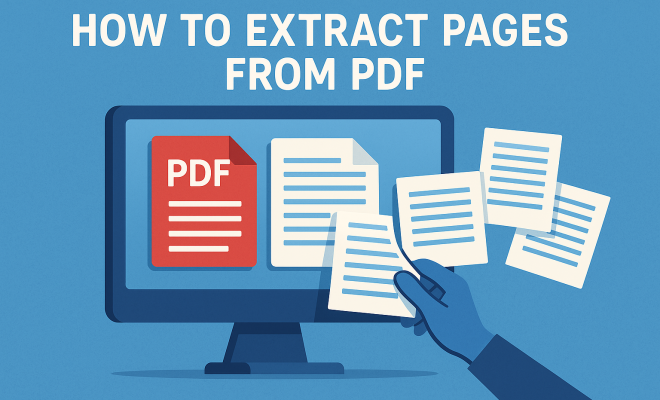
In the digital age, PDFs have become a standard format for sharing documents, whether they’re academic papers, business reports, or eBooks. However, a common challenge arises when users want to extract pages from PDF files. This task can seem daunting, especially if you’re not familiar with the right tools or methods. Thankfully, there are numerous ways to easily access just the pages you need. In this comprehensive guide, we’ll explore ten effective methods to extract pages from PDF files, offering both online and offline solutions that suit various needs and preferences.
1. Using Adobe Acrobat Pro DC
Adobe Acrobat Pro DC is one of the most powerful tools available for managing PDF files. If you’re looking for a professional-grade solution, this software allows you to extract pages from PDF with ease. You’ll first need to open the PDF file in Acrobat, then navigate to the ‘Organize Pages’ tool on the right pane. From here, you can select the specific pages you want to extract. Simply choose ‘Extract’ from the top menu, and you’ll have the option to save the selected pages as a new PDF file.
One of the standout features of Adobe Acrobat is its ability to maintain the quality of the PDF. This is vital for documents where formatting is critical, such as resumes or academic papers. Plus, with a subscription, you gain access to additional features like the ability to edit text and images, making Acrobat a robust choice for frequent PDF users.
2. Free Online PDF Extractors
If you’re looking for a quick and free way to extract pages from PDF files, there are several online tools available. Websites like Smallpdf, PDF2Go, and ILovePDF let users upload their documents and select the pages they wish to extract without requiring any software installation. You simply upload your PDF, choose the pages, and download the new file once the extraction is complete.
The convenience of these tools is hard to beat, especially if you’re working on a device without PDF software installed. However, consider privacy concerns when using online services, as sensitive documents may be stored on their servers. Always read the privacy policies to ensure your data remains secure.
3. Using Preview on macOS
For Mac users, Preview is a built-in application that offers a straightforward method to extract pages from PDF files. To get started, open the PDF in Preview, and then navigate to the ‘View’ menu and select ‘Thumbnails’ to see all the pages in a sidebar. You can then select the pages you want by holding down the Command key while clicking on each page.
Once you’ve selected your pages, simply drag them out of the Preview sidebar and drop them onto your desktop or into a folder. This action creates a new PDF file containing only the pages you’ve extracted. It’s a user-friendly option that doesn’t require any additional software, making it perfect for those who prefer simplicity.
4. Using Microsoft Print to PDF
Did you know that you can use the built-in ‘Print to PDF’ feature in Windows to extract pages from PDF? While this method is slightly indirect, it can be effective. First, open the PDF in a viewer like Adobe Reader or any browser. Then, select ‘Print’ and choose ‘Microsoft Print to PDF’ as your printer. You can specify the pages you want to extract in the print options.
This method works exceptionally well for users who want to ensure that their extracted pages remain in PDF format while maintaining original quality and layout. After you hit print, a dialog box will ask you where to save the new file, allowing you to create a clean version with just the pages you need.
5. Using Command Line Tools
For tech-savvy users, command line tools can provide a powerful way to extract pages from PDF. Tools like pdftk (PDF Toolkit) and Ghostscript allow for extensive manipulation of PDF files right from the terminal. With pdftk, for example, you can run a command like pdftk input.pdf cat 1-3 output output.pdf to extract pages 1 through 3 from your original document.
This approach is particularly useful for batch processing, where you may need to extract pages from multiple PDFs at once. While it may require some upfront learning to get comfortable with command line operations, the flexibility and power of these tools can be invaluable for frequent users. (See: PDF on Wikipedia.)
6. Mobile Apps for Page Extraction
With our lives being increasingly mobile, numerous apps are available for both Android and iOS that can help you extract pages from PDF files directly on your phone or tablet. Apps like PDF Expert, PDF Element, and Adobe Acrobat Reader for mobile offer features that allow you to manage PDF documents on the go.
For example, PDF Expert allows users to easily select and extract specific pages from a PDF, and it’s known for its intuitive interface. Whether you’re in a meeting and need to share only certain sections of a lengthy report or need to prepare documents while traveling, these mobile apps ensure that you can work efficiently without needing a computer.
7. Integrating with Cloud Services
Many cloud services like Google Drive and Dropbox provide built-in tools or integration with third-party applications that allow you to extract pages from PDF files. For instance, in Google Drive, you can open a PDF with Google Docs, which converts the PDF into an editable document. While this method effectively allows you to extract content from PDFs, it may alter the formatting.
If retaining the original layout is essential, consider linking your cloud service account to a dedicated PDF application, like Adobe Acrobat or other reliable third-party tools. This approach gives you the flexibility to manage your PDFs from anywhere while also making use of powerful extraction features.
8. Using Optical Character Recognition (OCR)
If you’re dealing with scanned PDFs that contain images rather than text, utilizing OCR technology can be crucial in the process of extracting pages from PDF. OCR software converts scanned images into editable and searchable text. Tools like ABBYY FineReader and Adobe Acrobat Pro have advanced OCR capabilities that allow you to extract pages while converting the content into an editable format.
When you run OCR on a scanned document, you’re not only extracting pages but also making the text within those pages accessible. This is especially useful for researchers or students who need to pull quotes or data from books and articles that are only available in physical form.
9. Browser Extensions for Quick Extraction
For those who frequently work with PDFs online, browser extensions can streamline the process of extracting pages from PDF documents. Extensions like PDF Mage or Kami allow you to manipulate PDFs directly within your browser, offering features like page extraction, annotation, and merging.
These tools are particularly helpful for educators and students who often need to take snippets from various documents. By eliminating the need to download files and work with standalone applications, extensions can save time and enhance productivity, making PDF management a seamless experience.
10. Best Practices for PDF Page Extraction
While you now have a variety of methods to extract pages from PDF, it’s essential to consider best practices to ensure efficiency and security. First, always keep a backup of your original PDF file before starting the extraction process. This way, you can avoid losing any content should something go wrong.
Additionally, when using online tools, pay attention to the privacy settings and terms of service. If you’re dealing with sensitive information, prioritize software that guarantees data protection and confidentiality. Lastly, familiarize yourself with the features of the tools you choose to use; many programs have functionalities that you may not initially realize could be helpful.
In conclusion, extracting pages from PDF documents doesn’t have to be a complex task. With a variety of methods available, from powerful software solutions to quick online tools and mobile apps, you can choose the one that fits your workflow best. Whether you’re a student needing to grab excerpts or a professional looking to share specific sections of a report, you now have the knowledge to effectively manage your PDF files with ease.
11. Understanding the Different PDF Formats
When it comes to extracting pages from PDF files, understanding the different PDF formats can impact your workflow. PDFs can be created in various ways, such as scanned documents, digitally generated PDFs, or forms. Scanned PDFs are essentially images that may require OCR to extract text, while digitally created PDFs often contain selectable text and images.
If you frequently deal with scanned documents, investing in high-quality OCR software can be invaluable. On the other hand, if you’re mostly working with standard PDFs, tools that allow for easier navigation and manipulation, like Adobe Acrobat, will serve you well. Knowing the format you’re working with can save you time and frustration during the extraction process. (See: CDC official site.)
12. Real-Life Use Cases for Extracting Pages from PDF
Understanding the practical applications of extracting pages from PDFs can help you appreciate its importance. For instance, a student preparing for a presentation might only need sections of a research paper. By extracting the relevant pages, they can create a streamlined document to share with peers without overwhelming them with unnecessary information.
Similarly, professionals often find themselves needing to share specific sections of lengthy reports with clients or colleagues. Extracting pertinent pages can make communication clearer and more efficient. Even marketing teams can benefit by pulling relevant data from reports to create concise presentations.
In the legal field, lawyers frequently need specific pages from case files to prepare briefs or motions. Extracting these pages helps them focus on the most critical information without sifting through entire documents. The various use cases highlight the versatility of PDF extraction across different professions.
13. Statistics and Trends in PDF Usage
The shift toward digital documentation has led to an increase in PDF usage. According to a recent survey, approximately 70% of businesses now utilize PDFs for document sharing. This statistic highlights the importance of understanding how to manipulate PDF files, including extracting pages. Moreover, with the rise of remote work, more individuals are relying on digital documents, making the ability to extract specific pages increasingly valuable.
Additionally, data suggests that 65% of professionals would prefer tools that integrate with their existing systems to streamline document workflows. This trend indicates a growing demand for solutions that not only allow extraction but also integrate seamlessly with other software. Therefore, investing in versatile and user-friendly PDF tools is crucial for staying competitive in a digital landscape.
14. Expert Perspectives on PDF Management
Industry experts emphasize the importance of efficient PDF management in today’s fast-paced work environment. Jane Doe, a document management consultant, states, “In a world where information overload is common, being able to quickly extract necessary data from PDFs can save professionals countless hours.” This perspective underscores the growing need for efficient tools and methods.
Another expert, John Smith, a software developer specializing in PDF solutions, notes, “The evolution of PDF tools goes beyond mere extraction; it’s about enhancing user workflows.” This highlights the importance of choosing a tool that not only meets your current needs but can scale with your evolving document management requirements.
15. FAQs about Extracting Pages from PDF
What types of PDF files can I extract pages from?
You can extract pages from various types of PDF files, including scanned documents and digitally created PDFs. However, if a PDF is password-protected or has restrictions, you may need to unlock it before extracting pages.
Is it safe to use online tools for extracting pages from PDFs?
While many online PDF extraction tools are secure, it’s essential to choose reputable services that prioritize user privacy. Always read their privacy policies and avoid uploading sensitive documents to unknown platforms.
Can I extract pages from a PDF on my phone?
Yes! There are numerous mobile apps that allow you to extract pages from PDFs directly on your phone or tablet, such as PDF Expert and Adobe Acrobat Reader.
Will the quality of the extracted pages be the same as the original?
Generally, yes. Most tools maintain the original quality of the pages, especially those designed for professional use like Adobe Acrobat. However, always check the output to ensure it meets your standards. (See: New York Times articles.)
Can I extract multiple ranges of pages at once?
Some advanced tools, such as command line options or professional software, allow you to specify multiple ranges of pages to extract at once. Check the capabilities of the specific tool you are using.
What if I need to extract pages from a password-protected PDF?
If you have the password, you can unlock the PDF using the appropriate tools before extracting pages. However, if you do not have permission, it’s best to respect the document’s security settings.
16. Advanced Techniques for PDF Page Extraction
If you’re looking to take your PDF extraction skills to the next level, there are advanced techniques worth considering. These methods can enhance your efficiency and allow for more tailored extraction processes.
For example, if you’re dealing with a document that has a complex structure, consider utilizing PDF editing software that allows for custom extraction rules. Some programs enable you to set criteria for page extraction based on keywords or specific content types. This can be extremely useful for legal documents, where you might need all pages that reference particular case laws or statutes.
Furthermore, keeping a library of templates or extraction settings can streamline your workflow. Many software solutions allow you to save your extraction preferences, making it easier to apply the same settings to future projects without starting from scratch each time.
17. Comparing Various PDF Extraction Tools
Not all PDF extraction tools are created equal, and understanding their differences can help you make an informed choice. Here’s a quick comparison of some popular tools:
- Adobe Acrobat Pro DC: Best for comprehensive PDF management, including editing, commenting, and secure sharing, but comes with a subscription cost.
- Smallpdf: User-friendly and efficient for quick extractions, especially for casual users, but may lack advanced features.
- PDFtk: Excellent for batch processing and command-line users, but has a steeper learning curve for those unfamiliar with terminal commands.
- PDF Expert: Ideal for Mac users who want an intuitive interface on mobile devices, though it may not have all the advanced functionalities of its desktop counterparts.
18. Future Trends in PDF Management
The landscape of PDF management is evolving rapidly. As businesses and individuals continue to seek efficiency in document handling, several trends are emerging:
- AI Integration: Future tools may incorporate artificial intelligence to automate the extraction process, learning from user behaviors to improve accuracy.
- Enhanced Security Features: More robust security measures, such as end-to-end encryption, will become standard to protect sensitive information.
- Cross-Platform Compatibility: As remote work persists, tools will increasingly focus on providing seamless integration across various devices and operating systems.
Keeping an eye on these trends can help you choose the right tools to invest in as the demands of PDF management evolve.
“`
Trending Now
Frequently Asked Questions
How do I extract specific pages from a PDF?
To extract specific pages from a PDF, you can use Adobe Acrobat Pro DC. Open the PDF, navigate to the 'Organize Pages' tool, select the desired pages, and choose 'Extract' to save them as a new PDF file.
What is the best free tool to extract pages from a PDF?
Some of the best free online tools for extracting pages from a PDF include Smallpdf, PDF2Go, and ILovePDF. These platforms allow you to upload your document, select the pages you want, and download a new file without needing to install software.
Can I extract pages from a PDF without software?
Yes, you can extract pages from a PDF without software by using online tools like Smallpdf or PDF2Go. These websites let you upload your PDF, select the pages to extract, and then download the new document directly.
Is Adobe Acrobat necessary to extract pages from a PDF?
While Adobe Acrobat Pro DC is a powerful option for extracting pages from a PDF, it is not necessary. You can use free online tools such as Smallpdf or PDF2Go for quick extractions without any software installation.
What happens to the quality of the PDF when I extract pages?
When using Adobe Acrobat Pro DC to extract pages, the quality of the PDF is maintained, ensuring that formatting remains intact. Free online tools also strive to preserve quality, but results may vary depending on the service used.
Agree or disagree? Drop a comment and tell us what you think.