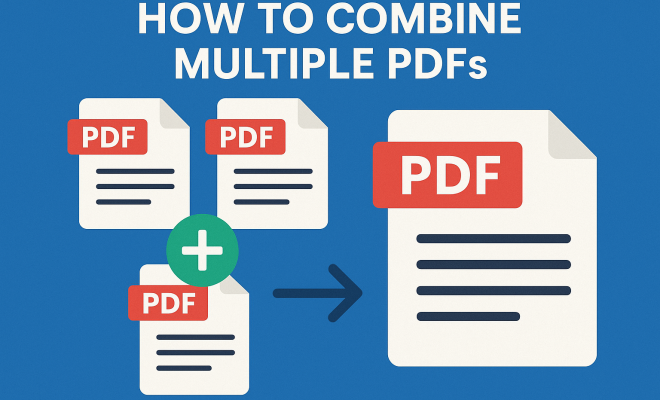
How to combine multiple PDFs
“`html
In a digital world where information is often shared in the form of PDF documents, the ability to efficiently combine multiple PDFs into a single file has become increasingly important. Whether for business presentations, academic submissions, or personal projects, streamlining your PDF documents can save time and enhance clarity. In this article, we’ll explore seven effective methods to combine multiple PDFs, along with tips and tools that can help you achieve this with ease.
1. Understanding PDF Files
PDF, or Portable Document Format, was developed by Adobe in the early 1990s. The idea was to create a file format that could display documents consistently across various hardware and software. PDFs are now ubiquitous for their ability to preserve formatting, fonts, and images regardless of the device used to view them.
Combining multiple PDFs into a single document can be advantageous for several reasons. For instance, if you’re compiling research papers, you can organize all related documents in one file, making it easier to share and view. Additionally, combining PDFs can help reduce clutter and improve organization, especially for businesses that handle numerous documents daily.
2. Using Adobe Acrobat DC
Adobe Acrobat DC is one of the most reliable applications to combine multiple PDFs. As a leading PDF management tool, it offers a straightforward approach to merging files. To combine PDFs with Acrobat DC, follow these steps:
- Open Adobe Acrobat DC and select the “Tools” tab.
- Click on “Combine Files” and then drag and drop the PDFs you wish to merge.
- Rearrange the order of the files if needed, and click “Combine” to create a single PDF.
While Adobe Acrobat provides a comprehensive set of features, it also comes with a subscription cost. For those who frequently work with PDFs, the investment might be worthwhile for the ease and functionality it offers.
3. Utilizing Free Online Tools
If you’re looking for a cost-free solution, several online platforms allow you to combine multiple PDFs without any software installation. Websites like Smallpdf, PDF Merge, and ILovePDF offer user-friendly interfaces to merge PDFs quickly. Here’s how to use an online tool:
- Visit the website of your chosen PDF merging tool.
- Upload the PDFs you want to combine.
- Once uploaded, arrange the files in the desired order and click “Merge” or a similar button.
- Download the newly created PDF file.
While online tools are convenient and often free, keep in mind that uploading sensitive documents to a third-party server can pose privacy risks. Always ensure that the website is reputable and secure before using it.
4. Desktop Applications for PDF Management
For those who prefer offline solutions, several desktop applications are available that can help you combine multiple PDFs. Tools such as PDFsam Basic and Foxit PhantomPDF are notable mentions. PDFsam Basic is free and open-source, making it a popular choice.
To use PDFsam Basic:
- Download and install PDFsam Basic on your computer.
- Open the application and select the “Merge” option.
- Add the PDFs you want to combine, arrange them as desired, and click “Run” to create a single document.
With features like page extraction and reordering, desktop applications often provide greater control over the merging process compared to online tools.
5. Combining PDFs on Mac with Preview
If you’re a Mac user, the Preview application comes equipped with a simple way to combine multiple PDFs. This built-in tool is often overlooked but is incredibly efficient. Here’s how you can merge PDFs using Preview: (See: Understanding PDF file format.)
- Open one of the PDF files in Preview.
- Go to the “View” menu and select “Thumbnails” to display the page thumbnails.
- Drag and drop the other PDF file(s) into the thumbnail sidebar.
- Rearrange the pages as needed and select “File” > “Export as PDF” to save the combined file.
Preview is a solid option for Mac users looking for a no-cost, built-in solution without the need for additional software.
6. Using Command Line Tools on Windows and Linux
For tech-savvy users, command-line tools like Ghostscript can efficiently combine multiple PDF files on both Windows and Linux systems. Ghostscript allows for more advanced manipulation of PDF files. Here’s how to use it:
- Install Ghostscript on your computer.
- Open the command line interface.
- Use a command like the following: `gs -dBATCH -dNOPAUSE -q -sDEVICE=pdfwrite -sOutputFile=output.pdf file1.pdf file2.pdf` to combine the files.
This method is particularly useful for batch processing or when working with multiple files regularly. However, it does require some familiarity with the command line.
7. Best Practices for Combining PDFs
While combining PDFs can be straightforward, considering a few best practices can enhance your overall experience. Here are some tips to keep in mind:
- File Naming: Before merging, ensure your files are correctly named. This makes it easier to identify the combined PDF later.
- Order Matters: Rearranging the order of your PDFs before merging can significantly impact the final document’s clarity, especially in presentations.
- Check for Compatibility: Make sure all PDFs are compatible with the tool you’re using. Some older PDFs may not merge well with newer versions.
By following these best practices, you’ll ensure that the process of combining multiple PDFs is efficient and that the final product meets your expectations.
8. Advanced PDF Combining Techniques
As you become more comfortable with merging PDFs, you might want to explore advanced techniques that can enhance your documents even further. These methods can help you create more polished and professional files.
8.1. Adding Watermarks and Stamps
When combining PDFs, consider adding watermarks or stamps to signify ownership or confidentiality. Many PDF tools, including Adobe Acrobat and PDF-XChange Editor, allow you to insert watermarks during the merging process. This is particularly useful for business documents, as it adds a layer of professionalism and security.
8.2. Creating Table of Contents
If you’re merging multiple lengthy documents, you might want to create a Table of Contents (TOC). This feature helps readers navigate the PDF more easily. While not all merging tools support automatic TOC generation, you can create a separate page listing the sections and link them to their respective pages if your tool allows for it.
8.3. Optimizing PDFs for Size and Performance
Combining multiple PDFs can create a large file, which may be difficult to share or store. Consider optimizing your final PDF by compressing images or removing unnecessary elements. Tools like PDF Compressor or online services can help reduce the file size without sacrificing quality, making sharing via email or on cloud platforms easier.
9. Real-World Applications of Combining PDFs
Now that you know the methods to combine PDFs, let’s look at some real-world applications where merging PDF files can be incredibly beneficial.
9.1. Academic Research
Students and researchers often compile multiple articles, studies, and papers into a single document for ease of access. This can be particularly useful when preparing for a thesis or dissertation, allowing for a comprehensive review of all relevant materials in one place.
9.2. Corporate Presentations
In the business world, PDF presentations are common. Combining slides, data sheets, and reports into one PDF can make it easier for teams to present information to clients or stakeholders. A well-organized PDF can enhance the professionalism of a presentation by ensuring all relevant materials are included and easily accessible.
9.3. Legal Documents
In legal settings, attorneys often need to combine multiple contracts and documents into a single file for court submissions. The ability to merge PDFs ensures all documentation is readily available, reducing the risk of missing important pages. (See: Importance of document organization.)
10. Comparison of PDF Merging Tools
With numerous tools available for combining PDFs, it can be tough to choose the right one for your needs. Here’s a quick comparison of some popular options:
| Tool | Cost | Platform | Key Features |
|---|---|---|---|
| Adobe Acrobat DC | Subscription | Windows, Mac | Advanced editing, secure sharing, watermarking |
| PDFsam Basic | Free | Windows, Mac, Linux | Merge, split, extract, rotate |
| Smallpdf | Free with limitations | Web-based | User-friendly interface, compression, convert |
| ILovePDF | Free with limitations | Web-based | Merge, split, convert, edit |
| Preview (Mac) | Free | Mac | Simple merging, basic editing |
11. Frequently Asked Questions (FAQs)
11.1. Can I combine PDFs on my smartphone?
Yes! There are many apps available for both iOS and Android that allow you to combine PDFs easily. Look for apps like Adobe Scan or PDF Merge, which offer mobile-friendly interfaces for merging documents on the go.
11.2. Will combining PDFs affect the original files?
No, merging PDFs creates a new file, leaving the original files intact. This means you can always go back to the original documents if needed.
11.3. What should I do if my merged PDF file is too large?
If your merged PDF is too large, consider using a PDF compression tool post-merge. This can significantly reduce the file size while maintaining quality. Many online tools offer free compression services, or you can use desktop applications like Adobe Acrobat.
11.4. Can I edit the combined PDF after merging?
Yes, most PDF management tools allow you to edit the combined document after merging. You can add annotations, text, or images as needed to make revisions or comments.
11.5. Are there any limitations to merging PDFs online?
Some online tools impose file size limits or restrict the number of PDF files you can merge at once unless you upgrade to a paid plan. Always check the terms of use for the specific tool you’re using.
12. Common Errors When Combining PDFs
When combining multiple PDFs, users might encounter a few common issues that can lead to frustration or errors. Understanding these pitfalls can help you troubleshoot effectively.
12.1. Incomplete Merges
One of the most common problems is that some tools may not fully merge the PDFs, resulting in missing pages or incomplete documents. This often happens when the files are too large or if there are compatibility issues. Always verify the merged document to ensure all pages are included.
12.2. Formatting Issues
Sometimes, the formatting of the merged document may not match the original files, leading to misaligned text or images. This can be particularly problematic with scanned documents or PDFs with unusual layouts. If you notice this, try using a different tool or adjusting the settings of the application you’re using.
12.3. Password Protection Conflicts
If any of the PDFs you are trying to merge are password protected, this can lead to errors during the merge process. Most merging tools will require you to enter the password before proceeding. Make sure you have access to all necessary passwords ahead of time.
13. Tips for Maintaining PDF Quality
Maintaining the quality of your PDFs during the merging process is crucial, especially for professional documents. Here are some tips to help you keep your PDFs looking their best:
13.1. Use High-Quality Source Files
The quality of your merged PDF is heavily influenced by the quality of the source files. Whenever possible, start with high-resolution PDFs to ensure your final document maintains clarity and detail.
13.2. Choose the Right Format
If your PDFs contain images, consider the format of these images. JPEGs and PNGs can compress files but may lose quality. Using formats that preserve quality can help maintain the integrity of your documents.
13.3. Optimize Settings in Your PDF Tool
Many PDF merging tools offer optimization settings. Familiarize yourself with these options to ensure your final document is not only the right size but also maintains the best possible quality. Look for settings related to image compression, color depth, and resolution.
14. Future Trends in PDF Management
The landscape of PDF management is constantly evolving, and several trends are shaping how we combine and handle PDF files. Staying informed can help you leverage new features and tools as they become available.
14.1. Artificial Intelligence Integration
AI is making its way into PDF management tools, offering smarter ways to manage documents. Features like automatic tagging, smart suggestions for merging files, and intelligent formatting adjustments could soon become commonplace, making it easier to organize and combine PDFs efficiently.
14.2. Enhanced Security Features
As concerns around data privacy grow, PDF tools are likely to incorporate more robust security features. Expect to see better encryption methods, advanced password protection, and more secure sharing options as part of standard PDF management software.
14.3. Cloud-Based Solutions
Cloud storage continues to grow in popularity, and many PDF tools are integrating directly with cloud services. This means you can combine PDFs from anywhere and on any device, making your workflow even more flexible and efficient. Look for tools that seamlessly connect to your favorite cloud storage providers.
Conclusion
The ability to combine multiple PDFs is a crucial skill in today’s digital landscape. Whether you choose to use Adobe Acrobat DC, free online tools, desktop applications, or command-line solutions, there are plenty of options tailored to meet your needs. By understanding the various methods and best practices, you’ll be well-equipped to streamline your workflow and produce organized, professional PDF documents. Given the many applications and advanced techniques available, mastering the art of PDF merging can enhance both personal and professional projects significantly.
“`
Trending Now
Frequently Asked Questions
How can I combine multiple PDF files for free?
You can combine multiple PDF files for free using various online tools like Smallpdf, PDF Merge, or ILovePDF. These platforms allow you to upload your PDF documents, arrange them as needed, and merge them into a single file without any cost.
What is the best software to combine PDFs?
Adobe Acrobat DC is considered one of the best software options for combining PDFs due to its reliability and comprehensive features. It allows users to easily merge files, rearrange them, and save the combined document as a new PDF.
Can I combine PDFs on my phone?
Yes, you can combine PDFs on your phone using various mobile apps such as Adobe Acrobat Reader, PDF Merge, or specific online tools optimized for mobile use. These apps typically offer user-friendly interfaces for merging files on the go.
Is it safe to combine PDF files online?
Combining PDF files online can be safe if you use reputable services that prioritize user privacy and data security. Always check the website’s security measures and read reviews before uploading sensitive documents.
Why would I want to combine multiple PDFs?
Combining multiple PDFs can help streamline your documents, making it easier to organize and share related information. It reduces clutter, enhances clarity, and is particularly useful for presentations, research compilations, and business documentation.
What’s your take on this? Share your thoughts in the comments below — we read every one.