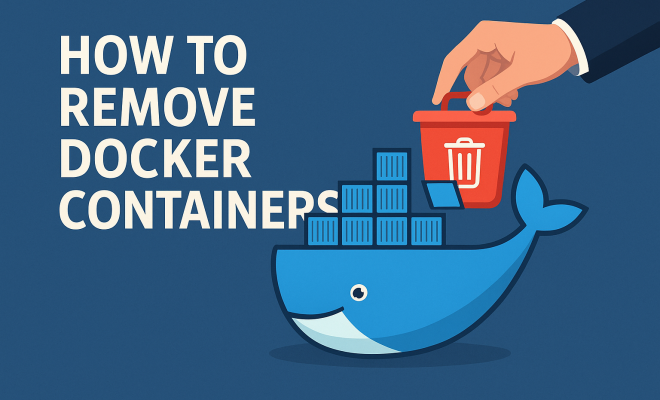
How to remove Docker containers
“`html
Docker has revolutionized the way developers deploy applications, offering a streamlined approach to building, shipping, and running applications. However, as your Docker environment grows, you might find yourself needing to manage and remove Docker containers effectively. This comprehensive guide will walk you through the various ways to remove Docker containers, alongside practical tips and real-world applications.
1. Understanding Docker Containers
Before diving into the specifics of removing Docker containers, it’s essential to grasp what they are. Docker containers encapsulate an application and its dependencies, allowing it to run consistently on any environment. Unlike virtual machines, containers share the host system’s kernel but run in their isolated processes.
Containers can be created, started, stopped, and deleted as needed. Regularly managing these containers is crucial for maintaining an efficient development environment. Being able to easily remove Docker containers will help you clear out unused resources and free up system memory.
2. Why You Might Need to Remove Docker Containers
There are several reasons you may find yourself wanting to remove Docker containers:
- Resource Management: Containers consume system resources; removing inactive or unnecessary containers can free up CPU and memory.
- Version Control: During development, frequent updates might lead to old containers lingering around. To ensure you’re running the latest version, it’s wise to remove outdated containers.
- Error Recovery: If a container crashes or experiences issues, removing it and starting fresh can sometimes be the simplest solution.
Taking these factors into account can lead to a cleaner, more manageable Docker environment.
3. Preliminary Steps Before Removal
Before you embark on removing Docker containers, there are a few preliminary steps to ensure everything goes smoothly:
- Check Running Containers: Use the command
docker psto view currently running containers. This can help avoid accidentally removing a container that is still in use. - Inspect Container Dependencies: If your container connects to other services, make sure those dependencies are not disrupted during removal. You can use
docker inspect [container_id]to get detailed information. - Backup Important Data: If there’s data you need to preserve, consider creating a volume or backing it up before removing the container.
Taking these steps can save you a headache later on.
4. Basic Commands to Remove Docker Containers
The most straightforward way to remove Docker containers is through a few basic command-line operations. The main command you’ll use is:
docker rm [container_id]
This command deletes a stopped container. If the container is still running, you’ll need to stop it first. You can do this by using the command:
docker stop [container_id]
Once the container is stopped, you can then proceed to remove it using the docker rm command. If you want to remove multiple containers at once, you can specify their IDs or names separated by spaces.
5. Force Removal of Docker Containers
In some situations, you may need to forcefully remove a Docker container that refuses to stop. This can be done using:
docker rm -f [container_id]
The -f flag forces the removal of a running container, including its associated resources. While this can be convenient, use this command with caution, as it may lead to data loss if the container has unsaved changes. (See: Docker software overview.)
Understanding when to use the force removal command is critical to maintaining data integrity in your Docker environment.
6. Removing All Stopped Containers
If you’re looking to clean up your Docker environment and remove all stopped containers in one go, you can use:
docker container prune
This command will prompt for confirmation, and upon acceptance, it removes all stopped containers, freeing up system resources quickly without having to input each container ID manually.
Utilizing this command regularly can keep your Docker environment clean and efficient, which is especially beneficial in both development and production settings.
7. Advanced Container Removal Techniques
Sometimes, you may want to remove containers based on specific criteria. For instance, if you want to remove containers based on their status (stopped, exited, etc.), you can pipe commands together. For example:
docker ps -a -q -f "status=exited" | xargs docker rm
This command lists all exited containers and pipes their IDs to docker rm, allowing you to remove them in bulk. This technique can be a real time-saver!
8. Potential Issues When Removing Docker Containers
While removing Docker containers is typically straightforward, you may encounter issues along the way:
- Container Dependencies: If a container is linked to other running containers, you might face issues when trying to remove it. Make sure to check dependencies before removal.
- Resource Locking: Containers that are actively being used or are locked for other operations might not allow for removal. Stopping them first is necessary.
- Data Loss: If you remove a container without backing up data stored in it, you may lose that information permanently.
Being aware of these pitfalls is vital to ensuring a smooth removal process.
9. Cleaning Up Docker Images and Volumes
Aside from removing containers, you might also want to clean up images and volumes associated with them. Use the command:
docker image prune
This command removes unused images, while docker volume prune clears out unused volumes, further streamlining your Docker environment.
By regularly cleaning up both containers and associated images or volumes, you’re not just managing your system better; you’re also optimizing performance and ensuring a seamless development experience.
10. Best Practices for Managing Docker Containers
To effectively manage and remove Docker containers, consider these best practices:
- Regular Maintenance: Schedule regular checks and cleanups to prevent clutter in your Docker environment.
- Use Labels: Utilize container labels for better organization, making it easier to identify containers that need removal.
- Automate Cleanup: Set up scripts that automatically prune unused containers, images, and volumes after a certain period.
Implementing these practices can save time and effort in the long run, allowing you to focus on developing rather than maintaining.
11. Monitoring Docker Container Performance
Before removing containers, it’s wise to understand how they are performing. You can use tools like Docker Stats to monitor the resource usage of your containers. The command docker stats provides a live feed of CPU, memory, network IO, and block IO for all running containers. This information can guide you in deciding which containers to remove. (See: CDC official website.)
For example, if you notice that a container consistently uses a high percentage of CPU, it may be worth investigating the application running inside it before deciding to remove it. Understanding performance metrics helps in making informed decisions about which containers are necessary and which can be safely removed.
12. Docker Container Logging
Logs are crucial for diagnosing problems with applications running inside Docker containers. Using the command docker logs [container_id], you can access the output logs of a specific container. By reviewing these logs, you can determine if a container has been malfunctioning or if it’s simply not needed anymore.
For example, if a container’s logs indicate repeated errors and it’s not essential to your operations, that could be a sign you should remove it. Regularly reviewing logs can help you maintain a cleaner and more efficient Docker environment by allowing you to identify dead weight early on.
13. Integrating Docker with CI/CD
If you’re using Docker as part of a Continuous Integration/Continuous Deployment (CI/CD) pipeline, managing and removing containers becomes even more crucial. In a CI/CD setup, containers can be spun up for testing, and once the tests are complete, unnecessary containers should be removed. This helps maintain the integrity of your testing environment and ensures that there’s no clutter from previous test runs.
Tools like Jenkins or GitLab CI can automate the container lifecycle—creating and removing containers as needed, which aligns with your need to regularly clean up your Docker environment.
14. Docker Container Networking
Networking is a fundamental aspect of working with Docker containers. When containers are connected through networks, removing one container may have implications for others. Before removal, it’s worth checking which networks the container is part of. Use the command docker network ls to see all networks and docker inspect [container_id] to find out about the container’s network connections.
This insight can prevent disruptions to your applications. If a container is critical to the network, you might want to consider reconfiguring your setup before proceeding with removal.
15. Frequently Asked Questions (FAQ)
Q1: Can I remove a running Docker container?
A: Yes, you can forcefully remove a running container using the command docker rm -f [container_id]. However, keep in mind that this can lead to data loss.
Q2: What happens to the data when I remove a container?
A: When you remove a container, all the data stored within it is lost unless you’ve mounted a volume or used a persistent storage solution to back up data before removal.
Q3: Is there a way to remove containers without being prompted for confirmation?
A: Yes, you can use the command docker container prune -f to automatically remove all stopped containers without a confirmation prompt.
Q4: How can I view all containers, including stopped ones?
A: You can view all containers, including stopped ones, by using the command docker ps -a.
Q5: Can I remove a container by its name instead of the container ID?
A: Yes, you can remove a container using its name by replacing [container_id] with [container_name] in the docker rm command.
Q6: What command can I use to remove all unused containers, images, and volumes?
A: You can use the command docker system prune to remove all unused containers, networks, images, and optionally volumes, thereby freeing up disk space.
Q7: Can I view logs for a container after it has been removed?
A: No, once a container is removed, the logs associated with it are also deleted. To preserve logs, consider configuring a centralized logging solution or mounting a volume.
Q8: Are there any GUI tools available for managing Docker containers?
A: Yes, there are several GUI tools available, such as Docker Desktop, Portainer, and Rancher, which provide a more visual approach to managing and removing Docker containers.
Q9: What should I do if a container fails to stop when I try to remove it?
A: If a container fails to stop, you may need to identify any processes still running within it. Use docker top [container_id] to see the processes, and ensure that applications inside the container are not preventing it from stopping. If needed, you can use the docker kill [container_id] command as a last resort.
Q10: How can I automate the cleanup of Docker containers in scripts?
A: You can create a bash script that includes commands such as docker container prune and docker image prune. Schedule this script to run at intervals using cron jobs on Linux or Task Scheduler on Windows to keep your Docker environment clean without manual intervention.
Q11: Is there a limit to how many Docker containers I can run at once?
A: While there is no hard limit set by Docker itself, the number of containers you can run simultaneously is constrained by your system’s resources such as CPU, memory, and disk space. It’s essential to monitor resource usage and adjust as needed.
Q12: How can I track which containers I have removed over time?
A: Consider maintaining a log file where you can record details about removed containers, such as their IDs, names, and reasons for removal. For more automated solutions, some frameworks and orchestration tools offer built-in logging mechanisms that can help track container lifecycles.
Q13: What are the implications of removing a container from a production environment?
A: Removing a container in a production environment can affect application availability or service continuity. It’s crucial to ensure that load balancers and failover mechanisms are in place. Always test changes in a staging environment before rolling them out to production.
Knowing how to remove Docker containers efficiently is an essential skill for developers and system administrators. By understanding the commands available, the reasons for removal, and best practices for management, you can maintain a clean and efficient Docker environment. Regular maintenance ensures that your development process remains agile and productive.
“`
Trending Now
Frequently Asked Questions
How do I remove a specific Docker container?
To remove a specific Docker container, use the command `docker rm <container_id>` in your terminal. Replace `<container_id>` with the actual ID or name of the container you wish to delete. Ensure the container is not running; if it is, stop it first using `docker stop <container_id>`.
What command do I use to remove all stopped Docker containers?
To remove all stopped Docker containers, you can use the command `docker container prune`. This command will prompt you for confirmation and then delete all containers that are not currently running, helping to free up system resources.
Can I remove a running Docker container?
Yes, you can remove a running Docker container, but you must stop it first. Use the command `docker stop <container_id>` to stop the container, followed by `docker rm <container_id>` to remove it. Alternatively, you can combine both actions using `docker rm -f <container_id>`.
Why is it important to remove unused Docker containers?
Removing unused Docker containers is crucial for resource management. Inactive containers consume system resources, which can slow down your development environment. Regularly cleaning up helps maintain optimal performance and ensures you are working with the latest application versions.
What happens if I remove a Docker container?
When you remove a Docker container, all data and processes associated with it are deleted. This includes any changes made during its runtime unless you have mounted volumes to persist data. It’s essential to ensure that you no longer need the container before removal to avoid losing important data.
What’s your take on this? Share your thoughts in the comments below — we read every one.