Record Zoom Meetings: A Comprehensive 2024 Guide
“`html
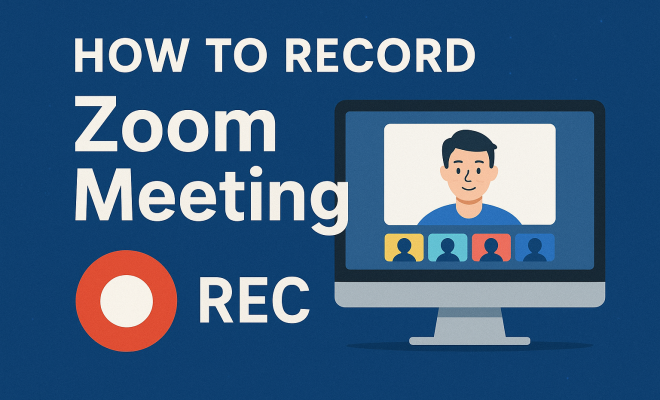
In today’s digital landscape, remote meetings have become the norm. With Zoom being one of the leading platforms for virtual communication, knowing how to record Zoom meetings can prove invaluable. Whether you’re conducting a team briefing, a lecture, or a simple catch-up, having a recorded session can help you reference crucial points later or share them with those who couldn’t attend. In this comprehensive guide, we’ll explore everything you need to know about recording Zoom meetings, from the basics to advanced tips and legal considerations.
1. Understanding Zoom Meeting Recording Options
Zoom offers two primary methods for recording meetings: cloud recording and local recording. Understanding the differences between these two options is essential to choose the right method for your needs.
Cloud Recording is provided for users with a paid account. This option saves your recordings to Zoom’s cloud, allowing you to access them from any device. You can also share recordings easily with others by sending a link. This method is particularly useful for teams working remotely, as it allows everyone to access the meeting content without file transfer hassles.
On the other hand, Local Recording is available to all Zoom users, regardless of their account type. This method saves the recording directly on your device. While this might seem straightforward, local recordings can take up considerable space on your hard drive, especially if you frequently hold long meetings.
2. Preparing to Record Your Meeting
Before you start your Zoom meeting, it’s crucial to ensure everything is set up for a smooth recording. First, check your recording settings by navigating to the settings option in your Zoom account. Here, you can choose whether to record a layout that includes speaker view, gallery view, or both. This choice will significantly impact how your recording appears to viewers later.
Additionally, consider notifying all participants that the meeting will be recorded. Not only is this a best practice, but it’s also often a legal requirement, depending on your locale. Transparency helps to build trust and ensures that everyone is comfortable with the recording.
3. How to Start Recording a Zoom Meeting
Recording a Zoom meeting is straightforward. If you are the host or have been granted permission, here’s how to get started:
- Launch Zoom and start your meeting.
- Look for the Record button on the toolbar, typically located at the bottom of the Zoom window.
- If you’re using local recording, you will see an option to record on your computer. For cloud recording, it will prompt you to record to the cloud.
- Once selected, the recording will begin, and a small recording indicator will appear in the upper-left corner of your Zoom window.
Remember to stop the recording when the meeting is over by clicking the Stop Recording button. For local recordings, the file will be saved automatically to your device once the meeting ends. For cloud recordings, Zoom will process it and send you an email notification once it’s ready to view.
4. Finding and Accessing Your Recordings
After recording your Zoom meeting, you’ll want to know how to access it. For local recordings, the file is saved in a designated folder on your computer. By default, this folder is usually located in the Zoom folder under your documents. However, you can always check your settings to see or change the file destination.
For those who opted for cloud recording, accessing your files is even simpler. Log in to your Zoom account on the website, navigate to the Recordings section, and you’ll see a list of all your recorded meetings. Here, you can review, download, or share your recordings as needed.
5. Editing Your Zoom Recordings
Once you have your recording, you may find that you want to make some edits before sharing it with others. While Zoom does not offer built-in editing tools, there are several third-party video editing software options available. Programs like Adobe Premiere Pro, Final Cut Pro, or even simpler tools like iMovie or Windows Movie Maker can help you trim unwanted sections, add captions, or insert other media. (See: Zoom Video Communications overview.)
Edit carefully to maintain the integrity of the meeting content. Remove any long pauses, filler words, or irrelevant discussions to make your recording more engaging for viewers. Additionally, consider adding a title screen or transitions if you’re sharing the video publicly or within a professional setting.
6. Legal Considerations for Recording
Recording meetings, especially those involving multiple participants, comes with legal and ethical considerations. In many jurisdictions, it is mandatory to inform participants that they are being recorded, and failure to do so may lead to legal repercussions.
Familiarize yourself with the laws regarding recording conversations in your area. In the U.S., the laws vary by state; some require consent from only one party, while others necessitate consent from all participants. Always err on the side of caution and disclose that the meeting is being recorded to avoid any potential issues.
7. Best Practices for Effective Recording
To maximize the benefits of your recorded Zoom meetings, follow these best practices:
- Inform Participants: Always let attendees know that the meeting is being recorded.
- Choose the Right Environment: Conduct meetings in a quiet space with minimal background noise to improve audio quality.
- Test Your Equipment: Before your meeting starts, check your microphone, camera, and internet connection to avoid technical issues.
- Use Visuals: Incorporate slides, screen shares, and other visual aids to enhance the recording’s value.
- Be Concise: Encourage speakers to stay on topic and be concise to make editing easier and keep viewers engaged.
8. Sharing Your Recorded Meetings
Once your recording is edited and polished, it’s time to share it with others. If you used cloud recording, sharing is as easy as sending a link. You can adjust the settings to control who has access to the recording. If you used local recording, you might need to upload the video to a platform like Google Drive, Dropbox, or YouTube and share the link.
When sharing, consider providing a short summary of the meeting and highlight key takeaways. This can help viewers quickly decide whether to watch the full recording or focus on specific parts. Using timestamps can also enhance the viewing experience, directing them to important moments in the meeting.
9. Current Relevance and Future of Zoom Recordings
As remote work and digital communication become a permanent part of our professional landscape, the ability to record Zoom meetings will continue to hold significance. Organizations are increasingly relying on recorded meetings for training, documentation, and knowledge sharing. In addition, as technology advances, we can expect enhancements in recording features, such as improved automatic transcription and more advanced editing tools within the Zoom platform.
In conclusion, mastering the art of recording Zoom meetings not only helps streamline communication but also provides valuable resources for review and training. As you implement these strategies, you’ll find that recording meetings can significantly enhance productivity and collaboration within your team. With the right practices in place, you can ensure that your recorded meetings serve as effective tools that benefit everyone involved.
10. Advanced Tips for Recording Zoom Meetings
For those looking to elevate their Zoom recording experience beyond the basics, here are some advanced tips to consider:
- Use a Dedicated Microphone: While the built-in microphone of your computer may suffice, investing in an external microphone can significantly enhance audio quality. This is especially important for larger meetings where multiple participants may be speaking.
- Record in HD: Enable HD video recordings in your settings for better quality. This is particularly useful if you plan to share the recording with a wider audience or use it for professional purposes.
- Utilize Zoom’s Webinar Feature: If you frequently host large meetings or presentations, consider using Zoom’s webinar feature, which allows for better control over participants and a more polished recording.
- Explore Third-party Integrations: There are various apps and tools that integrate with Zoom to enhance the recording experience. For instance, you can use Otter.ai for real-time transcription, which can be incredibly useful for creating meeting notes.
- Set a Clear Agenda: Having a structured agenda not only helps keep the meeting on track but also makes it easier for viewers to follow along when they watch the recording later.
11. Common Issues and Troubleshooting
Even the most experienced Zoom users encounter issues when recording meetings. Here are some common problems and solutions:
- Recording Not Starting: Double-check that you have the necessary permissions to record. If you’re a participant and not the host, you will need the host to grant you permission.
- Audio Issues: If participants report that they can’t hear the audio, ensure that your microphone is properly set up and not muted. You can also check your audio settings in Zoom to confirm the correct microphone is selected.
- File Size Concerns: Long meetings can lead to large file sizes, especially with local recordings. Consider recording in segments or using the cloud option, which handles storage for you.
- Video Not Syncing with Audio: This can be a frustrating issue. If this occurs, try stopping and restarting the recording, or check your internet connection for stability.
12. Frequently Asked Questions
Here are some common questions about recording Zoom meetings:
Q1: Can I record a Zoom meeting without being the host?
A1: Yes, you can record a Zoom meeting as a participant if the host grants you recording permission. Always check with the host beforehand. (See: CDC guidelines on virtual meetings.)
Q2: How long does it take for a cloud recording to be processed?
A2: Processing times can vary based on the length of the recording and Zoom’s server load. Typically, it can take anywhere from a few minutes to several hours.
Q3: Is there a maximum time limit for recordings?
A3: Cloud recordings for free accounts are limited to 40 minutes per meeting, while paid accounts have no time limit. Local recordings depend on the storage capacity of your device.
Q4: Can I share recordings with people who don’t have a Zoom account?
A4: Yes, you can share a link to the cloud recording with anyone, regardless of whether they have a Zoom account. Just ensure your sharing settings allow public access.
Q5: How can I improve the quality of my recording?
A5: To improve recording quality, ensure you have a stable internet connection, use good audio equipment, and choose a quiet environment free from distractions.
13. Case Studies: Successful Use of Zoom Recordings
To further illustrate the value of recording Zoom meetings, let’s look at a few case studies from various sectors:
Case Study 1: Corporate Training
A multinational company implemented Zoom recordings for their onboarding process. New hires participated in recorded training sessions, which they could access anytime. This not only saved time for trainers but also allowed new employees to learn at their own pace, resulting in a 30% faster onboarding process.
Case Study 2: Educational Institutions
A university utilized Zoom recordings for lectures during the pandemic. Professors recorded their classes, enabling students to revisit complex topics and review materials before exams. As a result, student performance improved, with a noticeable increase in average grades across several subjects.
Case Study 3: Remote Teams
A tech startup with a fully remote team began recording weekly sync meetings. The recordings served as a reference for team members who couldn’t attend or needed to catch up. The practice led to better alignment on projects and improved collaboration, as team members could easily review discussions and decisions made during meetings.
14. Final Thoughts: The Importance of Adaptability
As we move forward in an increasingly digital world, being adept at tools like Zoom and understanding how to record Zoom meetings effectively is essential. Adaptability in communication methods will contribute to your success, whether in a corporate environment, educational setting, or casual catch-up. The ability to document, share, and reflect on conversations will not only aid in personal growth but also foster collaboration and innovation within teams. Embrace these recording practices to enhance your virtual interactions and empower your communication efforts moving forward.
15. Enhancing Engagement Through Recorded Meetings
Recorded Zoom meetings can serve as a powerful tool for enhancing engagement. Consider using these recordings as part of a broader strategy to keep participants involved and informed: (See: New York Times on Zoom security.)
- Follow-Up Discussions: After sharing the recording, host follow-up discussions or Q&A sessions to address any questions or uncertainties that arose during the meeting.
- Interactive Quizzes: If the meeting covered educational material, consider creating quizzes or activities based on the recording to reinforce learning and retention.
- Feedback Collection: Solicit feedback from participants about the meeting content and format. This can help you adjust future meetings for better engagement.
Engaging participants after the meeting can increase the value of the recorded content and ensure that information is not only heard but understood and applied.
16. Statistics on Video Consumption
Understanding the importance of recorded meetings can be reinforced by examining statistics surrounding video consumption. According to recent studies:
- 85% of internet users in the U.S. watch online video content monthly.
- Video content is expected to account for 82% of all consumer internet traffic by 2022.
- Viewers retain 95% of a message when they watch it in a video compared to 10% when reading it in text.
These statistics highlight the effectiveness of video as a communication tool, emphasizing the value of recorded Zoom meetings in facilitating better understanding and retention of information.
17. Creative Ways to Use Recorded Meetings
Recorded meetings can be repurposed in various creative ways to maximize their value:
- Content for Blogs: Extract key insights or quotes from the meeting to create blog posts that summarize the discussion.
- Social Media Highlights: Share snippets or highlights from the recordings on social media platforms to engage a broader audience.
- Training Modules: Use recordings as part of training and onboarding processes for new employees or team members.
- Newsletters: Include links to recorded meetings in company newsletters to keep all employees informed about important discussions.
These approaches can help keep your content dynamic and ensure that recorded meetings reach the widest possible audience.
18. Looking Ahead: Future Features for Zoom Recording
As technology continues to evolve, we can expect future updates to Zoom that enhance the recording experience. Potential features could include:
- AI-Powered Summaries: Automatic generation of meeting summaries and action items directly from the recording.
- Enhanced Analytics: Insights into viewer engagement levels and how often specific segments of a recording are watched.
- Multi-Language Support: Real-time translation and subtitles for global teams, making recorded content accessible to wider audiences.
- Improved Cloud Storage Solutions: More flexible storage options for users, allowing them to manage recordings more efficiently.
Keeping an eye on these developments can help organizations better prepare for the future of remote meetings and enhance their recording practices.
“`
Trending Now
Frequently Asked Questions
How do I record a Zoom meeting?
To record a Zoom meeting, start by choosing between cloud recording and local recording. If you have a paid account, you can use cloud recording, which saves the meeting to Zoom’s cloud. For all users, local recording saves the meeting directly to your device. Ensure your recording settings are configured before starting the meeting.
Can I record Zoom meetings for free?
Yes, all Zoom users can record meetings for free using local recording. This method saves the meeting directly to your device, but be mindful of the storage space it may consume, especially for longer meetings.
What is the difference between cloud recording and local recording in Zoom?
Cloud recording is available for paid accounts and saves recordings to Zoom's cloud, allowing access from any device. Local recording, available to all users, saves recordings directly to your device but can take up significant storage space.
Do I need to notify participants before recording a Zoom meeting?
Yes, it is essential to inform all participants that the meeting is being recorded. This is not only a best practice but may also be legally required in some jurisdictions.
How can I access my recorded Zoom meetings?
Accessing your recorded Zoom meetings depends on the recording method used. For cloud recordings, log in to your Zoom account and navigate to the recordings section. For local recordings, check the designated folder on your device where recordings are saved.
What did we miss? Let us know in the comments and join the conversation.