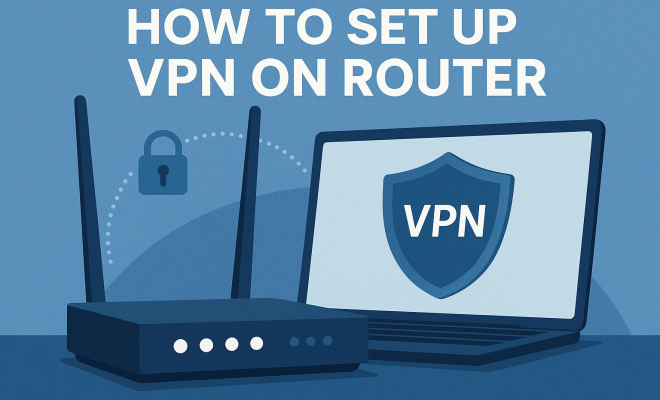
Boost Your Security: Set Up a VPN on Your Router Today
“`html
In a world where online privacy is increasingly endangered, setting up a VPN on your router can be your first line of defense against prying eyes. A Virtual Private Network (VPN) encrypts your internet traffic, providing a secure connection that protects your data from hackers, ISPs, and other potential threats. If you’re interested in maximizing your security and ensuring every device on your network is protected, this guide will walk you through the essential steps to set up a VPN on your router.
1. Understanding the Benefits
Before jumping into the technical details, let’s explore why setting up a VPN on your router is beneficial. First, it offers network-wide protection. When configured, every device connected to your router is automatically routed through the VPN, protecting your smartphones, tablets, smart TVs, and any IoT devices that might otherwise be vulnerable.
Furthermore, a VPN can help you bypass geo-restrictions. If you want to access region-locked content like streaming services or websites, using a VPN can give you the IP address of a different country, allowing you to access the content as if you were there. This is particularly appealing for travelers or expatriates wanting access to home services.
Additionally, using a VPN helps to maintain your anonymity online. By masking your IP address, it becomes significantly more challenging for websites and advertisers to track your online behavior, providing you with greater privacy during your browsing sessions. This is especially valuable in an era where data privacy is a growing concern.
2. Choosing the Right VPN Service
The first step in how to set up a VPN on your router is selecting a suitable VPN provider. There are numerous options available, which can make choosing daunting. Look for a service that offers strong encryption protocols, a no-logs policy, and good customer support. Recommended providers include ExpressVPN, NordVPN, and CyberGhost, which offer router-compatible apps.
It’s also vital to check the provider’s compatibility with routers. Some VPN services are specifically designed for routers, while others may require more technical setup. A quick visit to the VPN’s website will typically provide information on compatible router models.
Another factor to consider is the server network and performance. A VPN provider with a wide range of server locations will allow you to access content from multiple regions and generally ensure better performance with options for both speed and reliability. Quality of service is crucial, especially during peak usage times.
3. Checking Your Router’s Compatibility
Not all routers can support VPN software directly. To set up a VPN on your router, you need to determine whether your existing hardware can handle it. Routers that run on DD-WRT, Tomato, or OpenWRT firmware are typically good candidates. If your router isn’t compatible, you might consider purchasing a new one that is. Popular brands like Asus, Linksys, and TP-Link offer models that support VPN connections.
To check your router’s compatibility, look for specifications on your manufacturer’s website. If your router supports VPN server settings, you’re well on your way to enhanced security.
Checking user reviews and forums can also provide insights into how well specific routers perform with various VPN services. Sometimes, even if a router is technically compatible, users report issues that can help you make a more informed decision.
4. Backing Up Your Current Settings
Before making any changes, it’s crucial to back up your current router settings. This ensures that if anything goes wrong during the VPN setup process, you can easily restore your original configuration. Most routers allow you to export settings through their admin interface. Be sure to take note of your current configurations, including any port forwarding, firewall settings, and other customizations.
Your router’s admin panel is usually accessible via a web browser by typing its local IP address (commonly 192.168.1.1 or 192.168.0.1). After logging in, look for the settings backup option, and follow the prompts to save your settings.
It’s also good practice to document any settings changes you make during the VPN setup process. This documentation can save you a lot of time and headaches if you need to troubleshoot any issues later on.
5. Flashing the Router (if necessary)
If your router’s firmware doesn’t support VPN directly, you may need to flash it with third-party firmware like DD-WRT or Tomato. This step is not for the faint of heart, as flashing can void your warranty and, if done incorrectly, can render your router inoperable. (See: CDC on VPN and online privacy.)
To flash your router, find the appropriate firmware file from the DD-WRT or Tomato website, and follow their installation guides carefully. Each router is different, so ensure you’re following the instructions specific to your model. Once completed, you should have more capabilities, including VPN support.
Be sure to check community forums or online tutorials specific to your router model for the best practices to avoid common pitfalls during the flashing process. Engaging with others who have successfully flashed the same router can provide valuable tips and insights.
6. Configuring VPN Settings
Now comes the critical part: configuring the VPN settings on your router. Access your router’s admin panel again and navigate to the VPN settings section. This is typically found under the ‘Services’ tab. Here, you’ll need to input the information provided by your VPN service, such as the server address, your VPN credentials, and the required encryption settings.
Most VPN providers will offer a detailed setup guide tailored for specific router models. It’s advisable to follow these instructions closely, as the parameters needed can vary significantly between different VPN services. After entering the required information, save your settings. You may need to reboot your router for the changes to take effect.
Double-check that you’ve selected the correct VPN protocol as well—OpenVPN is often recommended for its balance between security and speed. If available, experiment with different protocols to find the one that works best for your specific needs and internet connection.
7. Testing Your VPN Connection
Once your VPN is set up on the router, it’s crucial to verify that the connection is functioning correctly. There are several ways to test this. First, check your IP address using an online service like WhatIsMyIP.com. If your VPN is working, the IP address should reflect the location of the VPN server rather than your actual location.
Additionally, test the connection on various devices. Use a smartphone, tablet, or smart TV to ensure they are routing traffic through the VPN. If you encounter issues, revisit the router settings to ensure all information is entered correctly and that the VPN is indeed active.
For more thorough testing, you can also use tools like IPLeak.net to check for any potential leaks, ensuring that your real IP address is not exposed while connected to the VPN.
8. Maintaining Your VPN Connection
Setting up a VPN on your router isn’t a one-time task. To keep your connection secure and efficient, regular maintenance is crucial. Regularly update your router firmware to protect against vulnerabilities. Many manufacturers release updates that improve performance and security features.
Moreover, keep an eye on your VPN service status. Periodically check for any updates from your VPN provider regarding server locations, configurations, or changes in the service that may impact your setup. Ensuring your VPN connection is consistently secure will help you maintain privacy while browsing the internet.
Consider reviewing your VPN provider’s terms of service and privacy policy regularly to stay informed about any changes that may affect how your data is handled. Frequent checks can help ensure that your service aligns with your privacy expectations.
9. Advanced Configuration Options
Once you have successfully set up your VPN on your router, you might want to explore advanced settings to enhance your network’s performance and security further. Most VPNs provide options that can help you tailor your experience according to your needs.
Split Tunneling
One useful feature is split tunneling, which allows you to choose which devices or applications use the VPN while others connect directly to the internet. This is handy if you want to access local content or services that might be blocked by the VPN. Check your VPN provider to see if they support this feature, as it can save bandwidth and improve speeds for non-sensitive tasks.
For example, if you want to stream content from a local service while still ensuring your personal information is protected, you can route only your browser traffic through the VPN while allowing your gaming console to connect normally.
Kill Switch
A kill switch is another important feature that immediately cuts off internet access if the VPN connection drops unexpectedly. This ensures that your data doesn’t accidentally leak if the secure connection fails. Make sure your VPN settings include this option and that it’s enabled for maximum protection.
Some VPN providers offer more advanced kill switch options that allow you to customize which applications are affected by the kill switch. This can provide you with finer control over your security settings in case of any disruptions. (See: New York Times on VPN benefits.)
10. Common Issues and Troubleshooting
Despite careful setup, you may face some challenges when using a VPN on your router. Here are some common issues and how to troubleshoot them:
Slow Internet Speeds
If you notice a decrease in your internet speed, it could be due to the distance from the server or the server load. Try switching to a different server location that is closer to you or less congested. Some VPNs provide a server ping test to help determine the best server options.
Additionally, consider adjusting your router’s Quality of Service (QoS) settings. QoS allows you to prioritize certain types of traffic, which can help maintain speed for activities such as streaming or gaming while using the VPN.
Connection Drops
Frequent disconnections can be frustrating. Check your router settings to ensure that the VPN is configured correctly. A reboot of the router can also help resolve temporary glitches. If problems persist, consider contacting your VPN provider’s support team for assistance.
In some cases, adjusting the encryption level may help improve stability. Some users find that lower encryption levels provide a more stable connection without compromising security too much for everyday use.
Inability to Access Certain Websites
Sometimes, certain websites or services may block VPN traffic. If you’re having trouble accessing a specific site, try switching servers or using different VPN protocols offered by your provider. Check if your VPN allows you to toggle between different protocols like OpenVPN or IKEv2, which might help bypass these restrictions.
Using a dedicated IP address, if your VPN provider offers it, can also help prevent blocks on services that restrict access based on shared IP addresses. This can be particularly useful for streaming services that are strict about VPN usage.
11. Legal Considerations
While using a VPN is legal in many parts of the world, it’s important to be aware of the legalities in your country. Some regions have regulations surrounding the use of VPNs, so it’s critical to do your due diligence. For example, using a VPN in countries like China or Russia can lead to severe penalties if not used correctly. Always stay informed about the laws in your area to avoid legal issues.
In addition to national laws, pay attention to the terms of service of the websites and services you access while using a VPN. Some platforms may have policies against VPN usage, and violating these terms can lead to account suspensions or bans.
12. FAQs about Setting Up a VPN on Your Router
Q1: Can I use a free VPN service for my router?
While free VPN services can be tempting, they often come with limitations like data caps, slower speeds, and less secure connections. Free services may also log your data or sell it to third parties. It’s advisable to invest in a reputable paid VPN service for better security and reliability.
Q2: Will setting up a VPN on my router affect my internet speed?
Using a VPN can sometimes slow down your internet speed due to the encryption process and the distance to the VPN server. However, many quality VPN services have optimized servers that can minimize this impact. Testing your speed with various servers can help you find the optimal balance.
Additionally, ensure that your internet connection is operating at its maximum potential before VPN use. Sometimes, issues unrelated to the VPN can cause slow speeds, such as ISP throttling or network congestion.
Q3: How many devices can I connect with a VPN on my router?
Once your VPN is set up on your router, every device connected to that network can benefit from the VPN. This means you can protect multiple devices simultaneously without needing to install the VPN app on each one. However, check your VPN provider’s policy on simultaneous connections for any limits. (See: WHO on internet safety guidelines.)
Some providers offer multiple simultaneous connections, allowing you to secure additional devices independently. Understanding these limits can help you maximize your VPN usage across all your devices effectively.
Q4: Is it possible to use a VPN while gaming on my console?
Yes! Setting up a VPN on your router allows you to secure your gaming console without needing to install VPN software directly onto the device. Just be mindful of potential lag or speed reductions while gaming, and choose a VPN server that offers optimal gaming speeds.
Some VPN providers even offer gaming-optimized servers designed to reduce latency, which can significantly improve the gaming experience while still providing the benefits of a secure connection.
Q5: What should I do if my VPN stops working on my router?
If your VPN stops working, first check your internet connection. Ensure your VPN credentials are correct in the router settings. Restart your router and try reconnecting to the VPN. If the problem persists, consult your VPN provider for troubleshooting advice or check their service status page.
Sometimes, clearing the DNS cache on your devices can help resolve connectivity issues. This step can remove any stored IP addresses that might be conflicting with the VPN connection.
13. Potential Future Trends in VPN Technology
As technology continues to evolve, we can expect several trends in the VPN industry that may enhance the user experience and security.
One notable trend is the increasing integration of AI in VPN services. AI can optimize server selection based on user behavior, potentially leading to better speeds and more reliable connections. This could also help in predicting and mitigating connectivity issues before they become problematic.
Another trend is the growth of more transparent data privacy regulations. As users become more aware of their online privacy rights, VPN providers will need to adapt by providing clearer information about their data handling practices. This could lead to more stringent requirements for no-logs policies and data encryption standards across the industry.
The rise of 5G technology may also impact VPN usage. With faster internet speeds and lower latency, users may start demanding better performance from their VPN services, pushing providers to innovate and improve their technologies to meet these expectations.
14. Conclusion
Setting up a VPN on your router can significantly enhance your online security and privacy. By following these straightforward steps, you’ll ensure that all devices in your home are protected, making your digital life more secure in an age where privacy is paramount. Whether for accessing international content or shielding your personal information, a VPN on your router is a wise investment in your online safety.
“`
Trending Now
Frequently Asked Questions
What are the benefits of setting up a VPN on my router?
Setting up a VPN on your router offers network-wide protection, ensuring every device connected is secure. It allows you to bypass geo-restrictions for accessing content and helps maintain your online anonymity by masking your IP address, enhancing your privacy while browsing.
How do I choose the right VPN service for my router?
To choose the right VPN service for your router, look for providers that offer strong encryption protocols, a no-logs policy, and reliable customer support. Popular options include ExpressVPN, NordVPN, and CyberGhost, known for their router compatibility and performance.
Can I use a VPN on multiple devices connected to my router?
Yes, setting up a VPN on your router protects all devices connected to it. This includes smartphones, tablets, smart TVs, and IoT devices, ensuring comprehensive security for your entire home network.
Does setting up a VPN on my router slow down my internet speed?
While using a VPN can cause some reduction in internet speed due to encryption processes, selecting a reputable VPN service with fast servers can help minimize this impact. It's important to choose a provider that optimizes for speed while maintaining security.
Is it difficult to set up a VPN on my router?
Setting up a VPN on your router can be technical, but many VPN providers offer step-by-step guides and customer support to assist you. Following the instructions carefully will help streamline the process, making it manageable even for those with limited tech experience.
What did we miss? Let us know in the comments and join the conversation.