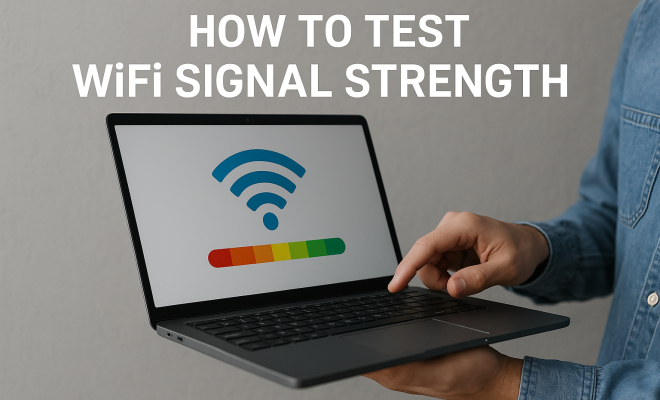
How to test WiFi signal strength
“`html
In today’s digital age, a strong and stable WiFi connection is crucial for everything from remote work to online gaming. But how can you determine if your WiFi signal is strong enough to meet your needs? Knowing how to test WiFi signal strength can make all the difference when it comes to optimizing your internet experience. Below, we outline ten effective methods to accurately assess your WiFi signal strength, along with insights on why it matters and what you can do to enhance your connections.
1. Understanding WiFi Signal Strength
Before we dive into the methods for testing WiFi signal strength, it’s essential to understand what WiFi signal strength really means. Signal strength is a measure of how well your device can pick up the WiFi signal from your router. It’s typically measured in decibels (dBm), with values ranging from -30 dBm (excellent) to -90 dBm (poor).
A strong WiFi signal ensures faster speeds, less buffering, and improved overall performance. In contrast, a weak signal can result in dropped connections and frustratingly slow internet. Knowing how to test WiFi signal strength will help you identify areas in your home or office where the signal may be weak and find solutions accordingly.
2. Using Built-in Device Tools
Most modern devices come with built-in tools to help you test WiFi signal strength. On Windows, for instance, you can right-click the network icon in the taskbar and select “Network & Internet settings.” From there, you can access the network status to view the signal strength indicated by bars. On macOS, you can hold down the Option key and click on the WiFi icon in the menu bar to see the signal strength in dBm.
Mobile devices such as smartphones and tablets also display signal strength in the status bar. The number of bars shown can give a quick visual indication of how strong your WiFi signal is. However, for more precise readings, consider using third-party apps or tools that provide detailed metrics.
3. WiFi Analyzer Apps
WiFi Analyzer apps are powerful tools that can help you test WiFi signal strength with more granularity. Available on both Android and iOS platforms, these apps provide detailed visualizations of your network’s performance. They often display information like signal strength in dBm, channel interference, and the number of devices connected.
Some popular WiFi Analyzer apps include NetSpot, WiFi Analyzer (open-source), and inSSIDer. These tools can help you identify weak spots in your home or office, suggest optimal placement for your router, and even recommend less crowded channels to enhance your connection.
4. Command-Line Tools
If you’re comfortable with command-line interfaces, you can use built-in tools to test WiFi signal strength. On Windows, you can use the Command Prompt to input the command netsh wlan show interfaces. This command provides detailed information about your current WiFi connection, including the signal strength in dBm.
For macOS users, the Terminal application allows you to run the command airport -s which lists available networks and their signal strengths. These methods give you a more technical view of your connection, which can be beneficial if you’re troubleshooting connectivity issues.
5. Router’s Web Interface
Many routers come equipped with a web-based interface that allows users to view various metrics about their network, including signal strength. By logging into your router’s web interface, usually accessible through your browser using the router’s IP address, you can find detailed statistics about connected devices and signal quality.
Check the signal strength of connected devices and see how your router is performing overall. This can help you identify if the router itself is the source of connectivity issues, or if the problem lies with specific devices in your home. (See: WiFi and health considerations.)
6. Physical Measurement Tools
For the serious tech enthusiast or network administrator, using physical measurement tools like WiFi signal strength meters can provide precise data on your network. These devices can measure the strength and quality of the signal at various points in your environment, allowing for accurate assessments and adjustments.
While these tools can be more expensive than software-based solutions, they are invaluable for detailed network planning, especially in commercial environments where optimal connectivity is crucial.
7. Signal Strength Indicators
In addition to testing the signal strength, it’s helpful to understand how various factors can affect it. For instance, walls, floors, and other obstacles can interfere with WiFi signals. Additionally, electronic devices, such as microwaves and cordless phones, can also cause interference.
By using a method to test WiFi signal strength, you can identify these interference points and adjust your router’s placement or settings accordingly, ensuring a stronger connection throughout your space.
8. Testing at Different Locations
One effective strategy for testing WiFi signal strength is to move around your location and check for variations in signal quality. Start near your router and gradually move away, checking the signal strength at regular intervals. This will help you identify areas with weak signals and plan router placement or consider range extenders.
For instance, if your signal strength drops significantly as you approach a certain room or area, it may be worth considering relocating your router or investing in a WiFi extender or mesh network system to eliminate dead zones.
9. Understanding Signal Strength Readings
When you test WiFi signal strength, understanding how to interpret the readings is crucial. Signal strengths are often measured in dBm, where higher values (closer to 0) indicate a stronger signal. A signal above -67 dBm is generally considered good for most activities like streaming and gaming, while readings below -80 dBm often result in unreliable connectivity.
Keep an eye out for fluctuations in signal strength, as this can indicate interference or other issues that may need addressing. Regular testing can help you maintain optimal WiFi performance.
10. Taking Action Based on Results
After you’ve taken the time to test WiFi signal strength, it’s essential to take action based on your findings. If you discover weak spots, consider adjusting your router’s position, upgrading your router, or investing in additional equipment such as range extenders or a mesh network.
Regularly testing your WiFi signal strength can also help you stay ahead of potential issues, ensuring that your network remains robust and reliable over time. The goal is to create a seamless internet experience that meets your needs and keeps you connected.
11. Common Factors Affecting WiFi Signal Strength
Understanding the elements that can influence WiFi signal strength is vital for troubleshooting and enhancing your network performance. Here are some common factors:
- Distance from the Router: The further away your device is from the router, the weaker the signal. Walls, floors, and other obstacles can further diminish the signal strength.
- Interference from Other Electronics: Other wireless devices in your home, such as baby monitors, microwave ovens, and cordless phones, can interfere with WiFi signals, particularly if they operate on the same frequency (2.4GHz).
- Network Congestion: If multiple devices are connected to the same network, they can compete for bandwidth, leading to slower speeds and weaker signals.
- Router Placement: The physical location of your router can significantly impact signal strength. Ideally, it should be placed in a central location, elevated, and away from walls or obstructions.
- Router Quality: Older routers may not support newer standards, such as 802.11ac or 802.11ax (Wi-Fi 6), which provide faster speeds and better signal management.
12. Frequency Bands and Their Impact on Signal Strength
WiFi routers typically operate on two frequency bands: 2.4 GHz and 5 GHz. Understanding these bands can help you make informed decisions about your network setup. (See: How to improve your WiFi speed.)
- 2.4 GHz Band: This band offers a broader coverage area and better penetration through walls, making it ideal for devices that are further from the router. However, it is more prone to interference and generally provides slower speeds.
- 5 GHz Band: While this band offers faster speeds and is less congested, its range is shorter, and it has a harder time penetrating walls and obstacles. It’s best suited for high-bandwidth activities like video streaming and gaming when you’re closer to the router.
Consider using dual-band routers that allow you to utilize both frequency bands based on your needs. This can help maximize your WiFi signal strength and overall network performance.
13. Mesh Networks: A Solution for Weak Spots
If you’ve tested your WiFi signal strength and discovered significant dead zones in your home or office, a mesh network might be the solution you need. Mesh networks consist of multiple nodes that work together to blanket your entire space with WiFi coverage. This setup minimizes dead spots and ensures a consistent signal throughout your area.
Some popular mesh network systems include:
- Google Nest WiFi: Known for its user-friendly setup and integration with smart home devices, it offers robust performance across larger spaces.
- Amazon Eero: With easy installation and an intuitive app, Eero provides excellent performance and coverage.
- Netgear Orbi: This system is designed for larger homes and offers high-speed connections across extensive areas.
Investing in a mesh network can be especially beneficial for homes with multiple floors or thick walls that obstruct signals. By strategically placing the nodes, you can ensure a strong WiFi signal in every corner of your home.
14. Regular Maintenance for Optimal Performance
Just like any other technology, routers and networks require regular maintenance to perform optimally. Here are some tips to keep your WiFi running smoothly:
- Firmware Updates: Keep your router’s firmware updated to ensure you have the latest features and security fixes. Check your router’s manufacturer website for updates.
- Periodic Reboots: Restarting your router can help refresh your connection and resolve minor issues. Consider doing this every few months or if you notice a drop in performance.
- Device Management: Regularly check the devices connected to your network and remove any that are no longer in use. This can free up bandwidth and improve signal strength.
- Network Security: Ensuring your network is secure will prevent unauthorized access, which can slow down your signal and performance. Use strong passwords and consider enabling WPA3 encryption if available.
15. Frequently Asked Questions (FAQ)
What is a good WiFi signal strength?
A good WiFi signal strength is typically above -67 dBm. This level supports activities like streaming, gaming, and video conferencing without issues. Anything below -80 dBm is often considered poor and may lead to connectivity problems.
How can I boost my WiFi signal strength?
You can boost your WiFi signal strength by repositioning your router to a more central location, investing in a better router or a mesh network, using range extenders, or reducing interference from other devices.
How do I know if my WiFi signal is too weak?
If you frequently experience buffering during streaming, dropped connections during video calls, or slow internet speeds while browsing, your WiFi signal may be too weak. Testing the signal strength can help confirm this.
What apps can I use to test WiFi signal strength?
There are several apps available, such as NetSpot, WiFi Analyzer, and inSSIDer, that provide detailed insights into your WiFi signal strength and overall network performance.
Why does my WiFi signal strength fluctuate?
WiFi signal strength can fluctuate due to interference from other electronic devices, physical obstructions like walls, network congestion, or issues with your router. Regular testing can help identify and mitigate these issues.
Is it worth upgrading my router for better signal strength?
If you have an older router, especially one that doesn’t support the latest WiFi standards, upgrading can significantly improve your signal strength and overall network performance. A more advanced router can handle more devices and provide faster speeds.
16. Real-World Examples of WiFi Signal Strength Testing
To illustrate how testing WiFi signal strength can directly impact your experience, consider these real-world scenarios:
Imagine you’re working from home and need to join a video conference. You connect your laptop to the WiFi, but you’re experiencing lag and disconnections. By testing the signal strength with a WiFi Analyzer app, you discover that your signal is hovering around -85 dBm in your home office, which is insufficient for streaming video. After relocating your router and repositioning it to eliminate interference, your signal quality improves to -55 dBm, ensuring smooth video calls.
Another case might involve an avid gamer who suffers from latency during online gaming sessions. Upon testing the WiFi strength using built-in device tools, they find weak signal readings in the game room. By switching to the 5 GHz band and utilizing a WiFi extender, they experience a significant decrease in lag, enhancing their gaming performance and enjoyment.
17. Statistics on WiFi Usage and Connectivity
Understanding the landscape of WiFi usage can provide valuable insights into why WiFi signal strength testing is so important. Recent studies reveal that:
- Approximately 82% of American households have a WiFi connection, highlighting the critical need for reliable internet access.
- According to the FCC, about 50% of Americans report experiencing issues with their internet connection, often attributed to weak WiFi signals.
- A survey conducted by Pew Research found that 54% of respondents believe internet connectivity is as important as other utilities like water and electricity, further emphasizing the need for optimal signal strength.
18. Expert Perspectives on WiFi Signal Strength
Experts in networking stress the importance of regularly testing WiFi signal strength as part of standard home network management. According to Dr. Sarah Johnson, a network engineer, “Understanding your WiFi signal strength can empower users to make informed decisions about their internet setup. Regular testing not only helps identify weak spots but also ensures you’re getting the most out of your broadband service.”
Additionally, tech blogger Tom Anderson notes, “With the increase in remote work and online entertainment, having a robust WiFi connection is more important than ever. Testing the signal strength can help users troubleshoot issues before they affect productivity.” These expert opinions reinforce the necessity of being proactive in managing your WiFi network.
As technology continues to evolve and our reliance on internet connectivity grows, knowing how to test WiFi signal strength will remain an invaluable skill. Whether you’re a casual internet user or a tech-savvy professional, these methods can help you maintain a strong and reliable connection.
“`
Trending Now
Frequently Asked Questions
What is the best way to test WiFi signal strength?
The best way to test WiFi signal strength involves using built-in device tools like the network status on Windows or macOS, which display signal strength in dBm. Additionally, third-party apps can provide more detailed metrics for a comprehensive analysis of your WiFi signal.
How do I check my WiFi signal strength on my phone?
To check WiFi signal strength on your phone, simply look at the status bar where WiFi bars are displayed. Most smartphones also have a settings menu that provides more detailed information about the connection quality and strength.
What do WiFi signal strength numbers mean?
WiFi signal strength is measured in decibels (dBm), with values ranging from -30 dBm (excellent) to -90 dBm (poor). A stronger signal translates to faster speeds and better performance, while a weaker signal can lead to dropped connections and slow internet.
Why is it important to test WiFi signal strength?
Testing WiFi signal strength is crucial for optimizing your internet experience. It helps identify weak areas in your home or office, allowing you to make adjustments or enhancements to ensure a strong and stable connection for activities like remote work or online gaming.
Can I improve my WiFi signal strength?
Yes, you can improve your WiFi signal strength by repositioning your router, reducing interference from other devices, using WiFi extenders, or upgrading to a better router. Testing your current signal strength can help pinpoint areas that need improvement.
Agree or disagree? Drop a comment and tell us what you think.