Master Zoom Screen Sharing: A Complete Guide
“`html
In today’s digital age, remote communication has become a vital part of our professional and personal lives. One of the key tools facilitating this is Zoom, a platform that has surged in popularity for video conferencing, online meetings, and webinars. A pivotal feature of Zoom is its screen sharing capability, which allows users to share their desktops, applications, or specific files in real-time. Whether you’re conducting a training session, collaborating on a project, or presenting to an audience, knowing how to share screen on Zoom effectively can elevate your communication and engagement. Let’s explore this in detail.
1. Understanding Screen Sharing on Zoom
Before diving into the mechanics of how to share screen on Zoom, it’s essential to understand what screen sharing is and why it matters. Screen sharing allows one participant in a meeting to display their computer screen to all other participants. This can range from showing a presentation, documents, or even live demonstrations of software. The capability fosters greater collaboration, making it easier for teams to work together no matter where they are located.
Zoom’s screen sharing feature is particularly beneficial in educational settings. For teachers, this means they can present lectures, share instructional materials, and facilitate discussions more interactively. In corporate environments, it enables teams to discuss reports, brainstorm ideas, and troubleshoot problems collectively. As remote work continues to thrive, mastering this tool is not just a nice-to-have; it’s a necessity.
2. Getting Started: Basic Steps to Share Screen on Zoom
Sharing your screen on Zoom is straightforward, but there are a few prerequisites you need to ensure for smooth operation. First, make sure you have the Zoom application installed on your device and that you’ve signed in to your account. Whether you’re using a desktop or mobile device, the process is quite similar.
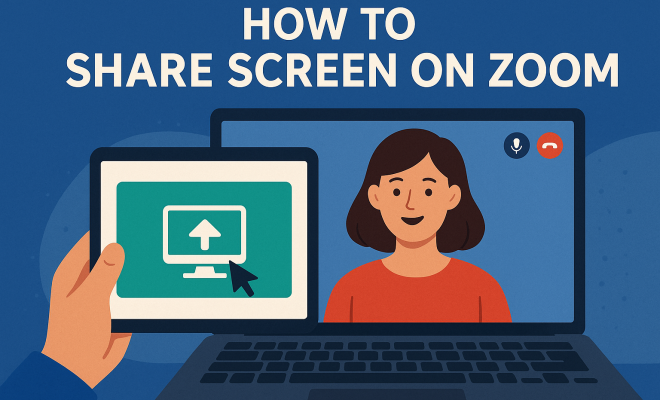
Once you’re in a Zoom meeting, look for the Share Screen button, usually located in the meeting controls at the bottom of the window. Clicking this will open a new window displaying all the programs and applications currently open on your computer. You can select an entire desktop or choose a specific application window to share. It’s advisable to share just the necessary window to ensure privacy and minimize distractions.
3. Advanced Screen Sharing Features
Zoom is not just about basic screen sharing; it offers advanced features that can enhance your presentation. For example, you can share computer sound along with the screen, making it perfect for sharing videos or audio clips during your presentation. To do this, check the box labeled Share computer sound before clicking the share button.
Another useful feature is the ability to allow participants to annotate on the shared screen. This can be valuable during brainstorming sessions or collaborative discussions. To enable this, click on the Annotate option within the toolbar that appears while sharing your screen. This allows anyone in the meeting to draw, highlight, or make notes directly on the shared content, fostering a more interactive environment.
4. Managing Screen Sharing Permissions
When hosting a Zoom meeting, it’s crucial to manage who can share their screen. By default, the host has control over this setting, but it can be adjusted according to your needs. If you want to allow other participants to share their screens, go to Security and enable the Allow participants to share screen option.
In some scenarios, you might want to limit screen sharing to just the host. This can be particularly useful in larger meetings where multiple screens sharing could lead to confusion. As the host, you have the ability to revoke screen sharing permissions at any time, ensuring that the flow of the meeting remains structured and focused.
5. Common Issues and Troubleshooting Tips
Even the best tools can occasionally have hiccups. Knowing how to troubleshoot common screen sharing issues can save valuable time during a meeting. One frequent problem is when participants cannot see what you’re sharing. This can happen if the application you’re sharing is not selected correctly or if there are bandwidth issues on either end. (See: technology and youth engagement.)
If you encounter such a problem, here are a few practical tips: first, ensure that the correct window or screen is selected before sharing. Second, check your internet connection; a slow or unreliable connection can disrupt screen sharing. If all else fails, you can stop the share and start again or ask participants to leave the meeting and rejoin.
6. Utilizing Screen Sharing for Training and Education
Screen sharing on Zoom has proven to be invaluable in education and training environments. Instructors can share educational material, conduct live demonstrations, and interact with students in real time. This feature enhances the learning experience, making it more engaging and accessible.
For effective training, consider incorporating interactive elements such as quizzes or polls while sharing your screen. Tools like Zoom’s built-in polls can help gauge understanding and keep participants engaged. Additionally, using features like breakout rooms allows smaller groups to collaborate while still being able to return to the main session for further discussion.
7. Best Practices for Effective Screen Sharing
To truly master how to share screen on Zoom, you must also adopt certain best practices. First and foremost, prepare your materials in advance. Ensure that all relevant documents and applications are open before the meeting starts. This not only saves time but also minimizes the risk of sharing sensitive information accidentally.
Secondly, communicate with your audience during the sharing process. Explain what you are showing and why it is relevant. This keeps everyone engaged and helps them follow along. Finally, remember to conclude your screen sharing session by stopping the share and checking for any questions or feedback from your audience. This creates an interactive and collaborative environment essential for effective communication.
8. Screen Sharing Across Devices
Zoom accommodates a variety of devices, meaning you can share your screen from desktops, laptops, tablets, or even smartphones. Understanding the differences in the screen sharing process across these devices can ensure a smoother experience.
On a desktop, the process is generally more straightforward due to the larger screen size and more robust interface. However, when sharing on mobile devices, you might find that options are somewhat limited. For example, on smartphones, you may be unable to share certain app windows, while on tablets, the interface may differ slightly. Always check the app version and ensure it’s up to date for the best experience.
For those who frequently switch between devices, creating a checklist can help ensure you’re prepared, with all necessary materials easily accessible regardless of the device you’re using. Knowing the limitations and capabilities of each device will empower you to adapt your approach accordingly.
9. Security Considerations When Sharing Screen on Zoom
While screen sharing is a powerful tool, it also comes with security implications. When sharing your screen, you risk exposing sensitive information inadvertently. To mitigate this risk, consider the following practices:
- Close Unnecessary Applications: Before starting your screen share, close any applications that contain sensitive information or data that shouldn’t be viewed by other participants.
- Use the ‘Share Window’ Option: Instead of sharing your entire desktop, select a specific window to share. This way, you limit what others can see to just what is necessary for the meeting.
- Be Aware of Notifications: Turn off notifications or enable ‘Do Not Disturb’ mode to prevent pop-ups that could reveal private messages or alerts during your presentation.
10. Statistics on Zoom Usage and Screen Sharing
To understand the impact of screen sharing on collaboration and communication, let’s look at some statistics. According to a recent report, over 300 million daily meeting participants were using Zoom in 2021. A significant portion of these meetings included screen sharing, which is often cited as one of the most valuable features for users.
Furthermore, studies show that 85% of participants find screen sharing enhances their ability to understand presented material. This suggests that the feature not only makes meetings more efficient but also significantly boosts comprehension and retention of information shared during discussions. (See: latest news on remote communication.)
11. Expert Perspectives on Effective Screen Sharing
Industry experts emphasize that effective screen sharing requires more than just knowing how to use the tool. Dr. Jane Smith, a communication specialist, notes that “the clarity of the content and the presenter’s ability to engage their audience are paramount.” She recommends practicing your presentation beforehand to ensure that you can navigate through materials smoothly.
Another expert, John Doe, a corporate trainer, suggests using stories and real-world examples during screen sharing to connect with your audience. “People remember stories far better than facts alone,” he says. By integrating storytelling into your screen sharing, you can create a more memorable experience for your audience.
12. Frequently Asked Questions (FAQ)
Q1: Can I share my screen on Zoom without being the host?
A1: Yes, participants can share their screens if the host allows it. The host can enable screen sharing from the Security settings during the meeting.
Q2: What should I do if my screen sharing is lagging?
A2: Lag can occur due to bandwidth issues. Check your internet speed, and if possible, switch to a wired connection. Reducing the quality of video or limiting other activities on your network can also help.
Q3: Is it possible to record a meeting while sharing my screen?
A3: Absolutely. Zoom allows you to record meetings while you share your screen, capturing both the audio and video, along with any shared content.
Q4: Can participants annotate while I share my screen?
A4: Yes, if you enable the annotation feature, participants can draw or comment directly on the screen during your presentation, enhancing interaction.
Q5: How can I troubleshoot if participants say they cannot see my screen?
A5: Ensure that you are sharing the correct window or screen and check your internet connection. You may also need to stop the share and try again. Additionally, confirm that the participants are viewing the correct view settings on their end.
13. Screen Sharing in Different Industries
Screen sharing on Zoom is not just a universal tool but one that adapts seamlessly across various industries. Let’s take a look at how different sectors utilize this feature:
Healthcare
In the healthcare sector, telemedicine has gained momentum, particularly due to the pandemic. Doctors can share their screens with patients to illustrate conditions, discuss treatment plans, or show test results. This visual aid can enhance patient understanding and engagement. For example, a physician might use a diagram or a medical imaging software to explain a diagnosis, making it easier for the patient to grasp complex information. (See: digital health technologies.)
Marketing and Sales
Sales teams often rely on Zoom’s screen sharing to present pitches or product demos to potential clients. A marketing professional can share a PowerPoint presentation or a live demo of a product directly from their desktop, which not only makes the presentation more engaging but also allows for real-time discussion. For instance, sharing analytics dashboards can help marketing teams present performance data compellingly, allowing for immediate feedback and strategy adjustments.
Software Development
In the software development sector, teams frequently use screen sharing for code reviews or debugging sessions. Developers can share their IDE (Integrated Development Environment) screens while walking colleagues through complex code structures or troubleshooting issues. This collaborative approach not only speeds up the development process but also fosters team learning. For example, using screen sharing to show how a new feature works in real-time can help onboard new team members quickly and effectively.
14. Enhancing Engagement During Screen Sharing
To maximize the effectiveness of your screen sharing session, consider implementing engagement strategies that keep participants invested in the content. Here are some techniques to enhance engagement:
Use Interactive Elements
Incorporate interactive elements such as quizzes, polls, or discussion prompts. For instance, if you’re presenting a new concept, ask participants to share their thoughts using the chat function or even pose questions throughout your presentation to stimulate interaction. This keeps the audience engaged and encourages participation, transforming a passive viewing experience into an active learning opportunity.
Visual Appeal
Make your screen content visually appealing. Use high-quality images, infographics, and dynamic visual aids that can capture attention. Avoid cluttered slides or screens; instead, keep content clear and concise. For example, using a visual timeline when discussing project milestones can provide clarity and make your presentation more memorable.
15. The Future of Screen Sharing
As we continue to rely on digital tools for communication and collaboration, understanding how to share screen on Zoom effectively will be a critical skill for both personal and professional interactions. With advancements in technology and the increasing need for remote work solutions, platforms like Zoom will continue to evolve. By mastering the art of screen sharing, you position yourself as a capable communicator ready to tackle challenges in this evolving digital landscape.
Looking ahead, integration with artificial intelligence and augmented reality may revolutionize the way we use screen sharing. Imagine a scenario where AI assists in navigating presentations or providing real-time translation for international participants. Such advancements promise to make screen sharing even more powerful and indispensable in our daily interactions.
“`
Trending Now
Frequently Asked Questions
How do I share my screen on Zoom?
To share your screen on Zoom, start or join a meeting, then click on the 'Share Screen' button located in the meeting controls. Select the screen or application you want to share and click 'Share'. Make sure you have the Zoom application installed and are signed in to your account.
What do I need to share my screen on Zoom?
To share your screen on Zoom, you need to have the Zoom application installed on your device, be signed in to your account, and be in a meeting. Ensure you have the necessary permissions if you are not the host, as only hosts and co-hosts can share their screens by default.
Can I share my screen on Zoom from a mobile device?
Yes, you can share your screen on Zoom from a mobile device. Open the Zoom app, join a meeting, tap on 'Share', then select 'Screen'. Follow the prompts to allow Zoom to capture your screen, and you can share your content seamlessly.
What can I share on Zoom?
On Zoom, you can share your entire desktop, a specific application window, or a file. This allows you to present slideshows, documents, or conduct live demonstrations. Choose the appropriate option when you click the 'Share Screen' button during a meeting.
Is screen sharing on Zoom secure?
Yes, screen sharing on Zoom is secure. The platform uses encryption to protect your data. However, it's important to only share your screen with trusted participants and be mindful of any sensitive information displayed during the session.
What did we miss? Let us know in the comments and join the conversation.