How to print envelopes in Word
“`html
If you’re looking to print envelopes in Word, you’ve found the right place. Whether you’re sending invitations, holiday cards, or business correspondence, knowing how to properly format and print envelopes can save you time and ensure your mail looks professional. In this guide, we’ll cover everything you need to know, from the basics to advanced techniques, to help you print envelopes in Word effortlessly.
1. Understanding the Basics of Envelope Printing
Before diving into the practical steps, it’s important to understand what envelope printing entails. Envelopes come in various sizes and styles, and Word provides options to accommodate these differences. The most common sizes include #10 envelopes for business mail and A7 envelopes for invitations. Understanding these formats will inform your choices when setting up your document.
Additionally, ensure that your printer supports envelope sizes. Most modern printers can handle these, but it’s worth checking your printer’s specifications or user manual. Knowing your equipment capabilities can prevent unnecessary frustration during printing.
2. Setting Up Your Document in Word
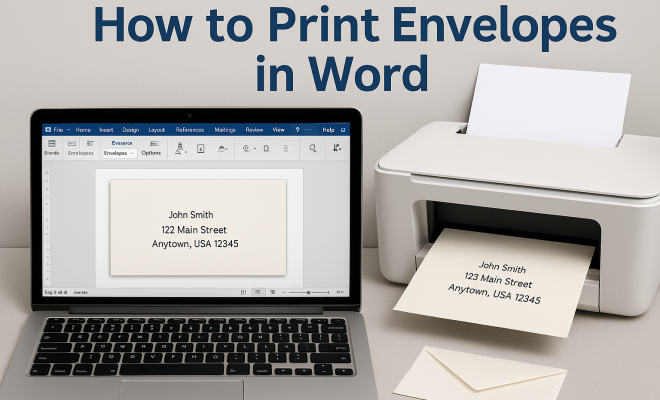
To print envelopes in Word, the first step is to set up your document correctly. Start by opening Microsoft Word and navigating to the ‘Mailings’ tab on the ribbon. Here, you will find the ‘Envelopes’ option, which is essential for your setup.
Click on ‘Envelopes,’ and a dialog box will appear. Here, you can input the delivery address in the “Delivery Address” field. If you wish to include a return address, you can enter it in the “Return Address” field as well. You can also adjust the font and style to match your preferences, ensuring your envelope looks exactly how you want it.
3. Choosing the Right Envelope Size
When you decide to print envelopes in Word, selecting the correct size is crucial. The software gives you options for various standard envelope sizes, but you can also create a custom size if needed. To select a standard size, click on the ‘Options’ button in the ‘Envelopes’ dialog box.
From there, you can choose a predefined envelope size. If the envelope you are using doesn’t match any standard sizes, you can specify custom dimensions. Just ensure that your printer can accommodate the chosen size, as this affects the final output.
4. Designing Your Envelope
Once you’ve set the envelope size, you may want to customize its design. Microsoft Word allows you to add images, logos, or even borders to your envelope. You can do this by selecting the ‘Insert’ tab and then choosing ‘Pictures’ or ‘Shapes’ to incorporate graphics.
Moreover, consider aligning the text and images carefully. Using gridlines or the alignment tools in Word can help ensure that everything is well-placed. A well-designed envelope not only looks appealing but also reflects your attention to detail. (See: Understanding different envelope types.)
5. Using the Print Function Properly
Now that your envelope is designed, the next step is to print. Click on ‘File’ in the top left corner and select ‘Print.’ Here, you will see your printer options. If you have multiple printers, ensure you select the correct one.
Before you hit ‘Print,’ check the printer settings. Make sure the correct paper size is selected; sometimes, it may default to letter or A4 size. Additionally, set the orientation to ‘Landscape’ if necessary, as envelopes may require this setting to print correctly.
6. Testing Before Bulk Printing
Before printing a large batch of envelopes, it’s wise to conduct a test print. This helps you ensure that everything aligns properly and that there are no issues with text or graphics. Print one envelope on plain paper first and visually inspect it.
If the test print looks good, proceed to print on your actual envelopes. However, if there are misalignments or other issues, adjust your settings accordingly and run another test. This step can save you considerable time and resources, especially if you’re working with expensive or special envelopes.
7. Troubleshooting Common Issues
Sometimes, even with the best preparation, issues can arise when you print envelopes in Word. Common problems include misaligned text, envelopes getting jammed, or incorrect sizes being printed. Here are a few troubleshooting tips:
- Text Alignment: If the text is misaligned, double-check the margins and ensure that the envelope dimensions match the printer settings.
- Paper Jams: Make sure the envelopes are fed into the printer correctly. Always check the paper tray and ensure that the envelopes are stacked properly.
- Incorrect Printing: If the wrong size is printed, revisit the setup in the ‘Envelopes’ dialog box to ensure the size is set correctly.
By being proactive and understanding these common pitfalls, you can ensure a smooth printing experience.
8. Enhancing Your Envelope Printing Skills
As you get more comfortable with printing envelopes, consider enhancing your skills. Explore advanced features in Word, such as creating templates or using mail merge for personalized addresses on multiple envelopes. Using mail merge can save time, especially for event invitations or business mailings.
Additionally, learn about integrating design software with Word. Programs like Adobe Illustrator or Canva can create stunning envelope designs that can be imported into Word for printing. This combination allows for a more polished and professional appearance.
9. Current Trends in Envelope Design and Printing
In the digital age, you might wonder about the relevance of envelope printing. However, printed envelopes are experiencing a resurgence, particularly in personalized stationery and business branding. Unique, custom envelopes can make a lasting impression on recipients.
Current trends include eco-friendly envelope materials and innovative designs that incorporate vibrant colors and patterns. Brands are increasingly using envelopes as a canvas for marketing, integrating their logos and brand colors directly into the envelope design.
10. Benefits of Printing Envelopes in Word
Printing envelopes in Word offers several advantages for personal and professional use. Here are some key benefits: (See: Best practices for printing documents.)
- Cost-Effective: Using Word to print envelopes eliminates the need for specialized software or services. You can create and print envelopes from the comfort of your home or office without incurring additional costs.
- Customization: Word provides a variety of templates and design options that allow you to personalize your envelopes. You can choose colors, fonts, and layouts that reflect your style or branding.
- Time-Saving: With features like mail merge, you can efficiently print multiple envelopes with different addresses in a short amount of time. This is particularly useful for businesses or event planners.
- Professional Appearance: Properly formatted and printed envelopes enhance your overall correspondence. A well-designed envelope can impress recipients and convey a sense of professionalism.
11. Envelope Printing for Special Occasions
Special occasions like weddings, birthdays, and holidays often call for unique envelope designs. When printing envelopes for such events, consider these tips:
- Themed Designs: Align your envelope design with the theme of the occasion. For weddings, use elegant fonts and soft colors; for birthdays, opt for bright and cheerful designs.
- Personal Touch: Adding a handwritten address or a personal message can make your envelopes feel special. Consider using calligraphy or decorative fonts for a more personalized effect.
- Quality Materials: Invest in high-quality envelope paper. The texture and weight can significantly enhance the perception of your invitation or announcement.
By focusing on these elements, your special occasion envelopes will stand out and create a lasting impression.
12. Frequently Asked Questions (FAQ)
How do I ensure my envelopes are printed correctly with the right orientation?
To ensure your envelopes are printed with the correct orientation, verify the printer settings in the print dialog. Select ‘Landscape’ orientation if your envelopes are wider than they are tall. Always perform a test print on plain paper before using your actual envelopes to check alignment.
Can I use custom-sized envelopes in Word?
Yes, you can create custom-sized envelopes in Word. In the ‘Envelopes’ dialog box, click on the ‘Options’ button and choose ‘Envelope Options.’ Here, you can set custom dimensions that fit your requirements. Just ensure your printer can handle the specified size.
What should I do if my printer is jamming when printing envelopes?
If your printer is jamming when printing envelopes, check that the envelopes are properly loaded into the paper tray. Make sure they are not too thick or using the wrong type of paper feed. Try adjusting the settings in your printer for envelope printing, and ensure there are no obstructions in the paper path.
How can I enhance the design of my envelopes in Word?
Enhance your envelope designs in Word by using images, colors, and creative fonts. You can insert logos, use different font sizes, and apply text effects. Don’t hesitate to experiment with different layouts and styles to create a unique look.
Is it better to print envelopes at home or use a professional service?
This depends on your needs. If you require a small number of envelopes with custom designs, printing at home can be more cost-effective and convenient. For larger quantities or high-quality finishes, a professional printing service might be the better option. Assess your needs and budget to make the right choice.
13. Best Practices for Envelope Printing
To make the most of your envelope printing experience, consider these best practices:
- Plan Ahead: Always plan your envelope designs and prints well in advance of any deadlines. This will give you ample time to make adjustments and avoid last-minute issues.
- Keep Your Software Updated: Ensure that your version of Microsoft Word is up to date. Updates can improve functionality and fix bugs that might affect your envelope printing process.
- Test Different Envelopes: Experiment with different brands and types of envelopes to find the best quality and texture for your printing needs. Some envelopes might perform better with your specific printer.
- Maintain Your Printer: Regular maintenance of your printer, including cleaning and checking for updates, can help prevent issues and ensure consistent quality when printing envelopes.
14. Common Envelope Printing Mistakes to Avoid
Even seasoned users can make mistakes when it comes to printing envelopes. Awareness of common pitfalls can save you frustration. (See: Guide to printing documents effectively.)
- Incorrect Measurements: Always double-check your measurements when setting custom envelope sizes. A small error can lead to misaligned printing.
- Using the Wrong Envelope Type: Some envelopes are designed specifically for certain types of printers. Always use envelopes that match your printer’s specifications to avoid jams and poor print quality.
- Neglecting to Check Printer Settings: Always review your printer settings before hitting print. Settings like paper size, type, and orientation must correspond to your envelope specifications.
- Ignoring Print Quality Options: If your printer has different quality settings, choose the appropriate one for your envelopes to ensure that colors are vibrant and text is clear.
15. Future of Envelope Printing
As technology continues to evolve, so does the landscape of printing, including envelopes. Digital printing technologies are making it easier to create high-quality, customized envelopes quickly. This means lower costs and faster turnaround times for businesses.
Additionally, businesses are increasingly integrating their branding into envelopes, using them not just for mailing but as a strategic marketing tool. Meanwhile, consumers are leaning towards sustainable practices, prompting envelope manufacturers to innovate eco-friendly options.
As personal touch gains importance, expect more individuals to embrace custom envelope designs, elevating the art of mailing to a new level.
16. Tips for Eco-Friendly Envelope Printing
If you’re concerned about the environment, there are several ways to print envelopes that minimize your ecological footprint:
- Use Recycled Paper: Opt for envelopes made from recycled materials. This supports sustainability and reduces waste.
- Print in Batches: Reduce paper waste by planning your mailings. Printing similar types of envelopes together minimizes excess paper use.
- Choose Eco-Friendly Ink: When selecting printing supplies, consider using inks that are environmentally safe. Many manufacturers offer organic or biodegradable options.
- Go Digital Where Possible: For invitations or announcements, consider sending digital versions via email. This can save paper and reduce your carbon footprint.
17. Envelope Printing Resources
Whether you are looking for templates, design ideas, or printing tips, numerous resources can help you master envelope printing:
- Microsoft Office Templates: Explore the template gallery in Word for pre-designed envelopes that you can customize.
- Online Design Tools: Websites like Canva or Adobe Spark provide user-friendly interfaces to design stunning envelopes that can be printed in Word.
- Printing Forums and Blogs: Engage with communities or blogs dedicated to printing where you can share experiences and learn from others.
- Local Print Shops: Don’t hesitate to reach out to local print shops for advice or tips on printing envelopes. Many professionals are happy to share their knowledge.
18. Conclusion
Knowing how to print envelopes in Word is a valuable skill that combines practicality with creativity. Whether for personal use or business needs, mastering this process ensures that your correspondence stands out and remains professional. With the steps outlined above, you’ll be well-equipped to tackle envelope printing with confidence and flair.
“`
Trending Now
Frequently Asked Questions
How do I print envelopes using Word?
To print envelopes in Word, open the application, go to the 'Mailings' tab, and click on 'Envelopes.' Enter the delivery and return addresses in the dialog box, choose your desired font and style, and select the appropriate envelope size before printing.
What size envelopes can I print from Word?
Word supports various standard envelope sizes, including #10 for business mail and A7 for invitations. You can also create a custom size if your envelope doesn't match the standard options available.
Can I customize the design of my envelopes in Word?
Yes, you can customize your envelopes in Word by adjusting the font, style, and position of the delivery and return addresses. This allows you to create a professional and personalized look for your envelopes.
Do I need a special printer to print envelopes?
Most modern printers can handle envelope sizes, but it's essential to check your printer's specifications to ensure compatibility. Knowing your printer's capabilities will help avoid issues during the printing process.
What is the first step to print envelopes in Word?
The first step to print envelopes in Word is to open the program, navigate to the 'Mailings' tab, and select 'Envelopes.' This will allow you to enter the necessary addresses and set up your envelope for printing.
Agree or disagree? Drop a comment and tell us what you think.