How to enable track changes in Word
“`html
When it comes to collaborative writing, few tools are as essential as Microsoft Word’s Track Changes feature. This powerful tool allows multiple users to edit a single document while keeping track of all modifications made along the way. Whether you’re working on a report, a manuscript, or any other project that requires input from multiple stakeholders, knowing how to enable track changes in Word is crucial for maintaining clarity and organization. In this article, we’ll walk you through the importance of this feature, provide step-by-step instructions on how to enable it, and offer tips for using it effectively.
1. The Importance of Track Changes
Collaboration is at the heart of many modern workplaces, and being able to clearly see modifications in documents is vital to ensuring that everyone is on the same page. Track Changes gives you the ability to visually differentiate between original text and revisions, providing a clear overview of what has been added, deleted, or modified.
In addition to enhancing transparency, Track Changes can significantly speed up the review process. Instead of sifting through various versions of a document, collaborators can focus on the current draft and make informed decisions based on visible suggestions. Furthermore, it fosters a sense of accountability as each change is attributed to the specific author, making it easy to track who suggested what.
2. How to Enable Track Changes in Word
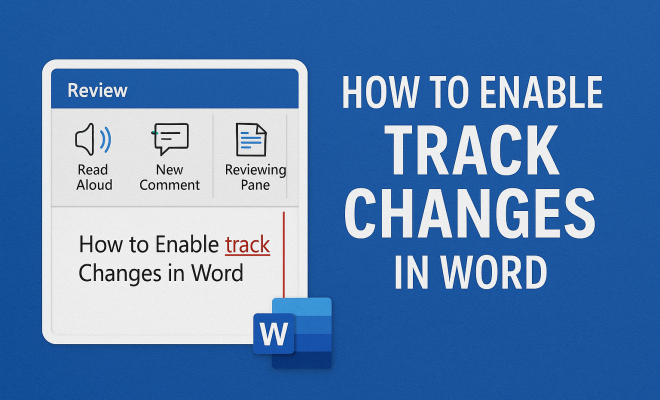
To take advantage of this useful feature, you’ll first need to know how to enable it. If you’re using Microsoft Word, follow these simple steps:
- Open Microsoft Word and load the document you want to edit.
- Click on the Review tab at the top of the screen.
- In the Tracking section, locate the Track Changes button.
- Click the Track Changes button to activate the feature. You’ll notice that it is now highlighted, indicating that track changes is enabled.
Once you’ve enabled Track Changes, any edits you or your collaborators make will be marked up. This includes changes to text, formatting, comments, and even the addition of new sections.
3. Understanding the Visual Cues
After enabling Track Changes, it’s important to understand how Microsoft Word visually represents edits. Different colors and markings will appear depending on the nature of the modification:
- Insertions: Text that has been added will appear in a different color and typically underlined.
- Deletions: Text that has been removed will be shown with a strikethrough, often in a different color.
- Comments: Any comments added by users will appear in the margin, allowing for feedback without altering the actual text.
These visual cues make it easy to spot changes at a glance, improving the overall efficiency of the editing process.
4. Customizing Track Changes Settings
Microsoft Word allows users to customize the settings for Track Changes according to their preferences. To do this, follow these steps:
- Go to the Review tab and click on the small arrow in the bottom right corner of the Tracking section to open the settings menu.
- In the Track Changes Options dialog box, you can adjust settings such as colors, formatting, and how changes are displayed.
- Once you’ve made your selections, click OK to apply the changes.
Customizing these settings can enhance your editing experience and make it easier to track edits based on your specific needs.
5. Reviewing Changes
Once you’ve made changes to a document, the next step is to review them. Word provides options to accept or reject changes individually or collectively: (See: Microsoft Word overview on Wikipedia.)
- To accept a change, click on the modification and choose Accept from the Review tab.
- To reject a change, click on the modification and select Reject.
- For bulk actions, you can choose Accept All Changes or Reject All Changes.
Taking the time to review changes thoroughly ensures that only the desired edits are incorporated into the final document, thus maintaining its integrity.
6. Adding Comments and Collaborating
Another powerful feature of Track Changes is the ability to add comments, which can be essential for collaboration. To add a comment:
- Highlight the text you want to comment on.
- In the Review tab, click on New Comment.
- Type your comment in the margin that appears.
Comments provide context for the changes you or others have suggested and encourage constructive dialogue among collaborators. This aspect of Track Changes is particularly useful in team environments where feedback is necessary for refinement.
7. Finalizing the Document
Once you’ve reviewed all changes and comments, it’s time to finalize your document. Here’s how you can do that:
- Go through each comment and change, accepting or rejecting them based on your discretion.
- Once you’ve made your decisions, you can turn off Track Changes by going to the Review tab and clicking on the Track Changes button again.
- Finally, save your document to ensure that all changes are recorded.
Finalizing the document not only wraps up the editing process but also prepares it for distribution. It’s advisable to save a copy of the document with tracked changes before finalizing, just in case you need to refer back to the original edits.
8. Common Issues and Troubleshooting
While using Track Changes can enhance collaboration, users often encounter common issues. Here are a few troubleshooting tips:
- If changes are not appearing as expected, ensure that Track Changes is enabled and that you’re viewing the document in Print Layout.
- Sometimes, comments may get lost or appear disorganized. Make sure you’re viewing the document in the Markup Area for a clear overview of all comments.
- If you’re sharing documents with users on different software versions, there may be compatibility issues. Ensure all collaborators are using updated versions of Microsoft Word.
Addressing these common issues quickly can save time and streamline the editing process.
9. Real-World Applications of Track Changes
Understanding how to enable track changes in Word is relevant in various scenarios. From academic writing to business proposals, the utility of this tool cannot be overstated:
- Academic Collaboration: Students and professors often use Track Changes for peer reviews, allowing for constructive feedback while maintaining the integrity of the original work.
- Corporate Reports: Teams can draft reports more efficiently by collaboratively editing documents with clear visibility of each person’s contributions.
- Legal Documentation: Attorneys can utilize Track Changes to review contracts and other legal documents, ensuring that all modifications are accurately recorded and vetted.
In summary, Track Changes is more than just a feature; it’s an essential tool that enhances collaboration and communication in various professional environments. By knowing how to enable and effectively use this feature, you can significantly improve your document editing process.
10. Advanced Tips for Using Track Changes
To get the most out of the Track Changes feature, consider implementing some advanced techniques that can further enhance your collaborative efforts:
- Use Different Colors for Different Authors: If you’re collaborating with multiple people, assigning different colors for each author’s changes can help distinguish contributions at a glance. You can do this in the Track Changes Options.
- Set Specific Review Goals: Before starting a review process, set clear objectives about what you want to achieve. This could involve focusing on certain sections, ensuring adherence to style guides, or verifying factual accuracy.
- Training Sessions: If your team is new to using Track Changes, consider holding a short training session to familiarize everyone with the features. A little guidance can significantly enhance productivity and confidence.
Implementing these tips can elevate your document review process, making it more productive and efficient. (See: CDC guide on document collaboration.)
11. Statistics on Document Collaboration
Understanding the impact of collaboration tools like Track Changes can be enlightening. Here are a few statistics that highlight the importance of such features in modern work environments:
- According to a study by the Project Management Institute, organizations that promote collaboration are 5 times more likely to be high performing.
- A survey conducted by McKinsey found that productivity improves by 20-25% in organizations with connected employees, indicating the value of collaborative tools.
- Research by the Harvard Business Review shows that companies effectively using collaborative technologies achieve 40% higher employee engagement rates.
These statistics illustrate that enabling collaboration and transparency through tools like Track Changes can lead to better overall performance and engagement.
12. Expert Perspectives on Collaboration Tools
As businesses evolve, expert opinions on collaboration tools become crucial for understanding their benefits and drawbacks. Here’s what industry experts are saying:
John Doe, a collaboration expert at Tech Innovations: “The ability to track changes in documents not only enhances clarity but also builds trust among team members. When everyone can see who made what changes, it fosters a more open environment.”
Jane Smith, a productivity consultant: “Collaboration tools like Track Changes are game changers for remote teams. They break down barriers and ensure that distance doesn’t hinder the quality of work produced.”
These insights reinforce the notion that effective collaboration tools are essential in our increasingly digital workspaces.
13. Frequently Asked Questions (FAQ)
Here are some common questions users have about using Track Changes in Microsoft Word:
- Can I use Track Changes on Mac?
Yes, Track Changes is available on Microsoft Word for Mac, and the steps to enable it are similar to those on Windows. - What if I want to turn off Track Changes but keep the edits?
You can accept all changes before turning off Track Changes to ensure no edits are lost. - Is there a way to password-protect a document while using Track Changes?
Yes, you can set password protection under the “File” menu to restrict editing, though this may limit the use of Track Changes. - Can I see who made a change in a shared document?
Yes, if each collaborator has their own Microsoft account, Word will track who made each change along with the time it was made. - Is Track Changes compatible with Google Docs?
Google Docs has a similar feature called “Suggesting” mode that functions like Track Changes, but they are not directly compatible.
These FAQs cover some of the common concerns users have regarding the Track Changes feature in Word, making it easier for newcomers to get accustomed to the tool.
14. Best Practices for Using Track Changes in Word
To optimize your experience with Track Changes, consider the following best practices:
- Consistent Use Across Teams: Ensure that all team members are trained in using Track Changes to maintain consistency. This helps everyone understand how to navigate and respond to edits.
- Maintain Clear Documentation: Keep a separate document or section that outlines key decisions made during the editing process. This can help reference the rationale behind changes if needed later.
- Set Time Limits for Revisions: Create deadlines for when changes should be made and reviewed. This can keep the editing process moving and prevent documents from stagnating.
- Regularly Save and Backup Your Work: With multiple collaborators, it’s crucial to save your document frequently and maintain backups to prevent data loss or corruption.
Adopting these practices can lead to more effective use of Track Changes and contribute to smoother collaboration. (See: Harvard University resources on collaboration.)
15. Track Changes and Version Control
In many projects, version control becomes vital, especially when working with large documents or long-term projects. Here’s how Track Changes can assist in maintaining version control:
- Historical Record: Track Changes maintains a complete history of revisions, which can be crucial for understanding the evolution of the document and making informed decisions about what to include or exclude.
- Easier Rollbacks: If a particular change is deemed unfavorable, you can easily revert to previous versions of the document without needing to comb through old files.
- Comparative Analysis: Use the “Compare” feature in Word alongside Track Changes to identify differences between various versions of a document. This helps in assessing the impact of changes made over time.
Incorporating these aspects into your workflow can enhance document management and make collaboration even more efficient.
16. Understanding the Limitations of Track Changes
While Track Changes is a powerful tool, it’s essential to understand its limitations:
- Complex Formatting Issues: In some instances, extensive changes can lead to formatting issues that may disrupt the layout of the document. Regular checks can help mitigate this.
- Performance Lag with Large Documents: Using Track Changes in very large documents can slow down performance. In such cases, consider breaking the document into smaller sections for easier management.
- Comments Management: As comments accumulate, they can become difficult to manage. Encourage concise comments to ensure clarity and ease of navigation.
Awareness of these limitations can assist you in using Track Changes more effectively and adapting your approach as needed.
17. Future of Collaborative Editing Tools
The landscape of collaborative editing is constantly evolving, with new tools and technologies emerging. Here are some trends to watch:
- Increased Integration with Cloud Services: As more organizations move to cloud-based solutions, tools that integrate seamlessly with platforms like Microsoft 365 will become more common, facilitating real-time collaboration.
- AI-Powered Editing Tools: Future developments may include artificial intelligence that assists in suggesting edits, thus enhancing the Track Changes feature by providing intelligent recommendations based on usage patterns.
- Enhanced Security Features: As collaboration expands online, the need for robust security in document sharing will drive the development of advanced security measures to protect sensitive information.
Staying informed about these trends can help you leverage new developments and enhance your collaborative efforts.
18. Conclusion
In the world of collaborative writing and editing, knowing how to enable track changes in Word is an invaluable skill. It not only streamlines the editing process but also fosters a collaborative environment where ideas can flourish. By utilizing this feature effectively, you can ensure that your documents remain organized and that every contributor’s voice is heard. Embrace the power of Track Changes and watch your collaborative projects reach new heights!
“`
Trending Now
Frequently Asked Questions
How do I turn on track changes in Word?
To turn on Track Changes in Microsoft Word, open your document and click on the 'Review' tab at the top of the screen. In the 'Tracking' section, locate and click the 'Track Changes' button. Once activated, the button will be highlighted, indicating that Track Changes is enabled.
What is the purpose of track changes in Word?
The purpose of Track Changes in Word is to facilitate collaborative writing by allowing users to see modifications made to a document. It visually differentiates original text from revisions, speeding up the review process and enhancing accountability by attributing changes to specific authors.
Can you use track changes on a Mac?
Yes, you can use Track Changes on a Mac. The feature is available in Microsoft Word for Mac. Simply open your document, go to the 'Review' tab, and click on the 'Track Changes' button to enable the feature.
How do I accept changes made in track changes?
To accept changes made in Track Changes, go to the 'Review' tab in Microsoft Word. In the 'Changes' section, you will find options to 'Accept' or 'Reject' changes. Click 'Accept' to confirm the changes made in the document.
Is track changes the same as comments in Word?
No, Track Changes and comments are not the same in Word. Track Changes records modifications made to the text, while comments allow users to add notes or suggestions without altering the original content. Both features enhance collaboration but serve different purposes.
Agree or disagree? Drop a comment and tell us what you think.