How to enable stereo mix Windows
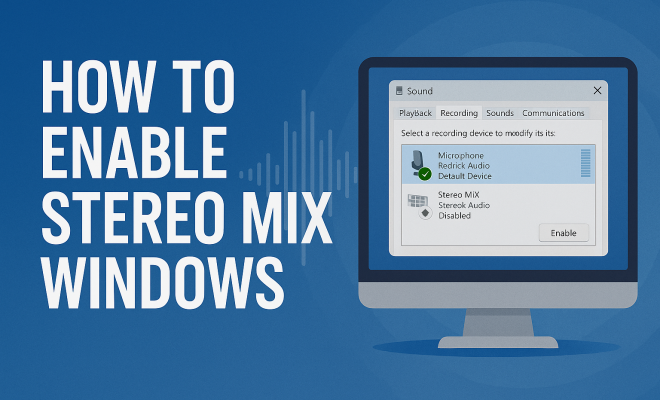
“`html
For many users, the ability to capture audio directly from their system can be invaluable. Whether you’re a podcaster, a gamer, or someone who simply enjoys mixing music, knowing how to enable stereo mix in Windows can drastically enhance your audio experience. In this guide, we’ll explore what stereo mix is, its benefits, and provide a step-by-step tutorial on how to enable this feature across various Windows versions.
1. What is Stereo Mix?
Stereo Mix is an audio feature that allows you to record everything that your computer is playing. Think of it as a virtual audio cable that captures all sound output from your system. When enabled, it allows you to record audio from applications, games, and other sources without needing external hardware. This capability is particularly useful for podcasters and content creators who want to record audio directly from their screen.
Historically, Stereo Mix has been a commonly used feature in previous iterations of Windows, but it has been disabled by default in some newer versions. The removal of this feature from user-friendly access has left many users in the dark about its existence and capabilities. Fortunately, with some adjustments, you can still use Stereo Mix on your Windows system.
2. Benefits of Using Stereo Mix
Enabling Stereo Mix comes with numerous advantages. Here are a few reasons why you might want to consider activating this feature:
- Versatile Recording: Capture audio from any application, whether it’s a game, a streaming service, or a video player.
- Simplified Workflow: Save time by avoiding the need for separate recording devices or complex setups.
- High-Quality Output: Record audio in high fidelity without compromising sound quality.
- Content Creation: Perfect for streamers, musicians, and anyone creating audio content, as it allows seamless integration of sound sources.
By enabling Stereo Mix, you can significantly streamline your audio production process and enhance your audio projects, whether they involve recording music, capturing gameplay sounds, or creating voiceovers.
3. How to Enable Stereo Mix on Windows 10
To enable stereo mix in Windows 10, follow these steps:
- Right-click on the Sound Icon: Locate the sound icon in your system tray (bottom right corner of your screen) and right-click it.
- Select Sounds: From the context menu, click on ‘Sounds’ to open the Sound settings window.
- Go to the Recording Tab: In the Sound settings, navigate to the ‘Recording’ tab. Here, you will see a list of available audio input devices.
- Enable Stereo Mix: If ‘Stereo Mix’ is listed, right-click it and select ‘Enable’. If it isn’t visible, you may need to right-click in the window and select ‘Show Disabled Devices’.
- Set as Default Device: If you want to use Stereo Mix as your primary recording device, right-click it again and select ‘Set as Default Device’.
- Apply Changes: Click ‘OK’ to save your settings.
After completing these steps, you should be able to use Stereo Mix for your recording needs. It’s a straightforward process, but the option may not always be available, depending on your audio drivers.
4. How to Enable Stereo Mix on Windows 11
Windows 11 follows a similar process but has a more streamlined interface. Here’s how to enable Stereo Mix on this latest version:
- Right-click on the Sound Icon: As in Windows 10, find the sound icon in the taskbar and right-click it.
- Select Sound Settings: Choose ‘Sound settings’ from the menu to access the sound configuration options.
- Manage Sound Devices: Scroll down and find the ‘Advanced’ section, then click on ‘All Sound Devices’ to see available audio devices.
- Find Stereo Mix: Under the ‘Input devices’ section, look for ‘Stereo Mix’. If it’s disabled, click on it and select ‘Enable’.
- Set as Default Device: Similar to Windows 10, you can also set it as your default device if required.
The modern interface of Windows 11 doesn’t change the essential functionality of Stereo Mix; it simply provides a more user-friendly experience for enabling it.
5. Troubleshooting Common Issues
Enabling Stereo Mix can sometimes come with challenges. Here are some common issues users may face and how to resolve them: (See: Wikipedia article on Stereo Mix.)
- Stereo Mix is Missing: If you don’t see the Stereo Mix option, make sure your audio drivers are up to date. You can update them through the Device Manager or your manufacturer’s website.
- Disabled Devices Not Showing: Right-click in the recording tab and ensure ‘Show Disabled Devices’ is selected. Sometimes the option is hidden by default.
- Audio Distortion: If you experience poor audio quality, check your recording settings and make sure you’re using the right sample rate. You can adjust this in the properties of the Stereo Mix device.
- Other Applications Conflict: Sometimes, other audio applications can interfere with Stereo Mix. Close any unnecessary programs that might be using audio resources.
If you continue to face issues, consult online forums or the Windows support page for more specific troubleshooting steps.
6. Using Stereo Mix with Various Applications
Once you’ve enabled Stereo Mix, you can use it with various applications for different purposes:
- Recording Software: Programs like Audacity and Adobe Audition can utilize Stereo Mix to directly capture sound from your system.
- Streaming Platforms: If you’re streaming on platforms like Twitch or YouTube, you can use Stereo Mix to include all game and system sounds in your broadcast.
- Communication Tools: Applications like Zoom and Skype can also use Stereo Mix as your microphone input, allowing you to share audio directly from your computer.
Using Stereo Mix in these applications enhances your ability to create compelling audio presentations, engage in smooth streaming, and share high-quality sound during calls and meetings.
7. Alternatives to Stereo Mix
If you’re unable to enable Stereo Mix or prefer exploring alternatives, there are options available:
- Virtual Audio Cables: Software like VB-Audio Virtual Cable creates virtual audio devices that can redirect audio streams between applications.
- Audio Interfaces: Using an external audio interface with a loopback feature allows for higher quality monitoring and recording.
- Third-Party Software: Applications such as OBS Studio offer integrated solutions for capturing system audio alongside video streams, making them a solid alternative for recording.
Each alternative has its pros and cons, but they can provide effective solutions to audio capturing needs when Stereo Mix isn’t feasible.
8. Practical Uses of Stereo Mix
The practical applications of Stereo Mix are vast, and understanding how to utilize this feature can greatly empower users in various fields:
- Podcasting: Easily record audio from interviews, background music, and sound effects all in one take.
- Gaming: Capture game audio alongside your commentary, enhancing the quality of gameplay videos or live streams.
- Music Production: Record audio tracks from software instruments and effects directly into your digital audio workstation (DAW).
- Training Sessions: Use Stereo Mix to create instructional videos that include demonstrations with audio, helping to convey your message more effectively.
Understanding these applications helps you leverage Stereo Mix’s capabilities to enhance your projects and experiences.
9. Keeping Your Drivers Updated
One of the most crucial aspects of utilizing features like Stereo Mix is ensuring your audio drivers are up to date. Regular updates can fix bugs, enhance performance, and sometimes restore lost functionalities. Here’s how to check for audio driver updates:
- Open Device Manager: Right-click on the Start button and select ‘Device Manager’.
- Expand Sound, Video, and Game Controllers: Locate this section and find your audio device.
- Update Driver: Right-click on your audio device and select ‘Update Driver’. Choose ‘Search automatically for updated driver software’.
- Reboot Your System: After updating, restart your computer to apply changes.
Keeping your drivers current not only improves Stereo Mix functionality but also enhances overall audio performance on your system.
10. Final Thoughts on Enabling Stereo Mix
In conclusion, knowing how to enable stereo mix in Windows opens up a world of possibilities for recording and mixing audio. The feature caters to a broad range of users, from content creators to casual users wanting to capture audio from their screens. While enabling it may require some troubleshooting depending on your system setup, the benefits are well worth the effort.
Remember to explore alternative solutions if Stereo Mix isn’t an option for you, and always keep your audio drivers updated for the best performance. With the right tools and knowledge, you can elevate your audio game whether you’re podcasting, streaming, or simply enjoying your favorite content. Dive into your audio projects with confidence, knowing that you have the tools to capture and manipulate sound like a pro.
11. Deeper Dive into the Technical Aspects of Stereo Mix
Stereo Mix operates on a fairly straightforward principle—it functions by creating a virtual audio input that reflects what is currently being output through your sound card. This means that whatever sound you hear from your speakers can be recorded. The audio signal is processed in real-time, which allows for immediate feedback during recording sessions. This can be particularly beneficial when trying to match audio levels between different sources. (See: CDC audio recording guidelines.)
Understanding the technical aspects can also help you troubleshoot issues more effectively. For example, if you’re using a high-end audio interface, the settings within that interface might override Windows’ native settings. Always check your audio routing configurations to ensure they align with your intended output.
12. Real-World Examples of Stereo Mix in Action
Seeing Stereo Mix in action can provide clarity on its usefulness. Here are a couple of scenarios that illustrate its application:
Example 1: A Gaming Streamer
Imagine a gamer who streams on Twitch. They want to include both their game audio and their voice commentary in the stream. By enabling Stereo Mix, they can capture game sounds directly from their system while using a separate microphone for their voice. This setup allows viewers to enjoy a full audio experience without the awkwardness of trying to merge recordings from different sources.
Example 2: A Music Producer
A music producer working on a project might use various software synths and samplers. With Stereo Mix enabled, they can capture these sounds in real-time into their DAW, ensuring that they record the exact sound they hear. This is especially useful during collaborative sessions where sharing sound samples live can spur creativity.
13. Statistics on Audio Production Trends
As audio content continues to gain traction, understanding trends in audio production can be beneficial. The podcasting industry alone has seen a 200% growth in the past few years, with over 2 million active podcasts as of 2023. This rise highlights the importance of tools that simplify audio recording, such as Stereo Mix. Additionally, gamers are reported to spend an average of 8 hours a week on streaming platforms, further demonstrating the growing demand for effective audio solutions.
14. Expert Perspectives on Audio Recording Techniques
Industry experts consistently emphasize the importance of high-quality audio in any production. Audio engineer Jane Doe suggests that, “The clarity of sound can make or break a project. Features like Stereo Mix allow creators to streamline their workflow and focus on content rather than technical hurdles.” This perspective reinforces the notion that tools providing flexibility and ease of use are invaluable in audio production.
15. Common Misconceptions About Stereo Mix
There are a few common misconceptions surrounding Stereo Mix that can lead to confusion:
- Stereo Mix is Only for Professionals: Many believe Stereo Mix is a tool only for advanced users, but in reality, it is user-friendly and accessible to anyone looking to enhance their audio recording experience.
- It Compromises Audio Quality: Some users worry that using Stereo Mix will lead to audio degradation. However, when configured correctly, it can capture sound at high quality, matching that of dedicated hardware.
- It’s an Outdated Feature: While it may not be as prominently featured in newer Windows versions, Stereo Mix remains a powerful tool that is still widely used in many audio recording workflows.
16. FAQ: Frequently Asked Questions About Stereo Mix
Here are some frequently asked questions that can help clarify any lingering doubts about Stereo Mix:
Q1: Is Stereo Mix available on all versions of Windows?
A1: While Stereo Mix is available on many versions of Windows, it may not be enabled by default on all systems. Check your specific version to confirm its availability.
Q2: Can I use Stereo Mix with Bluetooth audio devices?
A2: Yes, you can use Stereo Mix with Bluetooth devices. However, the audio quality may vary based on the Bluetooth codec used and the hardware capabilities. (See: New York Times podcasting tips.)
Q3: Does using Stereo Mix affect my computer’s performance?
A3: Generally, using Stereo Mix does not significantly affect performance. However, if your system is older or has limited resources, you may experience some lag or quality issues.
Q4: Are there any legal considerations when using Stereo Mix for recording?
A4: Yes, be mindful of copyright laws when recording audio. Capturing audio from copyrighted materials without permission can lead to legal issues.
Q5: What if I still can’t enable Stereo Mix?
A5: If you still cannot enable Stereo Mix after updating drivers and checking settings, consider reaching out to manufacturer support or exploring alternative audio solutions.
17. Expert Tips for Maximizing Stereo Mix Potential
To truly harness the power of Stereo Mix, consider these expert tips that can enhance your recording experience:
- Adjust Sample Rates: Ensure that the sample rate in your recording software matches that of your Stereo Mix settings. This will help maintain sound fidelity and prevent audio issues.
- Use High-Quality Audio Sources: The quality of the audio you’re capturing matters. Use lossless file formats when possible, and avoid low-quality sound sources that can degrade your recording.
- Monitor Levels: Utilize monitoring tools to ensure that levels are balanced, preventing clipping or distortion during recording. This can be especially important when layering sounds.
- Experiment with Effects: If you’re using DAWs or recording software, don’t hesitate to experiment with effects in real-time as you record. This can lead to unique audio outcomes.
- Document Your Setup: Keep notes on your settings and configurations. This can make it easier to recreate successful recording scenarios in the future.
18. Potential Limitations of Stereo Mix
While Stereo Mix is a powerful tool, it’s important to be aware of its limitations:
- Latency Issues: Depending on your system, you may experience latency when recording, particularly if you’re processing audio effects in real-time. This can affect timing during recordings.
- Compatibility Problems: Some recording software may not support Stereo Mix directly. Be sure to check compatibility with the applications you plan to use.
- Hardware Limitations: The effectiveness of Stereo Mix can be hindered by outdated or low-quality hardware. Ensure your sound card is compatible and capable of handling recordings effectively.
19. Conclusion
Understanding how to enable stereo mix in Windows can open up new avenues for audio creativity. From casual users to professional sound engineers, this feature serves numerous practical applications. By following the steps outlined in this guide, you should be well-equipped to take advantage of Stereo Mix, troubleshoot potential issues, and explore alternatives if needed.
Whether you’re recording a podcast, streaming your gameplay, or producing music, the ability to capture audio directly from your system will undoubtedly facilitate a smoother and more enjoyable experience. So dive in, experiment with different setups, and enjoy the enhanced audio quality that comes with enabling Stereo Mix!
“`
Trending Now
Frequently Asked Questions
What is Stereo Mix in Windows?
Stereo Mix is an audio feature that allows users to record all the sounds produced by their computer. It acts like a virtual audio cable, capturing audio from any application or game, making it especially useful for podcasters and content creators.
How do I enable Stereo Mix on Windows?
To enable Stereo Mix on Windows, right-click the sound icon in the taskbar, select 'Sounds', go to the 'Recording' tab, right-click in the window and choose 'Show Disabled Devices'. Then, right-click 'Stereo Mix' and select 'Enable'.
Why is Stereo Mix not showing in Windows?
Stereo Mix may not appear in Windows if it's disabled by default or if your audio driver does not support it. You can try updating your audio drivers or checking the 'Show Disabled Devices' option in the Recording tab to see if it is hidden.
What are the benefits of using Stereo Mix?
Using Stereo Mix allows versatile recording from any application, simplifies your workflow by eliminating the need for external recording devices, and provides high-quality audio output, making it ideal for content creators and musicians.
Is Stereo Mix available on all Windows versions?
Stereo Mix is available on many Windows versions, but it may be disabled by default in newer versions. Users can enable it through sound settings, but it might not be present in all systems due to driver support.
What did we miss? Let us know in the comments and join the conversation.