How to boost volume on computer
“`html
Are you tired of straining to hear your favorite songs, movies, or video calls on your computer? If so, you’re not alone. Many users encounter audio issues that can hinder their overall experience. Fortunately, there are various ways to boost computer volume and enhance your auditory experience. In this article, we’ll explore nine effective methods to increase audio output on your device, whether it’s through software adjustments, hardware enhancements, or system tweaks.
1. Check Your Volume Settings
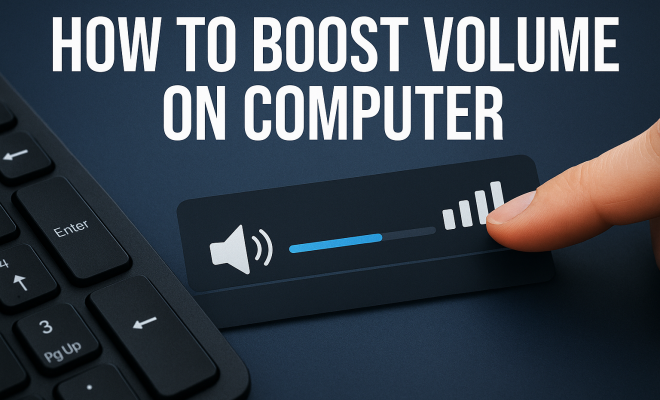
Before diving into more complex solutions, it’s essential to check your computer’s volume settings. Often, the simplest fixes can solve your audio issues. On Windows, you can access the volume control by clicking the speaker icon in the taskbar. Make sure the volume slider is set to a high level and isn’t muted.
For Mac users, the volume can be adjusted using the speaker icon in the menu bar or by using the keyboard’s volume control keys. Also, check specific application volume settings, as some applications have their own volume controls independent of the system level.
2. Adjust Sound Enhancements
Modern operating systems often come with sound enhancement features that can significantly enhance your audio output. On Windows, navigate to the Sound settings by right-clicking the speaker icon in the taskbar and selecting Playback Devices. Choose your playback device, click Properties, and head to the Enhancements tab. Here, you can enable features like loudness equalization, which can help boost overall volume and balance sound levels across different media.
Mac users can explore similar options under Audio MIDI Setup, where they can adjust settings such as sample rate and bit depth, indirectly influencing volume output quality.
3. Use Equalizer Settings
Equalizers can dramatically improve your listening experience by tailoring sound frequencies to your liking. Many media players come with built-in equalizers that allow you to adjust bass, midrange, and treble levels. Programs like VLC Media Player or iTunes have options to enhance sound quality through equalization.
Users can also utilize third-party equalizer software to gain more control over audio frequencies. These tools can help boost specific sound ranges, making voices clearer or bass heavier, depending on your preference. For better results, experiment with various presets or manually adjust the sliders until you find the perfect balance.
4. Update Audio Drivers
Outdated or corrupt audio drivers can lead to various sound issues, including low volume. Keeping your audio drivers updated ensures your sound hardware operates at peak efficiency. On Windows, you can update drivers through the Device Manager. Right-click on the Start button, select Device Manager, expand the Sound, video and game controllers section, and right-click your audio device to select Update Driver.
Mac users typically keep their drivers updated with system updates. However, occasionally checking the App Store or running Software Update can ensure you have the latest audio enhancements and features.
5. Utilize Third-Party Applications
If built-in enhancements aren’t cutting it, there are various third-party applications designed specifically to boost computer volume. Programs such as Boom 3D and VLC Media Player can amplify sound beyond the default limits of your system.
For instance, Boom 3D not only increases volume but also enhances sound quality with 3D surround sound features. Similarly, VLC Media Player offers options to increase audio output beyond the default 100% level, allowing you to experience your media like never before.
6. Adjust System Preferences
Both Windows and Mac systems allow you to tweak preferences that directly affect audio output. On Windows, you can access the Control Panel and navigate to Sound settings. Here, under the Communications tab, you can change settings to prevent Windows from lowering volume when it detects communication activity. Disabling this feature can help maintain consistent volume levels during media playback.
For macOS users, check out the System Preferences under Sound. Make sure the Output Volume is at maximum and explore any additional settings that may affect audio output. Additionally, ensure that you’re not using low-quality audio formats, which can also impact sound clarity.
7. Upgrade Your Audio Hardware
Sometimes, software solutions aren’t enough, and it’s time to consider upgrading your audio hardware. If you frequently face low volume issues, investing in external speakers or high-quality headphones can make a world of difference. External speakers often provide a fuller sound experience and can dramatically boost volume compared to built-in laptop speakers.
Similarly, high-end headphones or earbuds are designed to maximize sound output and clarity. Brands like Sennheiser, Bose, and Audio-Technica offer products that not only enhance volume but also improve overall sound quality.
8. Use External Amplifiers
If hardware upgrades aren’t an option, consider using an external amplifier. These devices can drive sound output to higher levels than standard computer audio outputs can handle. An external amplifier connects between your computer and speakers/headphones, providing an additional power source that increases overall volume and clarity.
When selecting an amplifier, ensure it’s compatible with your audio setup, whether for speakers or headphones. Popular choices include the FiiO A1 and Schiit Magni, which are known for providing excellent sound enhancement without breaking the bank.
9. Check for Environmental Factors
Sometimes, the environment in which you’re using your computer plays a significant role in audio clarity and volume perception. Sound can easily get muffled or distorted if you’re in a noisy area or if the computer’s speakers are obstructed.
To maximize sound quality, ensure that your speakers are positioned correctly for optimal audio performance. Avoid placing them in corners where sound can bounce off walls or be obstructed by furniture. If you’re using headphones, be sure they’re properly seated for the best sound experience. Consider using sound-absorbing materials in your environment if external noise is a problem.
10. Consider Sound Card Upgrades
If you’re serious about audio quality, you might want to invest in a dedicated sound card. Many computers come with integrated sound chips that may not deliver the best audio experience. A dedicated sound card can significantly enhance audio fidelity and output volume. Brands like Creative and ASUS offer great options for various budgets.
These dedicated sound cards come with additional features such as advanced equalizers, surround sound capabilities, and improved signal-to-noise ratios, making your audio experience much richer.
11. Explore Audio Settings in Applications
Many applications have their own audio settings that can be adjusted for optimal sound. For instance, video conferencing tools like Zoom or Microsoft Teams allow users to adjust audio settings for better clarity. Make sure to check the audio settings within these apps to ensure they’re configured correctly.
Streaming services like Netflix or Spotify also allow you to tweak audio settings. Some have options for high-quality audio streaming that can enhance sound quality. Always explore the application settings to get the most out of your audio experience.
12. Understand the Impact of Different Audio Formats
The format of the audio files you’re playing can also impact volume and sound quality. Lossy formats like MP3 may not provide the same audio fidelity as lossless formats such as FLAC. If you frequently listen to music or watch movies, consider using higher-quality audio files to enhance your experience.
Many music streaming platforms now offer options to stream in lossless formats, which can significantly improve audio clarity and volume. Look for these settings in your preferred streaming service.
13. How to Use Headphone Boost Features
Some computers and audio interfaces come with headphone boost features. This can be particularly useful if you’re using high-impedance headphones that require more power for optimal performance. Check if your sound card or audio interface offers such a feature and how to activate it.
When using headphone boost, be cautious as it can sometimes lead to distortion at high volumes. Always start at lower volumes and gradually increase to avoid damaging your hearing.
14. Common Issues and Troubleshooting
If you still experience low volume after trying these methods, there might be underlying issues. Here are some common problems and solutions:
- Audio Not Playing: Ensure that the correct playback device is selected in your sound settings.
- Distorted Sound: Check if the volume is set too high, which can lead to clipping and distortion.
- No Sound from Certain Applications: Check individual application settings to ensure they’re not muted or set to a low volume.
15. FAQs About Boosting Computer Volume
1. Can I boost my computer volume beyond 100%?
Yes, certain applications and sound enhancement software allow you to increase the volume beyond the default maximum of 100%. However, be cautious, as this can lead to distortion and potentially damage your speakers or headphones.
2. What are some recommended third-party apps for boosting volume?
Popular apps include Boom 3D, VLC Media Player, and Equalizer APO. These applications offer features that allow for significant volume boosts and enhancements to audio quality.
3. How do I reset my audio settings if something goes wrong?
You can reset audio settings by going to the sound settings in your operating system and returning them to default. For Windows, this is found under Sound Control Panel, and for Mac users, it’s in System Preferences > Sound.
4. Is it safe to use external amplifiers?
Yes, external amplifiers are safe to use as long as they are compatible with your audio equipment. Make sure to check specifications to avoid overloading your equipment.
5. Can my computer’s environment affect audio quality?
Absolutely. Background noise, speaker placement, and obstructions can all impact how sound is perceived. Optimizing your audio setup in a quiet, unobstructed area will yield the best results.
16. Advanced Troubleshooting for Persistent Audio Problems
If you’re still encountering audio issues after applying the methods mentioned, it might be time to dig a little deeper. Here are some advanced troubleshooting steps you can take:
- Disable Audio Enhancements: Sometimes, the audio enhancements that are meant to help can create issues. Disable enhancements temporarily in your sound settings to see if this resolves the problem.
- Run the Windows Troubleshooter: Windows has built-in troubleshooting tools designed to identify and fix audio problems. Access this by typing “Troubleshoot” in the search bar and selecting Troubleshoot settings.
- Check for Conflicting Devices: If you have multiple audio devices connected, conflicts can occur. Remove or disable unnecessary devices in your system settings to troubleshoot the issue.
17. Exploring Audio Software Tools
Aside from basic volume adjustment apps, there are specialized tools that can further enhance your audio experience:
- VoiceMeeter: This virtual audio mixer allows for complex routing of audio sources. You can adjust volumes, apply effects, and even create virtual audio outputs for streaming or recording.
- Equalizer APO: A powerful and versatile equalizer that works system-wide, allowing you to adjust sound frequencies at a granular level.
- FxSound: This software enhances audio quality and boosts volume with various preset modes for music, movies, and games.
18. Audio Hardware Compatibility
When selecting new audio hardware or peripherals, compatibility is key. Here are a few things to consider:
- Check Specifications: Ensure your new headphones or speakers are compatible with your computer’s audio output. For instance, USB speakers may not work with devices that only have a 3.5mm audio jack.
- Impedance Matching: High-impedance headphones need more power to drive adequately. Ensure your sound card or amplifier can handle the impedance of your headphones.
19. Researching Brand and Model Reviews
When considering hardware upgrades, it’s wise to research brand and model reviews. Online forums and professional reviews can provide insights into how certain products perform in real-world scenarios. Look for:
- User Feedback: Check reviews on retailer websites or tech forums to see how others rate the audio quality and volume output.
- Expert Guides: Websites dedicated to audio hardware often post detailed evaluations and comparisons, which can help you make an informed decision.
20. Investing in Quality Over Quantity
When it comes to audio equipment, quality often trumps quantity. A pair of high-quality headphones or speakers can be more beneficial than multiple cheaper options. Brands like Bowers & Wilkins, Focal, and Klipsch are known for their stellar sound quality and durability.
Investing in good audio equipment can not only improve volume but also provide a richer, more enjoyable listening experience overall. If you’re serious about your audio, consider saving up for high-quality gear that meets your needs.
21. Take Care of Your Audio Gear
Lastly, maintaining your audio equipment can contribute significantly to sustained performance. Here are a few maintenance tips:
- Clean Connections: Dust and debris can accumulate in audio jacks and ports, which can affect sound quality. Regularly clean these areas to ensure optimal performance.
- Store Properly: When not in use, store headphones and speakers in a safe place to avoid physical damage. Coiling cables neatly helps prevent tangling and wear.
- Update Firmware: If your audio devices have firmware, check for updates regularly to ensure you’re getting the best performance possible.
22. Final Thoughts on Boosting Computer Volume
By implementing these strategies and keeping the FAQs in mind, you can effectively boost computer volume and enjoy a richer audio experience. Don’t let low sound levels hold you back from fully enjoying your multimedia content. Whether through simple software tweaks or hardware investments, there are plenty of options to explore. Now, go ahead and crank up the sound!
“`
Trending Now
Frequently Asked Questions
How can I increase the volume on my computer?
To increase the volume on your computer, start by checking the volume settings in your taskbar or menu bar. Ensure that the volume slider is high and not muted. Additionally, explore sound enhancements and equalizer settings to further boost audio output.
What are some methods to boost computer audio?
You can boost computer audio by adjusting volume settings, enabling sound enhancements, using equalizers, and checking specific application volume controls. Hardware upgrades like external speakers or headphones can also significantly improve sound quality.
Why is my computer volume so low?
Low computer volume can be caused by incorrect volume settings, muted audio, or issues with specific applications. Check both system and application volume levels, and consider adjusting sound enhancement settings for better output.
How do I check my sound settings on Windows?
To check sound settings on Windows, right-click the speaker icon in the taskbar and select 'Playback Devices.' Here, you can access volume controls, sound enhancements, and properties for your playback device.
Can sound enhancements improve my audio experience?
Yes, sound enhancements can significantly improve your audio experience. Features like loudness equalization balance sound levels and boost overall output, making your listening experience more enjoyable.
What’s your take on this? Share your thoughts in the comments below — we read every one.