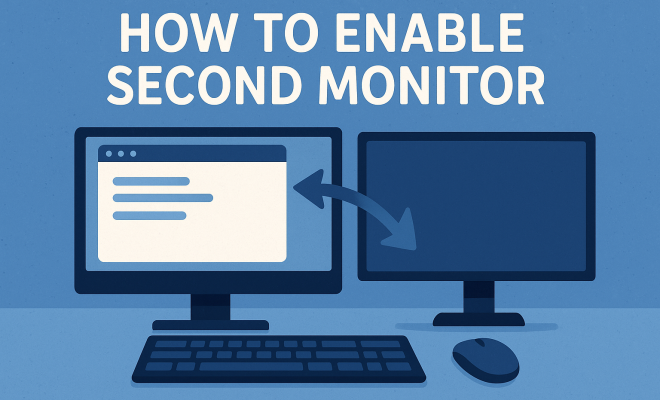
How to enable second monitor
“`html
In today’s multitasking world, the ability to enable a second monitor can significantly boost your productivity. Whether you’re a remote worker, a gamer, or a graphic designer, having an extra screen provides more room for applications, documents, and tools, allowing you to work more efficiently. This comprehensive guide will walk you through the entire process of setting up a second monitor, ensuring you make the most of your workspace.
1. Understanding the Benefits of a Dual Monitor Setup
Many users underestimate the advantages of a dual monitor configuration. Having a second screen can facilitate better organization, enhance focus, and increase your overall productivity. For instance, research shows that using multiple screens can result in a 20-30% increase in productivity, depending on the tasks involved.
One of the primary benefits is the ability to spread out your workload. You can keep your email client open on one screen while working on a presentation or a spreadsheet on the other. This setup minimizes the need for constant window switching, which can interrupt your flow and reduce efficiency.
In addition to individual productivity, dual monitor setups can foster collaboration in team environments. For example, during video conference calls, one monitor can display the video feed while the other shows shared documents or presentation slides. This makes it easier to engage with participants while keeping essential resources at your fingertips.
2. Checking Compatibility
Before you start the process to enable a second monitor, it’s essential to ensure that your computer and monitor are compatible. Most modern computers support dual displays, but it’s worth checking the specifications of your graphics card. If you have a desktop PC, inspect the back of your computer for available ports, like HDMI, DisplayPort, or VGA. Laptops typically have one or two video output ports.
If you’re unsure, consult your computer’s manual or the manufacturer’s website for detailed specifications. Also, make sure your second monitor supports the same connection type as your computer. For optimal performance, consider using a monitor that matches or exceeds the resolution of your primary screen.
It’s also important to consider the specifications of your graphics card. Some older or lower-end models may only support a single external display or may have limitations regarding the maximum resolution or refresh rate of connected monitors. You can often find this information in your system’s properties or directly on the graphics card manufacturer’s website.
3. Gathering the Necessary Cables
Once you’ve confirmed compatibility, the next step is to gather the needed cables. Depending on the ports available on your computer and the second monitor, you may need an HDMI cable, DisplayPort cable, or VGA cable. If both devices support different types, you may also need an adapter.
When selecting cables, quality matters. Invest in good quality cables to ensure a stable connection and prevent display issues. For example, a high-speed HDMI cable can support higher resolutions and refresh rates, which is crucial for gaming or graphic-intensive tasks.
Keep in mind that some monitors come with cables included, while others may not. It’s a good idea to check the packaging or product details before your purchase to avoid any last-minute shopping trips.
4. Connecting the Second Monitor
Now that you have everything you need, it’s time to physically connect the second monitor. Start by turning off both your computer and the monitor. Then, connect one end of the cable to your computer and the other end to the monitor. Make sure that both ends are securely plugged in.
Once the connections are secure, turn on your monitor and then your computer. Most operating systems will automatically detect the new display. If it doesn’t, you may need to access the display settings to enable it manually.
For users with laptops, remember that some models require you to press a function key (often F4, F5, or a key with a display icon) to toggle the display settings. This can be an easy step to overlook, especially if you are new to using external displays. (See: research on dual monitor productivity.)
5. Adjusting Display Settings
After connecting the second monitor, you’ll need to adjust the display settings to optimize your setup. In Windows, right-click on the desktop and select “Display settings.” Here, you can choose how you want to use your monitors. Options include duplicating the display, extending the display, or using only one of the screens.
For most users, extending the display is the best choice. This allows you to use both screens as a single large workspace. You can also adjust the resolution, orientation, and scaling to ensure everything looks crisp and clear on both displays.
On macOS, you can access similar settings by going to “System Preferences” and then to “Displays.” Here, you’ll find options to arrange your screens, change resolutions, and select which monitor will be your primary display.
6. Understanding Multiple Display Modes
When you enable a second monitor, you’ll encounter various display modes. Understanding these can help you choose the right setup for your needs. Here are the three primary modes:
- Duplicate: This mode mirrors your primary screen on the second monitor. It’s useful for presentations or when you want to share your display with others.
- Extend: This mode expands your desktop across both monitors, allowing more screen real estate for your applications.
- Second screen only: This mode turns off your primary display, using only the second monitor. It’s practical for focused work when you don’t need your main screen.
Experiment with these modes to find the best fit for your workflow. You can always switch between them as needed.
For users who perform graphic design or video editing, the extend mode allows you to place timelines, palettes, or toolbars on a secondary display. This not only increases workspace but can also enhance your creative process by providing a more organized environment.
7. Optimizing Workflow with Dual Monitors
Simply enabling a second monitor isn’t enough; you’ll want to optimize your workflow. Consider which applications and tasks are best suited for each screen. For example, you might keep your communication tools open on one monitor while working on documents or spreadsheets on the other.
Keyboard shortcuts can also enhance your efficiency. Learn shortcuts to move windows between screens quickly. For instance, on Windows, you can press “Windows key + Shift + Left or Right Arrow” to move an application from one display to another effortlessly.
Additionally, consider using virtual desktops alongside your dual monitors. For example, you can reserve one monitor for your primary work tasks while using the secondary monitor for research or emails. This way, you can keep your focus on one screen while accessing important information on another without cluttering your workspace.
8. Troubleshooting Common Issues
Sometimes, even after following all the steps, issues can arise when trying to enable a second monitor. Common problems include the second monitor not being detected, display quality issues, or incorrect resolution settings. Here are some troubleshooting tips:
- Check connections: Make sure all cables are securely connected and that the monitor is powered on.
- Update graphics drivers: Outdated graphics drivers can lead to compatibility issues. Visit the manufacturer’s website to download the latest drivers.
- Adjust display settings: Go back to display settings and try changing the resolution or display mode if the screen appears blank or distorted.
- Try a different cable: Sometimes, the issue may be with a faulty cable. Testing with another cable can help determine if the original is the problem.
If problems persist, consult the user manual or seek help from online forums dedicated to your specific operating system or hardware.
9. Exploring Advanced Configurations
For power users, there are advanced configurations that can further enhance your dual monitor experience. Consider using software tools like DisplayFusion or UltraMon, which provide additional features such as taskbar management, window snapping, and customizable profiles for different workflows.
You can also connect multiple monitors to create an even larger workspace. Some graphics cards support up to four monitors, allowing for a truly expansive setup. Just keep in mind that performance may vary based on your hardware specifications, especially for gaming or high-resolution tasks.
Another advanced option is to use a KVM switch if you’re managing multiple computers. This device allows you to control several computers with one keyboard, mouse, and monitor setup, making it ideal for users who switch tasks frequently.
10. Conclusion: Making the Most of Your Dual Monitor Setup
Enabling a second monitor is an excellent way to enhance your productivity, whether for work or leisure. By understanding the benefits, knowing how to connect and configure your screens, and optimizing your workflow, you’re equipped to take full advantage of this powerful setup. Don’t forget the ongoing maintenance of your hardware and software, as keeping everything updated ensures a seamless experience. With the right approach, your dual monitor setup can become an indispensable tool in your daily routine.
11. Frequently Asked Questions (FAQ)
1. Can I use any monitor as a second monitor?
Yes, as long as the monitor has compatible connection ports with your computer. It’s also essential to check that it supports the required resolution for your needs. (See: benefits of multiple monitors.)
2. Do I need special software to manage a dual monitor setup?
While most operating systems come with built-in options for managing multiple displays, you can use third-party software for more advanced features like window management and custom layouts. Programs like DisplayFusion and UltraMon can enhance your experience.
3. What should I do if my second monitor is not detected?
First, check the connections and ensure the monitor is powered on. Then, check your display settings and make sure the second monitor is enabled. If issues persist, try updating your graphics drivers or using a different cable.
4. How can I improve my productivity with dual monitors?
Organize your tasks by dedicating screens for specific applications. For example, keep your email and calendar on one screen while using the other for document editing or web browsing. Familiarize yourself with keyboard shortcuts to streamline your workflow further.
5. Is there a limit to how many monitors I can connect?
This depends on your graphics card. Some cards can support multiple displays, while others may be limited to one or two. Check your graphics card specifications for details.
6. Can I use a TV as a second monitor?
Yes, you can use a TV as a second monitor if it has the necessary HDMI or DisplayPort connections. Just keep in mind the resolution and refresh rate, as TVs may not provide the same clarity as a traditional monitor.
7. What are the best practices for arranging dual monitors?
Position the monitors at eye level to prevent neck strain, and try to align them closely side by side. This minimizes movement when switching between screens. If using different sized monitors, consider placing the larger one as the primary display.
8. Can I use dual monitors with a laptop?
Absolutely! Many laptops support dual monitor setups through HDMI or DisplayPort outputs. Just ensure you have the correct cables and adapters if needed.
9. What if the resolution of my monitors is different?
If you’re using monitors with different resolutions, you can adjust the settings for each display in your operating system to ensure they work well together. However, note that this may lead to some visual inconsistencies when moving windows between the screens.
10. How do I switch between different display modes?
You can switch between display modes through the display settings on your operating system. In Windows, right-click on the desktop and choose “Display settings,” then select your desired mode. For macOS, go to “System Preferences” then “Displays.”
12. Real-World Applications of Dual Monitors
To appreciate the advantages of enabling a second monitor, let’s examine how different professionals utilize dual monitor setups in their daily tasks.
12.1 Graphic Designers
Graphic designers often juggle multiple applications—such as Adobe Photoshop, Illustrator, and their web browsers—for inspiration or reference material. Using a dual monitor setup, they can have their design software open on one screen while keeping color palettes and design assets on the other. This approach not only speeds up the design process but also helps maintain focus by reducing the need to switch back and forth between tabs.
12.2 Software Developers
Software developers benefit immensely from dual monitors as they can have their code editor open on one screen and run their applications or testing environments on the other. This setup allows for real-time feedback and debugging, ultimately streamlining the development workflow. In addition, developers can keep documentation or online resources open, allowing them to reference materials without interrupting their coding flow. (See: advantages of a dual monitor setup.)
12.3 Financial Analysts
In the financial sector, analysts may use dual monitors to track market trends and analyze data simultaneously. One screen could display complex spreadsheets while the other displays real-time stock prices or analytical software. This setup enables them to make informed decisions quickly and efficiently, crucial in a fast-paced environment.
12.4 Educators and Online Instructors
For educators, especially those conducting online classes, having a dual monitor setup can revolutionize their teaching approach. One monitor can be dedicated to presentation materials, such as slides and videos, while the second can facilitate interaction with students through chat, video, and other collaborative tools. This enhances engagement and allows for a more interactive learning experience.
13. Statistics Supporting Dual Monitor Productivity
Data supporting the efficacy of dual monitors is compelling. A study conducted by the University of Utah found that participants working with dual monitors completed tasks 20-30% faster than those using a single display. This productivity boost is attributed to reduced time spent switching between tasks and windows.
Additionally, a survey from the software company 3M reported that 70% of workers felt more productive with multiple displays. These statistics suggest that investing in a dual monitor setup may be more than just a luxury; it can lead to tangible improvements in work efficiency and output.
14. Getting Creative with Your Dual Monitor Setup
While the practical benefits of dual monitors are clear, there’s also room for creativity. Here are a few innovative ways users are leveraging their dual monitor setups:
14.1 Gaming
Gamers often utilize dual monitors to enhance their gaming experience. One monitor can be dedicated to gameplay, while the other displays chat windows, guides, or streaming software. This allows gamers to maintain communication with teammates or viewers without disrupting their gameplay. In competitive gaming, having real-time stats on a separate monitor can provide a significant edge.
14.2 Streaming and Content Creation
Content creators frequently use dual monitors for streaming. One monitor displays the game or content being created, while the other manages chat interactions, alerts, and streaming software. This not only improves viewer engagement but also allows for smoother transitions and real-time adjustments during live sessions.
14.3 Video Editing
Video editors can greatly benefit from dual monitors by dedicating one screen to the editing timeline and tools while the second screen shows a full resolution preview of the video. This setup allows editors to make precise adjustments and view their work in real time, enhancing the overall quality of the final product.
15. Maintaining Your Dual Monitor Setup
Once you’ve set up your dual monitors, keeping them in optimal condition is crucial. Here are some maintenance tips:
- Regularly Update Drivers: Ensuring graphics and monitor drivers are up to date can prevent compatibility issues and improve performance.
- Clean Your Screens: Regularly clean your monitors to avoid dust and smudges, which can hinder visibility. Use appropriate screen cleaning solutions to avoid damage.
- Manage Cables: Keep your cables organized to prevent tangles and wear. Cable management solutions can help maintain a tidy workspace.
16. Conclusion: Your Dual Monitor Journey
Enabling a second monitor is an excellent way to enhance your productivity, whether for work or leisure. By understanding the benefits, knowing how to connect and configure your screens, and optimizing your workflow, you’re equipped to take full advantage of this powerful setup. Don’t forget the ongoing maintenance of your hardware and software, as keeping everything updated ensures a seamless experience. With the right approach and a little creativity, your dual monitor setup can become an indispensable tool in your daily routine.
“`
Trending Now
Frequently Asked Questions
How do I set up a second monitor?
To set up a second monitor, connect it to your computer using the appropriate video cable (HDMI, DisplayPort, or VGA). Once connected, go to your display settings to configure the display options, such as extending or mirroring your screens. Make sure to check your graphics card specifications for compatibility.
What are the benefits of a dual monitor setup?
A dual monitor setup enhances productivity by allowing users to spread out their workload. You can keep multiple applications open simultaneously, reducing the need for constant window switching. This setup is especially beneficial for tasks like video conferencing, where one screen can display the video feed and the other can show shared documents.
Can all computers support dual monitors?
Most modern computers support dual monitors, but compatibility depends on the graphics card and available video output ports. Check the specifications of your computer and inspect the back for HDMI, DisplayPort, or VGA ports. Laptops typically have one or two video outputs, so ensure your setup matches.
What cables do I need for a second monitor?
To connect a second monitor, you'll typically need HDMI, DisplayPort, or VGA cables, depending on the available ports on both your computer and monitor. Ensure you have the correct cable that matches the ports to establish a successful connection.
How can dual monitors improve productivity?
Dual monitors can boost productivity by allowing users to work more efficiently. Studies show that using multiple screens can increase productivity by 20-30% by minimizing window switching. This setup enables better organization, enhances focus, and improves multitasking capabilities.
What did we miss? Let us know in the comments and join the conversation.