Master Your Look: How to Change Webcam Settings
“`html
Whether you’re joining a video call for work, attending a virtual class, or simply catching up with friends, your webcam settings can significantly impact the quality of your experience. Understanding how to change webcam settings not only improves the clarity of your image but also enhances your overall communication presence. In this article, we’ll guide you through essential steps and considerations for adjusting your webcam settings, ensuring you look and sound your best on-screen.
1. Understanding Webcam Basics
Before diving into the technical adjustments, it’s crucial to understand what a webcam does and how it operates. Most webcams capture video in real-time, sending the visual feed to your computer. They come in various resolutions, from standard definition (SD) to high definition (HD) and even ultra-high definition (4K). The typical frame rates are 30 or 60 frames per second (fps), which determine how smooth the video looks.
Different factors can affect your webcam’s performance, including lighting conditions, lens quality, and your computer’s processing power. Knowing these basics helps you appreciate the significance of adjusting the settings to suit your needs, whether it be for professional meetings or casual interactions.
2. Accessing Webcam Settings on Windows
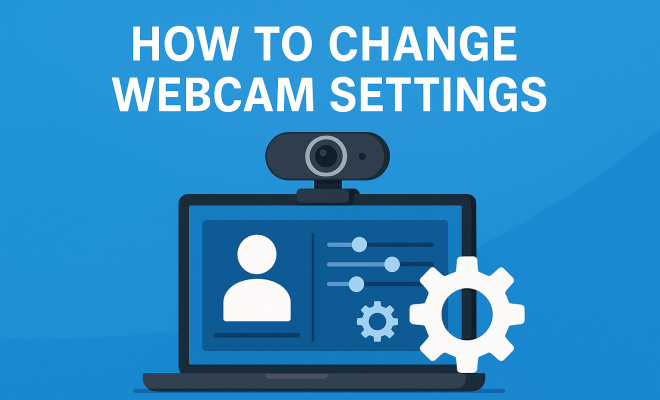
If you’re using a Windows computer, changing webcam settings is relatively straightforward. Start by opening the Camera app, which is often pre-installed. Once the app is open, you’ll see a simple interface showing the video feed from your webcam. To access advanced settings, look for a gear icon or settings menu within the app.
Here, you can adjust options like brightness, contrast, and saturation. Windows also provides built-in privacy settings that allow you to control which applications can access your webcam. Always ensure that you have granted permission only to trusted software. This helps prevent unauthorized access and enhances your security.
3. Changing Webcam Settings on Mac
For Mac users, the process is somewhat similar but may involve different apps. The built-in Photo Booth app is a good starting point for testing your camera and changing basic settings. However, for more advanced options, you might need third-party applications like OBS Studio or iGlasses, which allow for greater customization.
In iGlasses, for instance, you can adjust focus, zoom, and even add special effects to your video feed. This can be particularly useful for content creators looking to enhance their streaming or recording quality. Remember, the key is to experiment with these settings to find what looks best in your specific lighting conditions.
4. Adjusting Resolution and Frame Rate
One of the first things you should consider when looking to change webcam settings is the resolution and frame rate. Higher resolutions provide clarity, but they also require more bandwidth. This is crucial to keep in mind, especially if you’re on a slow internet connection.
Most webcams allow you to choose between different resolutions, such as 720p, 1080p, or even 4K. If you’re using popular video conferencing software, familiarize yourself with the optimal settings they recommend. For instance, Zoom recommends using 720p for standard video calls and 1080p for higher-quality meetings. Understanding these nuances can improve your online presence significantly.
5. Enhancing Lighting Conditions
Lighting plays a pivotal role in how your webcam performs. Even the best camera can produce poor-quality images in inadequate lighting. When you change webcam settings, consider adjusting your physical environment to improve lighting. Natural light is often the most flattering; position yourself facing a window if possible. (See: Webcam overview and technology.)
If you’re working in low-light conditions, you might want to invest in a ring light or softbox. These tools can evenly distribute light on your face, eliminating harsh shadows and producing a more professional appearance. Many webcams also come equipped with automatic light correction features—make sure to explore these settings for optimal results.
6. Using Third-Party Software
Sometimes, the built-in settings aren’t enough for what you need. This is where third-party software comes into play. Applications like OBS Studio, ManyCam, or XSplit allow you to manipulate your webcam feed more extensively. With these programs, you can add filters, modify colors, and even layer multiple video sources.
These tools are particularly popular among streamers and content creators. For example, if you’re streaming on Twitch or YouTube, the ability to customize your webcam feed can significantly enhance your production value. Look for features that allow you to integrate graphics or overlays, giving your stream a polished, professional touch.
7. Testing and Troubleshooting Webcam Settings
After making adjustments, it’s essential to test your settings thoroughly. Many platforms offer a preview feature before joining a meeting, allowing you to see how you look. Use this opportunity to make final tweaks and ensure that everything is functioning correctly.
If you encounter issues, first check your connection and drivers. Sometimes, outdated drivers can cause problems with your webcam settings. Go to your device manager and ensure that everything is up to date. If issues persist, consider restarting your computer or reinstalling the webcam software.
8. Staying Secure While Using Your Webcam
As you adjust your webcam settings, don’t overlook the importance of security. Webcam hacking is a real concern, so it’s crucial to take steps to protect yourself. Always use trusted software and avoid suspicious links or downloads that could compromise your system.
Additionally, consider using physical covers for your webcam when it’s not in use. These simple devices can prevent unauthorized access and give you peace of mind. Always maintain vigilance by regularly checking your privacy settings to ensure only the applications you trust have access to your webcam.
9. Advanced Webcam Settings You Might Not Have Considered
While basic settings are essential, exploring advanced options can take your webcam experience to the next level. For instance, features like white balance allow you to adjust the color temperature of your video feed, which can make a significant difference in how natural you appear. This is especially important if your lighting source is colored (like fluorescent lights) or if you’re streaming in mixed lighting conditions.
Another useful feature is the ability to adjust the field of view (FOV). Depending on your webcam model, you might be able to control how much of your surroundings is captured in the frame. A wider FOV can be beneficial for group calls, but it may also include distracting background elements. Test different angles to find the right balance for your needs.
10. Webcam Settings for Different Use Cases
Understanding that different scenarios require unique webcam settings is crucial. For example, if you’re participating in a highly formal meeting, you might want to opt for a clean background and professional attire, along with increased sharpness and brightness to ensure your face is clearly visible. In contrast, casual video chats allow for a more relaxed setting, where you might want to include personal touches in your background.
For gamers, the priority might be low latency and high frame rates during streaming, making adjustments to ensure no lag in video transmission while also maintaining clarity. Content creators often require a unique blend of lighting and background effects to create an engaging viewer experience. Tailoring your settings to match the context not only improves your image but also enhances the viewer’s experience. (See: Telework and video communication guidelines.)
11. Comparing Webcam Models
When considering changing your webcam settings, it’s essential to recognize that not every camera has the same features. For example, high-end models like the Logitech Brio or Razer Kiyo offer advanced functionalities such as HDR and built-in ring lights, which can significantly streamline the process of achieving the best image quality.
On the other hand, budget models may lack these features but can still perform adequately with proper settings adjustments. Research and compare different webcam models to find one that meets your needs and has the capabilities to support your desired settings.
12. Common FAQ About Changing Webcam Settings
How do I know if my webcam settings are optimized?
The best way to determine if your webcam settings are optimized is to conduct a test call. Use a platform like Zoom or Skype to initiate a video call with a friend or colleague, and ask for feedback on the clarity and brightness of your image.
Can I change webcam settings while in a call?
Many video conferencing platforms allow you to adjust certain settings during a call, such as video resolution and brightness. However, more in-depth settings might require you to exit the call and access your webcam settings or the software you’re using.
What should I do if my video is lagging?
If your video is lagging, check your internet connection first. A slow connection can severely affect video quality. Additionally, try lowering your webcam’s resolution and frame rate to reduce the strain on your bandwidth.
Is it necessary to use external software for webcam settings?
While built-in software typically provides adequate functionality, external software can offer more advanced features and greater control over your webcam settings. If you require specific adjustments that aren’t available in default applications, consider using third-party software.
How can I improve the audio quality from my webcam?
Good audio quality is just as important as video clarity. If your webcam has a built-in microphone, make sure the settings are configured correctly. For better sound, consider using an external microphone, as they typically provide superior audio quality compared to built-in options.
13. Tips for Professional Webcam Use
When participating in video conferences or virtual events, there are several best practices to follow to ensure you come across professionally. First, ensure your background is clean and uncluttered. A simple, neutral background can help minimize distractions and keep the focus on you.
Next, dress appropriately for your audience. Even if you’re working from home, wearing business attire can help set the right tone for your meeting. Your posture matters too; sitting up straight conveys confidence and engagement. Lastly, maintain eye contact by looking into the camera rather than at the screen—this small adjustment can make a big difference in how others perceive your involvement. (See: Tips for video conferencing.)
14. Understanding Resolution Impact
Choosing the right resolution can directly impact the quality of your stream or video call. For example, 720p provides decent quality for most conferencing needs, but if you’re presenting visuals or need to show detailed information, 1080p is preferable. Some platforms may even support 4K streaming, which offers the highest quality but requires a solid internet connection and compatible hardware.
Statistics show that around 60% of users feel that image quality affects their engagement during virtual meetings. This demonstrates just how important it is to choose the right settings based on the context of your calls.
15. Lighting Tips for Video Calls
Proper lighting can completely transform your video quality. As mentioned earlier, natural light is ideal, but if that’s not an option, there are alternative solutions. For example, soft white bulbs can mimic daylight and create a warm, inviting atmosphere. Avoid using overhead lighting that casts shadows on your face; instead, position lights at eye level to get the most flattering angles.
Using two light sources can help eliminate shadows from both sides, giving you a more even glow. If you can’t invest in professional lighting, even simple desk lamps can be effective if placed wisely. Remember, the goal is to illuminate your face without creating harsh contrasts.
16. Popular Video Conferencing Platforms and Their Settings
Different video conferencing platforms have unique settings and features that can enhance your experience. For instance, Zoom offers a virtual background feature, allowing you to replace your background with an image or video, which can be useful for maintaining professionalism or privacy. Microsoft Teams has similar features and offers background blur options, making it easier to focus on the speaker without distractions behind them.
Google Meet allows you to change the brightness of your video in real-time, which is helpful if you’re in a room with fluctuating lighting. Familiarizing yourself with these features can provide a significant advantage in crafting your appearance and experience during calls.
17. Final Thoughts on Webcam Use
In this digital age, knowing how to change webcam settings effectively can transform your online interactions. Whether for professional meetings, teaching, or casual chats, the right adjustments can make all the difference. Don’t shy away from experimenting with different setups, backgrounds, and lighting conditions. Each small change can contribute to a more polished and engaging presence on-screen. So, take the time to optimize your webcam settings—you’ll be glad you did!
“`
Trending Now
Frequently Asked Questions
How do I access webcam settings on Windows?
To access webcam settings on Windows, open the Camera app, which is typically pre-installed. Once the app is running, look for a gear icon or settings menu to find options for adjusting brightness, contrast, and saturation, among other features.
What factors affect webcam performance?
Webcam performance can be influenced by various factors, including lighting conditions, lens quality, and your computer's processing power. Understanding these factors can help you adjust settings for optimal video quality during calls.
Can I improve video quality on my webcam?
Yes, you can improve video quality by adjusting webcam settings such as brightness, contrast, and saturation. Additionally, ensuring good lighting and using a high-quality lens can enhance clarity and overall video performance.
What should I do if my webcam is not working?
If your webcam is not working, first check if it is properly connected and recognized by your computer. Ensure that you have granted the necessary permissions for applications to access the webcam. Restarting your device or updating drivers may also resolve the issue.
How can I ensure webcam security?
To ensure webcam security, regularly check and manage privacy settings on your computer. Grant access only to trusted applications and consider using a physical cover for the webcam when not in use to prevent unauthorized access.
Have you experienced this yourself? We’d love to hear your story in the comments.