Transform Your Phone into a High-Quality Webcam
“`html
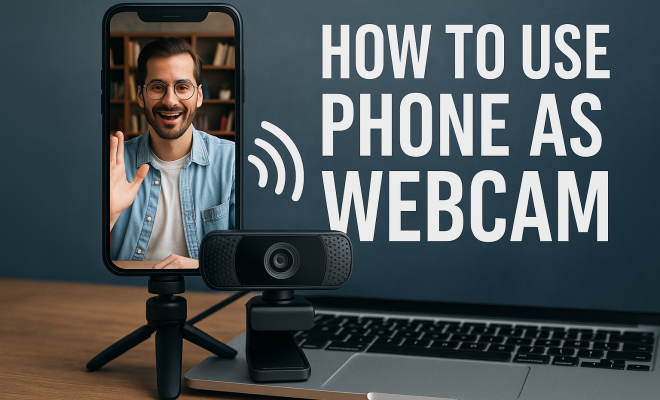
In a world that increasingly relies on virtual communication, having a reliable webcam is crucial. However, many people don’t want to invest in expensive camera equipment. Luckily, if you’ve got a smartphone, you can easily use your phone as a webcam. This handy guide will take you through everything you need to know about transforming your device into a powerful webcam for all your video calls or streaming needs.
1. Understanding the Benefits: Why You Should Use Your Phone as a Webcam
Using your phone as a webcam has several advantages. First, smartphones typically come equipped with high-quality cameras that can outperform standard webcams. For instance, recent models from Apple and Samsung offer impressive resolutions and advanced features like low-light performance and image stabilization. With these capabilities, you can achieve a level of video quality that is often superior to many dedicated webcams.
Additionally, using your phone as a webcam can save you money. Instead of buying new equipment, you can repurpose a device you already own. This not only cuts costs but also reduces electronic waste, making it an environmentally friendly option. Many apps allow for a seamless connection between your phone and computer, offering various features that might be lacking in cheap webcams.
2. Getting Started: Basic Requirements
To use your phone as a webcam, you’ll need a few basic requirements in place. First, ensure your smartphone has a camera capable of high-definition recording. Most modern smartphones meet this criteria. Next, you’ll need an application that facilitates the connection between your phone and computer. Popular options include DroidCam, Iriun, and EpocCam, each available for both Android and iOS devices.
Additionally, a stable internet connection is essential, especially if you’re streaming or participating in video calls. Connecting both devices to the same Wi-Fi network will often yield the best results. Lastly, consider a tripod or a phone holder to stabilize your phone during use, ensuring a clear view and less camera shake.
3. Choosing the Right App: Top Apps to Use Your Phone as a Webcam
Choosing the right app is crucial for a smooth experience. Here are three popular options:
- DroidCam: This app supports both Android and iOS. It provides clear video and audio streaming over Wi-Fi or USB. DroidCam is user-friendly and integrates with various video conferencing platforms.
- Iriun: Iriun offers excellent video quality and supports up to 4K streaming. It works seamlessly with Windows, macOS, and Linux, making it a versatile choice.
- EpocCam: Known for its ease of use, EpocCam is compatible with many popular video conferencing applications. It’s simple to set up and offers features like background blur and support for multiple resolutions.
Each of these apps has unique strengths, so consider your specific needs—like compatibility with your operating system and desired features—before making a choice.
4. Installation and Setup: Step-by-Step Guide
Once you’ve chosen an app, installing and setting it up is relatively straightforward. Start by downloading the app on both your smartphone and your computer. Follow these general steps:
- Install the App: Download and install the chosen app on your smartphone from the App Store or Google Play Store. Then, download the corresponding client for your computer from the developer’s website.
- Connect Your Devices: Open the app on your smartphone and your computer. For most applications, you will need to connect both devices to the same Wi-Fi network or use a USB cable.
- Configure Settings: Adjust settings based on your preferences. Make sure to select the correct camera and microphone inputs on your computer.
- Launch Your Call: Open your preferred video conferencing application, select the app as your camera source, and you’re ready to go!
This setup process can vary slightly based on the app you choose, but these general steps should guide you through.
5. Optimizing Camera Settings: How to Get the Best Quality
To maximize the quality of your video, you should optimize your camera settings. Most apps allow you to adjust various parameters like resolution, frame rate, and aspect ratio. Generally, a resolution of 720p is sufficient for most video calls, but you can increase this to 1080p or even 4K if your smartphone supports it and your connection can handle it.
Additionally, consider lighting conditions. Natural light can greatly enhance your video quality, so position yourself near a window if possible. If you’re using artificial lighting, try to use soft lights that reduce harsh shadows and glare on your face. A well-lit environment can make a significant difference in how you appear on camera.
6. Maintaining a Stable Connection: Tips for a Smooth Experience
If you want to ensure that your video calls run smoothly, maintaining a stable connection is key. If you’re using Wi-Fi, try to minimize interference by staying close to the router and ensuring that no other devices are hogging bandwidth. You can also switch to a wired connection if your app supports USB tethering, which can provide a more stable connection than Wi-Fi.
Always test your setup before important calls. Check the video and audio quality and make any necessary adjustments. This step can save you a lot of headaches and awkward moments during meetings or online classes.
7. Integrating with Video Conferencing Apps: Making It Work
Most video conferencing platforms like Zoom, Microsoft Teams, and Skype support external camera inputs, including your smartphone webcam. Integrating your phone is typically straightforward. In your video conferencing app settings, look for the option to select your camera source, and choose the app you’re using. (See: Using your phone as a webcam.)
Keep in mind that some platforms might require additional permissions or settings adjustments. For example, you may need to allow your chosen app to access your camera and microphone. Always check for software updates for both the app and your video conferencing platform to ensure compatibility and access to the latest features.
8. Using Advanced Features: Enhance Your Streaming
Many apps come with advanced features that can enhance your streaming experience. For example, some apps allow for background blurring or replacement, which can be particularly useful if your background is cluttered. Others may offer filters or effects that add a fun element to your calls.
Additionally, consider using external microphones or audio interfaces to improve sound quality. Good audio is just as crucial as video quality for effective communication, so investing in a decent microphone can make your voice clearer and more professional during calls.
9. Staying Updated: Keeping Your Setup Relevant
Technology is ever-evolving, and keeping your device and software updated can ensure that you’re taking advantage of the latest features and security patches. Regularly check for updates for both your smartphone and the webcam app you’re using. This practice can also prevent compatibility issues with video conferencing platforms.
Finally, stay informed about new apps and accessories that can enhance your experience. As more people turn to using their phones as webcams, developers are continually releasing updates and new tools that could offer improved functionality or efficiency.
10. Frequently Asked Questions
Can I use my phone as a webcam for gaming streams?
Yes, you can use your phone as a webcam for gaming streams. Many streaming software applications, like OBS Studio, allow you to select your phone’s camera as a video source. Just make sure your phone is connected through the same application you’re using to stream and that it meets the required video quality standards for your stream.
What types of smartphones work best for this?
While most modern smartphones can work well as webcams, devices with higher camera resolutions, such as the latest iPhone or Samsung Galaxy models, will typically deliver better quality. Look for features like image stabilization, low-light performance, and multiple lens options, which can significantly enhance your video quality.
What if my app doesn’t support USB connections?
If your chosen app does not support USB connections, you can prioritize a strong Wi-Fi connection. Make sure both your smartphone and computer are connected to the same high-speed network. Alternatively, consider using a different app that supports USB tethering or wired connections for better stability.
How do I prevent my phone from overheating while using it as a webcam?
Phone overheating can be a concern, especially during extended use. To prevent this, keep your phone well-ventilated and avoid placing it on soft surfaces that can trap heat. Use your phone’s battery saver mode to reduce resource consumption, and consider using an external power source if you’re using it for long video calls or streaming sessions.
Is there a risk of privacy concerns when using my phone as a webcam?
Yes, privacy is something to keep in mind. Ensure that you trust the app you’re using and review its permissions carefully. Avoid giving unnecessary access to your phone’s content. Be cautious about using the phone’s camera in public or shared spaces, as it could inadvertently capture sensitive information.
Can I use my phone as a webcam while charging?
Yes, using your phone as a webcam while charging is possible, and it can help prevent battery drain during long sessions. Just make sure the charging cable does not interfere with the camera angle or placement of your phone. A good setup can ensure you have a steady power supply without compromising video quality.
11. Real-World Applications: Where Using Your Phone as a Webcam Shines
Using your phone as a webcam isn’t just a clever way to save money; it can also open up a world of practical applications. Let’s explore some scenarios where turning your phone into a webcam can be particularly beneficial.
Online Classes and Tutoring
Students and tutors alike can benefit from using a smartphone as a webcam. The high-quality camera can provide clarity for both video lessons and demonstrations, especially in subjects that require visual aids like math or art. With a flexible setup, you can easily reposition the camera for different angles, making it ideal for interactive learning sessions.
Virtual Meetings and Remote Work
As remote work becomes increasingly common, professionals often need to look their best on video calls. Using a smartphone can give you a superior image quality compared to standard laptop webcams. Plus, the ability to use your phone’s features—like smoothly moving across the room to show presentations or materials—adds a professional touch to your meetings.
Live Streaming for Content Creators
For content creators, using a smartphone as a webcam can significantly elevate the production value of live streams. With high-definition video, you can engage with your audience while maintaining excellent image quality. For instance, artists can showcase their work up close, while gamers can interact with viewers in a more dynamic way. Features like filters and effects also allow for creative expression, adding a unique flair to each stream.
Family and Social Connections
Whether it’s a virtual family reunion or a casual catch-up with friends, using your phone as a webcam allows you to connect in meaningful ways. The superior camera quality can help everyone look their best, regardless of distance. Plus, the ability to move around can help create a more relaxed and natural atmosphere for conversations. (See: Impact of smartphone cameras on video quality.)
12. Comparing Quality: Phone Cameras vs. Dedicated Webcams
It’s essential to understand how the quality of smartphone cameras stacks up against dedicated webcams. Let’s break down some key factors to consider:
Image Quality
Smartphones often feature advanced image processing capabilities, resulting in crisp, vibrant visuals. Many models now include high-quality sensors that can capture more light, producing better images in low-light conditions. In contrast, while there are high-end webcams that offer similar quality, budget models may fall short.
Portability
Smartphones are inherently portable. You can easily carry them around, which is particularly useful if you need to change locations or want to join a video call from various spots in your home. Dedicated webcams, however, are usually stationary unless moved, which can limit your flexibility.
Features
Smartphones come equipped with multiple lenses, filters, and advanced settings that can enhance video quality. Many webcams, especially those targeting entry-level consumers, may lack these features, providing only basic functionality. On the other hand, premium webcams may include features such as 4K resolution, high frame rates, and superior audio capabilities, which can be advantageous for specific users.
Cost Effectiveness
Using your phone as a webcam saves you from investing in additional hardware, making it a cost-effective solution for most users. Many people already own smartphones with excellent cameras, while dedicated webcams can range widely in price, from budget-friendly to premium models.
In summary, while dedicated webcams have their advantages, smartphones generally offer a more versatile and cost-effective solution for casual users and professionals alike. By leveraging the powerful technology already in your pocket, you can elevate your video calling and streaming experience.
13. Final Thoughts: The Future of Webcam Technology
As technology continues to evolve, the lines between devices blur, especially in video communication. Using your phone as a webcam is not just a trend; it’s a practical solution that capitalizes on advancements in smartphone technology. Whether for work, education, or connecting with loved ones, the ability to transform your phone into a high-quality webcam opens up endless possibilities.
With the ongoing developments in both smartphone cameras and webcam applications, this practice will likely become more widespread and sophisticated. It not only underscores the capabilities of our mobile devices but also encourages sustainability by repurposing existing technology. So, if you’ve been wondering about making the most of your smartphone, now’s a great time to explore using it as a webcam—you’re sure to be pleased with the results.
14. Exploring the Technical Aspects: Understanding Video Quality Factors
When using your phone as a webcam, understanding the technical aspects of video quality can help you make the most of your setup. Some critical components include resolution, frame rate, and compression.
Resolution
Resolution is one of the first factors to consider. Higher resolutions like 1080p or 4K provide sharper images. While 720p might suffice for casual calls, higher resolutions can enhance clarity, especially when showcasing intricate details or during professional meetings.
Frame Rate
Frame rate, measured in frames per second (fps), impacts how smooth your video appears. A standard frame rate is 30fps, which is adequate for most calls. However, 60fps provides smoother motion, making it ideal for dynamic presentations or fast-action content like gaming streams.
Compression
Most video applications use compression algorithms to reduce file size while maintaining quality. Understanding how your chosen app compresses video can help you choose the right settings. Some apps offer low-latency modes for real-time communication, while others focus on maintaining quality for recorded streams.
15. Future Trends in Smartphone Webcams
The future of using smartphones as webcams looks promising as advancements in technology continue to emerge. Here are some trends to watch: (See: Benefits of smartphone technology.)
Enhanced AI Capabilities
As artificial intelligence evolves, we can expect smarter camera features, such as automatic background adjustments and enhanced low-light performance. These improvements will make using your phone as a webcam even more effective and user-friendly.
Integration with Other Technologies
Integration with Augmented Reality (AR) and Virtual Reality (VR) is another exciting trend. Future apps may allow users to create immersive environments for video conferencing, making remote interactions feel more engaging and lifelike.
5G Technology
The rollout of 5G technology will further enhance the experience of using phones as webcams. With faster internet speeds and low latency, you can expect smoother streaming and video calls, even in high resolutions. This will make remote work and virtual communication more efficient and enjoyable.
16. Community Insights: Feedback from Real Users
To better understand the nuances of using a smartphone as a webcam, let’s look at some feedback from real users:
User Experience
Many users rave about the crisp quality they achieve compared to traditional webcams. They appreciate being able to adjust angles and utilize the various camera features on their phones. A common sentiment is the ease of setup and the versatility it provides for different scenarios, from casual calls to professional meetings.
Common Challenges
However, some users have reported challenges, particularly with maintaining stable connections. Factors such as distance from the router or interference from other devices can affect performance. Others mentioned the need for additional accessories, like tripods, to improve stability and framing.
17. Tips and Tricks for Advanced Users
If you’re looking to take your phone webcam experience to the next level, here are some tips and tricks:
Utilizing Multiple Devices
Consider using multiple devices if you have access to more than one smartphone. You can set them up at different angles for a multi-camera experience, giving your audience a more dynamic view during presentations or streams.
Custom Settings for Specific Applications
Different video conferencing platforms may have unique requirements or optimize differently. Experiment with settings specific to the platform you’re using to find what works best for your circumstances.
Engaging with Your Audience
Using your smartphone as a webcam allows for unique interactions with your audience. Don’t hesitate to utilize the phone’s features, like switching between cameras, to engage more effectively. Whether it’s showing documents, physical demonstrations, or interacting with viewers in real-time, leverage the flexibility of your device!
“`
Trending Now
Frequently Asked Questions
Can I use my phone as a webcam?
Yes, you can use your phone as a webcam by utilizing applications like DroidCam, Iriun, or EpocCam. These apps connect your smartphone to your computer, allowing you to take advantage of your phone's high-quality camera for video calls or streaming.
What apps do I need to turn my phone into a webcam?
To turn your phone into a webcam, you can download apps such as DroidCam, Iriun, or EpocCam. These applications are available for both Android and iOS devices and facilitate the connection between your phone and computer.
What are the benefits of using a phone as a webcam?
Using your phone as a webcam offers several benefits, including higher video quality due to advanced smartphone cameras, cost savings since you can repurpose an existing device, and reduced electronic waste, making it an eco-friendly choice.
Do I need a specific type of phone to use it as a webcam?
Most modern smartphones are suitable for use as webcams, provided they have a camera capable of high-definition recording. Check for features like resolution and low-light performance to ensure optimal video quality.
How do I connect my phone to my computer as a webcam?
To connect your phone to your computer as a webcam, first install a compatible app like DroidCam or Iriun on both devices. Then, ensure both are connected to the same Wi-Fi network for the best performance, and follow the app's instructions to establish the connection.
Have you experienced this yourself? We’d love to hear your story in the comments.