Mastering ZIP Files: A Comprehensive Guide to Creation
“`html
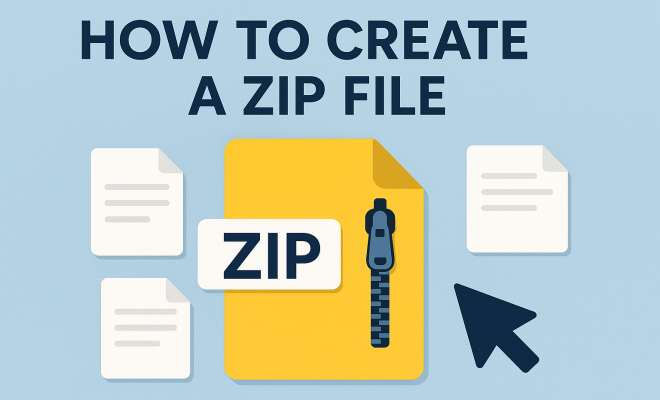
Creating a ZIP file is a straightforward task that can significantly improve your file management skills. Whether you’re looking to compress large files for easier sharing or simply want to organize your documents efficiently, understanding how to create a ZIP file is an essential skill. In this comprehensive guide, we’ll explore the background of ZIP files, the various methods to create them across different operating systems, and some practical insights on when and why to use them.
1. Understanding ZIP Files
ZIP files are a popular file format used for data compression and archiving. Introduced in 1989 by Phil Katz, the ZIP format was designed to allow users to combine multiple files into a single archive, reducing the overall file size. This process not only saves storage space but also makes transferring files over the internet faster and more efficient. ZIP files can contain a variety of file types, including documents, images, and programs.
The compression algorithm used in ZIP files allows for lossless compression, meaning that the original files can be completely restored without any loss of data. This feature makes ZIP files an excellent choice for backing up important documents, sharing files via email, or storing data on your computer.
2. Why Use ZIP Files?
The advantages of using ZIP files extend beyond mere file size reduction. Here are several compelling reasons to consider creating ZIP files:
- Efficiency in Sharing: ZIP files allow you to bundle multiple files into one, making it easier to share them via email or other platforms without sending numerous attachments.
- Space Saving: By compressing files, you can significantly reduce the amount of storage space they occupy, which is particularly useful for large projects or when working with limited disk space.
- Organization: ZIP files help in organizing related files together. For instance, you can group all files related to a project in a single ZIP file, making them easier to manage and find later.
- Improved Download Speeds: Smaller file sizes mean faster download speeds for recipients, which is crucial for improving user experience.
3. How to Create a ZIP File on Windows
Creating a ZIP file on a Windows operating system is remarkably simple and can be done in just a few steps:
- First, navigate to the folder containing the files you want to zip.
- Select the files by holding down the Ctrl key and clicking each file you want to include.
- Right-click on one of the selected files, hover over the Send to option, and click on Compressed (zipped) folder.
- A new ZIP file will appear in the same location with a default name. You can rename it by right-clicking and selecting Rename.
This method is quick and utilizes built-in Windows functionality, so you don’t need any additional software.
4. How to Create a ZIP File on macOS
If you’re using macOS, creating a ZIP file is just as easy. Here’s how:
- Open the Finder and locate the files you want to compress.
- Select the files by holding down the Command key while clicking on each item.
- Right-click on one of the selected files (or use a two-finger tap on the trackpad) and choose Compress Items.
- A new ZIP file will be created in the same directory with a default name. You can rename it by clicking on the name and typing a new one.
This method leverages macOS’s built-in functionality, making it easy to create ZIP files without any third-party applications.
5. How to Create a ZIP File on Linux
For Linux users, there are several methods to create ZIP files, depending on the distribution and desktop environment. Here’s a common approach using the command line:
- Open your terminal.
- Navigate to the directory containing the files you wish to compress using the cd command.
- Use the following command to create a ZIP file: zip -r filename.zip foldername. Replace filename.zip with your desired ZIP file name and foldername with the name of the folder you want to compress.
This command recursively compresses the entire folder, preserving its structure. Alternatively, many Linux distributions offer GUI tools like File Roller that allow you to create ZIP files with a few clicks. (See: ZIP file format on Wikipedia.)
6. Using Third-Party Applications
If you prefer more advanced features or need to handle additional formats, third-party applications can be a great solution. Popular compression tools include:
- 7-Zip: A powerful and free file archiver that supports various formats, including ZIP, RAR, and more. It offers a user-friendly interface and robust compression ratios.
- WinRAR: While not free, this application is widely used and offers a trial period. It allows for ZIP file creation and supports multiple compression formats.
- WinZip: A longstanding application known for its ease of use and extensive features, including file encryption and cloud integration capabilities.
These applications often provide additional features like password protection, file splitting, and better compression algorithms, making them a good choice for power users or specific needs.
7. Best Practices for Creating ZIP Files
While creating ZIP files is straightforward, there are some best practices to keep in mind to ensure efficiency and usability:
- Organize Before Zipping: Prior to zipping, take time to organize your files. This can simplify file management later on, especially if you’re sharing with others.
- Check File Sizes: Be mindful of the size of the files you are compressing. Many email providers have size limits for attachments, so keeping your ZIP files under these limits is essential.
- Password Protection: For sensitive files, consider using password protection available in many ZIP software applications. This adds an extra layer of security to your data.
- File Naming Conventions: Use clear and descriptive names for your ZIP files. This will help you and others understand the contents at a glance.
Implementing these best practices can save you time and hassle when sharing or accessing your files.
8. Common Issues and Troubleshooting
Even though creating a ZIP file is generally straightforward, users may encounter some common issues. Here’s how to troubleshoot:
- ZIP File is Corrupted: Occasionally, ZIP files can become corrupted during compression or transfer. If you encounter this issue, try recompressing the files or using a repair tool offered by some software like WinRAR.
- Cannot Open ZIP File: If you’re unable to open a ZIP file, it could be due to the software you’re using. Ensure that your software is updated, or try a different application to open the file.
- Large Files Won’t Compress: Some file types, like JPEG images or MP4 videos, are already compressed. Attempting to ZIP these may yield little to no size reduction.
By being aware of these issues, you’ll be better prepared to resolve them quickly.
9. Current Relevance of ZIP Files
Despite the rise of cloud storage solutions and other compression formats, ZIP files remain highly relevant today. They’re widely used in various industries, including software development, graphic design, and academia. The ability to compress files for easier sharing, backup, and storage ensures that ZIP files will continue to play a crucial role in digital file management.
Additionally, as remote work becomes more commonplace, the need for efficient file sharing is greater than ever. ZIP files facilitate quick and easy transfers that save both time and bandwidth. In essence, learning how to create a ZIP file is not just a technical skill; it’s a vital part of modern digital communication.
10. Comparisons with Other File Compression Formats
While ZIP files are popular and widely used, there are other compression formats available, each with its unique features. Here’s a quick comparison with some of the most commonly used formats:
- RAR: This format tends to achieve better compression ratios than ZIP. However, it requires specific software like WinRAR to create and extract files. RAR files can also handle larger volumes of data, making them ideal for extensive projects.
- TAR: Used primarily in Unix and Linux systems, TAR files don’t compress data on their own but combine multiple files into one. You would typically use additional compression like Gzip to create a .tar.gz file.
- 7Z: Known for its high compression ratio, the 7Z format is used by the 7-Zip software. It supports various compression methods and is optimal for users who prioritize maximizing storage space.
When choosing a compression format, consider your specific needs, such as the file types involved, the intended recipients, and the tools available to you.
11. Security Features in ZIP Files
Security is a vital aspect of file compression, especially for sensitive data. Many ZIP file creation tools offer features to secure your files: (See: CDC on ZIP file usage.)
- Password Protection: ZIP files can be encrypted with passwords, ensuring that only those with the password can access the contents. This is crucial for sharing confidential information securely.
- Encryption Standards: Modern compression tools often use AES (Advanced Encryption Standard) to secure ZIP files. AES-256 encryption is highly regarded for its strength, making it difficult for unauthorized users to crack the password.
- Digital Signatures: Some tools allow you to sign ZIP files digitally, which can validate the sender’s identity and confirm that the contents have not been altered. This is particularly useful in professional settings.
When sharing sensitive information, always utilize these security features to protect your data effectively.
12. Real-World Applications of ZIP Files
ZIP files are utilized in various scenarios across different industries. Here are some examples of practical use cases:
- Software Distribution: Developers often distribute software in ZIP files, containing all necessary files in one package. This makes installation easier for users.
- Document Sharing: In corporate environments, employees frequently zip documents before emailing them to streamline communication and ensure all necessary files are included.
- Backup Solutions: ZIP files are commonly used in backup solutions, allowing users to compress data and save space on physical or cloud storage.
- Web Development: Developers often use ZIP files to package web applications or assets for easy deployment and transfer.
These examples showcase the versatility of ZIP files and their importance in efficient data management.
13. Frequently Asked Questions (FAQ)
Here are some commonly asked questions regarding ZIP files and their creation:
What is a ZIP file?
A ZIP file is an archive file format that supports lossless data compression. It can contain one or more files and folders, enabling users to bundle them together for easier storage or sharing.
How do I unzip a ZIP file?
To unzip a file, you can right-click on the ZIP file and select “Extract All” on Windows or “Open With” in macOS to extract the files. You can also use third-party applications like WinRAR or 7-Zip for decompression.
Can I password-protect a ZIP file?
Yes, most compression software allows you to set a password when creating a ZIP file. This secures the contents so that only individuals with the password can access the files.
Are there any size limits for ZIP files?
While ZIP files can technically support very large files, practical limits are enforced by the operating system and the software used. Most applications can create ZIP files up to 4 GB, but larger files may require different formats like RAR or 7Z.
Can I create a ZIP file on mobile devices?
Yes, there are numerous apps available for both iOS and Android that allow you to create ZIP files directly from your mobile device. Apps like WinZip and ZArchiver can help with this task. (See: ZIP file in computer science.)
What happens if a ZIP file is corrupted?
If a ZIP file is corrupted, it may not open or give an error message. You can try using repair tools available in some compression software, or recompress the original files if they are accessible.
Can I create ZIP files in the cloud?
Many cloud storage services like Google Drive and Dropbox offer built-in options to zip files. You can select multiple files, right-click, and choose the option to download them as a ZIP file.
14. Advanced Techniques for Creating ZIP Files
If you’re looking to take your ZIP file creation skills to the next level, there are some advanced techniques you might find useful:
- Batch Compression: If you frequently compress files of the same type or from the same folder, consider automating the process with batch scripts. This is especially useful for regular backups or project submissions.
- Custom Compression Levels: Some compression tools allow users to choose the level of compression, which can be handy if you want to balance speed and file size. For example, higher compression levels yield smaller files but take longer to process.
- File Exclusions: When zipping directories, you might not want to include certain file types (like temporary files). Many tools allow you to exclude specific file types or folders during the compression process, making your ZIP files cleaner and more relevant.
These advanced techniques can help streamline your workflow and ensure that your ZIP files are as efficient and relevant as possible.
15. Statistics on ZIP File Usage
To understand the importance and prevalence of ZIP files in today’s digital landscape, consider the following statistics:
- According to a 2022 survey, 78% of businesses reported using ZIP files for file sharing and storage, highlighting their ongoing relevance in corporate environments.
- Studies indicate that compressing files can reduce their size by up to 90%, depending on the file type, making ZIP files an essential tool for managing storage.
- In a study of email communication, it was found that emails with ZIP attachments had a 25% higher open rate compared to those with numerous attachments, showcasing the efficiency of file bundling.
These statistics emphasize how ZIP files continue to be a vital part of data management and communication in various sectors.
16. Conclusion
In summary, knowing how to create a ZIP file is not just about file management; it’s a skill that enhances productivity, organization, and security. Whether you’re a casual user or a professional, mastering ZIP files can make your digital life significantly easier. As technology continues to advance, ZIP files hold their ground as a reliable solution for file compression and sharing, proving their lasting value in the digital age.
“`
Trending Now
Frequently Asked Questions
What is a ZIP file used for?
A ZIP file is used for data compression and archiving. It allows users to combine multiple files into one compressed file, reducing overall file size, making it easier to store and share files efficiently over the internet.
How do I create a ZIP file on Windows?
To create a ZIP file on Windows, select the files you want to compress, right-click them, choose 'Send to,' and then select 'Compressed (zipped) folder.' This will create a new ZIP file containing the selected files.
Can I create a ZIP file on a Mac?
Yes, to create a ZIP file on a Mac, select the files you want to compress, right-click, and choose 'Compress Items.' This will generate a ZIP file in the same location as the original files.
What are the advantages of using ZIP files?
The advantages of ZIP files include efficient sharing of multiple files as a single attachment, significant space savings through compression, and improved organization by grouping related files together in one archive.
Is data lost when creating a ZIP file?
No, ZIP files use lossless compression, meaning that the original files can be fully restored without any loss of data. This makes them ideal for backing up important documents and sharing files.
Have you experienced this yourself? We’d love to hear your story in the comments.