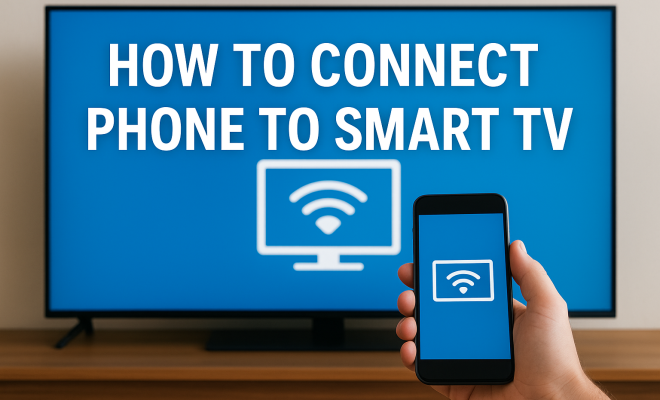
How to connect phone to smart TV
“`html
In today’s digitally connected age, streaming content from your phone to your smart TV can significantly enhance your viewing experience. Whether you want to showcase photos from your latest vacation, watch your favorite YouTube videos, or binge-watch the latest series on Netflix, knowing how to connect your phone to a smart TV is essential. This article explores various methods, practical insights, and the benefits of wireless connections, helping you optimize your entertainment setup.
1. Understanding Smart TVs
Before diving into the various methods of connecting your phone to a smart TV, let’s first understand what a smart TV is. Unlike traditional televisions, smart TVs have built-in internet capabilities and support various streaming applications, allowing users to watch content from services like Netflix, Hulu, and YouTube directly. They come equipped with operating systems such as Android TV, WebOS, or Roku, enhancing their functionality with features like screen mirroring and app stores.
The smart TV revolution has made it easier for viewers to access a vast library of content without the need for additional devices like set-top boxes. However, the integration of smartphones with smart TVs has taken the user experience to the next level. With smartphones being our primary source of media consumption, knowing how to connect your phone to a smart TV can open up a world of possibilities for sharing and enjoying content.
2. Wi-Fi Direct: A Wireless Marvel
One of the easiest ways to connect your phone to your smart TV is through Wi-Fi Direct. This technology allows devices to connect wirelessly without needing an intermediary network. Most modern smart TVs and smartphones support Wi-Fi Direct, making it a seamless option.
To use Wi-Fi Direct, follow these steps: First, ensure your smart TV is turned on and connected to Wi-Fi. On your TV, navigate to the settings menu and enable Wi-Fi Direct. Next, on your smartphone, go to the Wi-Fi settings and look for your TV in the list of available devices. Select your TV, and once the connection is established, you can start casting your media to the screen. This method is particularly beneficial for those seeking a quick connection without the hassle of additional apps or cables.
3. Screen Mirroring: The Simple Way to Share
Screen mirroring, also known as screen casting, is another popular way to connect your phone to a smart TV. This feature allows you to duplicate your phone’s display on the TV screen, making it perfect for showing photos, videos, or even apps. Most modern smartphones and smart TVs support screen mirroring, typically through protocols like Miracast or Apple’s AirPlay.
To use screen mirroring, first, ensure both devices are on the same Wi-Fi network. On your smartphone, look for the screen mirroring option in the settings (it may be under display or connectivity settings). Then, select your smart TV from the list of available devices. After a few moments, your TV will display your phone’s screen. Keep in mind that while screen mirroring is convenient, it may not work smoothly for gaming or high-speed video, as there can be a delay.
4. Using Chromecast: A Smart Solution
If you’re looking to connect your phone to a smart TV effortlessly, Google Chromecast is a fantastic option. Chromecast is a device that plugs into your TV’s HDMI port, turning it into a smart TV. It allows you to stream content directly from your phone using compatible apps.
To set up Chromecast, plug the device into your smart TV, connect it to your Wi-Fi network, and download the Google Home app on your smartphone. Once both devices are set up, you can open a compatible app such as YouTube or Netflix, tap the cast icon, and select your TV. This method not only extends your phone’s capabilities but also allows for a more stable connection when streaming high-definition content.
5. Apple AirPlay: Perfect for iPhone Users
If you’re an iPhone user, Apple’s AirPlay is a built-in feature that enables seamless streaming from your phone to your smart TV. AirPlay supports high-quality video and audio streaming and is particularly useful for sharing content with other Apple devices. (See: Understanding Smart TVs.)
To use AirPlay, ensure that your iPhone and smart TV are connected to the same Wi-Fi network. On your iPhone, swipe down from the upper-right corner to access the Control Center, then tap on the Screen Mirroring option. Select your Apple TV or AirPlay-compatible smart TV from the list. Your iPhone screen will then appear on your TV, and you can stream videos, music, or presentations with ease. This method is known for its reliability and quality, making it a favorite among Apple enthusiasts.
6. HDMI Cables: The Reliable Connection
While wireless connections are convenient, sometimes a wired connection is the way to go. Using an HDMI cable is one of the most reliable methods to connect your phone to your smart TV. This option is great for those who want to avoid potential issues with wireless signals.
To connect your phone using an HDMI cable, you’ll need an adapter that fits your phone’s charging port (like Lightning for iPhones or USB-C for Android devices). Once you have the right cable, plug one end into your phone and the other into an available HDMI port on your TV. Switch your TV to the corresponding HDMI input, and your phone’s display should appear on the screen. This method is perfect for high-quality streaming and gaming, as it eliminates latency and connection drop issues.
7. Third-Party Apps: Expanding Your Options
There’s a plethora of third-party apps designed to facilitate the connection between your phone and smart TV. Apps like AllCast, LocalCast, and BubbleUPnP offer users the ability to stream content from their mobile devices to their TVs. These applications typically work by connecting both devices to the same Wi-Fi network.
To use these apps, download your chosen application from the Google Play Store or Apple App Store. Follow the app’s setup instructions to connect to your smart TV. This method is particularly beneficial for those who have older TVs that may lack built-in smart features. These apps often come with additional functionalities, such as the ability to stream content from cloud services, making them versatile tools for media consumption.
8. The Future of Phone-to-TV Connectivity
As technology continues to evolve, the methods of connecting phones to smart TVs are also advancing. We might see more sophisticated casting technologies that allow for faster connections, better resolutions, and seamless integration with various devices. Innovations like 5G technology could further enhance streaming quality and connectivity options, opening new doors for interactive entertainment experiences.
Additionally, with the growing trend of smart home ecosystems, the integration of devices will become more fluid. Imagine controlling your TV, home lighting, and speakers from your smartphone with greater compatibility and ease. The future of connecting phones to smart TVs is bright, and staying informed about the latest developments will empower you to make the most of your entertainment setup.
9. Comparing Different Connection Methods
Understanding the pros and cons of each method can help you choose the best option for your needs. Here’s a quick comparison of popular ways to connect your phone to a smart TV:
| Method | Pros | Cons |
|---|---|---|
| Wi-Fi Direct | Easy setup, no app required | Limited range, may not support all formats |
| Screen Mirroring | Simple to use, great for photos and videos | Lag can occur, not suitable for gaming |
| Chromecast | Supports multiple apps, stable connection | Requires setup, may not be compatible with all TVs |
| Apple AirPlay | High-quality streaming, easy for Apple users | Limited to Apple devices |
| HDMI Cable | Reliable and high-quality image/audio | Can be cumbersome, requires physical connection |
| Third-Party Apps | Compatible with older TVs, versatile | Inconsistency in performance, possible ads |
10. Frequently Asked Questions (FAQ)
Q1: Can I connect my phone to a smart TV without Wi-Fi?
A: Yes, you can use an HDMI cable to connect your phone to a smart TV without Wi-Fi. Simply plug the adapter into your phone and connect it to the TV.
Q2: Why is my screen mirroring not working?
A: Common issues with screen mirroring include the devices being on different networks, interference from other devices, or outdated software. Make sure both devices are updated and connected to the same network.
Q3: Can I use Chromecast with non-smart TVs?
A: Yes, Chromecast can be used with non-smart TVs that have an available HDMI port. It will turn your regular TV into a smart TV by allowing you to cast content from your phone. (See: Impact of technology on entertainment.)
Q4: Is there a limit to the distance I can be from the TV when using Wi-Fi Direct?
A: Yes, Wi-Fi Direct typically requires devices to be within a reasonable range of each other, usually within 30 feet, depending on the environment and obstacles.
Q5: Are there any charges for using third-party casting apps?
A: Many third-party casting apps are free, but some may offer premium features at a cost. Always check the app details in the Play Store or App Store.
Q6: Can I play games from my phone on a smart TV?
A: Yes, you can play games on your smart TV by connecting your phone through various methods. Using an HDMI cable or Chromecast is recommended for the best experience. Note that screen mirroring can introduce lag, making it less ideal for fast-paced games.
Q7: Do smart TVs require updates?
A: Yes, like any device, smart TVs require software updates to improve performance, add new features, and enhance security. Regularly check for updates in your TV settings.
11. Tips for Optimal Streaming Experience
To ensure that your streaming experience is as smooth as possible, consider these tips:
- Ensure that both your phone and smart TV are updated to the latest firmware.
- Check your Wi-Fi connection—having a strong and stable connection can drastically improve streaming quality.
- Limit the number of devices connected to your Wi-Fi network while streaming to minimize congestion.
- Keep the phone and TV within a reasonable distance for wireless connections to maintain a strong signal.
- For gaming or high-definition video, consider using a wired connection whenever possible for the best performance.
12. Exploring Advanced Features of Smart TVs
As smart TVs become increasingly sophisticated, many offer features that enhance connectivity and improve the overall experience when connecting your phone to the TV. From voice control to multi-device connectivity, here are some advanced features to consider:
Voice Control Integration
Many modern smart TVs support voice assistants like Google Assistant or Amazon Alexa. This feature enables you to control your TV and connected devices using voice commands. For example, you can say, “Play my favorite show on Netflix,” and your TV will respond without needing to search through menus. This is particularly handy when you’re connecting your phone, as you can initiate streaming or mirroring with a simple voice command.
Multi-Device Connectivity
Some advanced smart TVs allow multiple devices to connect simultaneously, enabling users to switch between devices for streaming or gaming easily. This feature is incredibly useful in households where multiple family members might want to cast their content to the TV. Just ensure that the TV settings allow for multiple active connections and that the network is robust enough to handle the traffic.
Picture-in-Picture Mode
This feature allows you to watch content on your TV while simultaneously using your smartphone or tablet. For example, you can watch a live sports event on your smart TV while browsing social media on your phone. This enhances multitasking capabilities and makes it easier to stay engaged with multiple forms of entertainment. (See: Smart TV guide by The New York Times.)
Enhanced Gaming Features
Many smart TVs now come with gaming modes that reduce input lag and enhance the display quality for gaming experiences. If you’re connecting your phone to play mobile games on a smart TV, look for features like Variable Refresh Rate (VRR) or Auto Low Latency Mode (ALLM), which can significantly improve your gaming experience.
13. Common Issues and Troubleshooting Tips
Even with the best technology, you might encounter issues when connecting your phone to your smart TV. Here are some common problems and how to address them:
Connection Failure
If you’re having difficulty connecting your phone to your smart TV, ensure that both devices are on the same Wi-Fi network. Restart both the TV and phone, and try reconnecting. If using HDMI, check that the cable is securely connected.
Audio/Video Sync Issues
Sometimes, the audio and video might not align when streaming. If you experience this, try pausing and then resuming the content. You can also check if your TV has an audio delay setting that can be adjusted to sync properly.
Unstable Connection
If your connection frequently drops, it may be due to a weak Wi-Fi signal. Consider moving your router closer to the TV or using a Wi-Fi range extender. For HDMI connections, ensure that the cable is not damaged and is properly connected.
Quality Issues
If the video quality is not up to par, check the streaming settings in your app. Some apps allow you to adjust the quality based on your internet speed. You can also switch to a wired connection for better reliability.
14. Conclusion
Connecting your phone to a smart TV can significantly enhance your viewing experience. With various methods available, including Wi-Fi Direct, screen mirroring, Chromecast, Apple AirPlay, HDMI cables, and third-party apps, you have plenty of options to choose from. Whether you prefer a wired connection for reliability or a wireless option for convenience, these tools can help you engage with media in a whole new way. As technology continues to evolve, staying informed about new features and troubleshooting tips will ensure that you make the most out of your connected experience. So get ready, gather your devices, and enjoy everything that a connected experience has to offer!
“`
Trending Now
Frequently Asked Questions
How do I connect my phone to my smart TV?
To connect your phone to your smart TV, you can use methods like Wi-Fi Direct, screen mirroring, or casting through apps like Google Home or Apple AirPlay. Ensure both devices are on the same Wi-Fi network, then follow the specific instructions for your TV and phone model.
What is Wi-Fi Direct and how does it work?
Wi-Fi Direct is a technology that allows devices to connect directly to each other without needing a traditional Wi-Fi network. By enabling Wi-Fi Direct on both your smart TV and smartphone, you can easily share content wirelessly for a smoother viewing experience.
Can I mirror my phone screen to my smart TV?
Yes, you can mirror your phone screen to your smart TV using features like screen mirroring or casting. Most smart TVs support this feature, allowing you to display your phone's content directly on the TV screen for enhanced viewing.
What should I do if my phone won't connect to my smart TV?
If your phone won't connect to your smart TV, first ensure both devices are on the same Wi-Fi network. Restart both devices, check for software updates, and verify that the TV's casting or mirroring feature is enabled. If issues persist, consult the user manual for troubleshooting steps.
Is it possible to stream Netflix from my phone to my smart TV?
Yes, you can stream Netflix from your phone to your smart TV. Simply open the Netflix app on your phone, select the content you want to watch, and use the casting feature to send it to your smart TV. Ensure both devices are connected to the same Wi-Fi network.
What’s your take on this? Share your thoughts in the comments below — we read every one.