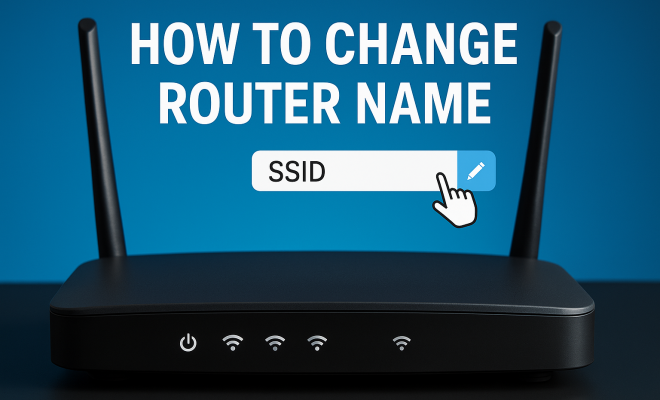
How to change router name
“`html
Changing your router name can seem like a daunting task, but it’s an essential skill for anyone looking to enhance their home network security or simply customize their internet experience. This guide will walk you through the process, providing insights that go beyond just the how-to, and giving you a richer understanding of why and how changing your router name, or SSID (Service Set Identifier), matters in today’s tech-savvy world.
1. Understanding the Importance of Your Router Name: Why It Matters
Before jumping into the nitty-gritty of changing your router name, let’s talk about *why* it’s important. Your router name, or SSID, is what your devices use to identify your network. A unique name not only helps you recognize your network among others but also plays a crucial role in security. For instance, if your SSID is set to the default name provided by the manufacturer, it can reveal key details about your router model and firmware, making it easier for malicious actors to target your network.
Moreover, a personalized SSID can enhance your network’s security. By avoiding common names or identifiable information, you reduce the risk of unauthorized access. So, whether you’re looking to add a touch of personality to your network or increase its security, changing your router name is a fundamental step.
2. Gathering the Necessary Information: What You Need to Know
Before you proceed with changing your router name, it’s important to have certain information at hand. First, know your router’s IP address. Commonly, this is either 192.168.0.1 or 192.168.1.1, but it can vary based on the manufacturer. If you’re unsure, you can usually find this information at the bottom of the router or in the user manual. Additionally, you’ll need the admin login credentials, which often come as a default setting but should be changed for security reasons.
Another thing to consider is what you want your new router name to be. Think about incorporating something unique that doesn’t disclose your personal information. For instance, using a quirky name is a fun way to make your network stand out while keeping it secure.
3. Accessing Your Router Settings: The Step-by-Step Process
Now that you have your information ready, it’s time to access your router’s settings. Open a web browser and enter your router’s IP address into the address bar. You’ll be prompted to log in; enter your admin credentials. If you haven’t changed these from the factory settings, the default username and password are often something simple, like “admin” for both fields.
Once you’ve logged in, you’ll be greeted by your router’s admin interface. This layout will vary depending on the router brand and model; however, you should be looking for a section titled something like “Wireless Settings,” “Wi-Fi Settings,” or “Network Settings.” This is where the magic happens.
4. Locating the SSID Settings: Where to Find What You Need
In the settings menu, look for an option labeled “SSID,” “Network Name,” or something similar. This is where you can change your current router name. It’s usually found under the “Wireless” or “Wi-Fi” section. If you’re having trouble navigating the interface, many manufacturers provide online manuals or support that can guide you through their specific layout.
When you find the SSID settings, you may also come across additional options, such as enabling or disabling broadcasting your SSID. If you turn off SSID broadcasting, your network won’t appear in the list of available networks, adding an extra layer of privacy. However, this can make it more difficult for you to connect devices, so consider your needs carefully.
5. Changing the Router Name: The Actual Process
Once you’ve found the SSID field, it’s time to change your router name. Simply delete the existing name and enter your new desired name. Make sure it’s something memorable yet not revealing. After entering the new name, look for a button that says “Save,” “Apply,” or similar to finalize the changes.
Keep in mind that some routers will require you to restart for changes to take effect. This means that your devices will temporarily lose connection, so you may want to do this during a time when you’re not heavily using the internet. After the restart, your new router name should be active and visible to all devices searching for available networks. (See: importance of network security.)
6. Verifying the Change: Ensuring Everything is Working
After changing your router name, it’s essential to verify that it has been updated successfully. On your devices, look for available Wi-Fi networks and check if your new SSID is listed. If you see your new name, that’s a good sign! However, you may need to reconnect your devices to the network, as they will still be trying to connect to the old SSID.
Additionally, if you’re experiencing connectivity issues, double-check that all devices are connected to the correct network and that you have entered the correct password if you changed it alongside your SSID. This is a good opportunity to also consider updating the password to strengthen your network security.
7. Changing Other Router Security Settings: Going Beyond the Name
While changing your router name is a significant step in securing your network, it shouldn’t stop there. Take this opportunity to review other crucial settings. For example, consider changing the default admin password to something more secure. Many hackers target routers by trying commonly used default passwords.
You might also want to look at the encryption settings. Using WPA3 encryption is recommended if your router supports it, as it offers improved security features over older protocols like WPA2. Furthermore, consider enabling a guest network for visitors, which keeps your main network and devices safer from any potential threats.
8. Troubleshooting Common Issues: What to Do if Things Go Wrong
Sometimes, things don’t go as planned. If you find that you can’t access your router after changing the name, check the manual for a factory reset option. This usually involves pressing a reset button on the router, though it’s crucial to know this will wipe all settings, including your new SSID.
If you’re having trouble connecting devices, ensure you’re entering the correct password. Sometimes, devices will remember previous SSIDs, and you may need to manually forget the old network on your devices before reconnecting. If in doubt, restarting your router can often resolve temporary glitches.
9. Staying Informed: Keeping Your Network Secure
Once you’ve successfully changed your router name and secured your network, it’s vital to stay informed about potential security threats. Cybersecurity is a constantly evolving field, and new vulnerabilities are discovered regularly. Make it a habit to check for firmware updates from your router manufacturer, as these updates often include security patches.
Additionally, consider changing your router name regularly, just like you would with passwords. This simple act can make a difference in keeping your network safe from unauthorized access. Being proactive about your network security ensures that you and your devices remain protected in this digital age.
10. Common Myths About Changing Your Router Name
There’s a lot of misinformation floating around about changing your router name. Let’s debunk a few myths:
- Myth 1: Changing your router name is unnecessary.
- Myth 2: You can’t change your router name if you’re not tech-savvy.
- Myth 3: A complex router name will make your network more secure.
In reality, while changing your router name is essential for security, it should be part of a broader strategy that includes updating passwords and utilizing encryption. Also, changing your router name is a straightforward process that even a beginner can manage with this guide.
11. Examples of Creative Router Names: Getting Inspired
If you’re struggling to come up with a unique router name, here are some creative suggestions to inspire you:
- The LAN Before Time
- FBI Surveillance Van
- Pretty Fly for a Wi-Fi
- House of Cards
- LAN of Milk and Honey
Using a humorous or clever name not only makes your network memorable but can also add a bit of fun every time you connect. Just make sure it doesn’t contain any personal information that could compromise your security.
12. Understanding Wi-Fi Bands: 2.4 GHz vs. 5 GHz
When changing your router name, you might also consider the types of Wi-Fi bands your router supports. Most modern routers operate on two different frequency bands: 2.4 GHz and 5 GHz. Here’s a quick overview of each: (See: NIST Cybersecurity Framework.)
- 2.4 GHz: This band covers a larger area and penetrates walls better, making it suitable for larger homes. However, it’s often slower and more prone to interference from other devices.
- 5 GHz: Provides faster speeds but has a shorter range. It’s ideal for high-bandwidth activities like gaming or streaming where you’re closer to the router.
Choose the band that best suits your needs, and consider naming your SSID accordingly to indicate which band it belongs to, such as “MyHomeWiFi_2.4GHz” or “MyHomeWiFi_5GHz.”
13. Statistics on Home Network Security: Why It Matters
Cybersecurity threats are on the rise, and securing your home network is more important than ever. Here are some statistics that highlight the need for stronger network security:
- According to a report by Cybersecurity Ventures, cybercrime will cost the world $10.5 trillion annually by 2025.
- A survey by the Identity Theft Resource Center found that 1 in 3 Americans have experienced an online security incident.
- Data from the Federal Bureau of Investigation (FBI) indicates that there was a 300% increase in reported cybercrimes since the beginning of the COVID-19 pandemic.
These figures reinforce the importance of changing your router name and implementing robust security measures to protect your personal information and devices.
14. Expert Perspectives: What Professionals Say About Router Security
Experts in cybersecurity often emphasize a multi-layered approach to network security. According to John Doe, a cybersecurity analyst, “Changing your router name is a straightforward first step in a comprehensive security strategy. Coupled with regular updates and strong passwords, it creates a formidable barrier against unauthorized access.”
Similarly, Jane Smith, a network security consultant, notes, “Many people underestimate the importance of their home networks. With the rise of IoT devices, an insecure router can be a gateway for attackers. Taking simple steps like changing your SSID can significantly reduce risks.”
15. Frequently Asked Questions (FAQs)
What should I name my router?
Your router name should be memorable and unique but avoid using personal information. Consider something fun or clever that you’ll remember but won’t give away sensitive data.
Can I change my router name more than once?
Absolutely! You can change your router name as many times as you like. In fact, regularly updating it can enhance your security.
What happens if I forget my router name?
If you forget your router name, you can usually check the settings from a device that is already connected to the network or access your router admin interface to view it.
Is changing my router name enough to secure my network?
While changing your router name is an important step, it’s not the only one. Ensure you also change your password, enable encryption, and regularly update your router’s firmware to keep your network secure.
How often should I change my router name?
It’s a good practice to change your router name periodically, especially if you suspect unauthorized access. Regular updates can help maintain security.
16. Advanced Security Features: Beyond Basic Settings
When it comes to enhancing your network security, there are several advanced features that most modern routers support. Utilizing these features can provide an extra layer of protection for your home network: (See: Service Set Identifier (SSID).)
- Network Monitoring: Some routers come with built-in monitoring tools that allow you to track all devices connected to your network. This can help you identify unauthorized devices and take action against them.
- Firewall Settings: Routers typically include a firewall feature that helps block malicious traffic. Make sure this is enabled and consider customizing the settings to fit your needs.
- MAC Address Filtering: This allows you to specify which devices can connect to your network based on their unique MAC addresses, providing more control over who can access your internet connection.
- VPN Support: Some routers have built-in VPN capabilities that encrypt your internet connection, adding another layer of security, especially when using public Wi-Fi networks.
17. Parental Controls: Keeping Kids Safe Online
If you have children or young adults in your home, you might want to consider enabling parental controls. These features allow you to manage and restrict internet access based on specific parameters. You can set time limits, filter content, and block certain websites to ensure a safer online environment for your kids.
Most modern routers come with user-friendly interfaces that let you easily set up parental controls. Look for sections in your router menu that mention “Access Control” or “Parental Controls,” and follow the prompts to configure the settings. Remember, open communication with your children about internet safety is equally important.
18. Guest Networks: When You Have Visitors
Setting up a guest network can be a smart way to keep your main network secure while still allowing visitors access to the internet. This is especially useful for situations where you might have friends or family members over who need to connect without compromising your personal devices.
Most routers have an option to set up a guest network, which is separate from your primary one. This means that even if guests connect to it, they won’t have access to your shared files or devices, enhancing your overall network security. To enable a guest network, simply navigate to the appropriate section in your router settings, name the network, and set a password.
19. Comparing Router Brands: Which Router is Best for You?
When it comes to routers, not all are created equal. Different brands offer various features, levels of security, and performance capabilities. Here’s a brief look at some popular router brands and what they bring to the table:
- Netgear: Known for reliability and strong performance, Netgear routers often come with powerful features like advanced parental controls and the ability to prioritize bandwidth for specific devices.
- TP-Link: A popular choice for budget-conscious consumers, TP-Link routers offer excellent performance at a lower price point, making them ideal for everyday use.
- Asus: Asus routers are well-regarded for their gaming capabilities and high performance. Many models include customizable features that cater to gamers and tech enthusiasts.
- Cisco: Often used in business settings, Cisco routers provide robust security features and are highly customizable, making them suitable for advanced users.
When choosing a router, consider factors such as your internet speed, the size of your home, and the number of devices that will be connected simultaneously. Reading reviews and comparisons can help you make a more informed decision.
20. Future Trends in Home Networking: What to Expect
The world of home networking is rapidly evolving, with new technologies and trends emerging regularly. Here are a few future trends to keep an eye on:
- Wi-Fi 6: The latest standard in Wi-Fi technology, Wi-Fi 6 offers faster speeds, increased capacity, and improved performance in crowded areas. If you’re investing in a new router, look for Wi-Fi 6 compatibility.
- Smart Home Integration: As smart home devices become more popular, routers are expected to integrate seamlessly with them, providing better connectivity and management options.
- Mesh Networking: Mesh networks are gaining traction, especially in larger homes. These systems consist of multiple nodes that communicate with each other to provide consistent coverage throughout your space.
Staying updated on trends will help you ensure that your home network remains efficient and secure as technology continues to advance.
“`
Trending Now
Frequently Asked Questions
Why should I change my router name?
Changing your router name, or SSID, enhances your network security by making it less identifiable to potential attackers. A unique name helps you recognize your network and reduces the risk of unauthorized access, especially if the default name reveals your router's model.
How do I find my router's IP address?
You can find your router's IP address, typically 192.168.0.1 or 192.168.1.1, on the bottom of the router, in the user manual, or through your device's network settings. This address is essential for accessing the router's settings.
What should I consider when choosing a new router name?
When choosing a new router name, consider creating a unique and memorable SSID that doesn't reveal personal information or the router model. This can help improve security and make it easier for you to identify your network among others.
How do I change my router name?
To change your router name, access the router's settings by entering its IP address in a web browser. Log in with your admin credentials, locate the SSID settings, and enter your desired new name before saving the changes.
Is it safe to use my name as my router name?
Using your name as your router name is not recommended, as it can expose personal information and make your network more vulnerable to unauthorized access. Opt for a unique name that doesn't reveal identifiable details.
Agree or disagree? Drop a comment and tell us what you think.