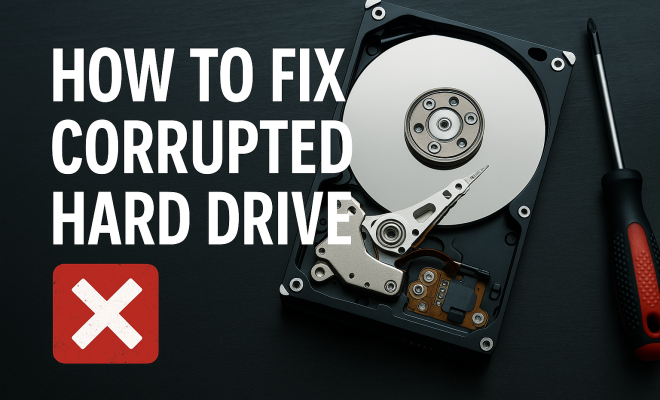
How to fix corrupted hard drive
“`html
Hard drives are essential components of our digital lives, serving as the primary storage for files, applications, and operating systems. However, like any technology, they can encounter issues, including corruption. If you’ve ever faced the anxiety of a corrupted hard drive, you’re not alone. Fortunately, there are effective ways to resolve this problem. In this guide, we’ll explore how to fix a corrupted hard drive, ensuring you can recover your data and restore functionality.
1. Understanding Hard Drive Corruption
Before diving into the solutions, it’s crucial to understand what causes hard drive corruption. Corruption can occur due to various reasons, including physical damage, software errors, sudden power failures, or even malware infections. When a hard drive becomes corrupted, it can lead to data loss, inaccessible files, and system crashes.
There are two main types of hard drives: traditional hard disk drives (HDD) and solid-state drives (SSD). HDDs are mechanical and use spinning disks to read/write data, making them more susceptible to physical damage. On the other hand, SSDs have no moving parts, which makes them more durable but not immune to corruption. Understanding these differences is essential in determining the best course of action when you need to fix a corrupted hard drive.
2. Signs of a Corrupted Hard Drive
Recognizing the signs of a corrupted hard drive can be your first line of defense. Common indicators include file access issues, frequent system crashes, slow performance, or strange noises emanating from the drive. You may also encounter error messages such as “Disk unreadable,” “File system is corrupted,” or worse, your system may fail to boot entirely.
If you notice these symptoms, it’s vital to act quickly. Continuing to use a corrupted hard drive can exacerbate the issue and lead to irretrievable data loss. Periodic backups are your best friend, but if you’re caught without one, don’t panic just yet. Keep reading for actionable steps you can take to fix a corrupted hard drive.
3. Backup Your Data (If Possible)
One of the most important steps you can take when faced with a corrupted hard drive is to attempt to backup your data. If your drive is still accessible, even partially, you should prioritize saving any crucial files. You can use external hard drives, USB flash drives, or cloud storage services for this purpose.
Tools like Recuva or EaseUS Data Recovery Wizard can help recover lost files from a corrupted drive. They scan the drive and recover files that are still intact. If your hard drive is making unusual sounds, however, it’s wise to avoid excessive use as this could worsen the damage. Instead, consider professional data recovery services, which specialize in retrieving files from damaged drives.
4. Utilizing Built-in Tools to Diagnose and Repair
Windows and macOS come equipped with built-in utilities designed to diagnose and repair disk issues. In Windows, the Check Disk (CHKDSK) tool is remarkably effective. To use it, open Command Prompt as an administrator and type chkdsk C: /f, replacing ‘C:’ with the appropriate drive letter. This command scans and attempts to fix issues on the specified drive.
For Mac users, the Disk Utility app provides similar functionality. Open Disk Utility, select your hard drive, and click on First Aid. This tool will check the disk for errors and attempt repairs. While these tools can fix minor issues, it’s important to note that they may not resolve all cases of corruption. Still, they are a good starting point in your quest to fix a corrupted hard drive.
5. Formatting the Drive: A Last Resort
If other methods fail and the drive is still inaccessible, formatting may be necessary. This process erases all data on the hard drive but can restore its functionality. To format a drive in Windows, right-click on the drive in File Explorer, select Format, choose your options, and click Start. For Mac users, Disk Utility also offers a simple format option.
Before proceeding with this step, ensure all recoverable data has been saved elsewhere, as formatting will wipe everything clean. While this can effectively resolve many corruption issues, it should only be done when you have exhausted other options. Always consider professional recovery services if the data is critical. (See: data recovery techniques explained.)
6. Using Third-Party Recovery Software
In cases where built-in tools aren’t enough, third-party recovery software can be a game-changer. Programs such as Stellar Data Recovery, Disk Drill, or R-Studio can scan your drive for recoverable data and allow you to save it to another location. These tools often have more advanced algorithms and can handle more complex corruption scenarios.
Most of these applications come with user-friendly interfaces and step-by-step guides, making them accessible even for beginners. However, keep in mind that many of these tools offer limited functionality for free, with full features available only through paid versions. Weigh the cost against the importance of your data when considering your options.
7. Seeking Professional Help
If your hard drive is physically damaged or the data is critical, seeking professional help may be the best option. Data recovery specialists have the tools and expertise to recover data from severely corrupted or damaged drives. They can often retrieve files that standard home solutions cannot.
However, professional services can be pricey, sometimes ranging from hundreds to thousands of dollars. Before proceeding, inquire about their success rates and guarantees. In many cases, they will provide a free evaluation to determine if recovery is possible, which can help you make an informed decision.
8. Preventing Future Corruption
Once you’ve managed to fix a corrupted hard drive or recover your data, it’s crucial to implement preventive measures. Regular backups are the cornerstone of data protection. Consider using cloud storage solutions or external drives to maintain current copies of your important files. Automating these backups can save you time and ensure your data is consistently protected.
Additionally, keeping your operating system and software updated can prevent many issues that lead to corruption. Regularly running disk checks and maintaining good computer hygiene, such as avoiding suspicious downloads or using reliable antivirus software, also goes a long way in preventing future problems.
9. Understanding Different Hard Drive Types
It’s essential to recognize the differences between hard drive types since they impact how corruption occurs and how it can be fixed. HDDs (Hard Disk Drives) are more prone to physical failures due to their mechanical nature. They feature moving parts, which means that any physical shock or wear and tear can lead to corruption. In contrast, SSDs (Solid State Drives) use flash memory and have no moving parts, making them more resistant to physical damage but still vulnerable to power loss and software errors.
Another aspect to consider is the way data is stored. HDDs use magnetic platters, while SSDs store data in memory chips. This distinction not only affects performance but also influences recovery options. For example, while it’s often possible to recover data from damaged HDDs, SSD data recovery is trickier because of how data is managed and erased on these drives. Understanding these differences can help you choose the right approach when you need to fix a corrupted hard drive.
10. Common Causes of Hard Drive Corruption
Identifying the causes of hard drive corruption can mitigate future risks. Here are some common culprits:
- Power Failures: Sudden shutdowns or power surges can disrupt the writing process, leading to corruption.
- Malware Attacks: Viruses and malicious software can damage file structures, rendering them inaccessible.
- File System Corruption: Improper shutdowns, software crashes, or improper ejection of drives can lead to file system errors.
- Physical Damage: Drops, bumps, and extreme temperatures can physically damage the drive and its components, leading to data loss.
- Aging Hardware: As hard drives age, they are more likely to suffer from wear and tear, increasing the risk of corruption.
Being aware of these factors can help you take proactive steps to protect your hard drive from corruption.
11. Advanced Recovery Techniques
If basic recovery methods fail, advanced techniques might be necessary. One such method is the use of a “disk imaging” tool, which creates a sector-by-sector copy of the corrupted drive. This allows you to work on the copy without risking further damage to the original drive. Programs like ddrescue can be used for this purpose.
Another approach involves using command-line tools to recover data. In Linux, for example, the TestDisk utility can help recover lost partitions or make non-booting disks bootable again. Utilizing these advanced techniques requires a certain level of technical expertise but can be invaluable in critical data recovery scenarios. (See: impact of technology on health.)
12. Frequently Asked Questions (FAQ)
What should I do first if my hard drive is corrupted?
The first step is to stop using the drive immediately to avoid further damage. If possible, try to back up any accessible data before attempting repair methods.
Can I fix a corrupted hard drive myself?
Yes, there are several methods you can try, such as using built-in tools like CHKDSK on Windows or Disk Utility on Mac. However, if the corruption is severe, professional help may be required.
How often should I back up my hard drive?
It’s recommended to back up your data at least once a week. If you frequently create or modify important files, consider daily backups to ensure they are protected.
Is data recovery guaranteed?
Data recovery is not always guaranteed, especially if the drive has suffered physical damage or extensive corruption. Consult with a data recovery professional to understand your specific situation.
How can I prevent hard drive corruption?
To minimize the risk of corruption, regularly backup your data, keep your operating system updated, run disk checks, and maintain good computer hygiene by avoiding suspicious downloads.
13. The Role of SSDs in Modern Computing
SSDs have revolutionized data storage with their speed and reliability. They are increasingly used in modern computing environments for both personal and professional applications. However, the way data is stored and managed on SSDs differs significantly from HDDs, which can complicate recovery efforts in the event of corruption.
One notable feature of SSDs is their wear leveling technology, which helps prolong the lifespan of the drive. This technology distributes writes evenly across the memory cells, preventing any single cell from being overused. However, this complexity can also lead to unique failure modes, making it important for users to understand not just how to fix a corrupted hard drive but also how to choose the right drive for their needs.
14. Comparing Recovery Options: DIY vs. Professional Help
When it comes to fixing a corrupted hard drive, users are often faced with the choice between attempting a DIY recovery versus engaging professional help. Both options have their merits, and the best choice often depends on the severity of the corruption and the value of the data at stake.
DIY methods can be appealing due to cost savings and the sense of empowerment they provide. Many users have successfully recovered their data using built-in tools, third-party software, or even by creating disk images. However, these methods can be time-consuming and may not always yield results, particularly in cases of significant corruption.
On the other hand, professional data recovery services can offer advanced techniques and specialized tools that are not typically available to consumers. Experts in data recovery often have higher success rates, especially with physically damaged drives. However, this option can be quite costly, so weighing the critical importance of your data against the potential expense is essential. (See: hard drive failure analysis.)
In some cases, a hybrid approach may be beneficial. For example, you could try DIY methods first and, if unsuccessful, turn to professionals for assistance. This way, you maximize your recovery chances while also managing costs.
15. Tips for Choosing the Right Recovery Software
Choosing the right recovery software can make a significant difference in your ability to recover data from a corrupted hard drive. Here are some essential tips to consider:
- Check Compatibility: Ensure the software is compatible with your operating system and file system type (NTFS, FAT32, APFS, etc.). Some tools are designed specifically for certain systems.
- Read Reviews: Research user reviews and expert opinions to gauge effectiveness. Look for software that has a reputation for reliability and good results.
- Understand the Features: Look for software that offers features like deep scanning, preview options, and the ability to recover from formatted or corrupted drives.
- Evaluate Pricing: Many tools have free versions with limited capabilities. Assess what features you need and if the premium version justifies the cost.
- Consider Technical Support: Good customer support is crucial, especially for users who may encounter challenges during recovery. Look for options that offer reliable customer service.
16. Future Trends in Data Recovery
As technology continues to evolve, so too does the field of data recovery. Future trends may include more advanced algorithms for recovery software that can handle increasingly complex corruption scenarios. Additionally, the rise of AI and machine learning could lead to smarter recovery solutions that predict potential failures and suggest preventive measures.
Furthermore, as SSD technology advances, new recovery techniques will likely emerge to address the unique challenges these drives present. The growth of cloud computing and data storage may also influence recovery methods, as users increasingly rely on online backups and storage solutions.
Staying informed about these trends can help you better prepare for potential data loss scenarios and adopt the best practices for safeguarding your digital life.
17. Conclusion: The Importance of Vigilance
Dealing with a corrupted hard drive can be a stressful experience, but understanding the steps to fix it can ease the burden. From recognizing the signs of corruption to utilizing built-in tools, third-party software, or even professional services, you have various options at your disposal. Always prioritize backing up your data to make the recovery process smoother.
Ultimately, staying vigilant and proactive about your hard drive’s health will save you time and stress. By implementing good practices, you’ll minimize the chances of facing corruption in the future. Remember, the key is to act quickly when problems arise, ensuring your data remains safe and accessible.
“`
Trending Now
Frequently Asked Questions
What causes hard drive corruption?
Hard drive corruption can occur due to various factors, including physical damage, software errors, sudden power failures, malware infections, and improper shutdowns. Understanding these causes helps in determining the best approach to fix a corrupted hard drive.
How can I tell if my hard drive is corrupted?
Signs of a corrupted hard drive include file access issues, frequent system crashes, slow performance, strange noises, and error messages like 'Disk unreadable' or 'File system is corrupted.' If you notice these symptoms, it's crucial to act quickly.
Can I fix a corrupted hard drive myself?
Yes, you can attempt to fix a corrupted hard drive yourself using built-in tools like CHKDSK on Windows or Disk Utility on macOS. However, if the corruption is severe or involves physical damage, professional recovery services may be necessary.
Is it possible to recover data from a corrupted hard drive?
Yes, data recovery from a corrupted hard drive is often possible using specialized software or by seeking professional help. However, the success rate depends on the extent of the corruption and whether the drive has sustained physical damage.
What should I do if my hard drive fails to boot?
If your hard drive fails to boot, first check connections and try rebooting. If the issue persists, you may need to use recovery tools or boot from an external drive. If data recovery is critical, consider consulting a professional data recovery service.
What’s your take on this? Share your thoughts in the comments below — we read every one.