How to install graphics card
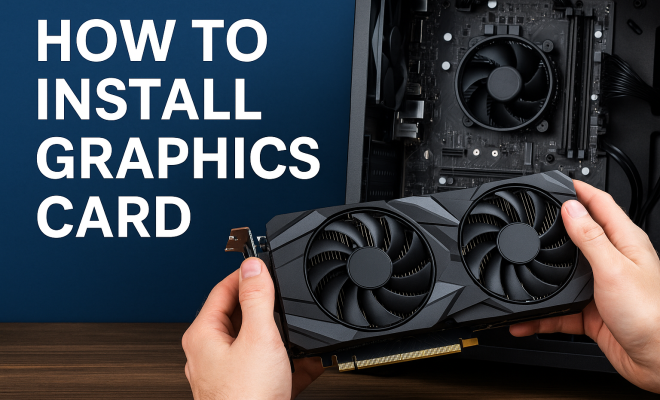
“`html
Installing a graphics card can seem daunting, especially if you’re not familiar with computer hardware. However, with the right guidance, it can be a straightforward process that significantly enhances your gaming or creative experience. This guide will walk you through everything you need to know to successfully install a graphics card.
1. Understanding the Basics of Graphics Cards
Before diving into the installation process, it’s vital to understand what a graphics card does and why it’s essential for your computer. A graphics card, also known as a GPU (Graphics Processing Unit), is responsible for rendering images, animations, and videos. It takes the load off your CPU, allowing for smoother performance in gaming, graphic design, video editing, and other demanding tasks.
Modern graphics cards come with their own memory (VRAM), which is crucial for handling high-resolution textures and complex graphics. The performance of a GPU can significantly influence your system’s overall capability, making it an essential component for anyone looking to enhance their computer’s performance.
2. Choosing the Right Graphics Card
When it comes to selecting a graphics card, various factors come into play. First, consider your needs: Are you a gamer, a designer, or just looking to boost your overall computer performance? Different cards cater to different requirements. For gaming, cards like the NVIDIA GeForce RTX series or AMD Radeon RX series are popular choices that offer excellent performance.
Another important aspect to consider is compatibility. Ensure that your motherboard has the appropriate PCI Express slot to accommodate the new graphics card. Additionally, check the power supply unit (PSU) in your computer to see if it can handle the power requirements of the card you plan to install. Most high-end graphics cards require a significant amount of power, so you may need an upgrade.
3. Preparing Your Workspace
Before you install a graphics card, preparation is key. Start by creating a clean, clutter-free workspace to minimize the risk of static electricity damaging your components. Use an anti-static wrist strap if possible, or touch a grounded metal object regularly to discharge any static buildup.
Gather all necessary tools and materials: you will need a Phillips screwdriver, your new graphics card, and potentially some additional power cables if your PSU does not have the required connectors. It’s also smart to have your computer’s manual on hand for reference during the installation.
4. Removing the Old Graphics Card
If you’re upgrading from an existing graphics card, the first step is to remove it. Start by shutting down your computer and unplugging it from the power source. Open the case, which usually involves unscrewing the side panel. Depending on your case design, you may need to remove additional components obstructing access to the graphics card.
Locate the existing graphics card in the PCI Express slot. There is usually a small clip at the end of the slot that you need to push down to release the card. Carefully pull the card out, taking care not to damage any surrounding components. Set it aside in a safe place, as you may need it in the future or wish to sell it.
5. Installing the New Graphics Card
With the old card removed, it’s time to install the graphics card. Take your new GPU out of its packaging and align it with the PCI Express slot on your motherboard. Firmly but gently push the card into the slot until you hear a click, indicating that it’s secured. Ensure that the card is seated properly and that the clip has locked it into place.
Next, check for any additional power connectors needed by your new graphics card. Most modern GPUs will require one or two 6-pin or 8-pin power connectors from your PSU. If your power supply lacks the necessary connectors, you may need to purchase adapters or a new PSU altogether. (See: Understanding graphics processing units.)
6. Connecting Power and Peripherals
Once the graphics card is securely in place, it’s time to connect the power supply. Attach any necessary power cables from your PSU to the graphics card. Ensure that the connections are snug and secure, as loose connections can lead to performance issues or even damage.
After connecting the power, you can close the computer case. Remember to reconnect any peripherals such as monitors, keyboards, and mice before powering your system back on. It’s also a good idea to keep a close eye on the monitor connections, ensuring everything is properly plugged in to avoid display issues.
7. Installing Drivers and Software
With your new graphics card installed, the next step is to ensure that it functions correctly by installing the appropriate drivers. When you power on your computer, it should automatically detect the new hardware. However, it’s crucial to download the latest drivers directly from the manufacturer’s website, whether it’s NVIDIA or AMD.
Installing the latest drivers ensures that your GPU performs optimally and can take advantage of the latest updates and features. Follow the on-screen instructions to complete the installation. After the drivers are installed, it’s usually a good idea to restart your computer to finalize the changes.
8. Testing Performance
After ensuring that everything is correctly installed and the drivers are up-to-date, it’s time to test your new graphics card. There are various benchmarking software options available that can help you gauge performance, such as 3DMark or Unigine Heaven. These programs will stress-test your GPU and give you a clear understanding of its capabilities.
Additionally, monitor the temperature and performance while running graphics-intensive applications or games. This will give you insight into how well your new GPU handles demanding tasks and whether your cooling solution is adequate.
9. Troubleshooting Common Issues
Even with careful installation, sometimes issues can arise. If you encounter problems such as no display or graphical glitches, the first step is to check all connections and ensure the card is seated correctly. If everything appears fine, consider resetting your BIOS settings or updating your motherboard’s BIOS.
Additionally, check for any error messages during boot-up that might indicate compatibility issues or driver problems. Sometimes, a simple reinstall of the drivers can resolve these issues. If problems persist, consulting online forums or tech support can provide further guidance specific to your hardware.
10. Understanding Different Types of Graphics Cards
Graphics cards can be broadly categorized into two types: integrated and dedicated. Integrated graphics are built into the CPU and are suitable for basic tasks like web browsing or word processing. However, they lack the power for high-end gaming or professional graphics work. On the other hand, dedicated graphics cards, which we’ve been discussing, are separate components that provide much more power and capabilities. If you’re into gaming, design, or video editing, investing in a dedicated GPU is essential for optimal performance.
11. Comparing Graphics Card Brands: NVIDIA vs. AMD
NVIDIA and AMD are the two primary players in the graphics card market, each with unique features and benefits. NVIDIA’s offerings, such as the RTX series, are well-known for their advanced ray tracing capabilities, which provide realistic lighting effects in games. AMD, with its Radeon RX series, often delivers better price-to-performance ratios, making them appealing for budget-conscious gamers.
When choosing between the two, consider your specific needs. If you’re focused on gaming with the latest titles that support ray tracing, NVIDIA might be the way to go. However, for those prioritizing traditional rasterization performance or looking for a more budget-friendly option, AMD could be the better choice. Always look for benchmarks and reviews on the specific models you’re considering to make an informed decision.
12. How Graphics Cards Affect Gaming Experience
The impact of a graphics card on gaming experience cannot be overstated. A powerful GPU enables you to run games at higher resolutions and frame rates, providing a smoother and more immersive experience. For instance, a game like “Cyberpunk 2077” demands a high-end graphics card to render its detailed environments effectively. A lower-end card might struggle, leading to lag and a less enjoyable experience. (See: Choosing the right graphics card for gaming.)
Furthermore, with the rise of 4K gaming, the need for a capable GPU has increased. Players seeking to enjoy their favorite games in stunning detail will benefit from investing in the latest graphics technology. Pairing a high-quality display with the right GPU can elevate your gaming sessions to a whole new level.
13. FAQs About Installing Graphics Cards
What tools do I need to install a graphics card?
You’ll typically need a Phillips screwdriver, your new graphics card, and potentially some additional power cables. An anti-static wrist strap is also recommended to prevent static damage.
Can I install a graphics card on any computer?
Not all computers can accommodate a dedicated graphics card. Check your motherboard for a PCI Express slot and ensure your power supply can handle the new card’s power requirements.
Will my computer recognize the new graphics card automatically?
In most cases, yes. Once you install the card and power on your PC, it should detect the new hardware. However, downloading the latest drivers directly from the manufacturer is still essential for optimal performance.
What if I experience issues after installing the new graphics card?
First, check all connections to ensure everything is seated properly. If problems persist, reset your BIOS settings, check for driver updates, or consult forums specific to your hardware for help.
How can I tell if my new graphics card is functioning correctly?
Use benchmarking software like 3DMark or Unigine Heaven to test your card’s performance. Monitor its temperature during demanding tasks to ensure it’s operating within safe limits.
Is it worth upgrading my graphics card?
If you’re into gaming, video editing, or any graphics-intensive tasks, upgrading your graphics card can significantly enhance your experience. It’s often one of the best ways to boost overall computer performance.
14. Future Trends in Graphics Card Technology
The graphics card industry continues evolving, with trends pointing towards even more advanced technologies. One significant development is the ongoing improvement of AI-driven features. NVIDIA has led the charge with its DLSS (Deep Learning Super Sampling), which enhances frame rates while maintaining image quality through AI processing.
Additionally, as gaming and creative software continue to embrace real-time ray tracing and higher resolutions, future graphics cards will need to deliver even more power to keep up. Emerging technologies like PCIe 5.0 and faster memory interfaces are also on the horizon, promising even greater performance and efficiency.
Environmental concerns are also becoming a focus, with manufacturers exploring sustainable practices and energy-efficient designs, aligning with the growing demand for eco-friendly technology. (See: Technical details on graphics cards.)
15. Common Myths About Graphics Cards
There are several myths surrounding graphics cards that can lead to confusion when it comes to upgrading or installing one. For instance, one common misconception is that more VRAM always translates to better performance. While VRAM is essential for certain tasks, such as rendering high-resolution textures, other factors like core count and clock speed play significant roles in overall performance. Understanding these nuances can help you make a more educated choice about which graphics card to purchase.
Another myth is that you need the most expensive card on the market to game effectively. The truth is that many mid-range cards can run new titles at decent settings. It’s essential to find a card that meets your specific needs without overspending on features you may not use.
16. Investing in Cooling Solutions
When upgrading to a more powerful graphics card, it’s crucial to consider your computer’s cooling solutions. High-performance GPUs generate more heat, and inadequate cooling can lead to thermal throttling, which diminishes performance. Investing in additional case fans or a better cooling system can help maintain optimal temperatures, ensuring your graphics card operates at its best.
Some users also opt for aftermarket GPU coolers, which can provide better cooling than the stock solutions. Brands like Arctic, Noctua, and Corsair have solid options for enthusiasts looking to enhance their cooling capabilities.
17. Understanding Graphics Card Lifespan
Graphics cards are durable, but their lifespan can vary based on usage and technology advancements. Under typical conditions, you can expect a well-maintained card to last several years. However, as games and applications become more demanding, you might find yourself needing an upgrade to keep up with the latest graphics requirements.
Regular maintenance, such as cleaning dust from the fans and ensuring your drivers are up to date, can prolong the life of your GPU. If you’re planning to keep your card for an extended period, consider models known for their longevity and reliability.
By following these steps, you should be well-equipped to install a graphics card confidently. With the right preparation and knowledge, you can not only enhance your computer’s performance but also gain valuable skills in hardware installation that can serve you well in the future.
“`
Trending Now
Frequently Asked Questions
What tools do I need to install a graphics card?
To install a graphics card, you'll typically need a screwdriver to open your computer case, and possibly anti-static wrist straps to prevent static damage. Make sure you have a clean workspace and good lighting to easily access the internal components.
How do I know if my graphics card is compatible?
To ensure compatibility, check that your motherboard has a suitable PCI Express slot for the graphics card. Additionally, verify that your power supply unit (PSU) can meet the power requirements of the new GPU. Always consult the manufacturer's specifications.
Can I install a graphics card myself?
Yes, installing a graphics card yourself is possible and can be straightforward with the right guidance. Follow step-by-step instructions, ensure all components are compatible, and take necessary precautions to avoid static damage.
What should I do before installing a graphics card?
Before installation, power down your computer, unplug it, and ground yourself to prevent static discharge. Prepare your workspace by organizing tools and ensuring you have enough light to see inside your computer case.
How does a graphics card improve computer performance?
A graphics card enhances computer performance by offloading graphics rendering from the CPU. This results in smoother gameplay, faster video editing, and better handling of high-resolution textures in demanding applications, significantly boosting overall system capability.
Agree or disagree? Drop a comment and tell us what you think.