Master PC POST Testing: Troubleshoot Computer Issues Confidently
“`html
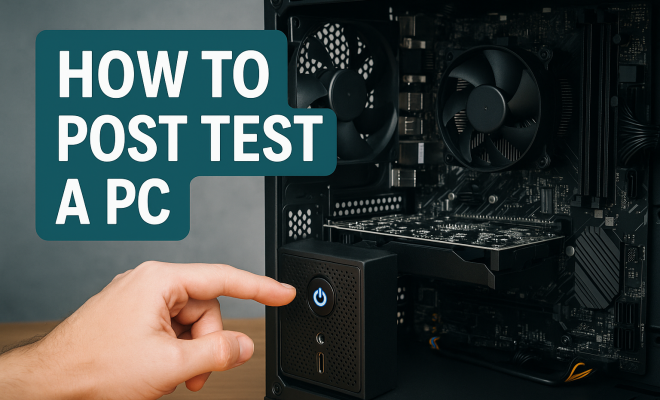
When it comes to troubleshooting computers, one of the most essential steps is understanding how to POST test PC. The Power-On Self-Test (POST) is a critical procedure that occurs whenever a computer is powered on. This process checks the hardware components to ensure everything is functioning properly before the operating system loads. In this article, we will explore the ins and outs of the POST test, its significance, troubleshooting steps, and practical insights that can empower you to tackle PC issues with confidence.
1. Understanding POST: What It Is and Why It Matters
POST, or Power-On Self-Test, is a diagnostic testing sequence executed by a PC’s firmware or BIOS (Basic Input/Output System) when the system is powered up. During this sequence, the computer checks various hardware components such as RAM, disk drives, video cards, and peripherals. If anything is amiss, POST will usually relay error codes or beep sequences to notify the user.
Why is POST so crucial? Simply put, it serves as the first line of defense against hardware failure. By identifying issues at startup, the POST process prevents further complications that could arise if the system were allowed to boot with faulty components. Understanding this testing procedure can not only save you time but also help you avoid unnecessary expenses on repairs or replacements.
2. The POST Process: What Happens During Startup
The POST process unfolds in several stages, starting as soon as you press the power button. Here’s a breakdown of the procedure:
- Power Supply Activation: The power supply receives electricity, initiating the POST sequence.
- Hardware Initialization: The CPU and other essential components, such as the graphics card and memory, are initialized.
- Diagnostic Checks: The system performs various checks on the hardware. For example, it verifies the presence of RAM and checks for proper connections.
- Error Reporting: If any issues are detected, the motherboard emits beep codes or displays error messages, depending on the system configuration.
- Boot Process Initiation: If all components pass the test, the BIOS locates the bootable device and hands control over to the operating system.
Understanding these stages can help you identify where problems may arise in your system and offer insights into troubleshooting methods.
3. Common POST Errors: Identifying the Problems
POST errors can manifest in various forms, and understanding the common types can assist in efficient troubleshooting. Some prevalent POST errors include:
- No Beep or Display: If the computer is silent and there’s no display, it could indicate a power supply or motherboard failure.
- Continuous Beeping: A series of beeps, often in a specific pattern, points to hardware issues. For instance, a RAM failure might emit a certain number of beeps that varies from one motherboard to another.
- Display Error Codes: Some motherboards come equipped with digital displays that present error codes. Consulting your motherboard’s manual can reveal what each code signifies.
Recognizing these errors quickly can save you precious time and help pinpoint the source of the malfunction.
4. How to POST Test Your PC: Step-by-Step Instructions
Now that you understand the POST process and common errors, let’s dive into a practical guide on how to perform a POST test on your PC effectively. Here are the steps:
- Power Off and Unplug: Ensure your PC is completely powered off and unplugged from its power source to avoid any electrical hazards.
- Open the Case: Use a screwdriver to remove the side panel of your computer case carefully.
- Inspect Hardware Connections: Check that all components, such as RAM, GPU, and power connections, are securely seated in their respective slots. Loose connections can lead to startup failures.
- Reset CMOS: If you’re troubleshooting, consider resetting the CMOS battery. This could solve configuration issues that may be hindering the POST process. Remove the battery for a few minutes before reinserting it.
- Power On: Reconnect the power supply and power on the computer, observing any beeps or error codes during startup.
- Document Results: Note any beeping patterns or error messages, as these will be essential for diagnosing further issues.
By following these practical steps, you’ll be well on your way to successfully conducting a POST test on your PC.
5. Tools You Might Need for POST Testing
While conducting a POST test can be straightforward, having the right tools can simplify the process. Consider the following equipment:
- Multimeter: This tool can help you measure voltage levels and ensure your power supply is functioning correctly.
- POST Card: A POST diagnostic card provides error codes that can be read directly from the motherboard, making it easier to troubleshoot issues.
- Screwdriver Set: Essential for opening the PC case and securing components.
- Anti-Static Wrist Strap: This prevents static electricity from damaging sensitive components while you work inside the case.
Equipping yourself with these tools not only prepares you for POST testing but also boosts your overall confidence in handling PC repairs.
6. What to Do If POST Fails: Troubleshooting Strategies
If you perform a POST test and encounter failures, don’t panic. Here are some troubleshooting strategies: (See: Power-on self-test on Wikipedia.)
- Re-seat Components: Sometimes the simplest solutions are the best. Removing and re-inserting hardware components can resolve loose connection issues.
- Check Power Supply: A faulty power supply is often the culprit for POST failures. If possible, swap it out with a known working unit to confirm.
- Test One Component at a Time: If you suspect multiple components might be problematic, disconnect everything except the essentials (CPU, one RAM stick, and integrated graphics, if available) and see if the system boots.
By systematically approaching the problem, you increase your chances of identifying and resolving the issue swiftly.
7. Preventative Measures: Keeping Your PC Healthy
Preventing POST failures begins with regular maintenance. Here are some tips to keep your PC functioning optimally:
- Regular Dusting: Dust buildup can lead to overheating, which could affect hardware performance. Ensure you regularly clean your computer’s internals.
- Monitor Temperatures: Use hardware monitoring tools to keep an eye on CPU and GPU temperatures, helping prevent overheating issues that might cause POST failures.
- Update BIOS: Outdated BIOS versions can lead to incompatibility issues with newer hardware. Check your manufacturer’s website for updates.
Adopting these preventative measures can significantly reduce the likelihood of encountering POST issues in the future.
8. Understanding Beep Codes: What Do They Mean?
When performing a POST test, listening to the beep codes can provide critical information about what might be wrong with your PC. Motherboards use a series of audible signals to indicate specific issues. However, these codes can vary by manufacturer. Here’s a quick guide to some common beep codes:
- One Long, Two Short Beeps: This typically indicates a problem with the graphics card.
- One Long, One Short Beep: Usually points to a motherboard issue.
- No Beeps: This could suggest a power supply or motherboard failure.
To decode these beeps accurately, consult your motherboard’s documentation for precise meanings.
9. When to Seek Professional Help
While many POST errors can be resolved through DIY methods, there are instances where seeking professional help is advisable. If you’ve exhausted all troubleshooting options and still can’t identify the issue, or if the repair involves complex tasks like motherboard replacement, it may be time to call in the experts. Additionally, if you’re uncomfortable working inside your PC, don’t hesitate to seek assistance. It’s better to be safe than sorry.
10. Final Thoughts on POST Testing Your PC
Understanding how to POST test PC is an invaluable skill for anyone who uses a computer. From recognizing the signs of failure to conducting effective tests, you’re now better equipped to troubleshoot issues that may arise. Regular maintenance, proactive testing, and knowing when to seek help will ensure that your computer remains a reliable tool for your personal and professional life. Remember that early detection of hardware problems can save you both time and money, so don’t hesitate to apply these insights whenever you face startup issues.
11. Advanced Troubleshooting: Beyond Basic POST Testing
If you’ve gone through the basic POST testing process and still encounter issues, it might be time to dive deeper into troubleshooting. Advanced techniques can help uncover problems that are not easily identifiable through simple tests.
11.1 Using Diagnostic Software
Diagnostic software can provide additional insight into the health of your PC components. Tools like Memtest86 for RAM testing and CrystalDiskInfo for hard drive health can help identify failing components. Running these tests can reveal underlying issues that a standard POST test might miss.
11.2 Component Isolation
Another advanced strategy involves isolating hardware components. This means systematically removing or replacing components to identify the faulty part. For instance, if your PC has multiple RAM sticks, try booting with just one stick at a time. This helps pinpoint if one of the RAM modules is defective.
11.3 Checking Motherboard Connections
Sometimes issues stem from poor motherboard connections. Ensure that all power connectors, including the 24-pin and 4-pin (or 8-pin) CPU power connectors, are securely connected. A loose connection can prevent the system from passing the POST.
12. POST Testing for Custom Builds vs. Pre-Built Systems
Understanding the differences between POST testing in custom-built PCs and pre-built systems can be essential. In custom builds, you often have to troubleshoot individual components yourself, while pre-built systems may come with customer service support and warranties.
12.1 Custom Builds
With custom-built PCs, owners often choose specific components based on performance needs and budgets. This flexibility can lead to compatibility issues, which may complicate the POST process. It’s vital to research component compatibility before building. For example, ensure that the motherboard supports the CPU and RAM you select. If issues arise during POST, you might need to swap out parts to find the culprit. (See: CDC on hardware diagnostics.)
12.2 Pre-Built Systems
Pre-built systems usually come with standardized components, making diagnosis simpler. If you encounter POST errors, contacting the manufacturer’s customer service can often lead to quicker resolutions. Moreover, many manufacturers provide troubleshooting guides tailored to their systems, which can be incredibly helpful.
13. Statistics on Hardware Failures
Understanding the frequency of hardware failures can underscore the importance of regular POST testing. According to studies, approximately 30% of computer hardware failures occur during the initial startup. Additionally, around 50% of all hardware failures are attributed to power supply issues, which can directly affect the POST process.
13.1 Lifespan of Components
Most components have a lifespan that can vary significantly:
- Hard Drives: 3-5 years.
- RAM: 5-10 years.
- Power Supply Units: 5-7 years.
- Motherboards: 5-10 years.
These statistics highlight the importance of keeping an eye on your hardware’s age and performance, making regular POST testing even more vital for older systems.
14. Frequently Asked Questions (FAQ)
14.1 What should I do if my computer doesn’t beep during POST?
If your computer doesn’t beep during POST, it may indicate a power supply or motherboard issue. Check all connections, and consider swapping out the power supply if you have a spare.
14.2 Can I perform a POST test without a monitor?
Yes, you can perform a POST test without a monitor by listening for beep codes or using a POST card. However, having a monitor can help you see error messages, which can make troubleshooting easier.
14.3 Is it normal for a PC to take a long time during POST?
A typical POST should only take a few seconds. If it takes longer, it could indicate hardware issues. If you notice delays, investigate potential problems with your RAM or other components.
14.4 How can I improve the reliability of my PC to reduce POST issues?
Regular maintenance, using high-quality components, keeping the system cool, and ensuring proper power supply can greatly improve reliability and reduce the chances of POST issues occurring.
14.5 Should I upgrade my BIOS if I’m experiencing POST errors?
Upgrading your BIOS can sometimes resolve compatibility issues that cause POST errors. However, it should be done cautiously, as incorrect upgrades can lead to additional problems. Always back up your data before proceeding.
15. Final Reflections on Mastering POST Testing
Mastering the POST testing process is a valuable skill that goes beyond just fixing issues. It empowers you to understand your system better and proactively manage its health. With regular checks and maintenance, you can ensure that your PC runs smoothly, minimizing interruptions to your work or leisure activities. Embracing both the technical and practical aspects of POST testing will enhance your confidence and capability in managing your PC effectively.
16. Comparative Analysis: POST Testing Across Different Operating Systems
It’s important to note that while POST testing is largely hardware-focused, it can also intersect with the operating system you use. Different systems may have unique requirements or behaviors during the POST process. (See: New York Times on computer repair.)
16.1 Windows vs. Linux
Windows operating systems are designed to be user-friendly and often provide diagnostic tools after the POST process. If Windows fails to boot, it may offer automatic repair options, which can help identify software issues that might be misdiagnosed as hardware problems during POST. On the other hand, Linux distributions might require more manual troubleshooting, especially if they were installed alongside Windows. Without a proper bootloader setup, POST might indicate issues even if the hardware is functioning perfectly.
16.2 Impact of Firmware Updates
Firmware updates across different platforms can also affect POST behavior. For instance, newer firmware for certain motherboards can introduce new features, such as faster POST sequences or improved compatibility with modern hardware. It’s crucial to stay updated and read manufacturer release notes that detail how these updates might influence your POST process.
17. Best Practices for DIY POST Testing
Engaging in DIY POST testing can be rewarding and educational. Here are a few best practices to keep in mind:
- Document Everything: Keep a log of all changes you make and the outcomes. This can help you backtrack if something goes wrong.
- Stay Organized: When working inside your computer, use trays or containers to keep screws and small parts organized to prevent loss.
- Take Your Time: Rushing through the POST testing process can lead to mistakes. Take your time to ensure everything is properly connected and functioning.
18. Expert Insights on Hardware Longevity and Maintenance
To gain a deeper understanding of maintaining your PC and ensuring long-term longevity, we consulted experts in the field.
According to hardware specialist Dr. Lisa Tran, “Regular maintenance is key to a computer’s longevity. Dust buildup can lead to overheating, which is a common cause of hardware failure. Make it a habit to clean your system regularly and check the health of your components.” Her insights underline the importance of not only performing POST tests but also maintaining a clean and efficient environment for your PC.
Another key perspective comes from tech repair professional Mark Sanchez, who emphasizes the role of quality components. “Investing in high-quality power supplies and motherboards can prevent a lot of POST-related issues down the line. Cheap components may save money initially, but they often lead to more significant problems.” His advice suggests that choosing reliable hardware is foundational for a smooth POST experience.
19. Future Trends in POST Testing and Diagnostics
As technology continues to evolve, so does the process of diagnosing hardware issues. Future trends in POST testing could include:
- AI Diagnostics: Upcoming systems may utilize artificial intelligence to diagnose hardware problems more efficiently, learning from previous errors to provide tailored solutions.
- Remote Diagnostics: With the rise of cloud computing, technicians may soon be able to perform remote POST tests and diagnostics, providing immediate support without the need for physical presence.
- Integrated Health Monitoring: Future motherboards may come equipped with built-in health monitoring tools that continuously check component health and provide alerts for potential POST failures before they happen.
20. Conclusion: Empowering Yourself Through Knowledge
Through this comprehensive exploration of how to POST test PC, you’ve gained insights into the importance of this diagnostic step. By understanding the POST process, recognizing errors, and employing effective troubleshooting strategies, you’re better equipped to maintain your computer. Whether you’re a casual user or a tech enthusiast, mastering these skills allows you to take control of your tech environment. With ongoing learning and proactive maintenance, you can ensure your PC operates smoothly for years to come.
“`
Trending Now
Frequently Asked Questions
What is a POST test in a PC?
A POST test, or Power-On Self-Test, is a diagnostic procedure that runs when a PC is powered on. It checks essential hardware components like RAM, disk drives, and graphics cards to ensure they are functioning correctly before the operating system loads.
Why is POST important for computers?
POST is crucial because it acts as the first line of defense against hardware failure. By identifying issues at startup, it prevents further complications that could arise from booting with faulty components, ensuring a smoother user experience.
What happens during the POST process?
During the POST process, the power supply activates, essential components are initialized, diagnostic checks are performed on the hardware, and if issues are detected, error codes or beep sequences are relayed to notify the user.
How can I troubleshoot POST errors?
To troubleshoot POST errors, start by checking the connections of hardware components like RAM and graphics cards. Listen for beep codes or check error codes displayed on the screen, as they can indicate specific issues that need addressing.
What should I do if my PC fails the POST test?
If your PC fails the POST test, first power it off and check all hardware connections. Ensure components like RAM and graphics cards are properly seated. If the problem persists, consult the motherboard manual for error codes or seek professional assistance.
What’s your take on this? Share your thoughts in the comments below — we read every one.