How to install M.2 SSD
“`html
In the world of computing, speed is king. If you’re looking to enhance your system’s performance, upgrading to an M.2 SSD is one of the best choices you can make. But how do you go about it? In this article, we’ll take you through everything you need to know to install M.2 SSD drives seamlessly. From understanding what M.2 SSDs are to the step-by-step installation process, we’ll cover it all.
1. Understanding M.2 SSDs
Before you jump into the installation, it’s crucial to grasp what an M.2 SSD is. M.2 is a specification for internally mounted expansion cards and connectors. Unlike traditional SSDs that connect via SATA, M.2 SSDs connect directly to the motherboard through an M.2 slot, enabling dramatically faster read and write speeds. Depending on the type of M.2 SSD you choose—NVMe or SATA—the performance can vary significantly.
The NVMe (Non-Volatile Memory Express) SSDs are particularly noteworthy, as they can reach speeds of up to 7000 MB/s, compared to SATA III SSDs, which max out at around 600 MB/s. This makes NVMe drives the preferred choice for gamers, video editors, and anyone who demands high-speed data access. Understanding these differences is vital when planning your upgrade and deciding whether to install M.2 SSD.
2. Choosing the Right M.2 SSD
Not all M.2 SSDs are created equal. They come in various sizes, speeds, and interfaces, which can be overwhelming if you’re new to the tech. First, you need to check your motherboard’s compatibility. Most modern motherboards support M.2 drives, but you need to confirm that they support NVMe or SATA, and the specific lengths of M.2 drives (typically 2230, 2242, 2260, 2280, or 22110).
Additionally, consider the capacity you need. M.2 SSDs come in sizes ranging from 128GB to several terabytes. If you’re planning to install large games or handle multiple media files, opting for a larger capacity SSD is advisable. Performance ratings also matter; look for drives with good read/write speeds and durability ratings to ensure your investment pays off in the long run.
3. Gathering Necessary Tools
Installing an M.2 SSD doesn’t require much in terms of tools, but having the right ones on hand can make the process smoother. Here’s what you’ll need:
- A Phillips screwdriver (usually a #0 or #1 size works best).
- Anti-static wrist strap (optional but recommended to prevent static damage).
- Your new M.2 SSD.
- Access to your computer manual for reference when identifying components.
Having these tools ready will streamline your installation process, reducing the likelihood of frustration or errors. You’ll also want to ensure you’re working in a clean, well-lit environment—this reduces the risk of losing small screws and makes it easier to see the components you’re working with.
4. Preparing Your System
Before physically installing the M.2 SSD, it’s essential to prepare your system adequately. Start by shutting down your computer and unplugging it from the power source. This prevents any accidental electrical shocks or damage while you work. If you’re using a laptop, it’s also advisable to remove the battery if possible.
Next, ground yourself to prevent static electricity from damaging your components. You can do this by touching a metal surface or wearing an anti-static wrist strap. Once you’re ready, open the case of your PC or laptop. Consult your manual if you’re unsure how to do this without damaging any clips or screws. (See: Understanding M.2 SSD technology.)
5. Finding the M.2 Slot
Once you’re inside your PC or laptop, locating the M.2 slot is the next step. The M.2 slot is typically a long, thin connector on the motherboard. In desktops, it can usually be found near the CPU, whereas, in laptops, it may be closer to the battery or on the underside of the laptop’s motherboard. Some laptops have a dedicated cover for the M.2 slot, while others may require removing the entire back panel.
Look out for a label that signifies it as an M.2 slot. Depending on your motherboard, this may also include a thermal pad or heatsink, which you should remove if it’s in your way. Familiarizing yourself with the layout of your motherboard can save you time and potential headaches when you go to install M.2 SSD.
6. Installing the M.2 SSD
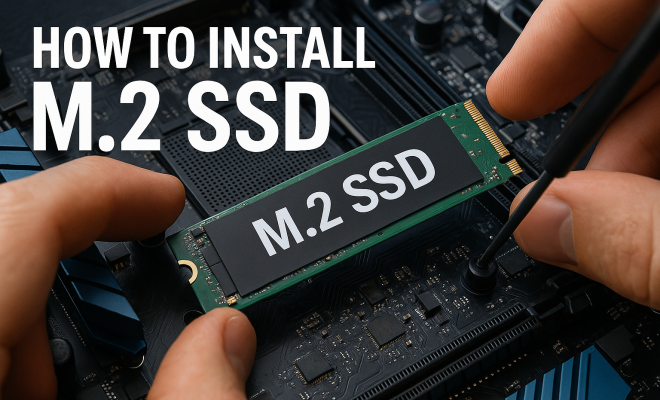
Now comes the moment of truth: the installation. Carefully remove your new M.2 SSD from its packaging. Hold it by the edges to avoid touching the gold connectors. Align the notches on the SSD with the M.2 slot on your motherboard and gently insert the drive at a slight angle—usually around 30 degrees.
Once it’s inserted, push it down flat against the motherboard. You should see holes for screws to secure it in place. Use your Phillips screwdriver to tighten the screw (but don’t overtighten, as that can damage the SSD or the motherboard). After securing your M.2 SSD, replace any thermal pads or heatsinks if applicable. It’s important to ensure that everything is aligned properly to avoid causing any damage to the drive.
7. Configuring Your New SSD
After the physical installation, the next step is configuring your new SSD. Once you power up your computer, the BIOS should recognize the new drive. If it doesn’t, you may need to enter BIOS settings and ensure that the M.2 slot is enabled. Generally, this can be done by pressing a specific key (like F2, DEL, or ESC) when your system starts up.
After confirming that the SSD is recognized in BIOS, you’ll need to format it for use. On Windows, this can be done via Disk Management. Right-click on the Start menu, select Disk Management, locate your new SSD (it may appear as unallocated space), right-click on it, and choose to format. Assign it a drive letter, and it’s officially ready to use. Congratulations! You’ve successfully completed the process to install M.2 SSD.
8. Best Practices for SSD Maintenance
Now that you’ve installed your M.2 SSD, it’s essential to take care of it to maintain performance and longevity. One of the most critical aspects of SSD maintenance is not to fill the drive to its maximum capacity. Aim to keep around 10-15% of the drive free, as SSDs perform better with some free space available.
Additionally, enabling TRIM (if not already enabled) helps to manage unused data blocks, keeping your drive fast and efficient. Regular firmware updates from the SSD manufacturer can also improve performance and security, so it’s wise to check for updates periodically. Lastly, consider backing up your data; while SSDs are generally reliable, having a backup ensures your data is safe in case of failure.
9. Common Issues and Troubleshooting
Even with careful installation, issues may arise. If your PC does not recognize the new SSD, double-check the following: ensure that the drive is securely seated in the M.2 slot, check that the BIOS settings are correct, and verify that your motherboard supports your specific type of M.2 SSD.
Another common issue is overheating. If you notice that your SSD is getting excessively hot, installing additional cooling solutions or ensuring proper airflow in your case can help mitigate this. Finally, if you experience performance drops, consider checking for firmware updates, as manufacturer updates can often resolve these problems.
10. Performance Comparisons: M.2 SSD vs. Traditional Drives
When considering an upgrade, it’s helpful to compare the performance of M.2 SSDs against traditional hard drives (HHDs) and even SATA SSDs. Traditional HDDs rely on spinning disks and mechanical arms to read and write data, resulting in slower access times and read/write speeds that typically max out at around 160 MB/s to 200 MB/s. In contrast, SATA SSDs, while much faster than HDDs, still don’t reach the full potential of M.2 drives. (See: Benefits of upgrading to SSDs.)
For example, a typical SATA SSD may achieve speeds around 500-600 MB/s, while an M.2 NVMe SSD, as mentioned earlier, can reach speeds of 7000 MB/s. This difference is particularly noticeable in tasks that require frequent data access, such as gaming, video editing, or running virtual machines. To illustrate, when loading a large game, an M.2 NVMe SSD can significantly reduce load times compared to a traditional HDD—this can mean the difference between waiting for several minutes versus just a few seconds. For serious users, the performance benefits justify the investment in an M.2 SSD.
11. Statistics and Market Trends
The SSD market has seen explosive growth, with M.2 SSDs becoming increasingly popular in both consumer and enterprise settings. According to recent reports, the global SSD market is expected to reach over $100 billion by 2026, with a compound annual growth rate (CAGR) of around 20% from 2021 to 2026. The rise in data consumption, the proliferation of high-performance applications, and the push for faster storage solutions are driving this growth.
In the consumer space, M.2 NVMe SSDs are leading the charge, particularly among gamers and content creators. As more individuals build custom PCs or upgrade their laptops, the demand for faster, more reliable storage solutions like M.2 SSDs continues to soar. This widespread adoption is also prompting manufacturers to innovate and offer more competitive pricing, making M.2 SSDs more accessible to all users.
12. Expert Perspectives on M.2 SSDs
Industry experts agree that M.2 SSDs are the future of storage in computing. Many professionals in the tech field emphasize the importance of investing in quality SSDs for both personal and professional applications. For instance, gaming industry insiders highlight how M.2 drives are crucial for achieving seamless gameplay experiences, particularly in open-world games that require rapid loading of assets.
Additionally, system builders and IT professionals recommend M.2 SSDs for server environments, where speed and reliability can directly impact productivity and efficiency. With the rise of cloud computing and data-intensive applications, having fast storage can be a game-changer for enterprises looking to maintain a competitive edge.
13. FAQs About Installing M.2 SSDs
What is the difference between NVMe and SATA M.2 SSDs?
The primary difference lies in speed and technology. NVMe SSDs provide much faster read and write speeds compared to SATA SSDs, thanks to a more efficient data transfer protocol. While NVMe drives are ideal for high-performance tasks, SATA drives are often sufficient for everyday computing needs.
Can I install multiple M.2 SSDs in my computer?
Yes, many motherboards come with multiple M.2 slots, allowing you to install several M.2 SSDs. Always check your motherboard’s specifications to ensure compatibility and to confirm that it can support the configuration you want.
Is there a specific operating system requirement for using an M.2 SSD?
Most modern operating systems, including Windows 10, Windows 11, and various distributions of Linux, support M.2 SSDs. However, ensure that you have the latest updates and drivers for optimal performance.
Do I need to format my M.2 SSD before using it?
Yes, formatting is generally required before the SSD can be used. The SSD will likely show up as unallocated space in your system, and you’ll need to format it through the Disk Management utility. (See: Solid State Drive research and insights.)
Are M.2 SSDs more prone to failure than traditional SSDs?
While all storage devices can fail, M.2 SSDs are not inherently more prone to failure than traditional SATA SSDs. However, because they are often used in high-performance settings, ensuring proper cooling and ventilation can help extend their lifespan.
14. Future Technologies and Innovations in SSDs
The world of storage technology is evolving at a rapid pace. With the increasing demand for speed and efficiency, manufacturers are exploring new technologies to enhance SSD performance further. One of the most exciting advancements is the emergence of PCIe 5.0, which promises to double the bandwidth of PCIe 4.0, effectively allowing M.2 NVMe SSDs to reach unprecedented speeds that could exceed 14,000 MB/s. This leap in technology could significantly benefit data-intensive applications such as 8K video editing, machine learning, and high-frequency trading.
Additionally, the development of 3D NAND technology has improved SSD density and performance while lowering production costs. This advancement allows manufacturers to create SSDs with higher capacities without sacrificing speed or durability. As these technologies become mainstream, users can expect to see M.2 SSDs that are not only faster but also more affordable, making high-performance storage accessible to a broader audience.
15. How to Choose the Right M.2 SSD for Your Needs
Choosing the right M.2 SSD isn’t just about speed; it also depends on your specific use case. For gamers, a fast NVMe drive with a capacity of at least 1TB is ideal for storing large game files and improving load times. For content creators, look for SSDs that offer high endurance ratings and reliability, as these will handle frequent write cycles better. On the other hand, if you’re simply upgrading a laptop for everyday tasks and web browsing, a SATA M.2 SSD may suffice.
It’s also wise to consider the warranty and support offered by the manufacturer. A longer warranty period often indicates confidence in the product’s reliability. Reading reviews and performance benchmarks from trusted sources can also provide valuable insights into the real-world performance of different M.2 SSDs before making a purchase.
16. Conclusion: The Future of Storage
Installing an M.2 SSD can dramatically improve your computer’s performance, making it a worthwhile project for anyone looking to upgrade their system. The speed benefits are undeniable, and with the growing trend toward high-speed data access, M.2 SSDs are becoming the standard in modern computing. By following the steps in this guide carefully, you can confidently install M.2 SSD drives and enjoy the speed benefits they offer. The future of storage is here, and it’s time to take advantage of it!
“`
Trending Now
Frequently Asked Questions
What is an M.2 SSD?
An M.2 SSD is a type of solid-state drive that connects directly to the motherboard via an M.2 slot, allowing for faster data transfer speeds compared to traditional SATA SSDs. They come in various sizes and can utilize NVMe technology for significantly improved performance.
How do I know if my motherboard supports M.2 SSD?
To check if your motherboard supports M.2 SSDs, consult the motherboard's manual or specifications online. Look for the presence of M.2 slots and confirm whether they support NVMe or SATA interfaces, as well as the compatible lengths of M.2 drives.
What are the differences between NVMe and SATA M.2 SSDs?
NVMe M.2 SSDs offer much faster read and write speeds, reaching up to 7000 MB/s, while SATA SSDs max out around 600 MB/s. The choice between the two depends on your performance needs, with NVMe being ideal for high-demand tasks like gaming and video editing.
What capacity M.2 SSD should I choose?
M.2 SSDs come in various capacities ranging from 128GB to several terabytes. If you plan to install large games or handle extensive media files, it's advisable to choose a higher capacity SSD to ensure sufficient storage for your needs.
How do I install an M.2 SSD?
To install an M.2 SSD, first turn off your computer and unplug it. Open the case, locate the M.2 slot on your motherboard, insert the SSD at an angle, and secure it with a screw. Finally, close the case, power on your computer, and format the drive if needed.
Agree or disagree? Drop a comment and tell us what you think.