Boost PC Performance: A Guide to Installing RAM
“`html
Upgrading your computer’s RAM (Random Access Memory) can significantly boost its performance, enhancing everything from gaming to multitasking capabilities. If you’ve ever found your device lagging during resource-heavy tasks, installing additional RAM might just be the solution you need. But how to install RAM? In this detailed guide, we’ll break down everything you need to know, from understanding RAM types to the installation process itself.
1. Understanding RAM: What Is It?
RAM serves as your computer’s short-term memory, allowing for fast data storage and retrieval necessary for running applications. Unlike your hard drive, which retains data long term, RAM is volatile, meaning it loses its data once the power is turned off. The amount of RAM you have directly impacts your system’s ability to handle multiple tasks simultaneously. For instance, modern operating systems and applications often recommend a minimum of 8GB of RAM for optimal performance.
The technology behind RAM has evolved significantly over the years, with DDR (Double Data Rate) RAM being the most common type in today’s systems. The latest standard, DDR4, offers higher speeds and lower power consumption than its predecessors. Understanding the different types of RAM is crucial to ensure compatibility with your system.
2. Why Upgrade Your RAM?
There are several compelling reasons to consider upgrading your RAM. If you notice slow performance during gaming, video editing, or running multiple applications, your RAM could be the bottleneck. More RAM allows your computer to efficiently handle more tasks simultaneously, reducing lag and improving load times.
Additionally, many users are transitioning to RAM-intensive software, such as virtual machines or graphic design tools. For such uses, 16GB or more of RAM can be beneficial. An upgrade can also extend the lifespan of your computer, making it feel like new without the need for a complete system overhaul.
3. Types of RAM: Know Your Options
Before diving into how to install RAM, it’s essential to understand the types available. The most common are:
- DDR3: Older but still prevalent in many systems, it’s slower compared to the newer DDR4.
- DDR4: The current standard for most new systems, offering better performance and efficiency.
- DDR5: The latest iteration, promising even higher performance and bandwidth, though not yet widely adopted.
When upgrading, ensure that the RAM is compatible with your motherboard. This compatibility includes not just the type (DDR3, DDR4, etc.) but also the speed (measured in MHz) and the size of the RAM sticks.
4. Tools You’ll Need
Installing RAM doesn’t require a toolbox full of gadgets, but there are a few essential items you should have on hand:
- Anti-static wrist strap: To prevent static electricity from damaging sensitive components.
- Phillips-head screwdriver: Necessary for opening your computer case.
- Microfiber cloth: To clean any dust inside your computer.
- Flashlight: Helpful for visibility in dark spaces.
Gathering these tools in advance will help make the installation process smoother and more efficient.
5. Preparing Your Computer for RAM Installation
Before you actually begin installing RAM, proper preparation is crucial. Start by backing up your data. While adding RAM is generally safe, it’s always smart to have a backup just in case something goes awry. Next, make sure your computer is powered off and unplugged from the wall socket. (See: Understanding Random Access Memory.)
Ground yourself by using an anti-static wrist strap or frequently touching a grounded metal object. This will help prevent any static discharge that could harm your computer’s components. Once grounded, you can proceed to open your computer case. Most cases have screws at the back that allow you to slide off the side panel.
6. How to Install RAM: Step-by-Step Guide
Here’s where the fun begins! Follow these steps to install your new RAM:
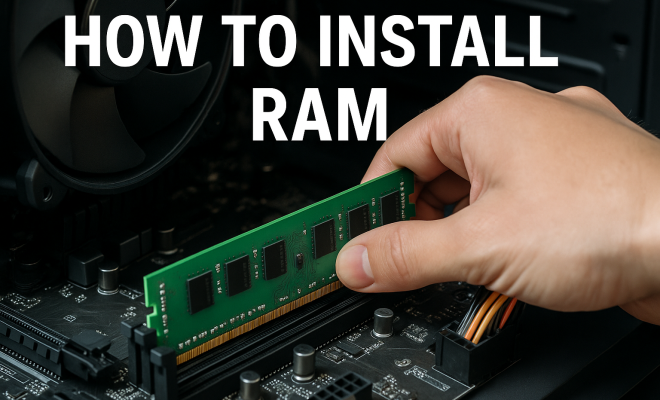
- Locate the RAM slots: Inside your computer, find the RAM slots on the motherboard. Typically, these are long slots situated near the CPU.
- Remove existing RAM (if necessary): If you’re replacing old RAM, gently push the clips at either end of the RAM module down to release it.
- Insert new RAM: Take your new RAM stick and align the notch in the RAM with the notch in the RAM slot. Carefully insert the RAM at a 30-degree angle, then press it down until the clips click into place.
- Repeat: If you’re adding multiple sticks, repeat the insertion process for each one.
- Close the case: Once all RAM is installed, replace the side panel of your case and secure it with screws.
After installation, plug your computer back in and power it on. Your system should automatically recognize the new RAM. However, if you encounter issues, double-check that the RAM is properly seated in the slots.
7. Verifying Your RAM Installation
Once your computer boots up, verifying that the RAM is recognized is crucial. On Windows, you can do this by right-clicking on the Start menu, selecting ‘System’, and looking for the ‘Installed RAM’ information. On a Mac, click on the Apple menu, select ‘About This Mac’, and check the memory information.
If the installed RAM doesn’t match what you installed, shut down your computer, open the case, and ensure the RAM sticks are seated correctly. It’s not uncommon for RAM to need a little nudge to fit snugly in the slots.
8. Troubleshooting Common Issues
Even with proper installation, issues can arise. One common problem is the computer failing to boot, often accompanied by a series of beeping sounds. This can indicate that the RAM is not seated correctly or is incompatible with your motherboard.
Another issue could be system crashes or instability, which might indicate that the RAM is defective or not compatible. Tools like MemTest86 can help you diagnose RAM issues by running a series of tests to check for errors.
Don’t hesitate to consult your motherboard’s manual or the manufacturer’s website for specific compatibility information, as well as troubleshooting guides that might address your specific issue.
9. Maintaining Your System Post Installation
After successfully installing RAM, it’s essential to maintain your system for optimal performance. Regularly clean the interior of your computer to prevent dust buildup. Dust can impede airflow and cause overheating, which can damage components.
Additionally, keep your operating system and drivers updated. This ensures that your RAM and other hardware run smoothly and efficiently. Using tools like Windows Update or software from your motherboard manufacturer can help keep everything in top shape.
Finally, consider monitoring your RAM usage through task managers or system monitoring tools. This will help you understand your system’s performance and determine if further upgrades might be necessary. (See: Health effects of computer use.)
10. Expert Perspectives: When to Upgrade Your RAM
Understanding when to upgrade your RAM can be pivotal. According to tech experts, an upgrade is often warranted when you notice performance issues, particularly in specific scenarios:
- Gaming: If you’re a gamer, and you find that your games are lagging or crashing, it might be time to boost your RAM. Many modern games recommend at least 16GB for optimal performance, especially if you play at high resolutions.
- Creative Work: For graphic designers, video editors, or 3D modelers, RAM requirements can be significant. Applications like Adobe Premiere Pro or Blender can easily consume 16GB or more, particularly when working with large files or multiple applications.
- Multitasking: If you often have many applications open simultaneously or use virtual machines, consider upgrading to 32GB or more. This will provide a smoother experience and reduce the chances of system slowdowns.
Experts also recommend monitoring your system’s performance. If you notice that your RAM usage frequently hits 80% or higher, that’s a sign you may need an upgrade.
11. Statistics on RAM Usage
Statistics can paint a clear picture of the importance of RAM in our daily computing tasks. For instance, recent studies indicate that:
- According to a survey by Steam, about 45% of gamers have 16GB of RAM, underscoring its importance in modern gaming.
- A report from PassMark Software shows that the average amount of RAM in desktop PCs has increased from 8GB to 16GB over the past five years.
- Research also indicates that systems with less than 8GB of RAM experience a 50% increase in the time it takes to complete memory-intensive tasks compared to systems with 16GB.
These statistics highlight the critical role that adequate RAM plays in ensuring smooth and efficient computing, particularly in demanding scenarios.
12. Comparing the Costs: Upgrading RAM vs. Buying a New PC
When faced with sluggish performance, many users wonder whether it’s more cost-effective to upgrade RAM or buy a new computer. Let’s break down the costs:
- RAM Upgrade: A typical RAM upgrade can range from $30 for basic models to $150 for high-performance options. Given the ease of installation, this is often a budget-friendly solution.
- New Computer: Purchasing a new PC can cost anywhere from $400 for basic models to $2000 or more for high-end gaming systems or workstations. This investment comes with the added benefit of upgraded components and warranties.
In many cases, if your existing computer still meets most of your needs, upgrading RAM offers a significant performance boost for a fraction of the cost of a new system. However, if your hardware is outdated or other components are likely to fail, investing in a new PC might be the better option.
13. FAQ: Common Questions About RAM Installation
Can I install RAM myself or should I use a professional?
Installing RAM is generally a straightforward process that many users can do themselves. As long as you follow the steps carefully and take proper precautions (like grounding yourself), you should be able to install RAM without professional help.
How do I know how much RAM I need?
The amount of RAM you need depends on your specific use cases. For basic tasks like web browsing and document editing, 8GB is usually sufficient. For gaming and creative work, consider 16GB or more. Monitoring your current RAM usage can also provide insights into your needs.
What happens if I install incompatible RAM?
If you install incompatible RAM, your computer may not boot up or could experience crashes and instability. Always consult your motherboard’s specifications to ensure compatibility before purchasing RAM. (See: Research on Random Access Memory.)
Can I mix different brands or speeds of RAM?
While you can technically mix different brands or speeds of RAM, it’s generally not recommended. Mixing RAM can lead to performance issues and instability. For the best results, try to use RAM sticks that are the same brand, size, and speed.
How long will my RAM last?
RAM is typically quite durable and can last many years. However, as software demands increase, you may find that your RAM becomes insufficient over time. Upgrading when necessary can ensure your system remains efficient.
What is dual-channel vs. single-channel RAM?
Dual-channel RAM refers to using two identical RAM sticks in tandem to increase the memory bandwidth, allowing for better performance compared to a single-channel setup. If your motherboard supports dual-channel memory, it’s advisable to install RAM in pairs for optimal performance.
Can I use RAM from a different computer?
Using RAM from a different computer is possible as long as the RAM type is compatible with your motherboard. However, ensure that the RAM specifications (speed, voltage, etc.) match to avoid potential issues.
How do I upgrade to more than one RAM stick?
To upgrade to multiple RAM sticks, simply ensure your motherboard has enough slots available. Follow the installation steps you learned earlier for each stick, making sure to install them in the recommended slots (usually color-coded) for dual-channel configurations.
What tools do I need to install RAM?
Besides the anti-static wrist strap and screwdriver mentioned earlier, you might also want a flashlight for better visibility inside the case and a microfiber cloth to wipe away any dust. Keeping your workspace organized can help prevent losing small screws and components.
Now that you know how to install RAM, you can significantly enhance your computer’s performance. By following these steps and understanding the essential factors, you’ll be able to upgrade your system confidently and efficiently, opening the door to improved productivity and smoother operation.
“`
Trending Now
Frequently Asked Questions
What is RAM and why is it important?
RAM, or Random Access Memory, is your computer's short-term memory, crucial for fast data storage and retrieval. It directly impacts your system's ability to handle multiple tasks simultaneously, making it essential for smooth performance in gaming, multitasking, and running applications.
How do I know if I need to upgrade my RAM?
If you experience slow performance during gaming, video editing, or when running multiple applications, it may indicate that your RAM is insufficient. Upgrading to more RAM can help reduce lag and improve load times, especially if you use RAM-intensive software.
What are the different types of RAM?
The most common type of RAM today is DDR (Double Data Rate) RAM, with DDR4 being the latest standard. DDR4 offers higher speeds and lower power consumption compared to its predecessors, making it important to choose the right type for compatibility with your system.
How much RAM is recommended for gaming?
For optimal gaming performance, a minimum of 8GB of RAM is typically recommended. However, for more demanding games or multitasking while gaming, upgrading to 16GB or more can provide a significant performance boost.
Can upgrading RAM extend the lifespan of my computer?
Yes, upgrading your RAM can extend the lifespan of your computer by improving its performance. It can make your system feel new again, allowing it to handle modern applications and multitasking needs without the need for a complete overhaul.
What’s your take on this? Share your thoughts in the comments below — we read every one.