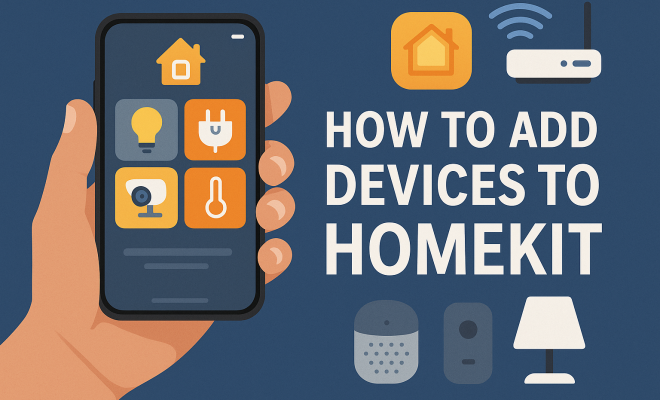
How to add devices to HomeKit
“`html
Setting up a smart home can feel daunting, especially with the plethora of options available at your fingertips. However, if you’re an Apple enthusiast, you might find that adding devices to HomeKit is a straightforward and rewarding process. HomeKit serves as Apple’s smart home platform, enabling you to control various smart devices using your iPhone, iPad, or even your voice via Siri. In this extensive guide, we’ll walk you through everything you need to know about how to add devices to HomeKit, from the types of devices compatible with the platform to troubleshooting common issues.
1. What is HomeKit?
HomeKit is Apple’s smart home framework that allows users to control smart home devices via their Apple devices. Launched in 2014, HomeKit integrates a range of devices, including smart lights, thermostats, locks, cameras, and more. Through the Home app, users can manage all compatible devices, create automation routines, and control their home environment effortlessly.
One of the standout features of HomeKit is its security. All communications between devices and the Home app are encrypted, ensuring that your data remains secure. Additionally, HomeKit supports remote access through secure connections, meaning you can control your devices even when you’re not at home. This focus on security has made it a popular choice among Apple users seeking to enhance their smart home experience.
2. Choosing Compatible Devices
Before you begin adding devices to HomeKit, it’s essential to ensure that the devices you’re interested in are compatible with the platform. Many manufacturers now produce HomeKit-compatible devices, and Apple maintains a list of certified products on its website. Some of the most common categories of devices include:
- Smart Lights: Brands like Philips Hue and LIFX offer a wide range of HomeKit-compatible lighting options.
- Thermostats: Smart thermostats from ecobee and Honeywell are great choices for managing your home’s climate.
- Smart Locks: Companies like August and Schlage provide smart locks that can be conveniently controlled through HomeKit.
- Cameras: Security cameras from brands like Logitech Circle and Arlo integrate seamlessly with HomeKit.
When selecting devices, consider your specific needs. For example, if energy efficiency is a priority, look for smart thermostats that can help reduce energy consumption. If security is your main concern, opt for smart locks and cameras that provide real-time monitoring and alerts.
3. Setting Up HomeKit
To get started with HomeKit, you’ll first need to ensure that your Apple device is running the latest version of iOS or iPadOS. Once that’s confirmed, follow these steps:
- Open the Home app: This app is pre-installed on all Apple devices. You can find it on your home screen.
- Create a Home: If you’re using HomeKit for the first time, tap on “Add Home” and enter a name for your home.
- Add Rooms: Organizing devices into rooms can help you manage and control them more efficiently.
- Add Users: If you want to share access with family members or friends, you can invite them via the Home app.
After setting up your home, you’re ready to start adding devices. The process is generally straightforward, but it can vary depending on the device manufacturer.
4. How to Add Devices to HomeKit
Adding devices to HomeKit usually involves a few simple steps. Here’s a general guide:
- Power on the Device: Make sure the device is plugged in and powered on.
- Open the Home App: Launch the Home app on your Apple device.
- Tap on the “+” Icon: In the Home app, tap the “+” icon located in the upper right corner.
- Select “Add Accessory”: Choose this option to start the setup process.
- Scan the QR Code: Most HomeKit devices come with a QR code or setup code. Use your device’s camera to scan it.
- Follow On-Screen Instructions: Complete the setup by following the instructions provided in the app.
For devices without a QR code, look for a HomeKit setup code, which should be included in the user manual or on the device itself. Make sure the device is on the same Wi-Fi network as your Apple device during setup.
5. Using Siri with HomeKit
One of the most appealing features of HomeKit is its integration with Siri, Apple’s voice-activated assistant. By adding devices to HomeKit, you gain the ability to control them with simple voice commands. For example, you can say, “Hey Siri, turn on the living room lights” or “Set the thermostat to 70 degrees.”
To make the most of Siri, consider creating custom voice commands through the Home app. You can assign specific phrases to activate different scenes or routines, enhancing the convenience of your smart home experience. With the ability to control devices just by speaking, your home can become even more intuitive and user-friendly. (See: HomeKit overview on Wikipedia.)
6. Creating Automations
Automations are one of the most powerful features of HomeKit, allowing you to streamline your smart home experience further. This feature enables you to set rules for your devices based on triggers like time of day, location, or other device states. For instance, you can program your lights to turn on automatically at sunset or set your thermostat to lower when you leave the house.
To create an automation, navigate to the “Automation” tab in the Home app, tap “Create New Automation,” and select the trigger that best suits your needs. You can then specify which devices will respond to that trigger and what actions they should take. This capability allows for a highly personalized smart home setup that caters to your lifestyle.
7. Troubleshooting Common Issues
While adding devices to HomeKit is usually a seamless process, you might encounter some common issues. Here are a few troubleshooting tips:
- Device Not Found: Ensure that the device is powered on and connected to the same Wi-Fi network as your Apple device. Restart both the device and the Home app if necessary.
- QR Code Not Scanning: If the QR code isn’t scanning, make sure there’s sufficient lighting and that the camera is focused. Alternatively, try entering the setup code manually.
- Connectivity Issues: If devices are not responding, check your Wi-Fi connection. A strong and stable network is crucial for the smooth operation of HomeKit devices.
If these solutions don’t resolve the issue, consulting the user manual for your specific device or reaching out to the manufacturer’s customer support can provide additional assistance.
8. Popular HomeKit-Compatible Devices
There’s a plethora of HomeKit-compatible devices available on the market, making it easy to find the right fit for your needs. Here are a few popular options that are well-reviewed and widely used:
- Philips Hue Lights: Known for their versatility and vibrant colors, Philips Hue provides a range of smart bulbs and fixtures that integrate seamlessly with HomeKit.
- ecobee Smart Thermostat: This thermostat not only learns your heating and cooling preferences but also allows for remote access through the Home app.
- August Smart Lock: A popular choice for those looking for security, this smart lock offers keyless entry and can be controlled via HomeKit.
- Logitech Circle Camera: For security monitoring, this HomeKit-compatible camera offers high-definition video and easy integration with your smart home setup.
As you explore different devices, it’s crucial to read reviews and ensure they meet your specific needs, whether that’s energy efficiency, security, or convenience.
9. Future of HomeKit and Smart Homes
The future of HomeKit looks promising, especially with Apple continuously expanding its smart home ecosystem. As consumers increasingly adopt smart home technology, HomeKit is expected to see more integrations and innovations. Apple is also focusing on enhancing the user experience through regular software updates, making it easier to add devices to HomeKit and control them.
With the rise of technologies like Matter, a connectivity standard aimed at simplifying smart home device integration across platforms, HomeKit users can look forward to a more streamlined experience. Matter supports HomeKit, which means more devices will become compatible, allowing for a broader selection when setting up your smart home.
As you consider adding devices to HomeKit, keeping an eye on new developments in the smart home industry will ensure that you stay ahead of the curve and enjoy the latest innovations that enhance your lifestyle.
10. Advanced Features of HomeKit
Beyond basic control, HomeKit offers several advanced features that allow for a more customized and secure smart home experience. Here are some of the most noteworthy features:
- HomeKit Secure Video: This feature enhances privacy by allowing users to store recorded video footage from compatible cameras securely in iCloud. Only you can access this footage, keeping your home security data safe from prying eyes.
- Scenes: You can create scenes that allow multiple devices to work together based on your preferences. For instance, a “Movie Night” scene might dim the lights, close the blinds, and set the thermostat to a cozy temperature all at once.
- Remote Access: HomeKit enables you to control your devices even when you’re away from home, provided you have a HomePod, Apple TV, or iPad set up as a home hub. This feature is particularly useful for monitoring security cameras or adjusting your thermostat while away.
These advanced features not only enhance your security but also allow for a more tailored and satisfying smart home experience.
11. Statistics on Smart Home Adoption
The adoption of smart home technology has been on the rise in recent years. According to recent market research, it’s estimated that by the end of 2023, nearly 50% of households in the U.S. will have at least one smart home device. Here are some additional statistics to consider:
- Approximately 30% of households currently use smart lighting solutions.
- Smart speakers, such as those that integrate with HomeKit, account for over 70% of smart home device sales.
- Research indicates that energy-efficient devices, such as smart thermostats and energy monitoring systems, could lead to an average savings of 10-15% on energy bills over time.
These statistics highlight the growing trend and acceptance of smart home technologies, emphasizing the importance of platforms like HomeKit. (See: CDC on technology in health communication.)
12. Expert Perspectives on HomeKit
Experts in the tech and smart home industries often share insights on the benefits and challenges of HomeKit. Here are some viewpoints worth noting:
- Security Focus: Many experts praise HomeKit for its security-first approach, stating that its encrypted communication makes it a standout choice for privacy-conscious consumers.
- User Experience: Tech reviewers frequently mention the intuitive nature of the Home app, highlighting that even newcomers to smart home technology can easily navigate and set up devices.
- Compatibility Concerns: Some experts point out the challenge of finding HomeKit-compatible devices, suggesting that consumers stay updated on new releases as more manufacturers adopt the platform.
These perspectives help potential users understand the advantages of choosing HomeKit while also being aware of its limitations.
13. FAQs About Adding Devices to HomeKit
To help you navigate the process of adding devices to HomeKit, here are some frequently asked questions:
What devices can I add to HomeKit?
You can add a variety of devices to HomeKit, including smart lights, locks, thermostats, cameras, sensors, and more. Always check for the HomeKit logo on the packaging to ensure compatibility.
Can I control HomeKit devices when I’m away from home?
Yes, as long as you have an Apple TV, HomePod, or iPad set up as a home hub, you can control your HomeKit devices remotely using the Home app.
Will HomeKit integrate with other smart home platforms?
With the introduction of Matter, HomeKit is positioned to work alongside other platforms, which means you may see better interoperability in the future. Keep an eye on updates from Apple for more information.
How do I troubleshoot a device that won’t connect to HomeKit?
If you’re having trouble connecting a device, ensure it’s on the same Wi-Fi network, check for firmware updates, and restart both the device and your router. If issues persist, consult the device’s manual or manufacturer’s support.
Are there any costs associated with using HomeKit?
The Home app is free to use, but some devices may require purchase and installation costs. Optional subscriptions may apply for features like HomeKit Secure Video storage.
Can I add a device to multiple homes in HomeKit?
No, a device can only be added to one HomeKit home at a time. If you want to use it in another home, you’ll need to remove it from the current home first.
14. Setting Up HomeKit with Apple’s Ecosystem
One of the key advantages of using HomeKit is its seamless integration with Apple’s broader ecosystem. If you’re already invested in Apple products, setting up HomeKit is even more beneficial. For instance, if you own devices like the Apple Watch or AirPods, you can conveniently control your smart home devices from your wrist or while on the go. This integration allows for quick access and control, making it easier to manage your home even when you’re not physically present. (See: New York Times article on HomeKit.)
Additionally, any updates to the iOS or iPadOS will enhance the functionality of HomeKit, meaning your smart home can evolve alongside your Apple devices. This creates a dynamic and adaptable system that stays current with the latest tech advancements.
15. HomeKit and Energy Efficiency
Energy efficiency is another area where HomeKit shines. Many compatible devices are designed not just for convenience but also for energy savings. Smart thermostats, like those from ecobee and Nest, can learn your habits and optimize heating and cooling schedules to reduce energy waste. In fact, studies show that homes equipped with smart thermostats can save up to 15% on heating and cooling bills.
Smart lighting systems also contribute significantly to energy efficiency. By scheduling lights to turn off when you leave a room or dimming them during the day, you can cut down on unnecessary energy use. Moreover, using sensors that detect when a room is occupied can allow lights to turn on and off automatically, ensuring they’re only used when needed.
16. Exploring HomeKit-Compatible Sensors
Sensors play a vital role in enhancing your HomeKit setup. HomeKit-compatible sensors can monitor various home conditions and provide real-time feedback. For example, motion sensors can trigger your security cameras or lights to turn on, while environmental sensors can report temperature, humidity, and air quality levels.
Devices like the Eve Room or Netatmo Weather Station not only provide data but can integrate with HomeKit to create automations. For instance, if a temperature sensor detects that a room is too hot, it can automatically adjust your smart thermostat to cool it down. These integrations elevate your smart home from simply automated to truly responsive to the environment, enhancing both comfort and efficiency.
17. Integrating HomeKit with Your Daily Routine
Integrating HomeKit into your daily routine can transform the way you live. Imagine waking up in the morning and having your coffee maker start brewing as your smart blinds gently rise to let in the sunlight. Or picture returning home from work to a welcoming environment where the lights adjust to your preferred brightness, and the thermostat has already cooled the house down for you.
By creating specific scenes and automations tailored to your lifestyle, you can ensure that your smart home adapts to your needs effortlessly. For example, a “Leaving Home” scene can lock the doors, turn off lights, and adjust the thermostat all at once, simplifying your exit and providing peace of mind.
18. Conclusion: Embracing the Future with HomeKit
As smart home technology continues to evolve, embracing platforms like HomeKit can enrich your lifestyle. With the ability to add devices seamlessly, control them through Siri, and create personalized automations, HomeKit provides a comprehensive solution for a connected home. By being aware of the latest products and trends and understanding how to troubleshoot common issues, you can enhance your smart home experience. The future of HomeKit looks bright, and now is the perfect time to explore its capabilities.
“`
Trending Now
Frequently Asked Questions
What devices are compatible with HomeKit?
HomeKit is compatible with a variety of smart home devices, including smart lights, thermostats, locks, cameras, and more. Popular brands like Philips Hue, LIFX, ecobee, and Honeywell offer HomeKit-compatible products. You can find a comprehensive list of certified devices on Apple's website.
How do I add devices to HomeKit?
To add devices to HomeKit, ensure they are compatible, then open the Home app on your iPhone or iPad. Tap the '+' icon, select 'Add Accessory', and follow the on-screen instructions. You may need to scan a QR code or enter a setup code provided with the device.
Is HomeKit secure?
Yes, HomeKit prioritizes security by encrypting all communications between devices and the Home app. This ensures that your data remains safe. HomeKit also supports remote access through secure connections, allowing you to control devices even when away from home.
Can I control HomeKit devices with Siri?
Absolutely! HomeKit allows you to control your smart devices using Siri voice commands. You can ask Siri to turn lights on or off, adjust the thermostat, or even run automation routines, making it a convenient way to manage your smart home.
What is the Home app used for?
The Home app is Apple's interface for managing HomeKit-compatible devices. Through the app, users can view and control their smart home devices, create automation routines, and set up scenes to customize their home environment easily.
What’s your take on this? Share your thoughts in the comments below — we read every one.